

Abit AX8
Introduction
When we had our look at the Abit Fatal1ty AN8, we were quite pleased with the great performance, overclocking headroom, and the general physical layout of the motherboard. The motherboard ran flawlessly and gave us no problems whatsoever. The only annoyance was that the motherboard provided low VDIMM options. While it did allow some crazy overclocks, it didn’t allow low latency lovers to use Winbond BH5 chips, new or old. The Fatal1ty AN8 is not the only new Socket 939 solution Abit has. Another offering is the AX8, which features VIA’s K8T890 chipset.
Ever since Nvidia came into the motherboard chipset feud, VIA’s popularity as the choice for motherboard chipset started to fade. They used to be the king with their KT133 and KT266 series. There are still many enthusiasts out there who are loyal fans. They strongly believe that VIA provides the best chipset and the best drivers. Personally, I go with the best performer. There are times when I strongly recommend a certain component, but I believe in the numbers I see. With the price of the AX8 so affordable, perhaps this board can be one of the top choices amongst enthusiasts?
Abit AX8 Package
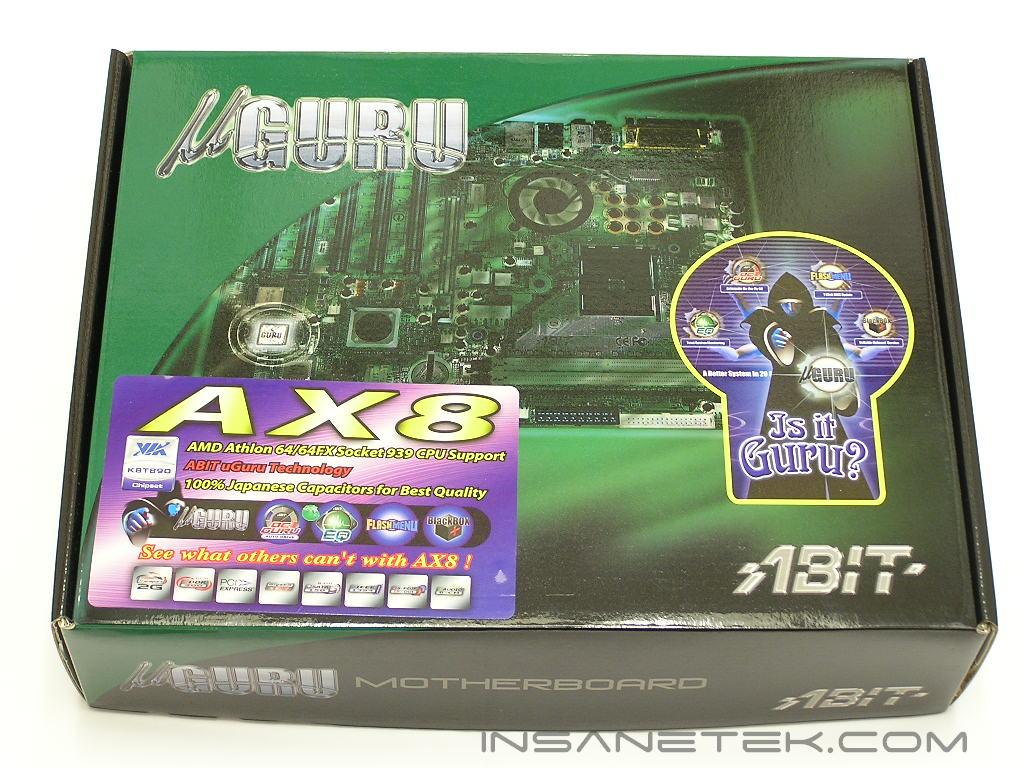
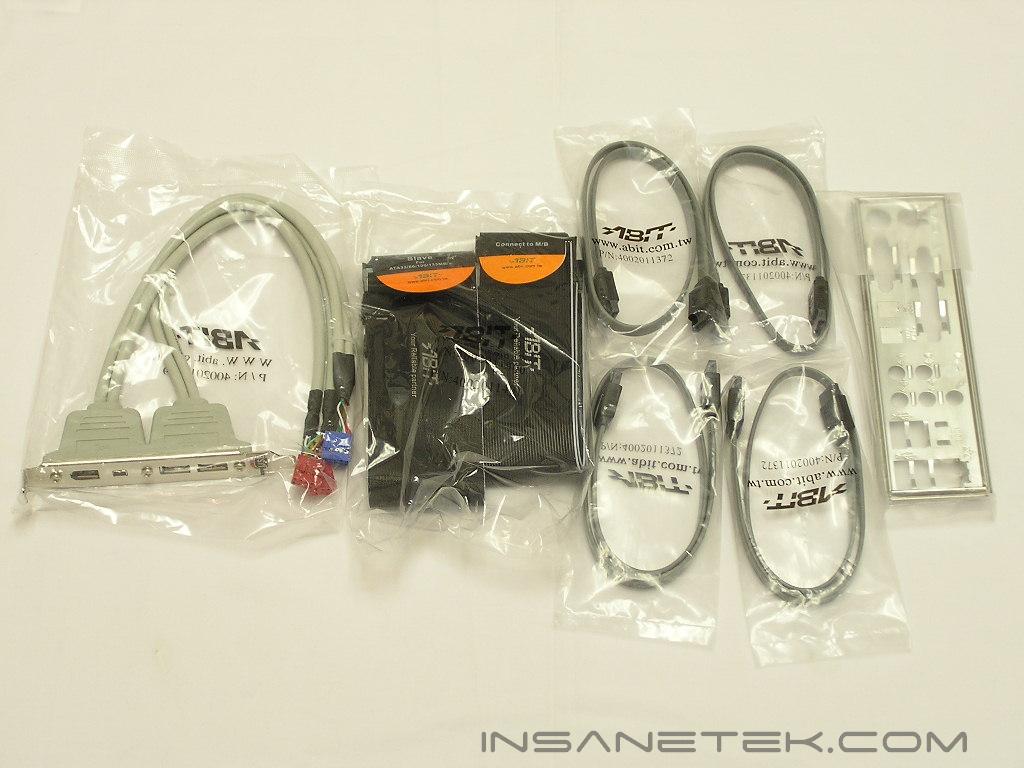
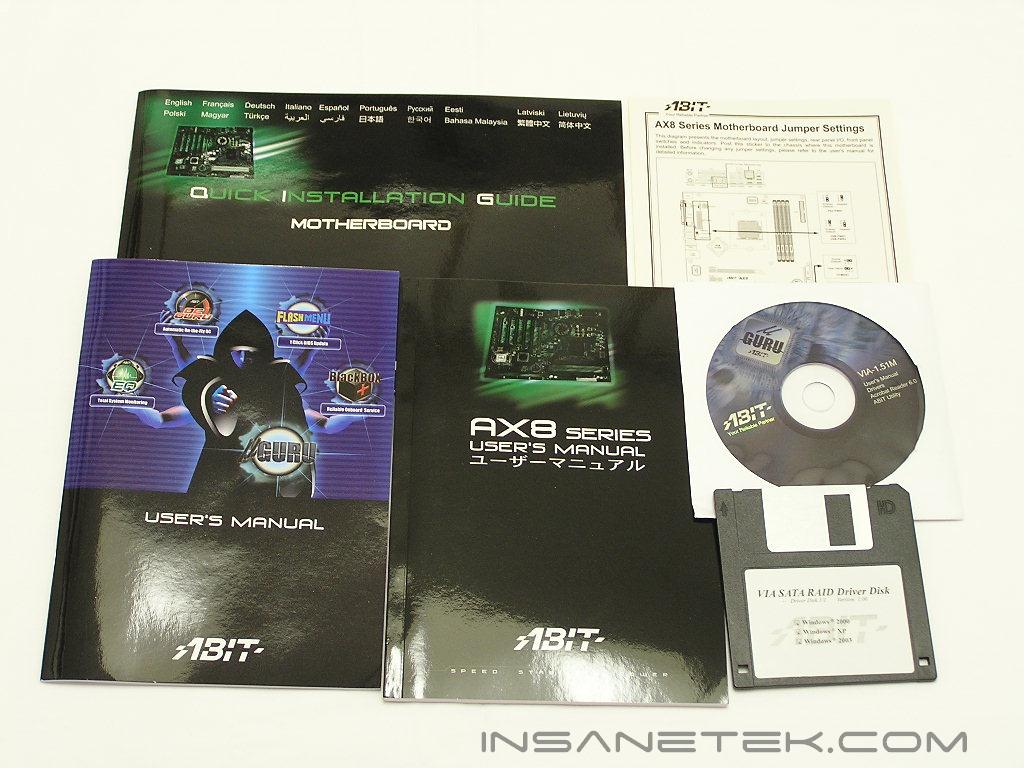
Despite the low price, the bundle with the AX8 is up to par. Although there are now rounded cables, the flat ribbon cables are at least color-coordinated to be black. There are 4 SATA cables included, as well as the I/O shield, user manuals, drivers CD, and RAID drives in floppy. The AX8 continues the trend of a red/orange PCB flavor. It’s not as sexy as the fiery red on the Fatal1ty series, but the red/orange still has a great physical appeal.
Motherboard Layout
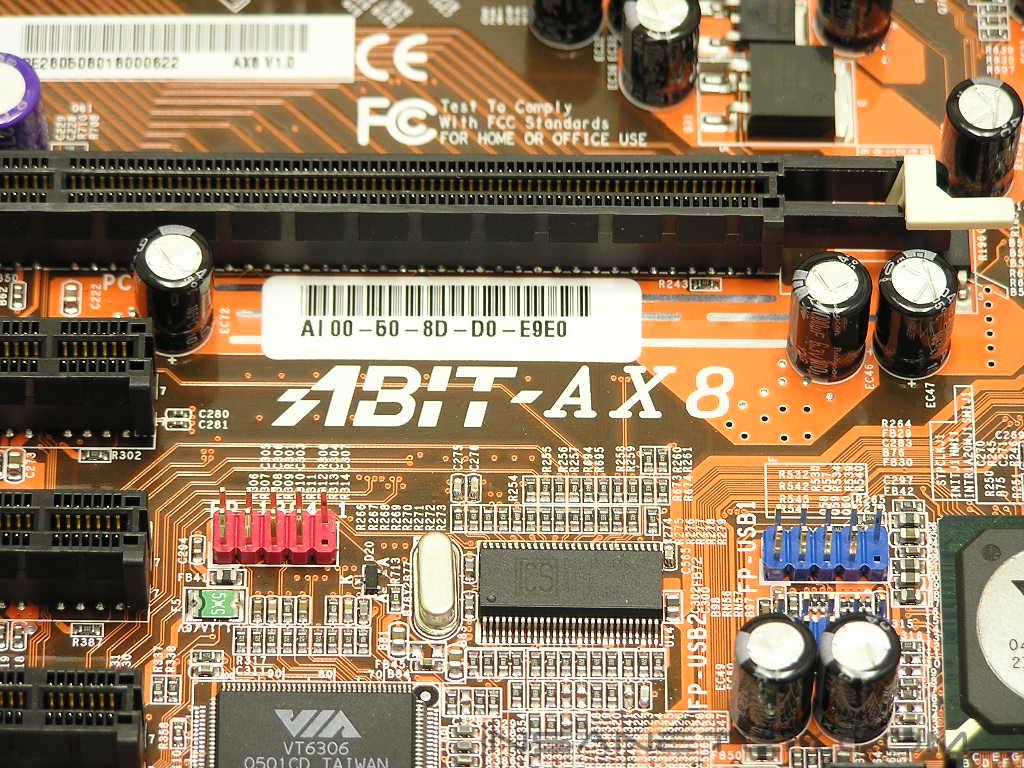
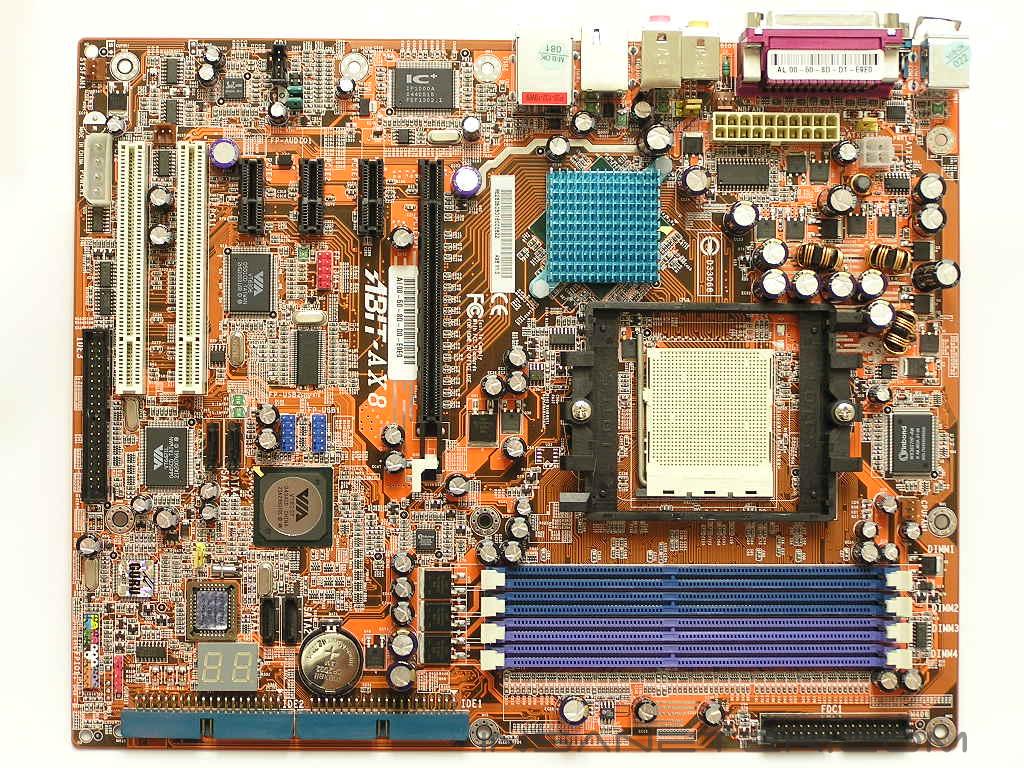
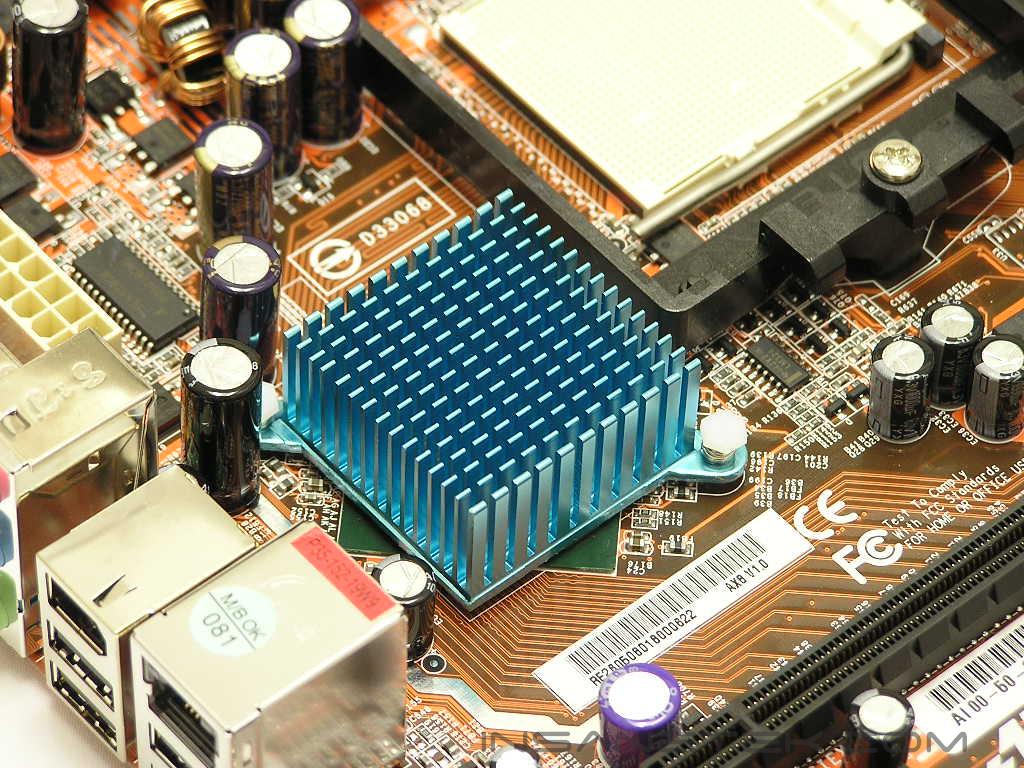
Unlike the Nvidia single MCP chipset, VIA continues the two bridge design–the Northbridge and the Southbridge. The single Nvidia MCP gets quite warm during full system load, mainly because it’s the only controller for all processing interactions. VIA’s solution separates the workloads to the Northbridge and Southbridge and to have a cooler, in terms of temperature, design. The Northbridge is VIA’s K8T890 chipset, which is nothing but the K8T800 Pro with PCI-E support. The Southbridge is the VT8237 chipset. With components running cooler, a passive cooling solution can be had. The use of two separate bridges also calls for a better overall motherboard layout. One important factor in a motherboard is the layout design. Overclockers wouldn’t really care about that since they focus mainly on performance, but there are some who actually care. Like the KV8 Pro, the Northbridge is located all the way to the left of the motherboard. It’s cooled by a passive aluminum heatsink with multiple fins. The Southbridge is left bare and sits next to the PCI slots area. If you ever wanted to provide better cooling to the Northbridge, it can easily be done as there is nothing blocked.
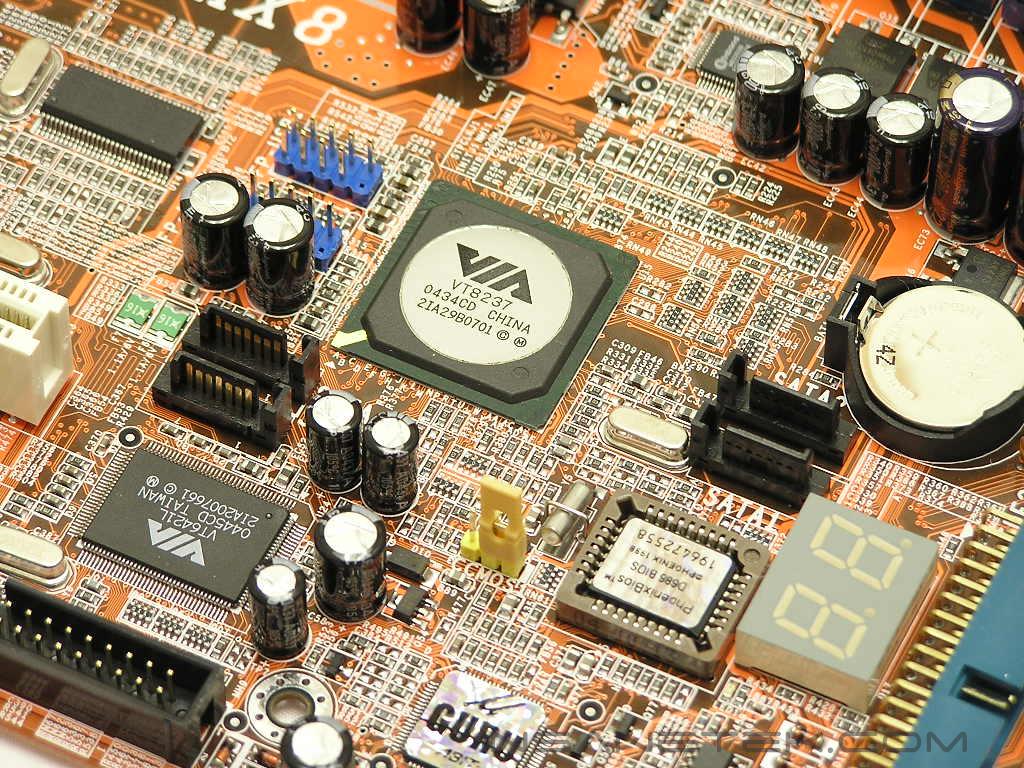
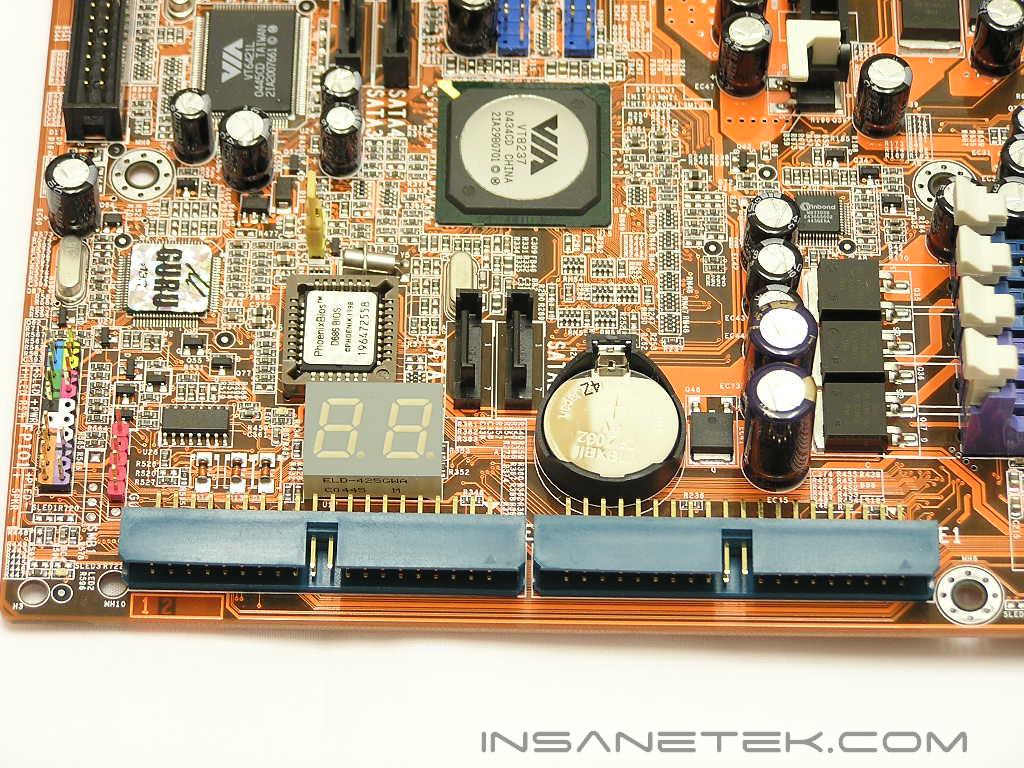
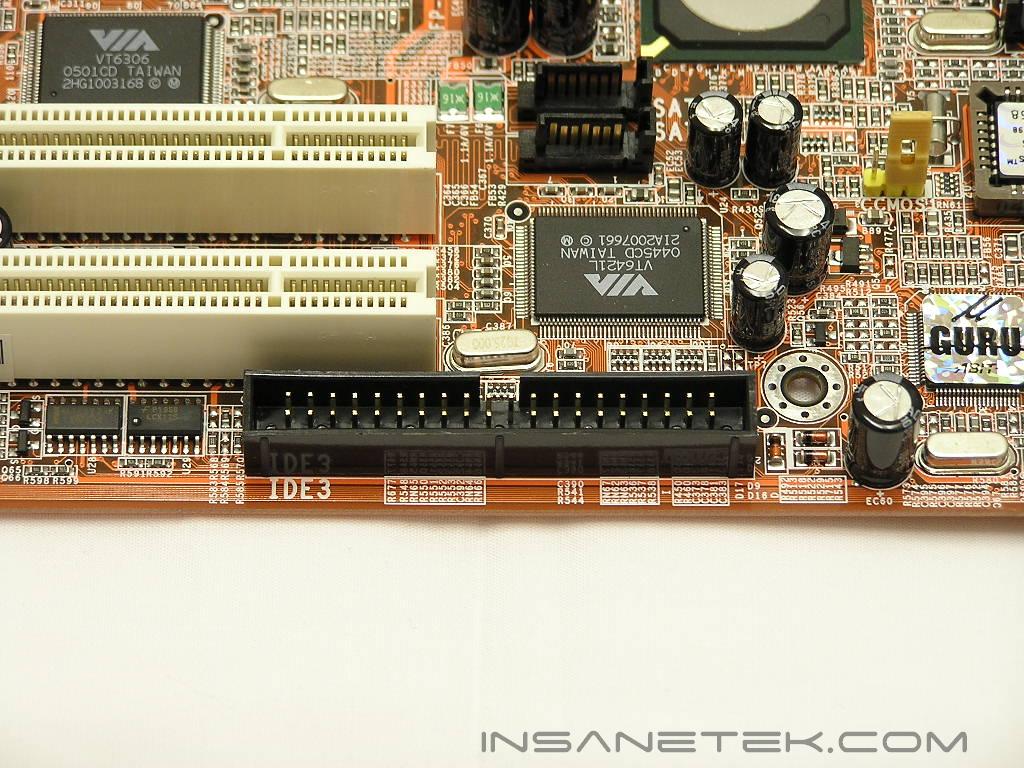
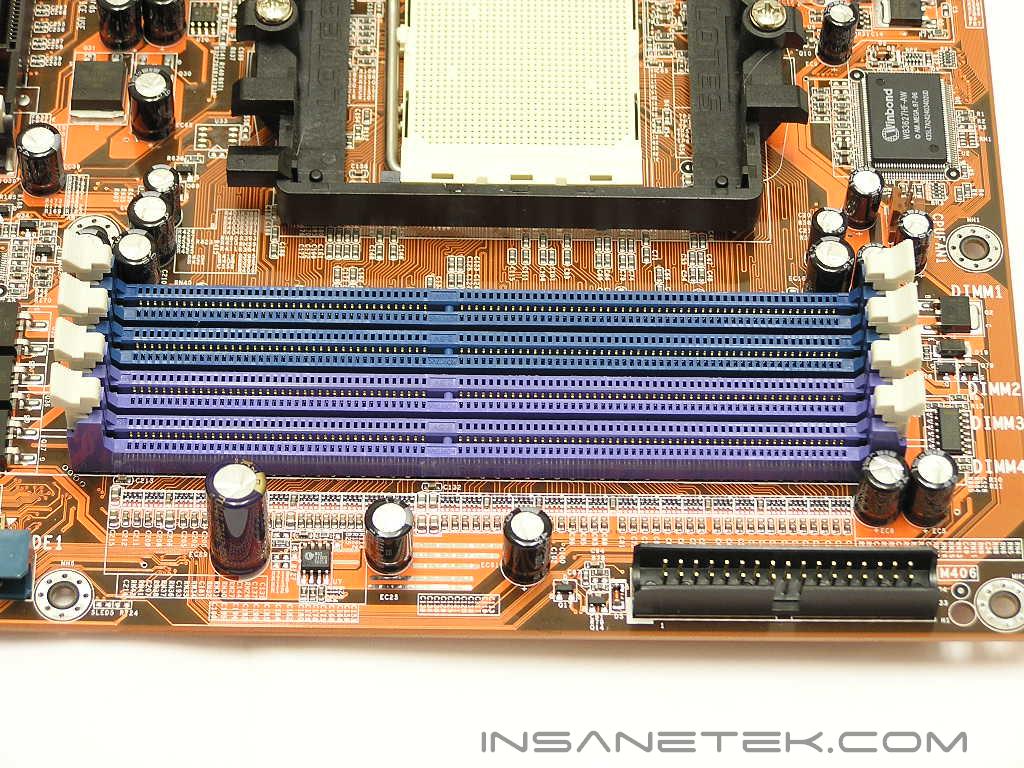
I believe Abit was the first to introduce IDE slots positioned at a 0° angle. They continue that with the AX8. The VT8237 Southbridge provides two SATA port connections for RAID 0, 1, JBOD. The two other SATA ports are controlled by VIA’s VT6421L chipset. It supports RAID 0, 1, 0+1, and JBOD. The floppy port is located all the way at the bottom of the motherboard. It’s not an ideal placement considering the majority of the case designs out there, but it’s actually the ideal location for cases with BTX design. What cases you ask? Cases like the SilverStone TJ06, Enermax MaxFlow, ThermalRock Circle, and the Thermaltake Kandalf all have the BTX motherboard tray design. The DIMM slots are color-coded purple and blue. To enable dual channel, simply install two sticks of memory into two of the same colored DIMM slots. Throughout all testing, the motherboard did not have a problem with memory installed in slots 1 and 2 or slots 3 and 4, a problem I encountered with the DFI Ultra-D.
Motherboard Layout Continued
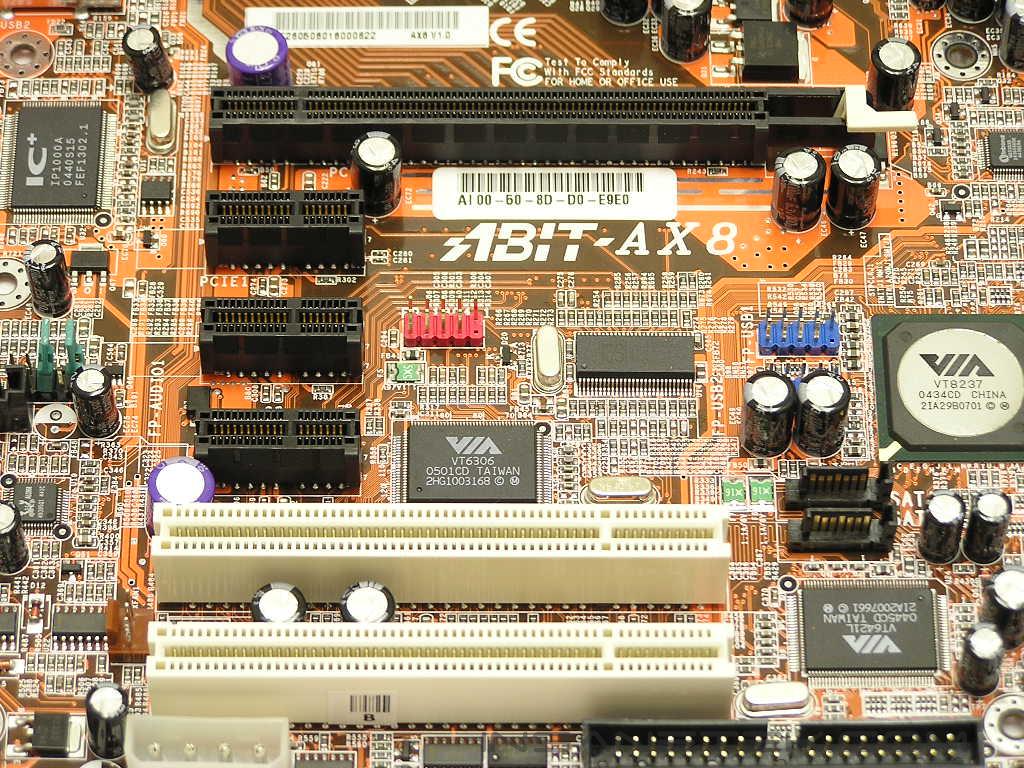
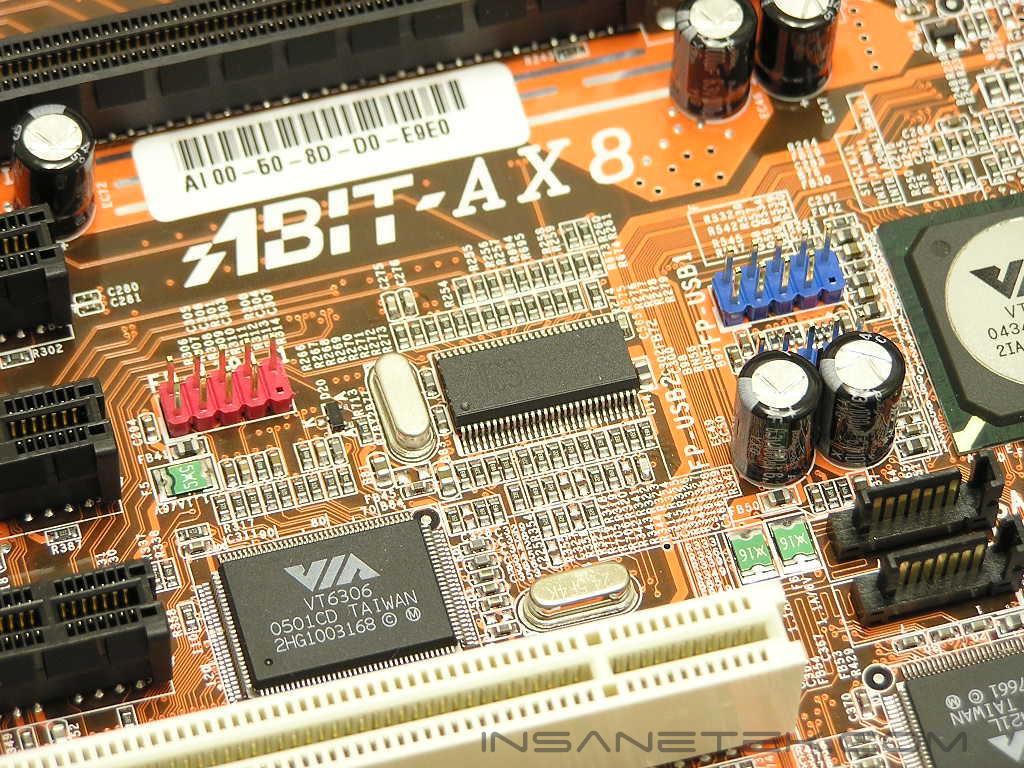
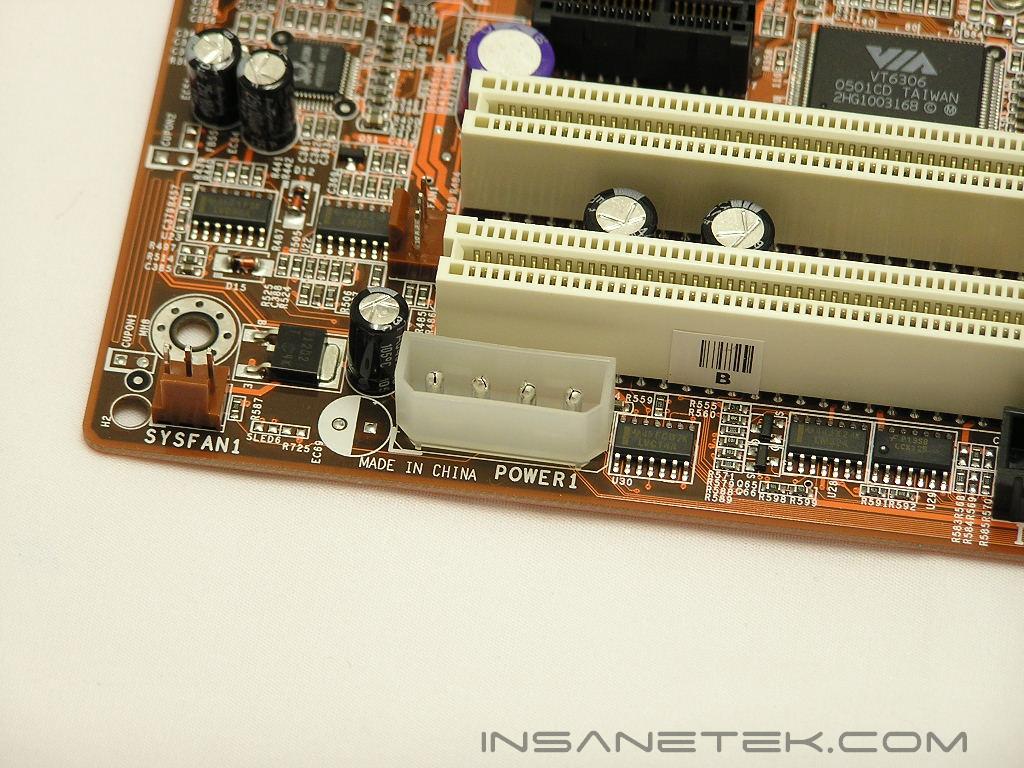
Since the current inclusion of PCI-E x1 slots is basically useless, the slots are arranged so that the space between the PCI-E x16 and regular PCI slots is at its maximum. This is great because it allows overclockers and watercooling junkies to use large heatsinks and waterblocks to cool the graphic card and not sacrifice the limited amount of PCI slots available. The AX8 provides three PCI-E x1 slots, one PCI-E x16 slot, and two regular 32-bit PCI slots. Although the two PCI slots suffice, I would trade one of the PCI-E x1 slots for a third PCI slot. I can already think of a way to fill up three PCI slots and I’m sure that most of you can as well. Next to the PCI-E x1 slots are the headers for extra IEEE 1394 and USB. At the very bottom is a 4pin Molex connector. I’m not sure just what this is for, as the board offers no SLI option. The extra 4pin Molex connection is used to increase power when SLI is enabled, but since VIA’s current chipset doesn’t offer that option, this Molex connector is quite useless. I tested the system with it plugged and unplugged and everything was the same. It didn’t overclock any different either.
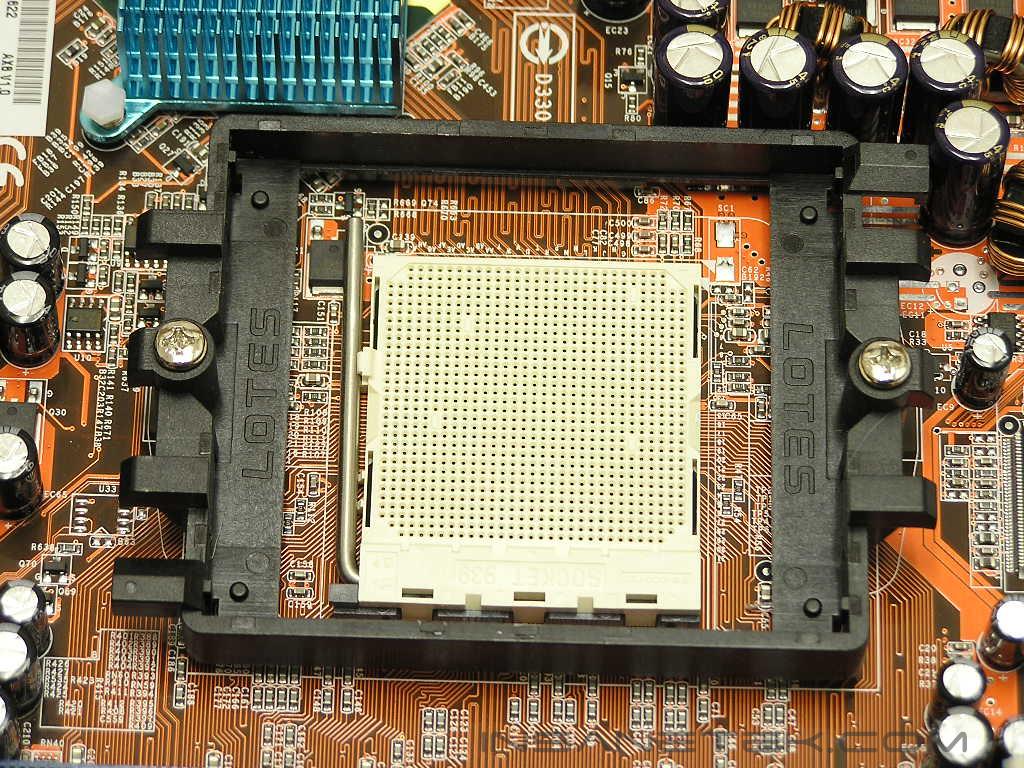
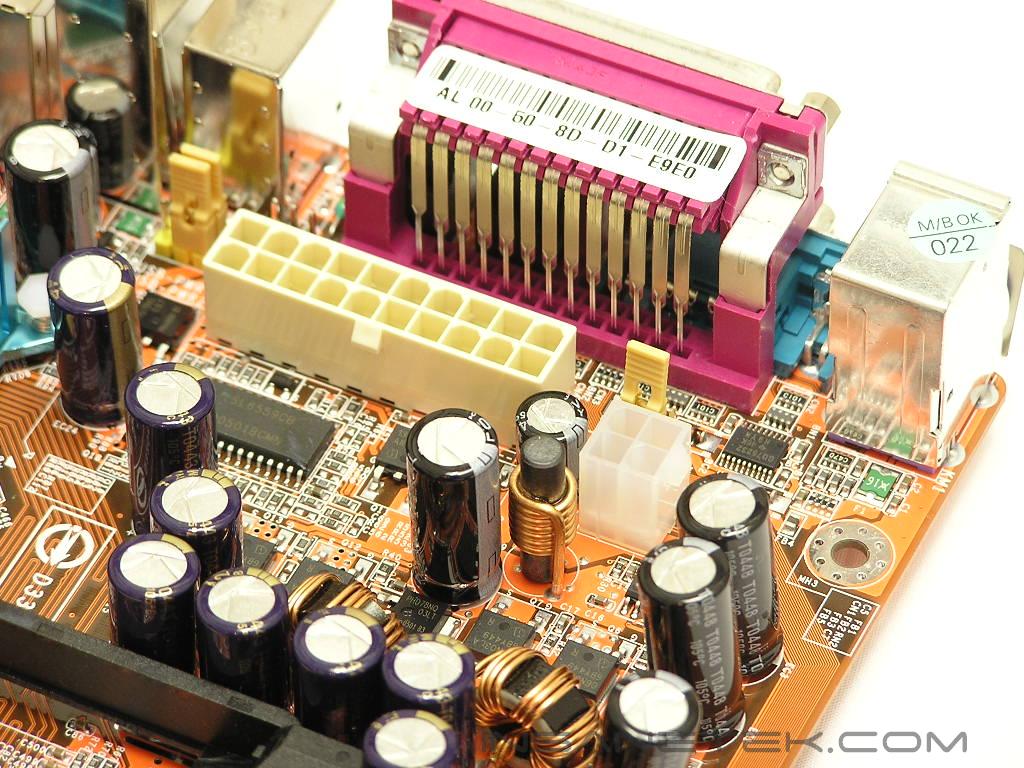
The CPU socket doesn’t look like it has much room, since it has the Northbridge heatsink located to the left of it. Users with large heatsinks like the Thermalright XP-120 should be careful. Perhaps the most annoying layout about the AX8 would be the motherboard ATX power connector. Up at the top left corner, the location is terrible. The ATX cable is the hardest cable to manage because it’s so big. With the connector placed at the top left corner, the power cable can easily get in the way of CPU coolers. Not good here.
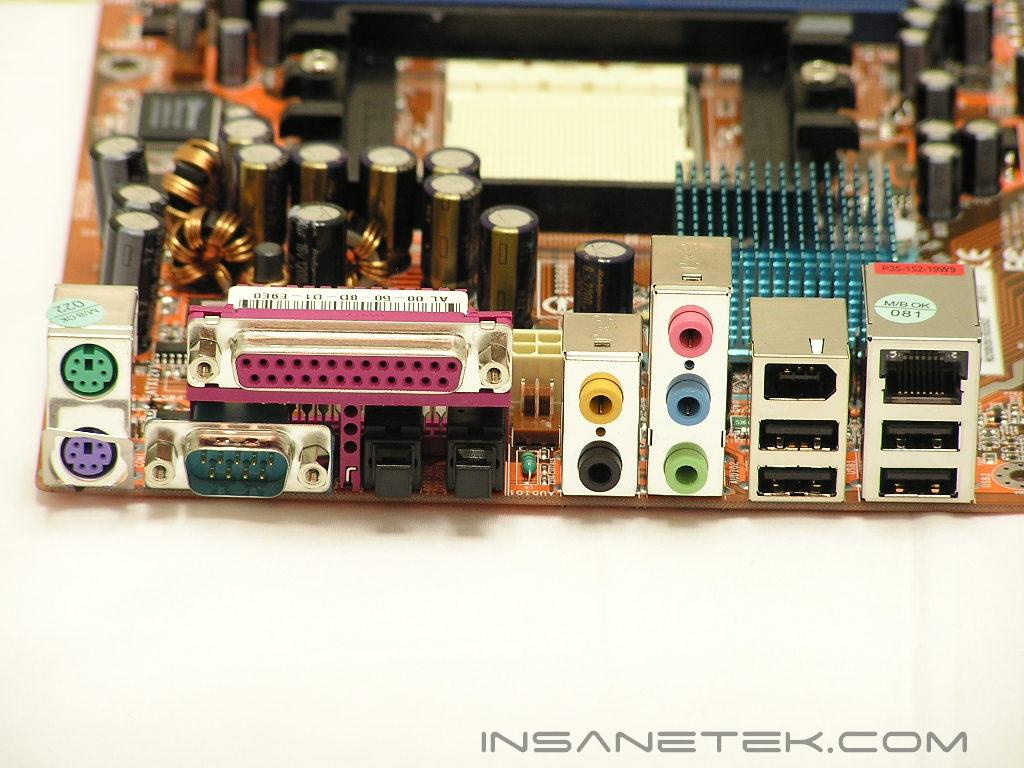
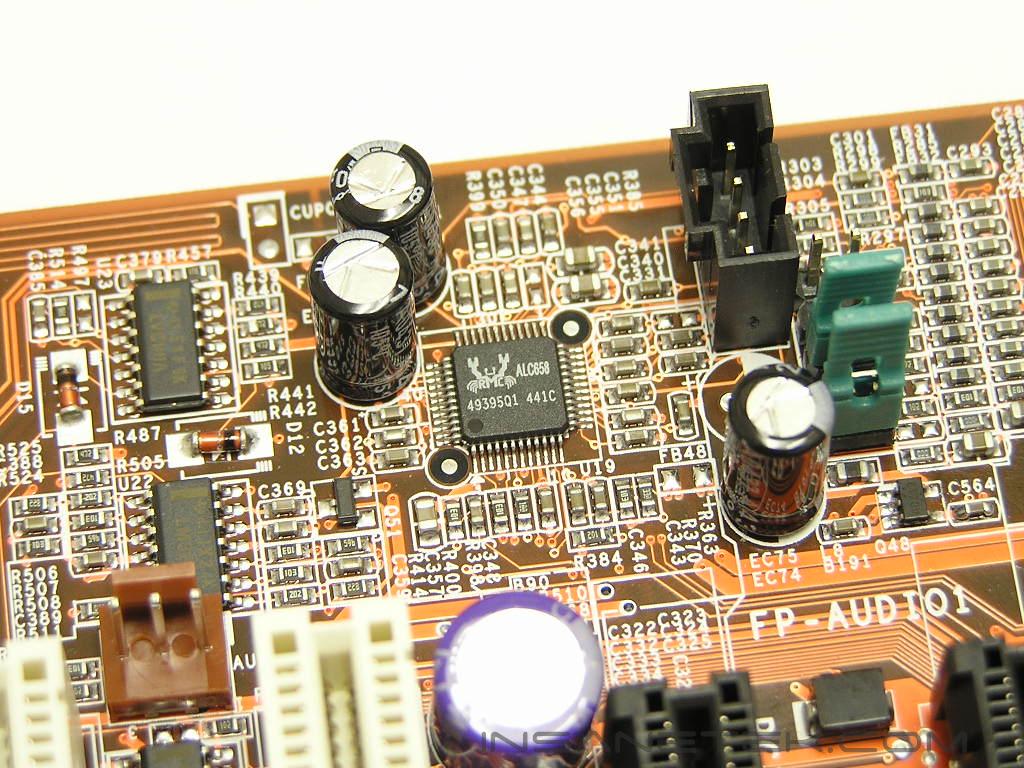
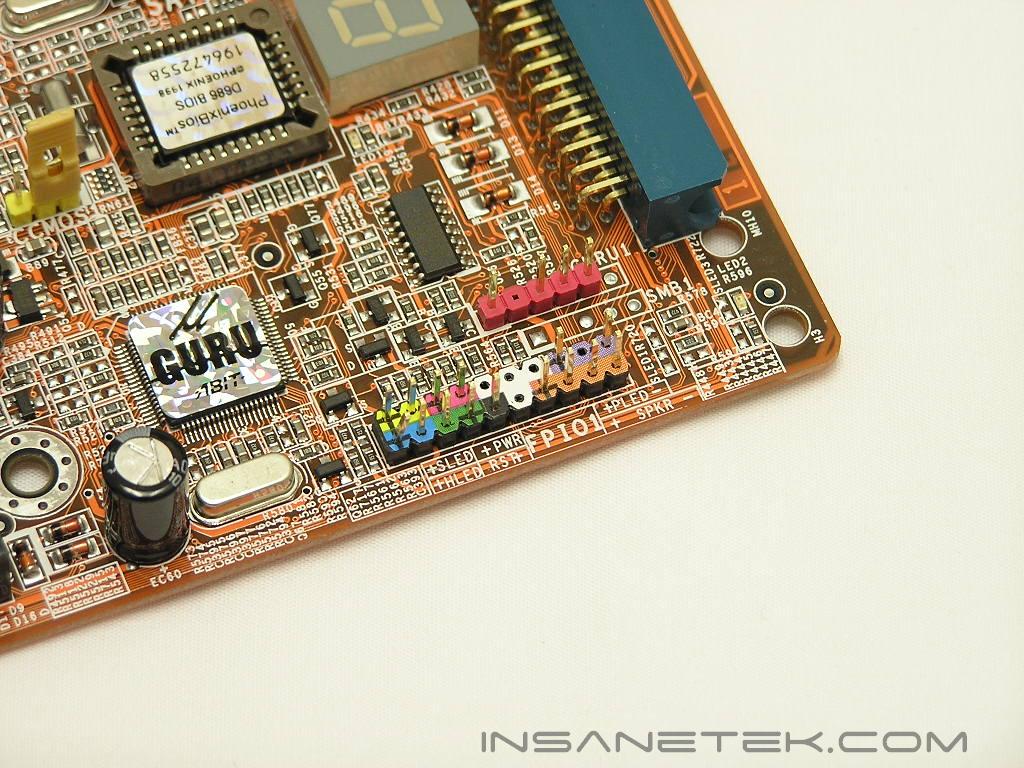
At the back I/O are the common keyboard and mouse PS2 ports, one serial, one parallel, SPDIF In/Out, 6-channel audio solution, four USB, one IEEE 1394, and a single RJ45. The 6-channel sound solution is provided by Realtek’s ALC658 audio controller. The controller isn’t too shabby and will be sufficient for typical music listening and games, but hardware audiophiles will want to pick up something else. Although I’ve never personally experienced any problems, I’ve heard many incidents where the controller causes speakers to crackle and pop like cereal. At the front I/O are the connections for your power and reset buttons and power and hard drive LED’s. All the connections are color coded and nicely labeled and is very easy to differentiate. I didn’t have to refer to any manuals to find my way.
BIOS
While DFI’s nF4 series motherboards provide awesome memory tweaking and voltage options, it’s not the easiest to navigate. Abit’s implementation of the SoftMenu/uGuru Utility is the easiest I’ve ever used. All the fan adjustments, hardware monitoring, voltage adjustments, and overclocking options are all located under the uGuru Utility. All the memory options are located under the Advanced Chipset section.
- VCore: 1.4v-1.75v
- VDIMM: 2.5v-3.2v
- DDR Reference Offset Voltage: -100 to 0 to +100
- Chipset Voltage: 1.5v-1.65v
- Southbridge Voltage: 2.5v-2.65v
- HyperTransport Voltage: 1.2v-1.4v
- LDT Multipliers: AUTO, 1x-5x
- Memory Dividers: DDR400, DDR333, DDR266, DDR200, AUTO
- PCI-E Frequency: 99MHZ-130MHZ
- PCI Frequency: AUTO, 33MHZ, 37MHZ, 44MHZ
- HyperTransport Frequency (HTT): 200MHZ-400MHZ
- CPU Multiplier: 5x-highest your CPU allows
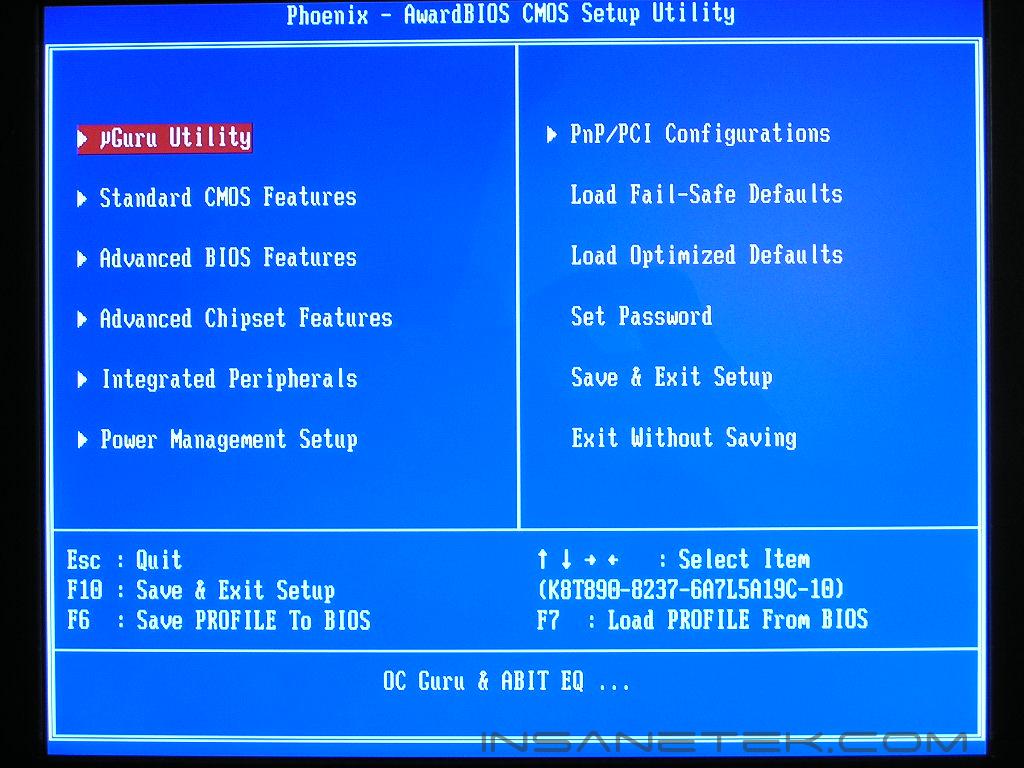
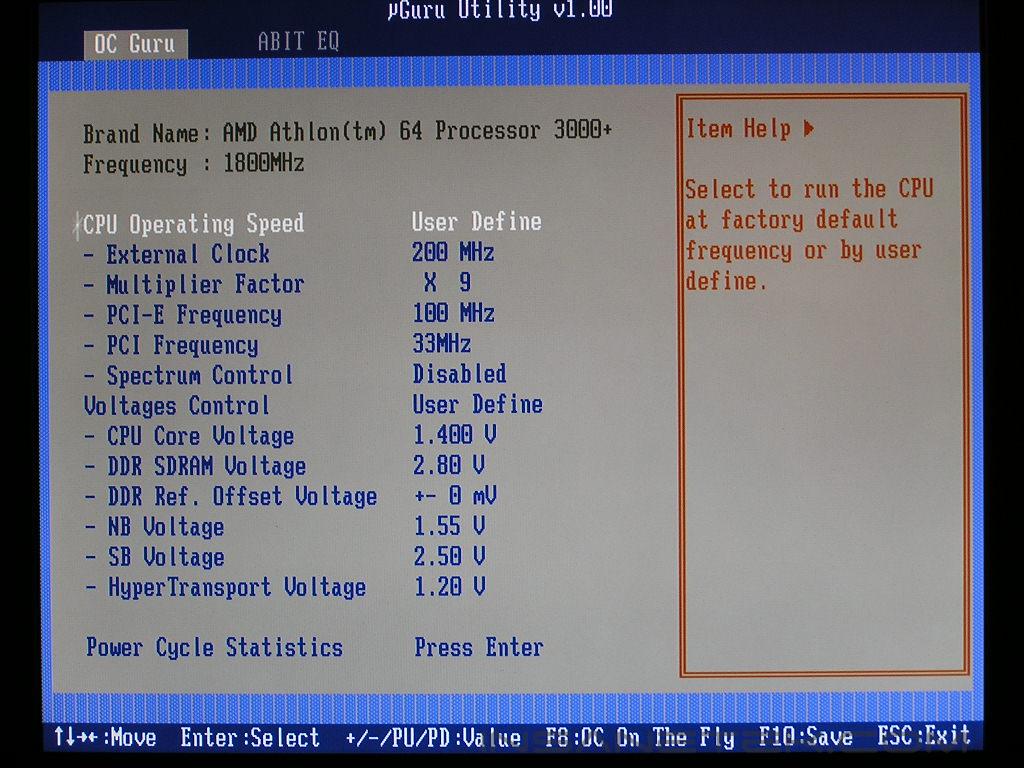
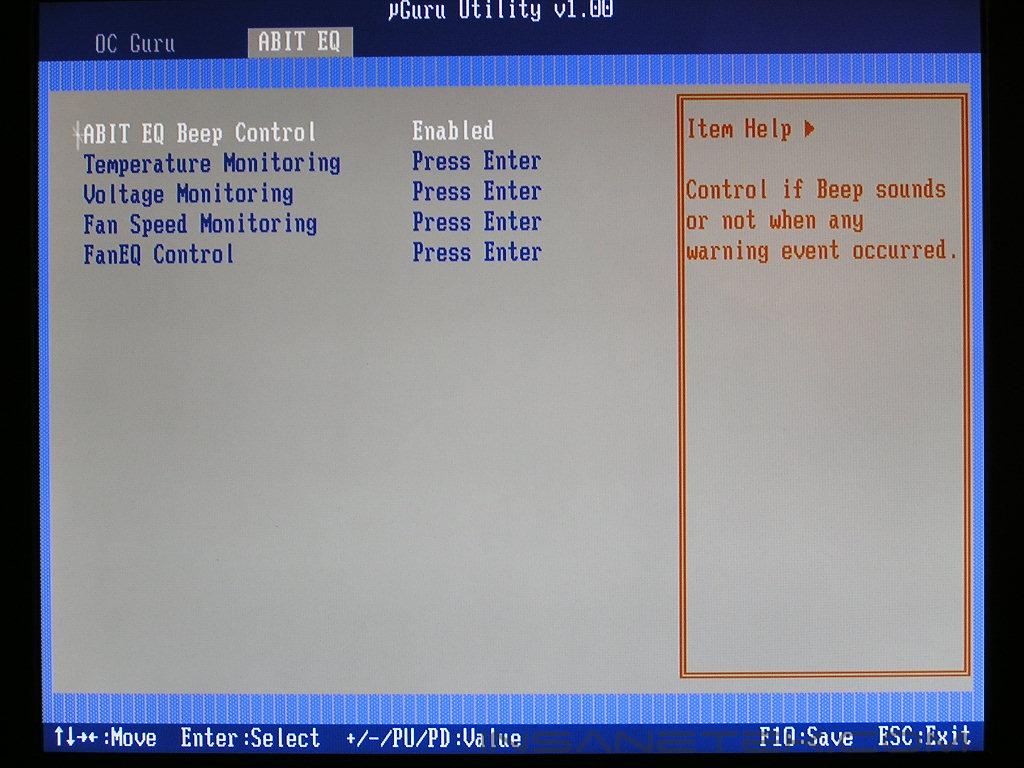
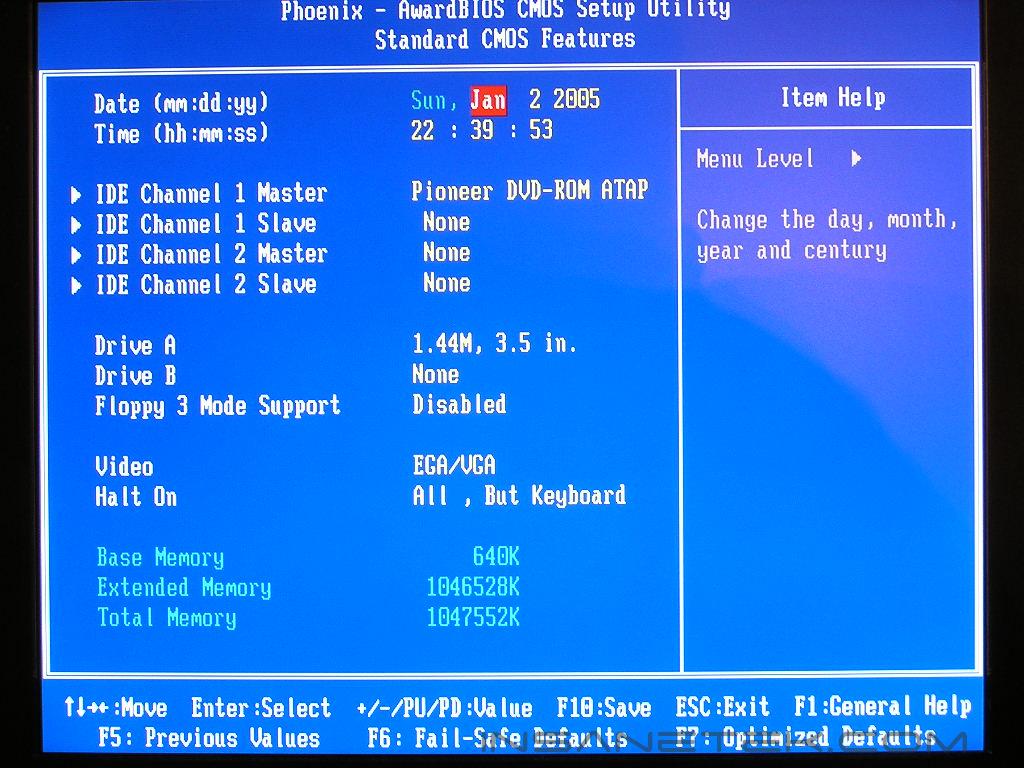
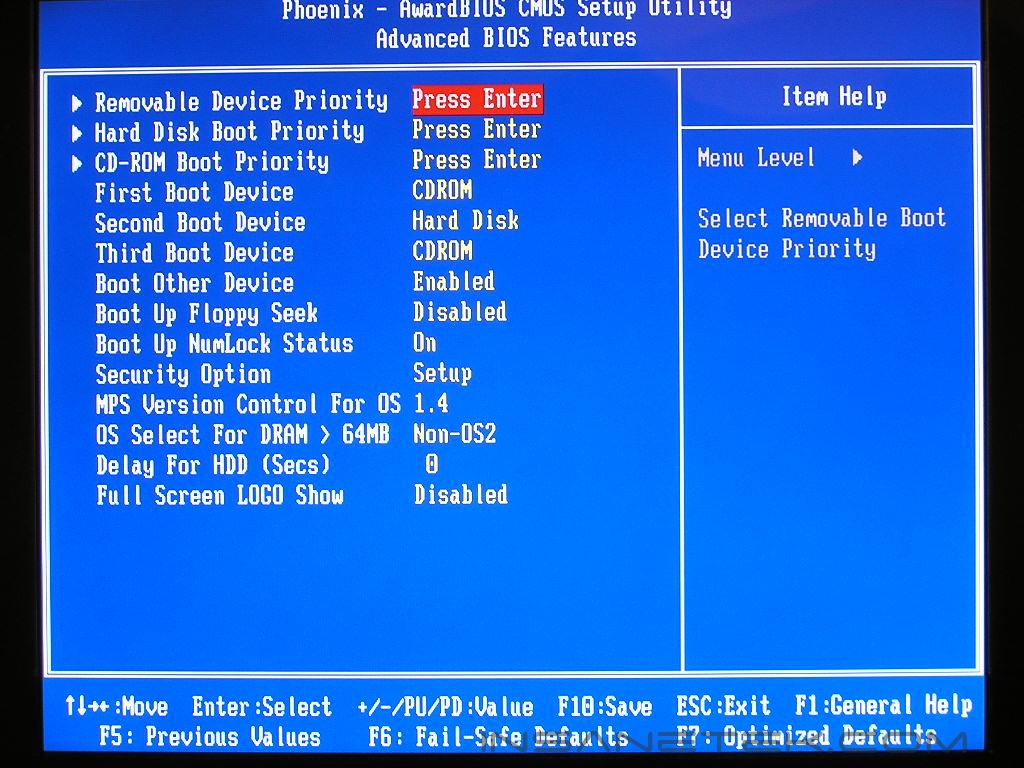
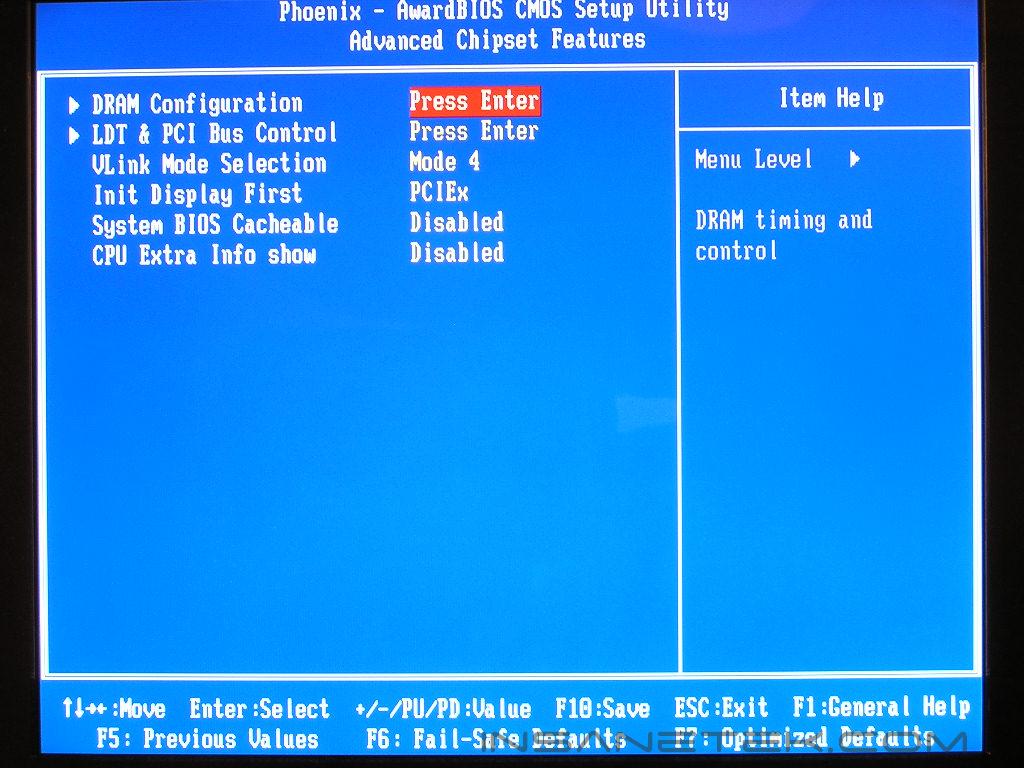
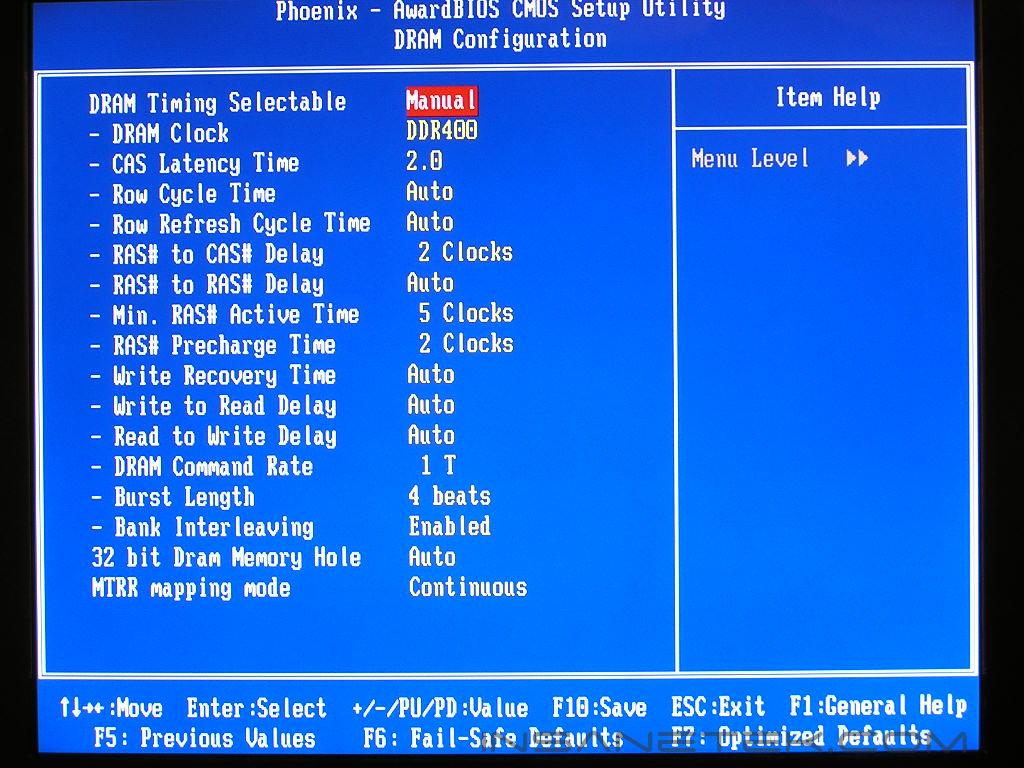
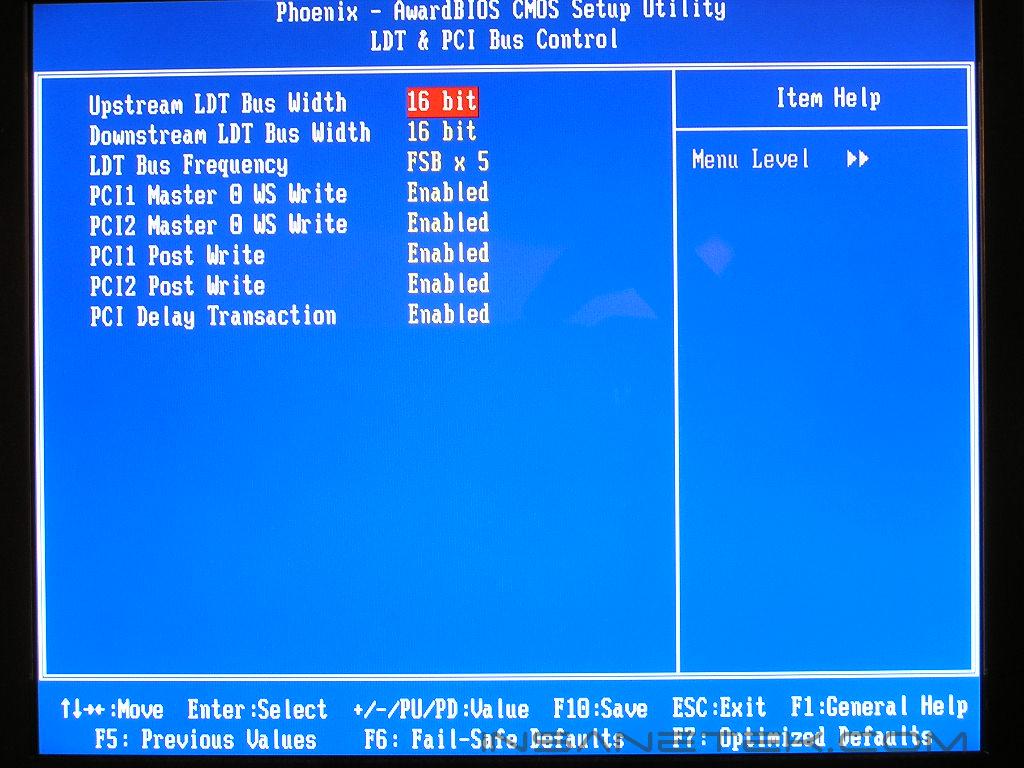
The BIOS of the AX8 is very similar to Abit’s Nvidia series, except for one interesting part–the VDIMM. I found it rather strange that the Abit engineers gave the AX8 up to 3.2v on VDIMM while their flagship Fatal1ty AN8 suffers with only 2.8v. Why is that??? Please explain!!! It would be so much better if the options were switched around.
Software
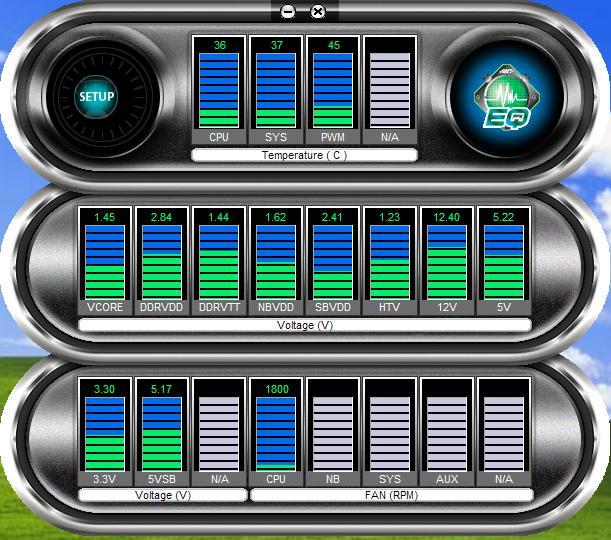
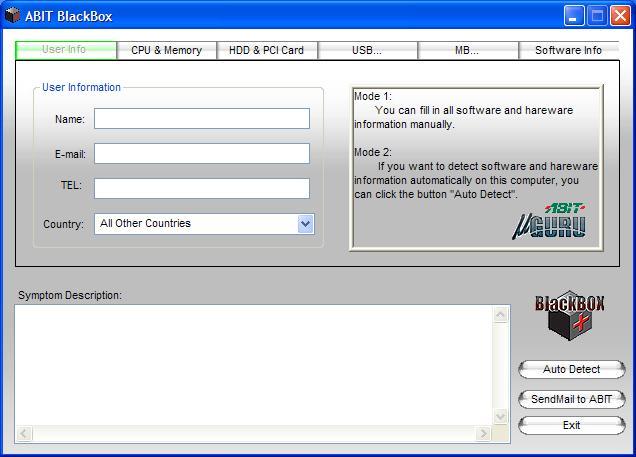
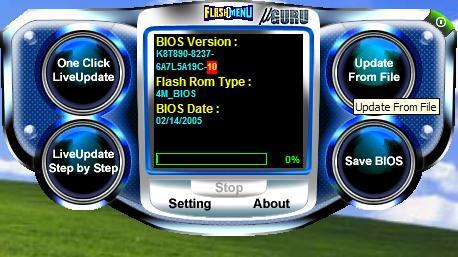
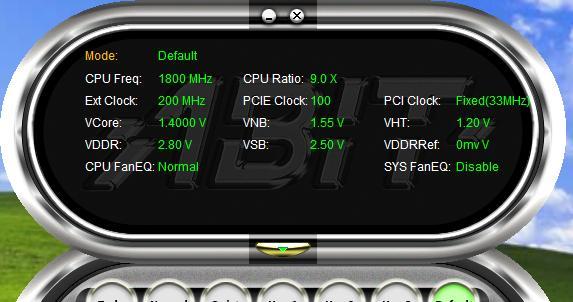
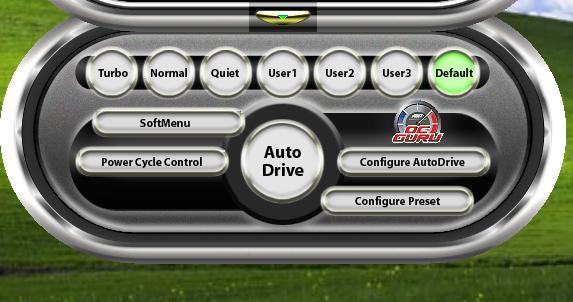
Like the higher end Abit motherboards, the AX8 comes with the user friendly uGuru Utility. The uGuru utility includes, Abit EQ, FlashMenu, BlackBox, and OC Guru. Abit EQ is Abit’s hardware monitoring utility. It provides temperature readouts, voltage lines, and fan RPM speeds. The BlackBox utility is Abit’s technical support feature. If you have something wrong with your system and can’t figure it out, let BlackBox detect your hardware and send it in to Abit for support. Within 24 hours, Abit will send you a response. The FlashMenu is an in-Windows BIOS flash utility. I generally don’t like to use Windows based flashing utilities. If the system becomes unstable under Windows, you’re screwed. DOS is still my preferred method. Lastly, the OC Guru is Abit’s overclocking on the fly utility. You can overclock you’re system without the repeated restart of your system. You can also create profiles for each overclock and link them to a specified program. Let’s say that you don’t want to overclock when you’re doing your typical net surfing and emails; you can set the system to boot with all stock speeds. Then if you want to play your games and want to overclock to get more frames, the OC Guru will do it automatically for you. An example would be that you created a profile with all the overclocking done.
Test Setup and Overclocking
Test Setup:
- AMD Athlon 64 3000+ Winchester
- Abit AX8
- Abit Fatal1ty AN8
- DFI LANParty UT nF4 Ultra-D
- MSI K8N Neo4 Platinum
- 2 x 512MB Centon Advance PC3200 Low Latency 2-2-2-5 1T
- ATI Radeon X800 (400/490)
- Nvidia unified platform drivers 6.39
- VIA Hyperion v455
- ATI Catalyst 5.3
- Hitachi 80GB SATA
Overclocking:
Overclocking the AX8 was a pleasure. The VIA K8T800 based KV8 Pro overclocked rather well and I had no doubts that the K8T890 chipset, which is essentially the same chipset as the K8T800, would yield any poor results. I proceeded to find the highest HTT allowed with dual sticks of memory installed. The first test will be conducted with the memory divider at 1:1. The second test will be with a divider, so that the RAM wouldn’t pose as a bottleneck. All memory timings were left at 3-4-4-8 2T and the LDT multiplier at 1x and CPU multiplier at 6x. I made sure that nothing would bottleneck the chipset and motherboard potential. I tested with dual channel sticks in slots 1 & 2 and 3 & 4 with the same results. Unlike some motherboards that are DIMM slot picky, this board can take whatever you throw at it.
- Highest overclock 1:1: 290HTT
- Highest overclock with divider: 290HTT
The motherboard was certainly not bad. While the 300HTT mark is considered to be “typical” for a good Socket 939 motherboard, the AX8’s 290HTT is nothing to scoff at. Why you ask? Because the motherboard seems to have a BIOS related issue. The problem has nothing to do with the motherboard stability, but seems to bottleneck the overall overclocking headroom. The use of a divider generally yields a higher HTT increase, as running synchronously on some boards just won’t happen, but the divider did nothing to help. Furthermore, I was able to get the system to boot and run fine at 8x300. All benchmarks ran fine and no errors occurred. So why didn’t I consider 300HTT to be the highest overclock? Because the system had warm boot problems. I would be able to cold boot or boot after saving BIOS but a regular restart in Windows cause the system to hang. Once I shut it off and then turn it back on, the system would run and allow me to game for hours on end. The AX8 has the same syndrome as the NF8. Bring us a new BIOS and perhaps the AX8 will soar like the NF8.
Results
During testing, all HTT are manually set to 200MHZ. Command rate was set at 1T and only the normal CAS, TRCD, TRP, TRAS were adjusted to 2-2-2-5.
Sysmark 2004
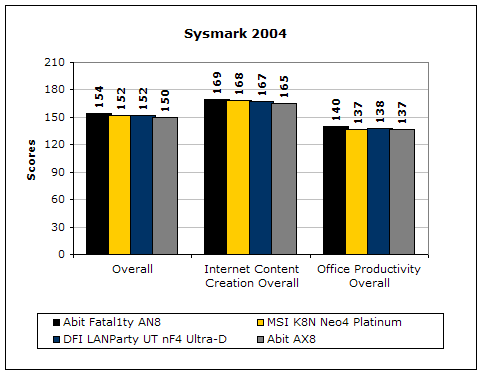
Sysmark2004 is a very common benchmark used to measure a system’s potential in performance. It goes through long and grueling tests that include compression and decompression and office intensive programs.
3DMark2001SE
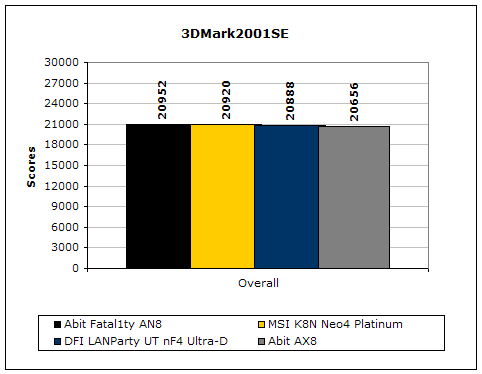
3DMark is probably the overclocker’s favorite benchmark. Unlike 3DMark2003, which stresses mainly the video card, 3DMark2001SE tests all of the system’s main components. Increasing the CPU speed, memory speed, and video card speeds will result in higher results in the final score.
PCMark2004
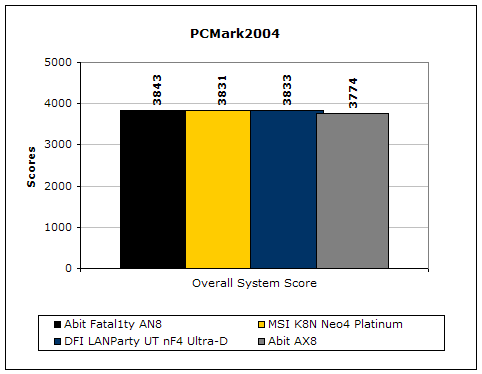
The PCMark2004 system benchmark puts the entire system to work.
PCMark2002
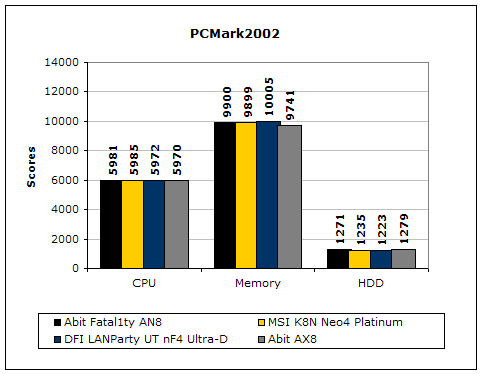
PCMark2002 is older than PCMark2004 but still very similar.
Results Continued
Everest Home Edition
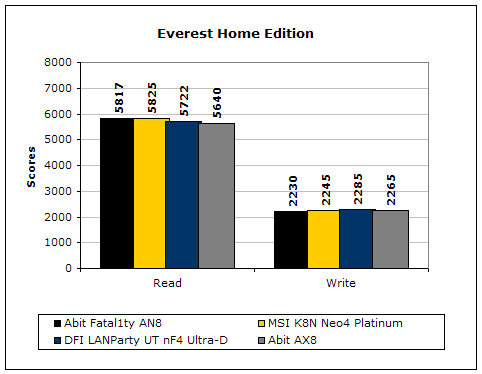
Everest Home Edition is a good benchmark for testing memory performance. Since the motherboard’s overclocking potential and memory bandwidth is closely related, I find this benchmark to be trustable.
SiSoft Sandra
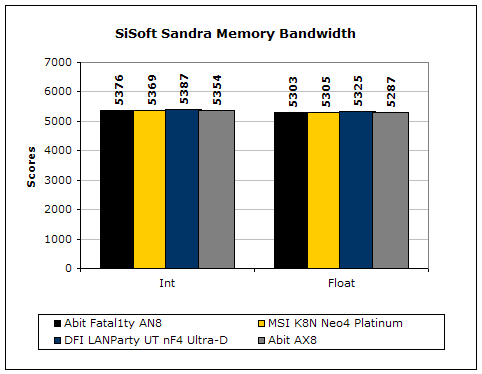
Like Everest Home Edition, SiSoft Sandra memory bandwidth tests the motherboard’s memory bandwidth performance.
Super PI
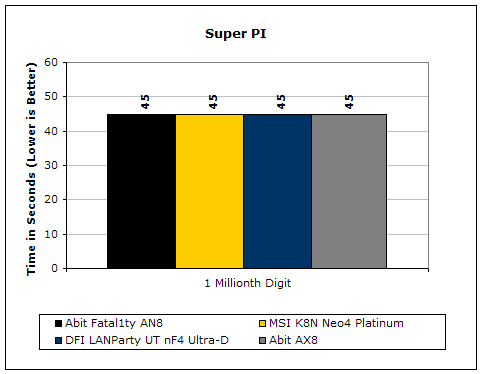
Since the value of PI is an infinite value, Super PI is a speed test to find the digit you’re looking for. In this case, we chose the millionth digit. Super PI benefits greatly from higher FSB as well as low latencies.
PiFast
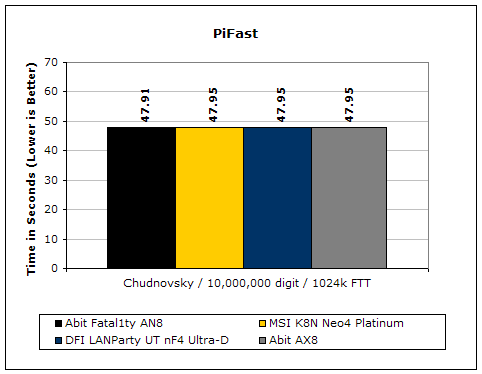
PiFast is similar to Super PI and the results can be greatly affected by a slight adjustment to the memory megahertz and latency.
Unreal Tournament 2004
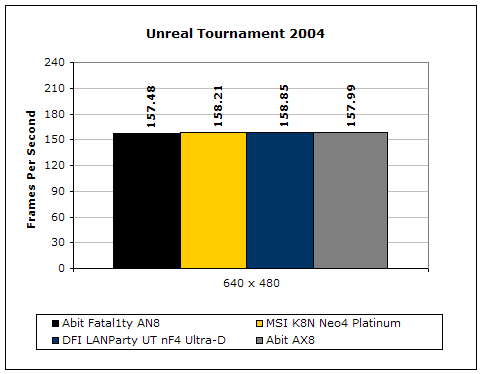
Unreal Tournament 2004 is a very popular game that is highly effected by the system’s performance. Testing was done under the resolution of 640x480 to minimize the dependency of GPU and CPU power.
Conclusion and Thoughts
From all the performance tests conducted, it seems that the Abit AX8 is the slowest out of all four motherboards tested. This can’t really be considered their fault as the VIA chipset is already slower in performance than the rival Nvidia chipset. So what’s good and bad about the motherboard? For starters, Abit did a bad job with the ATX power connector. That would actually be my only gripe with the motherboard. Overall, they did a great job with the implementation of the VIA K8T890 chipset. The motherboard overclocked very well, and can actually be better once there is a new BIOS available. The voltage option is great compared to Abit’s flagship Fatal1ty AN8. I found it extremely odd that they would give users better VDIMM support for a lower end board. The price of the motherboard is also exceptional. Budget enthusiasts looking to go the path of Socket 939 and PCI-E will be happy with this solution. It’s roughly $40 cheaper than leading competitors. Overall, I felt the board was solid and performed rather well. As for enthusiasts looking for pure performance and high overclocking headroom, they’ll have to search somewhere else. As of now, I personally wouldn’t pick the VIA chipset over the Nvidia solution. I’ve played with a couple of VIA K8T890 motherboards and I must say that this is the best one out of them all. I guess only die hard VIA fans will want VIA chipsets. If so, the AX8 would be the board they should look for.
Pros:
- Decent overclocking headroom
- Very very affordable
- Solid performance
- Provides 3.2v VDIMM
- Pretty much the best solution for die-hard VIA fans
Cons:
- Poor location of ATX connector

If you have any questions or comments, feel free to hit us up in the forums. You can also check out more of our latest reviews on the front page.