

Browse like a ninja with private browsing
Every browser now has a ‘Private Browsing’ feature. What does it do? Private browsing will stop any data from being stored on your computer by websites that you visit. This data includes things like browsing history, form data, cookies, authentication names and passwords, and temporary internet files. It won’t stop websites from tracking your initial visit, but it will keep your information private if your computer is being used by multiple people. It doesn’t take any configuration to browse in private mode, unless you want to select certain data to allow. Here is how to do it on every mainstream browser:
Firefox 4 Private Browsing
Click on “Start Private Browsing” on the orange Firefox dropdown menu.
Hotkey: Ctrl + Shift + P
Internet Explorer 8 InPrivate Browsing
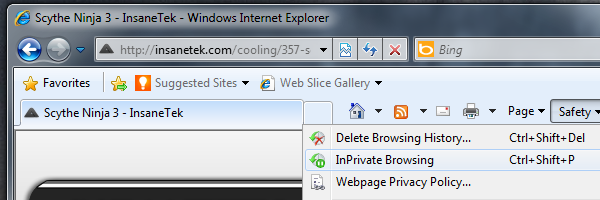
Click on “InPrivate Browsing” on the Safety dropdown menu.
Hotkey: Ctrl + Shift + P
Google Chrome 11 Incognito
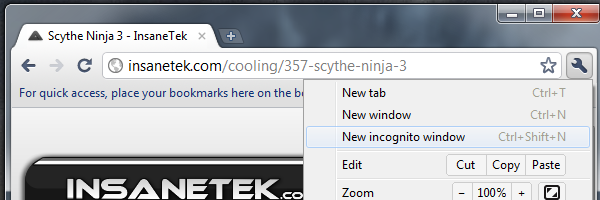
Click on “New incognito window” under the tools menu.
Hotkey: Ctrl + Shift + N
Safari 5 Private Browsing
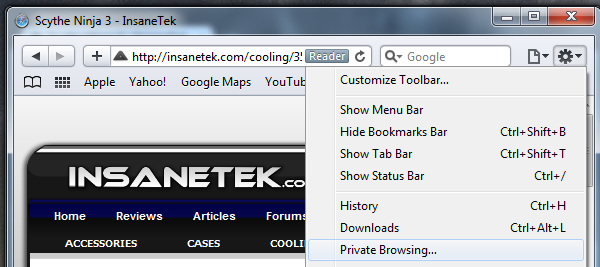
Click on “Private Browsing…” on the settings menu
Opera 11 Private
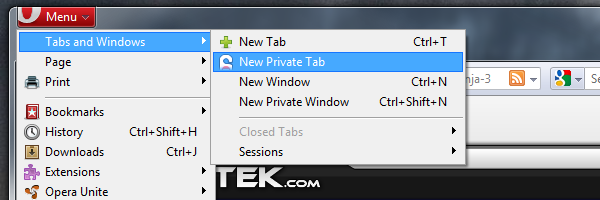
Click on “New Private Tab” or “New Private Window” on the red Opera dropdown menu.
Hotkey: Ctrl + Shift + N