

Gigabyte GA-8N-SLI Royal
Introduction
We all know that Nvidia is slowing taking over the chipset category for AMD platforms. The single MCP solution provides great performance and extremely high overclocking headroom. What about the Intel side? Intel has been dominating their platforms with their own chipsets. There are other contenders like VIA and SiS, but they’re efforts are somewhat futile. Intel users are fully aware that Intel chipsets are the best solutions for Intel platforms. Now enter Nvidia.
With the release of the nForce4 SLI chipset, a huge number of gamers migrated over to the AMD platform for the sake of being able to run SLI. The number of Intel users started to fade each day. A couple months ago, Nvidia and Intel announced their partnership in providing an Intel platform with SLI capability. Die-hard Intel fanboys finally had something to work with. This Intel platform nForce4 chipset was known as C19, which stands for Crush 19.
Everyone was interested in knowing the performance of the chipset. It provides SLI capabilities, but if the raw performance can’t compete with Intel’s chipsets, then this C19 wouldn’t be all that great. Now enter Gigabyte. Gigabyte is one of the top 5 motherboard manufacturers in the world (ranked number 2, I believe) and always releases quality motherboards before anyone else. Their boards are feature-rich and come with a hefty bundle. Today, we will take a look at their C19 solution and see whether the chipset is all that it’s cracked up to be.
Gigabyte GA-8N-SLI Royal Package
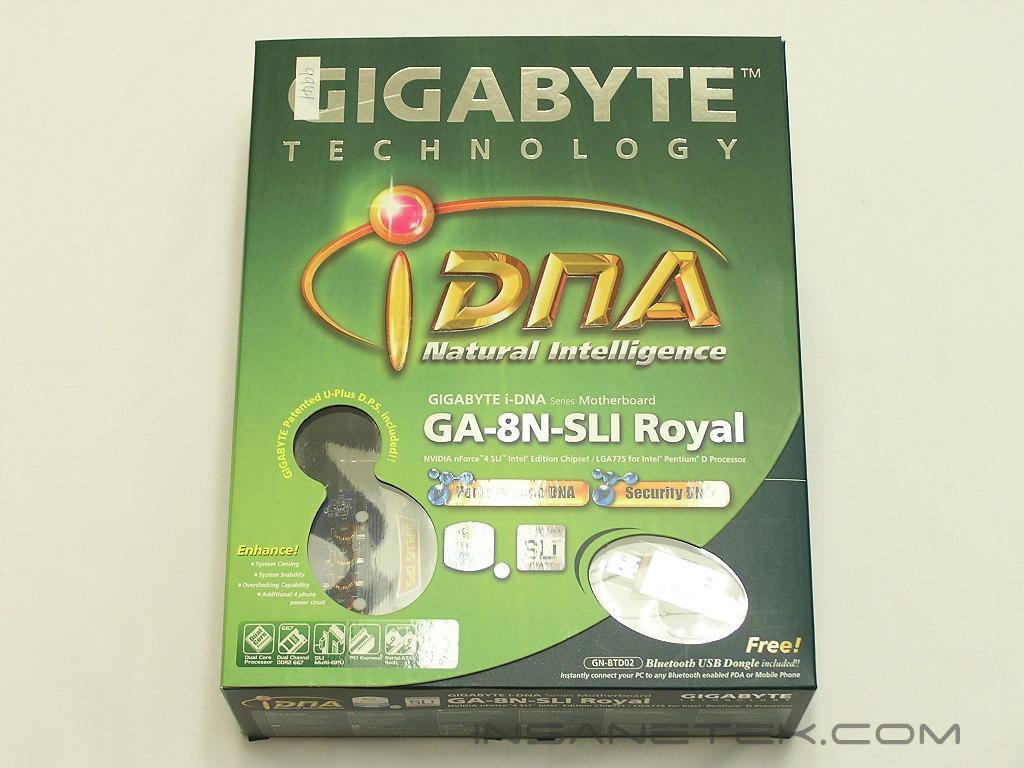
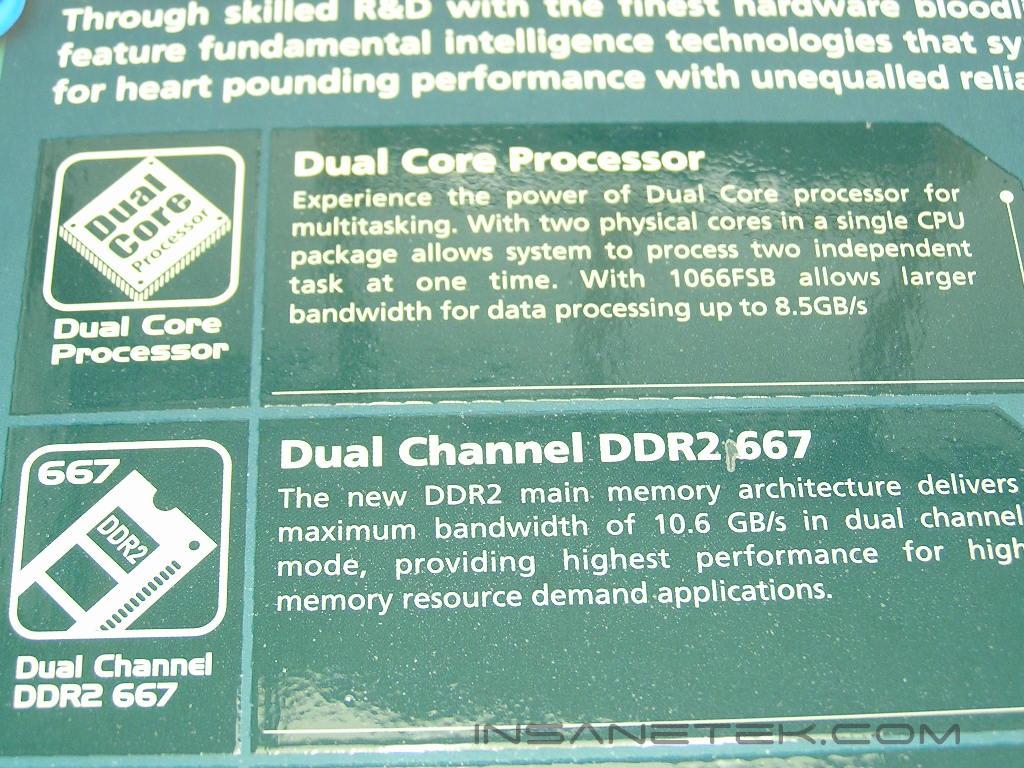
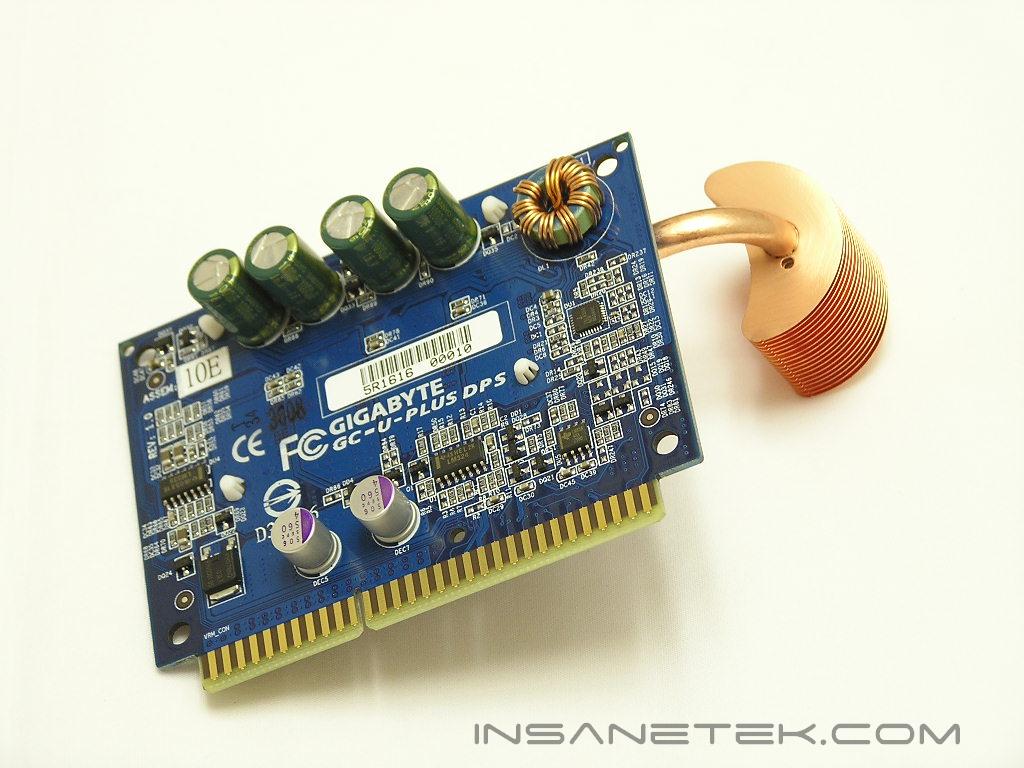
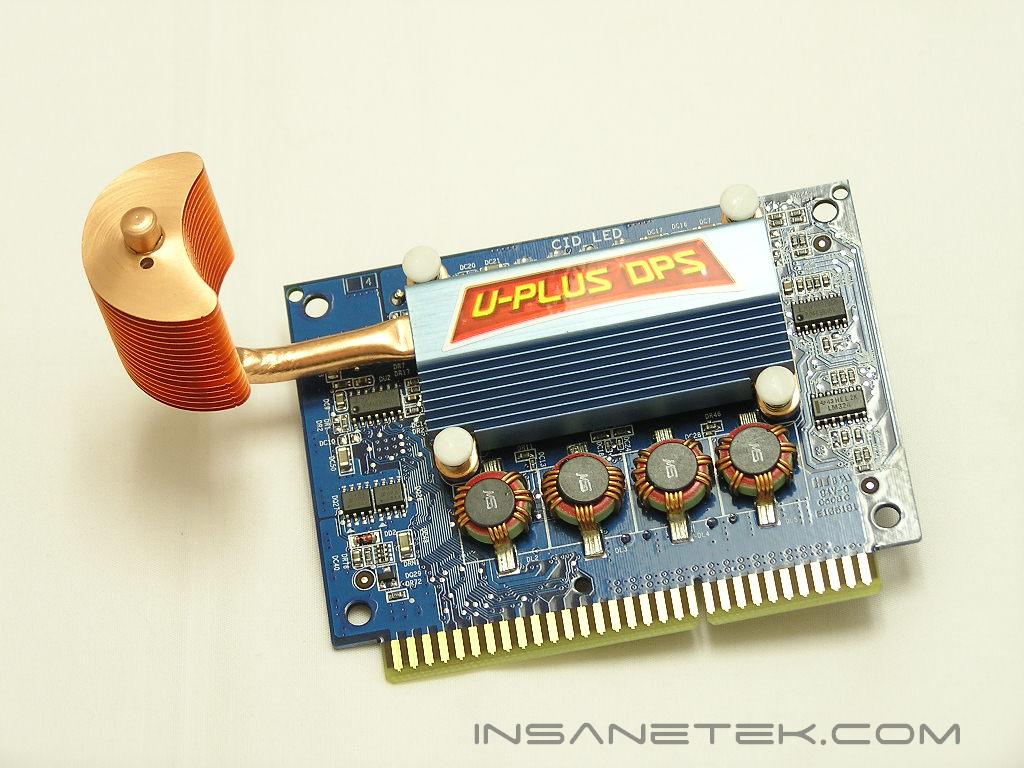
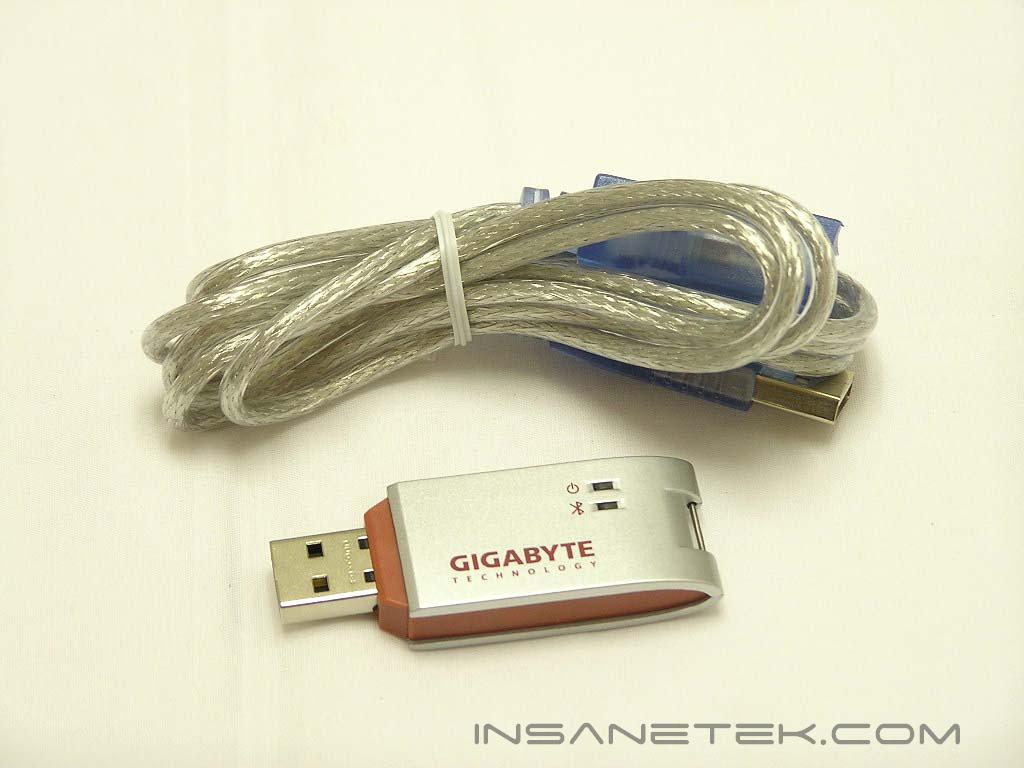
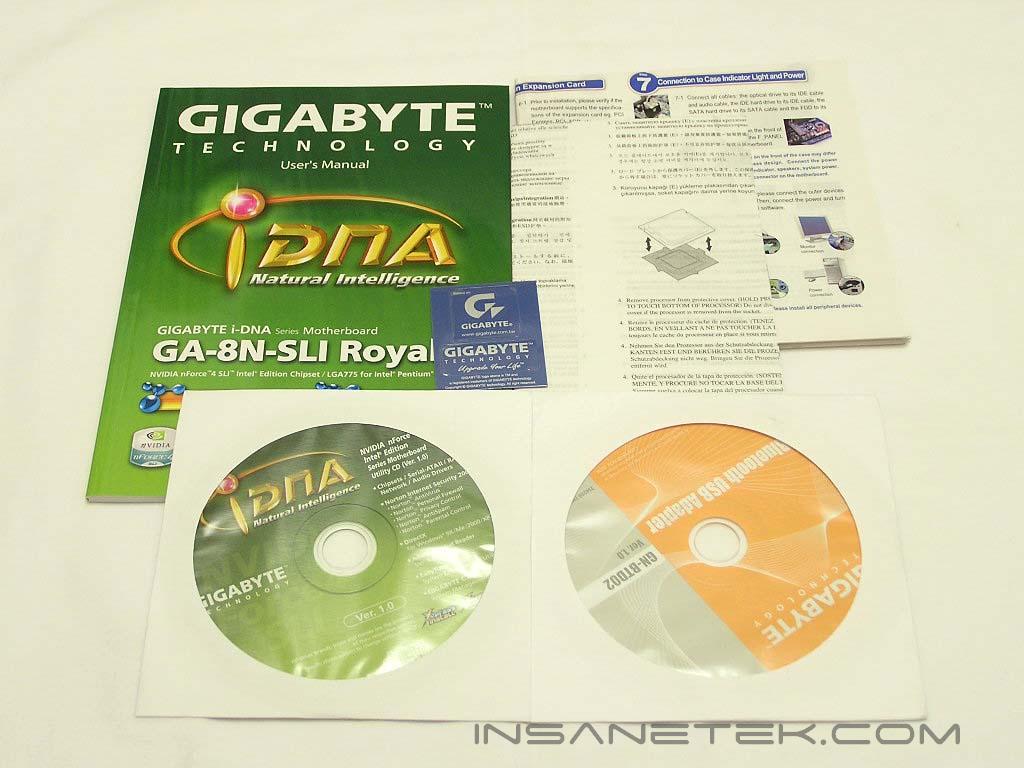
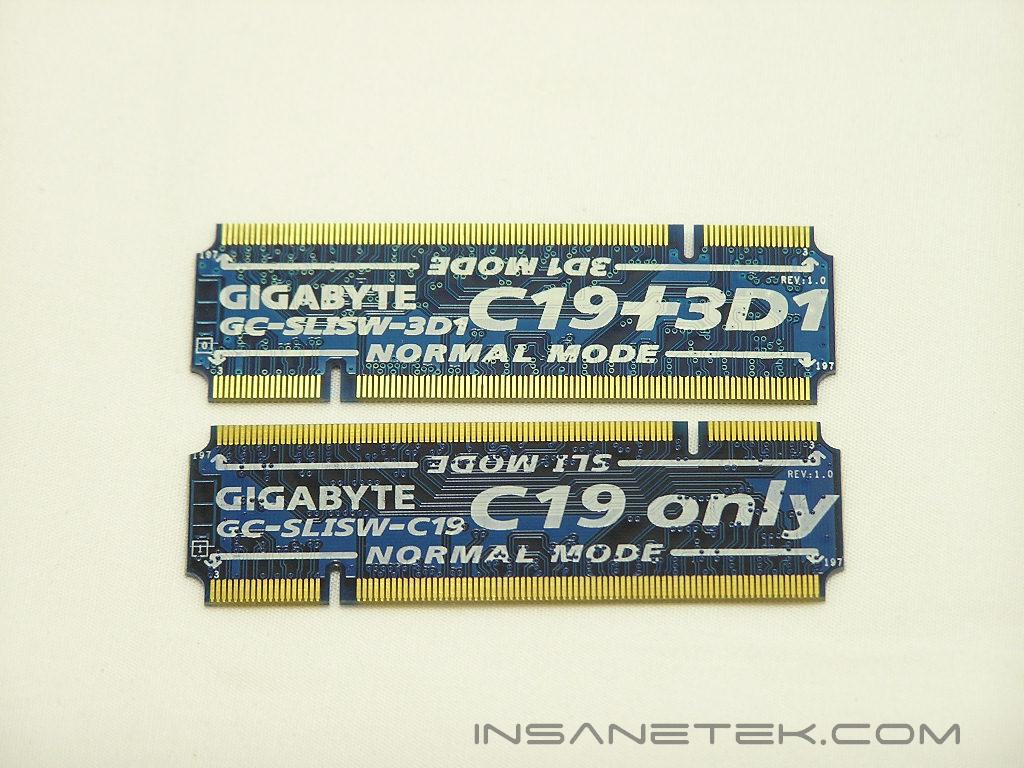
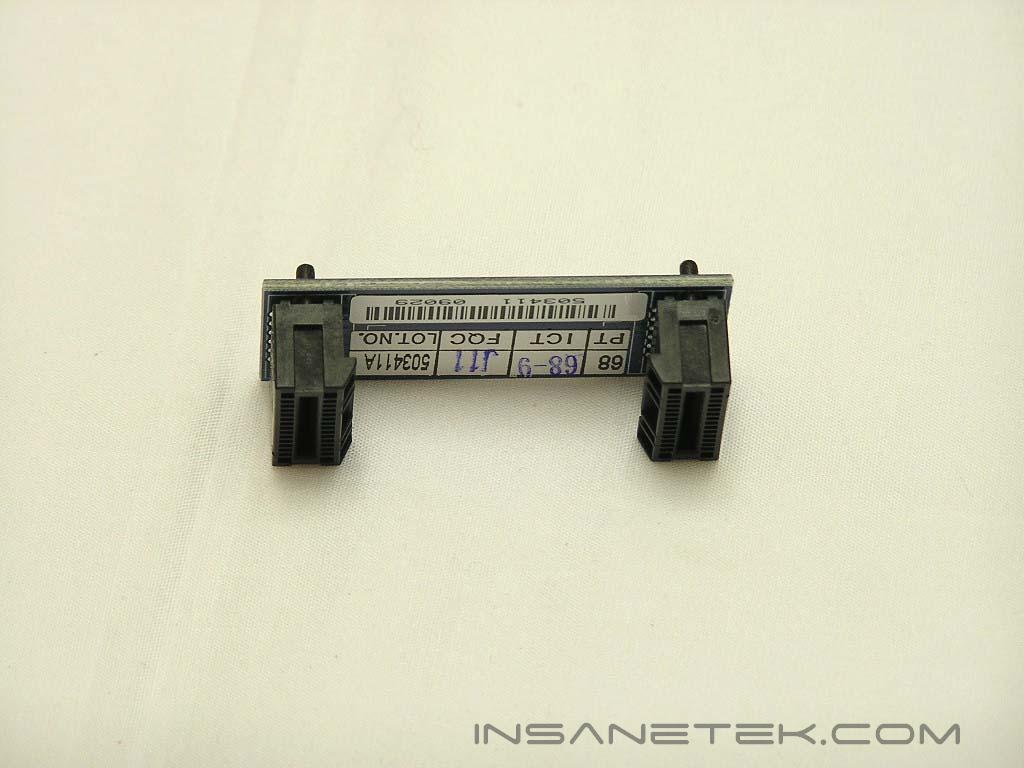
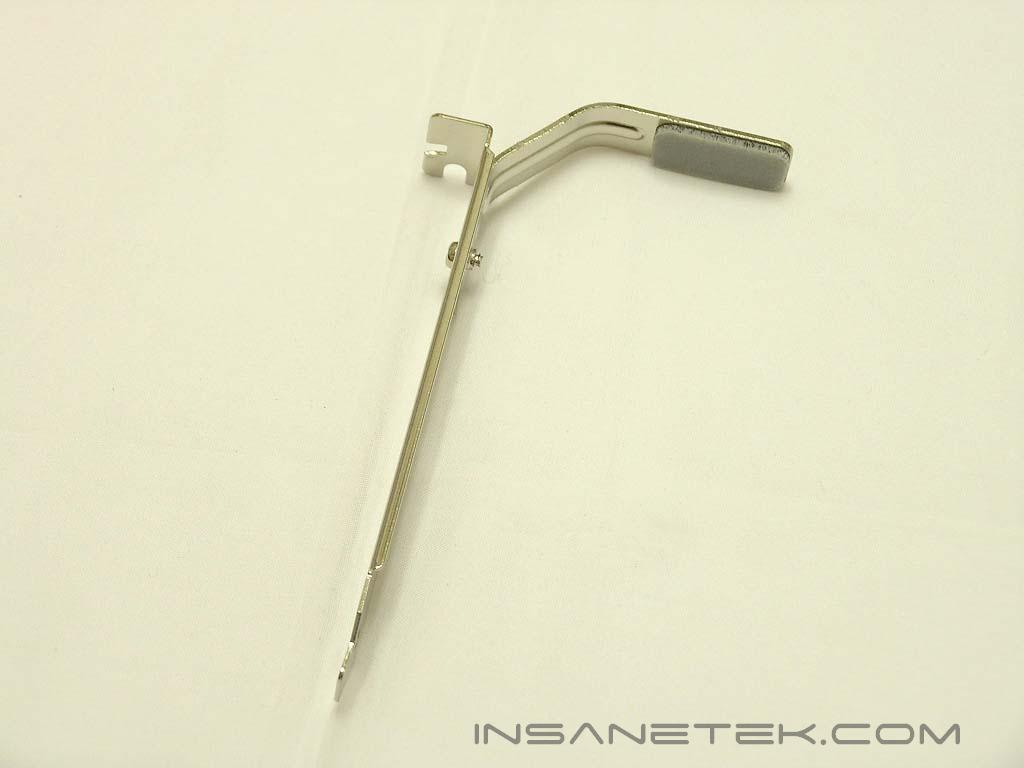
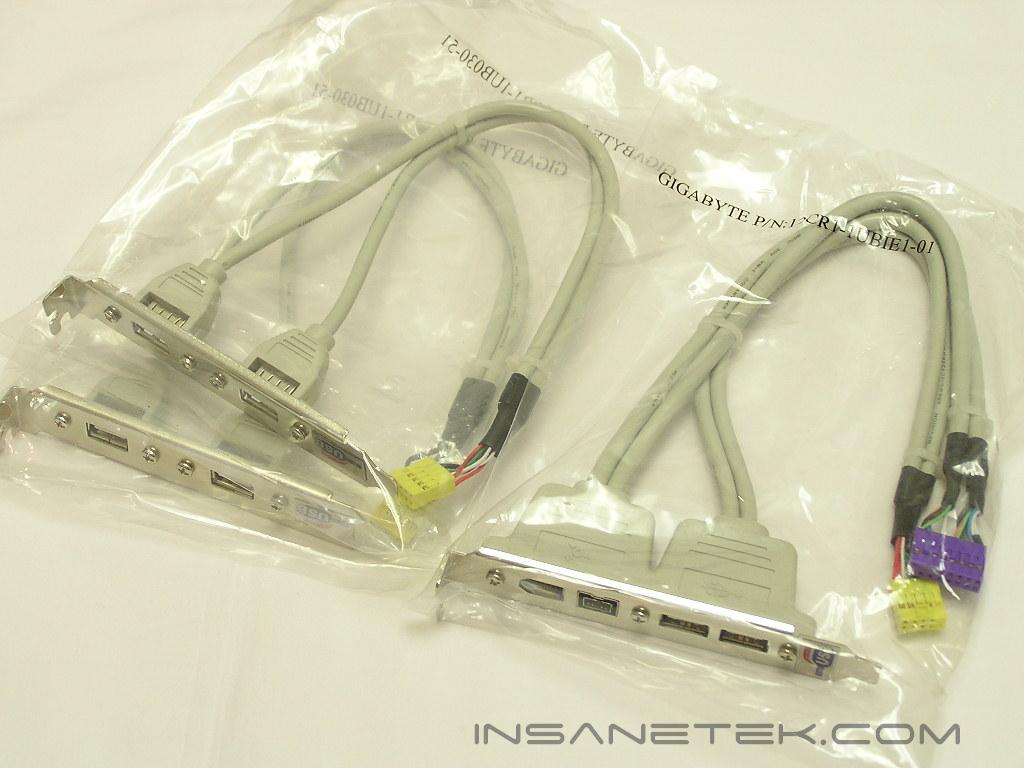
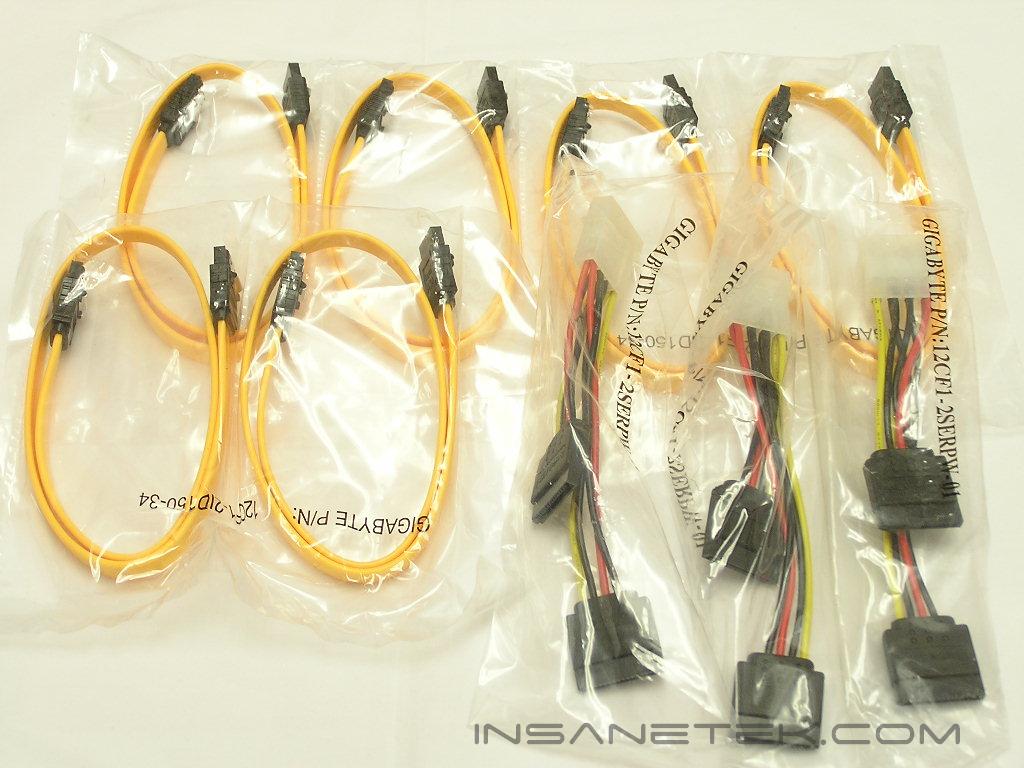
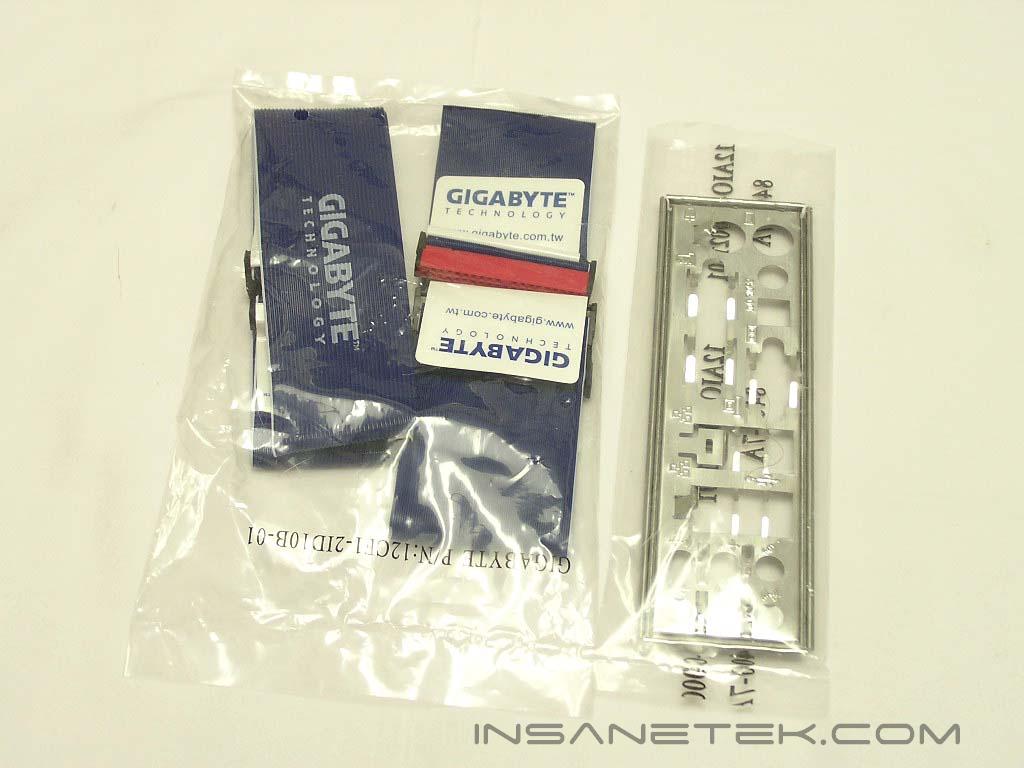
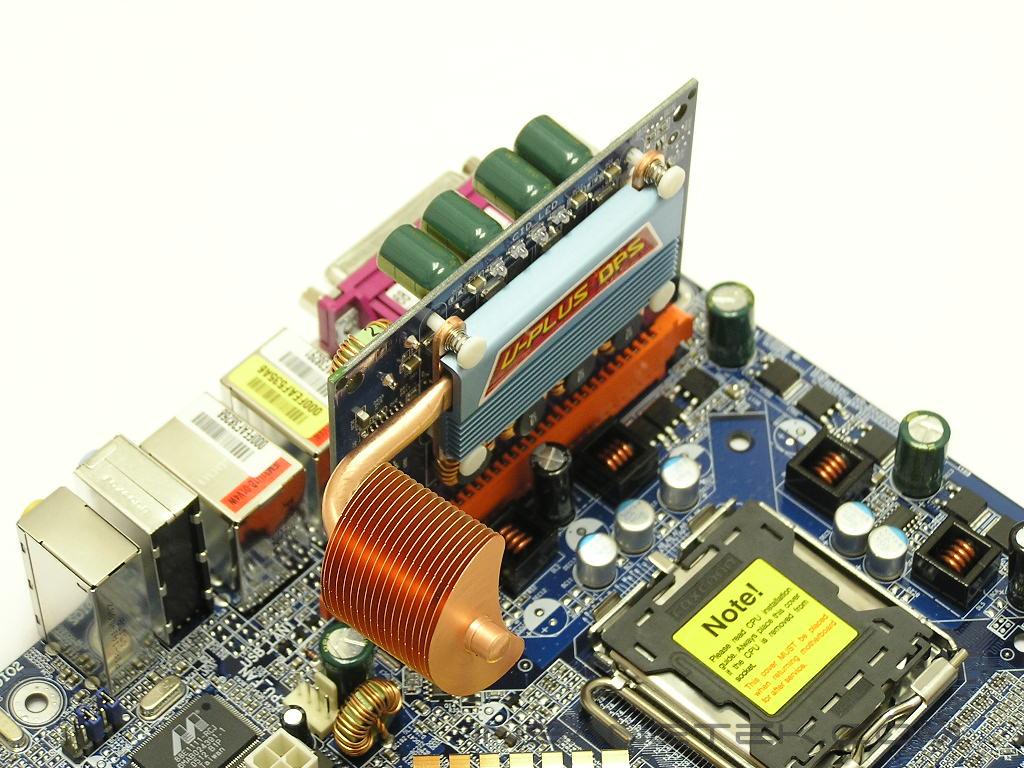
The Gigabyte GA-8N-SLI Royal is no joke when it comes to the bundled accessories. There are blue color-coded IDE cables, an I/O plate, 6 orange SATA cables with 3 Molex-to-SATA power adapters, USB and IEEE 1394 PCI brackets, an SLI bridge, an SLI bridge bracket to prevent the bridge from breaking, drivers CD’s, user manuals, optional Northbridge fan, USB Bluetooth adapter with USB extension cable, U-Plus DPS, and two SLI cards. One SLI card is for normal SLI systems where two video cards are used. The other is for the use of Gigabyte’s 3D1 dual GPU video card. The U-Plus DPS is used to help lessen the load of the CPU power draw on the motherboard MOSFET’s. The power draw is thus divided in two, so the MOSFET’s won’t produce so much heat under stress. The included Bluetooth adapter is a nice addition. It allows your computer to act as a Bluetooth station and connect with Bluetooth devices. I didn’t have any Bluetooth capable devices with me, so I couldn’t test out the adapter. One frequently asked question regarding Nvidia’s C19 chipset is whether it will provide support for Intel’s new dual core processors. Nvidia asserts that it will be capable, but it will be up to the motherboard manufacturers to enable it. The GA-8N-SLI Royal does support it, but I do not have a dual core processor to test the motherboard.
Motherboard Layout
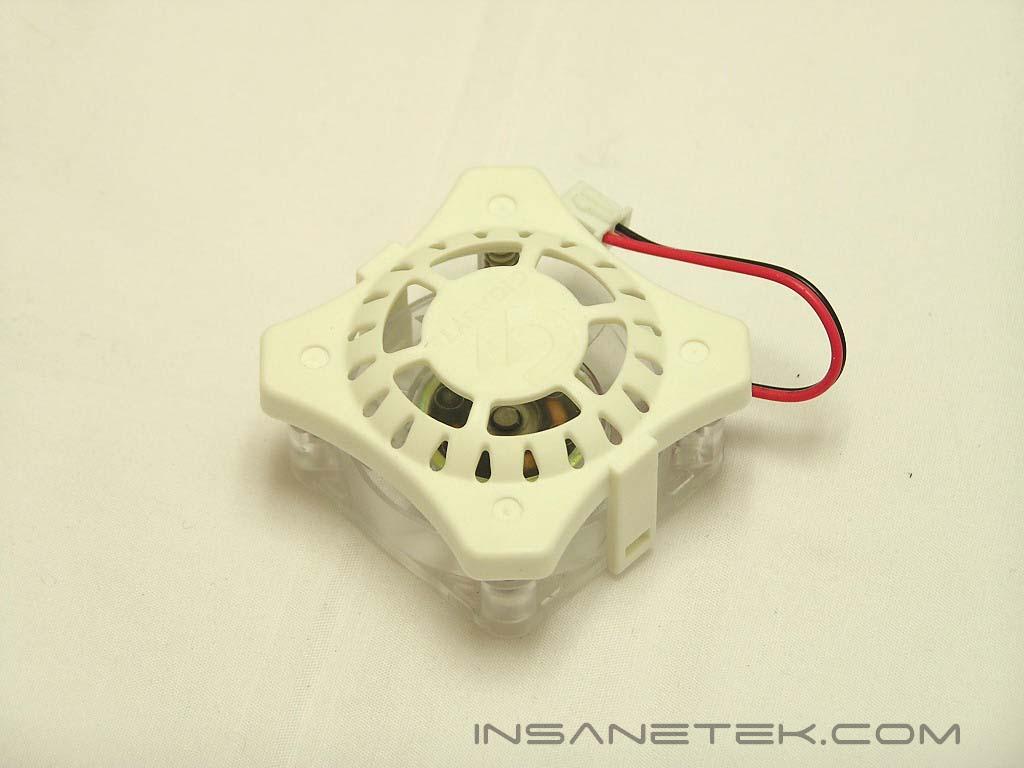
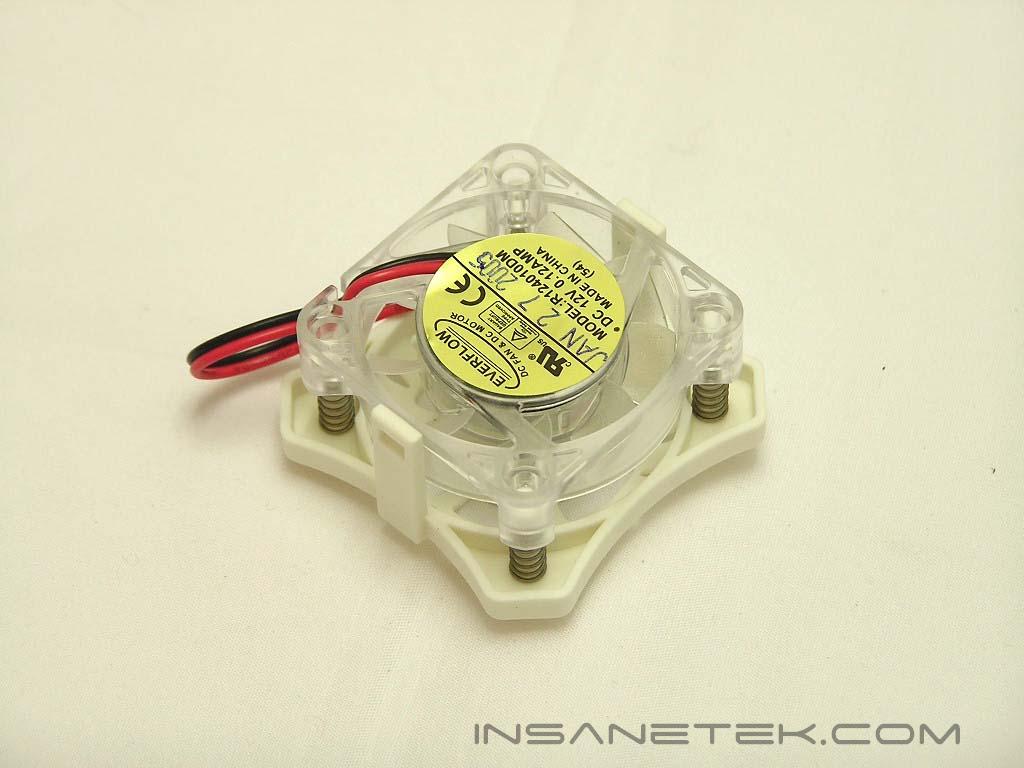
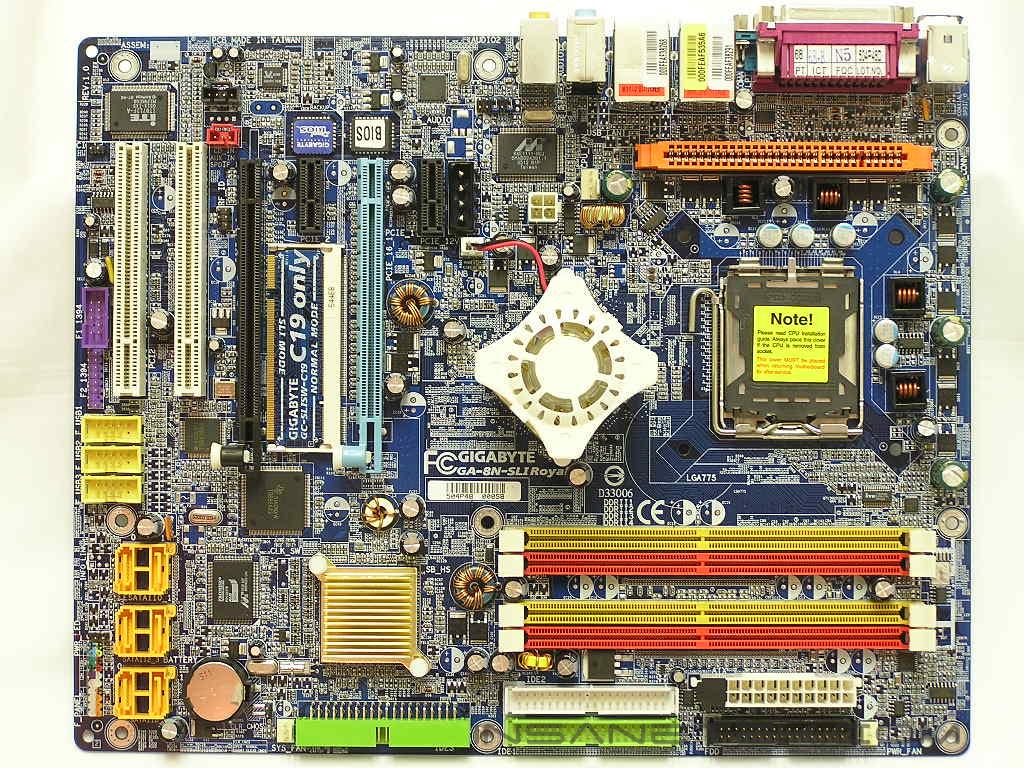
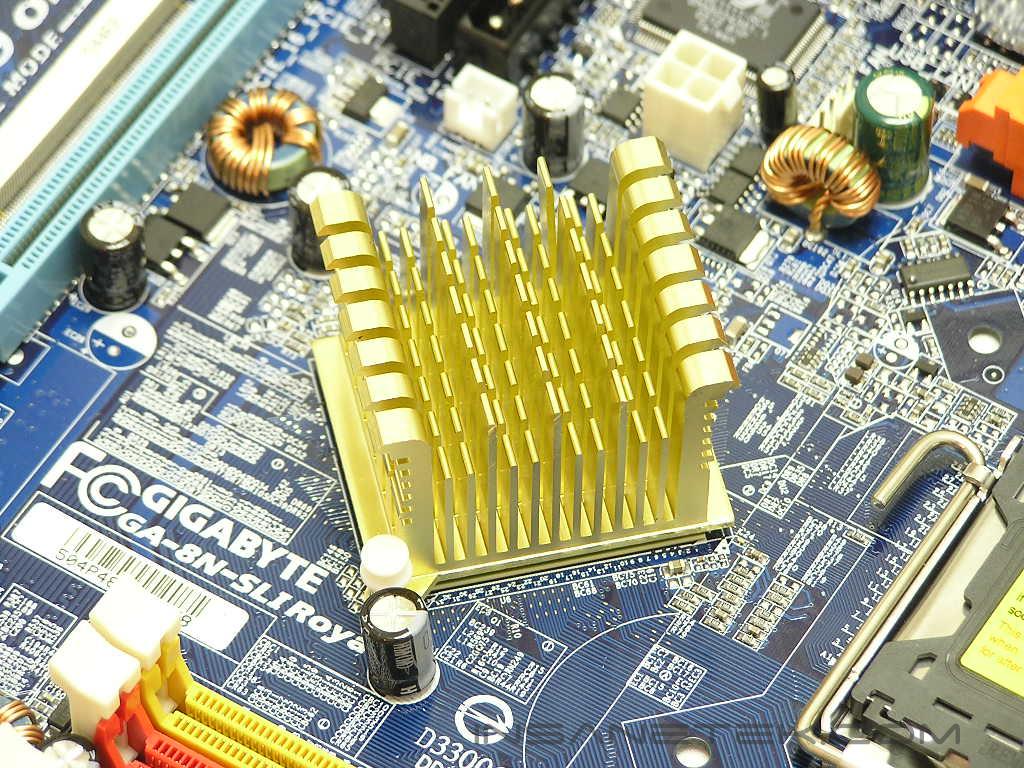
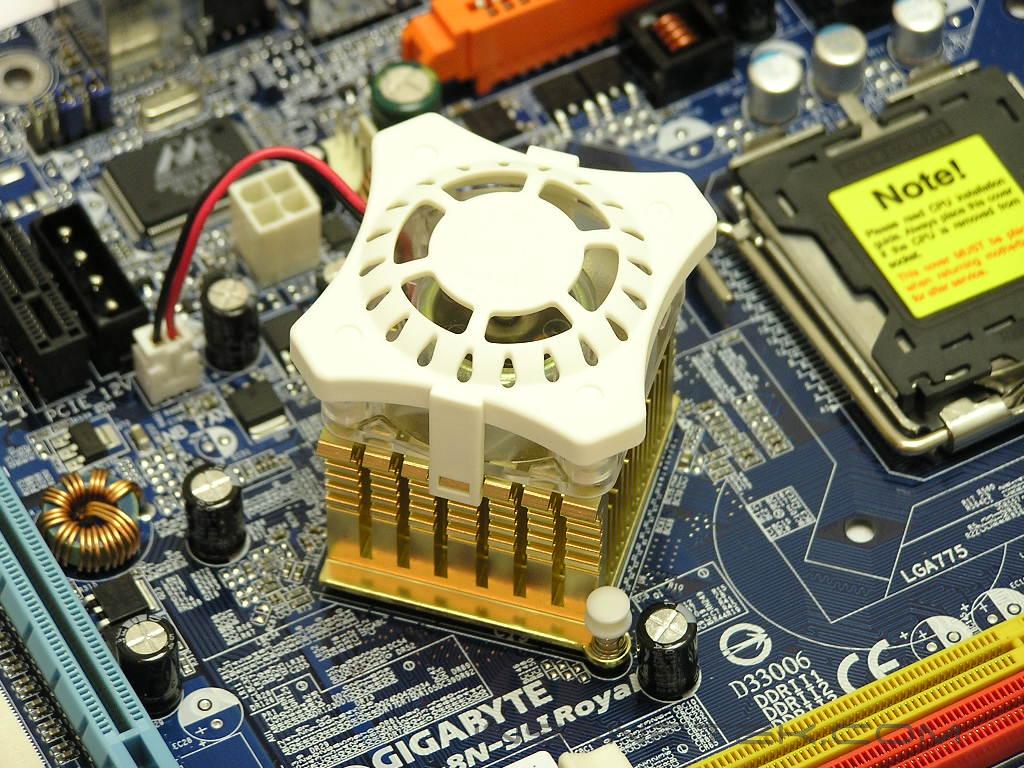
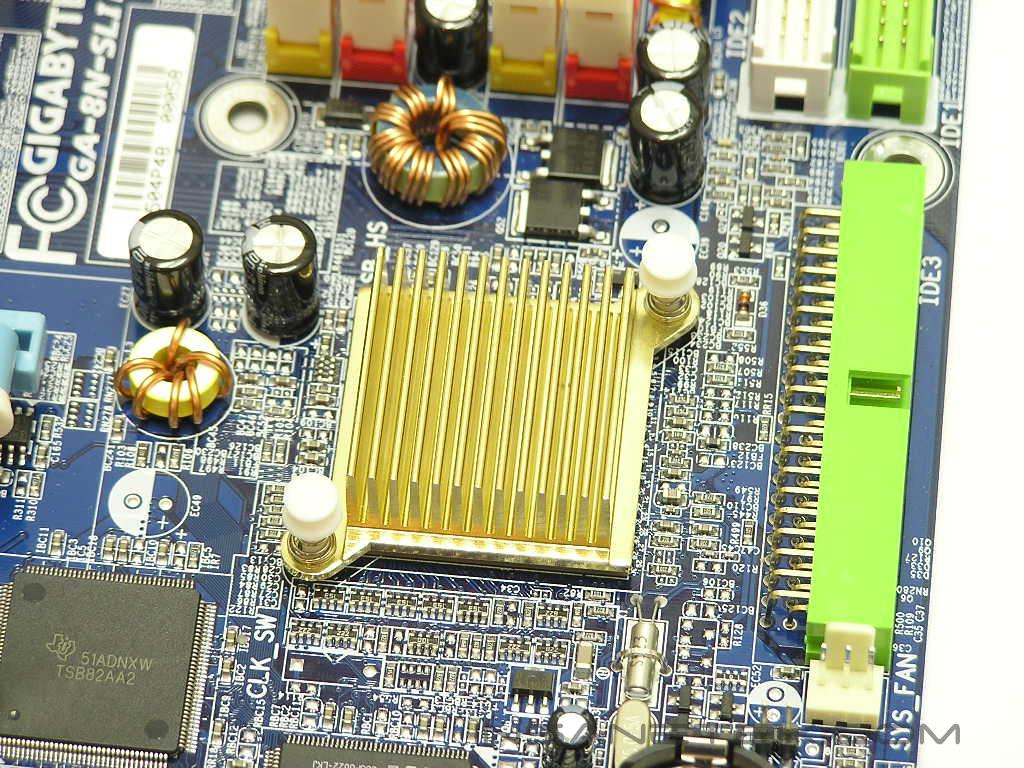
One thing you should notice right away is that the motherboard features a two bridge design. Some might wonder why there are two separate bridges when AMD’s nForce3/4 was based on a single bridge solution. Unlike AMD 64bit processors, Intel doesn’t have an onboard memory controller on the CPU. That forces the Northbridge to implement a memory controller, requiring a two chipset configuration so that the workload can be distributed. Don’t be fooled into thinking that just because there are two separate bridges that the chipsets won’t get very hot. In fact, it gets very hot. It’s not Gigabyte’s fault, because the size of the heatsink is already pretty large. It’s the chipset in general that releases too much heat. AMD nForce3 and nForce4 also have this problem. The so-called “optional” fan is actually required. Even with the fan installed, the chipset still gets very hot to the touch. The small fan also has blue LED’s that light up when turned on. The Southbridge is controlled by the Nvidia MCP04 chipset and is cooled by a passive heatsink. The passive heatsink is adequate, as the chipset only gets warm during intense stress tests.
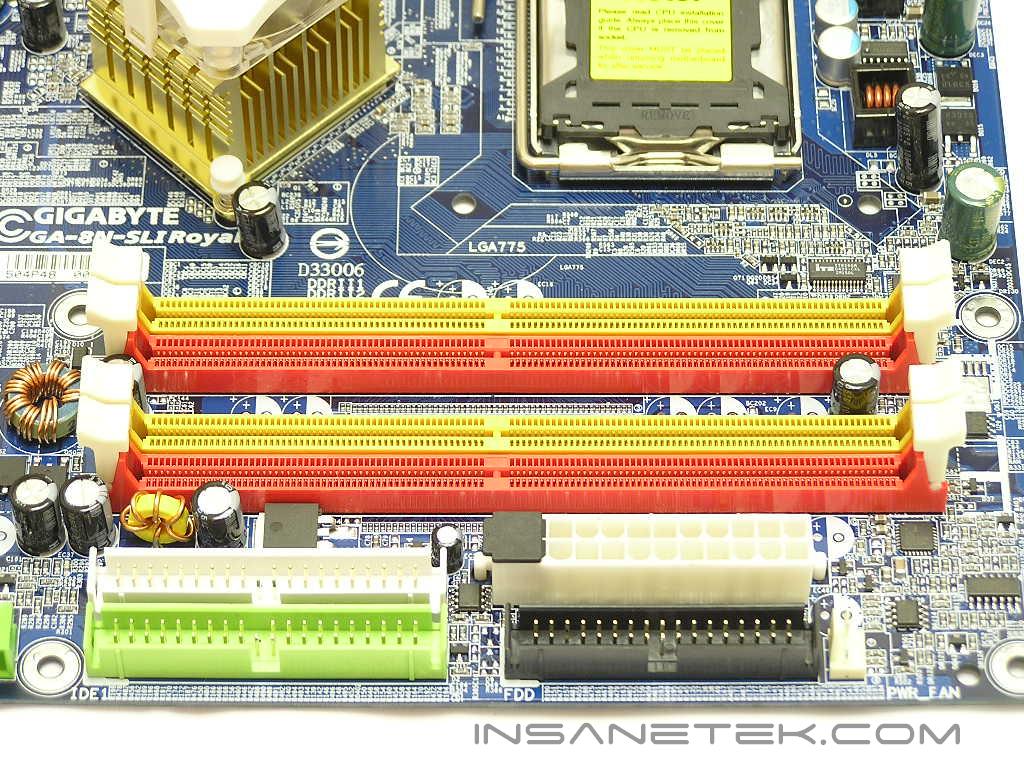
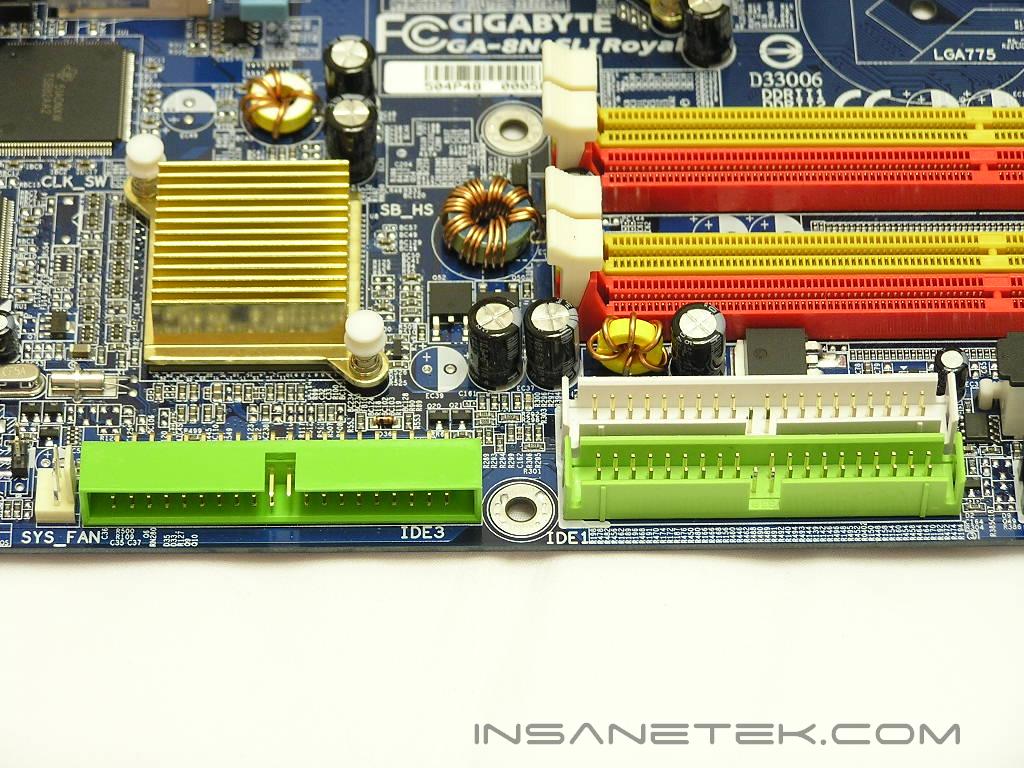
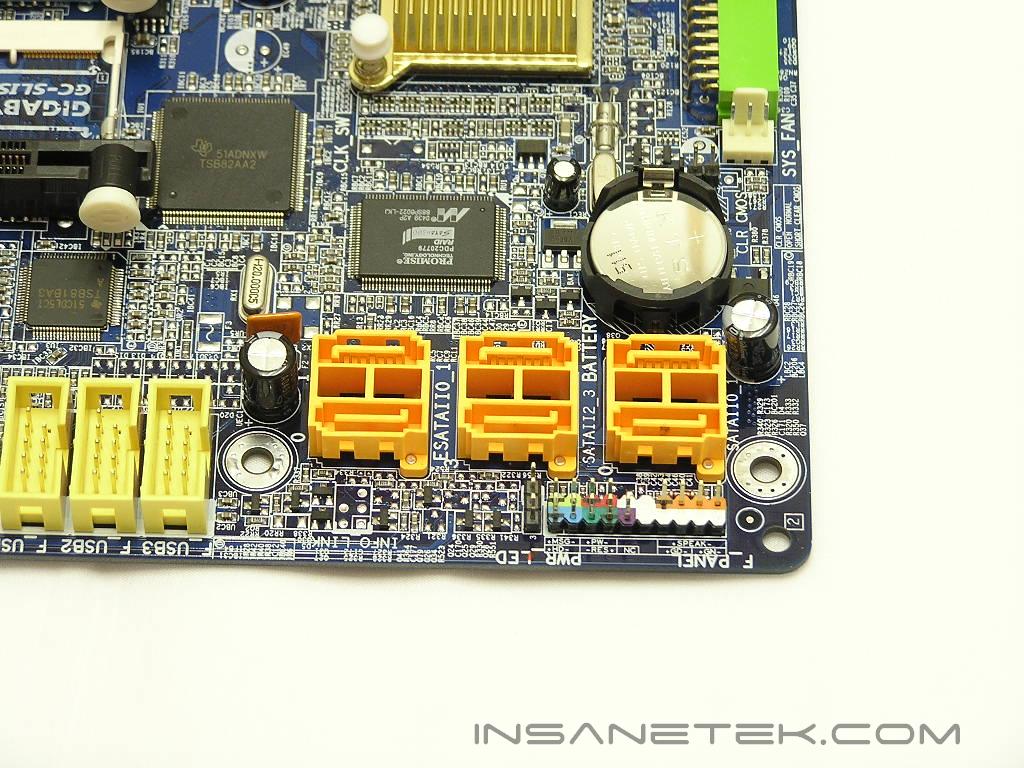
The GA-8N-SLI Royal provides 4 DIMM slots for dual channel DDR2, supplying a max capacity of 4GB. The board officially supports DDR2-667, speeds which translates to PC2-5400 memory. The slots are color-coded to inform users that using the same-colored slots will enable dual channel. The ATX connector is a 24pin. Using a power supply with a 24pin connector is highly recommended. Intel is power hungry and the power supply you use should be able to feed it enough power. The location of the IDE and floppy connectors is excellent and allows cables to be easily folded and tucked away. There is a single horizontal IDE connector controlled by the Promise PDC20779 controller. There are a total of six SATA ports; four are controlled by the MCP04 Southbridge and two are controlled by the Promise storage controller. All the SATA ports allow RAID options of RAID 0, RAID 1, RAID 0+1, and JBOD. If you look closely, you’ll notice two pins above the battery. Those two pins are used to clear CMOS. Normal motherboards use a three pin CMOS header with a jumper. For some strange reason, the GA-8N-SLI Royal only comes with two pins and does not include a jumper. What happens if you’re overclocking and the system fails to POST? You’ll have to dig around for a jumper and insert it onto the two pins to clear CMOS. How annoying is that?
Motherboard Layout Continued
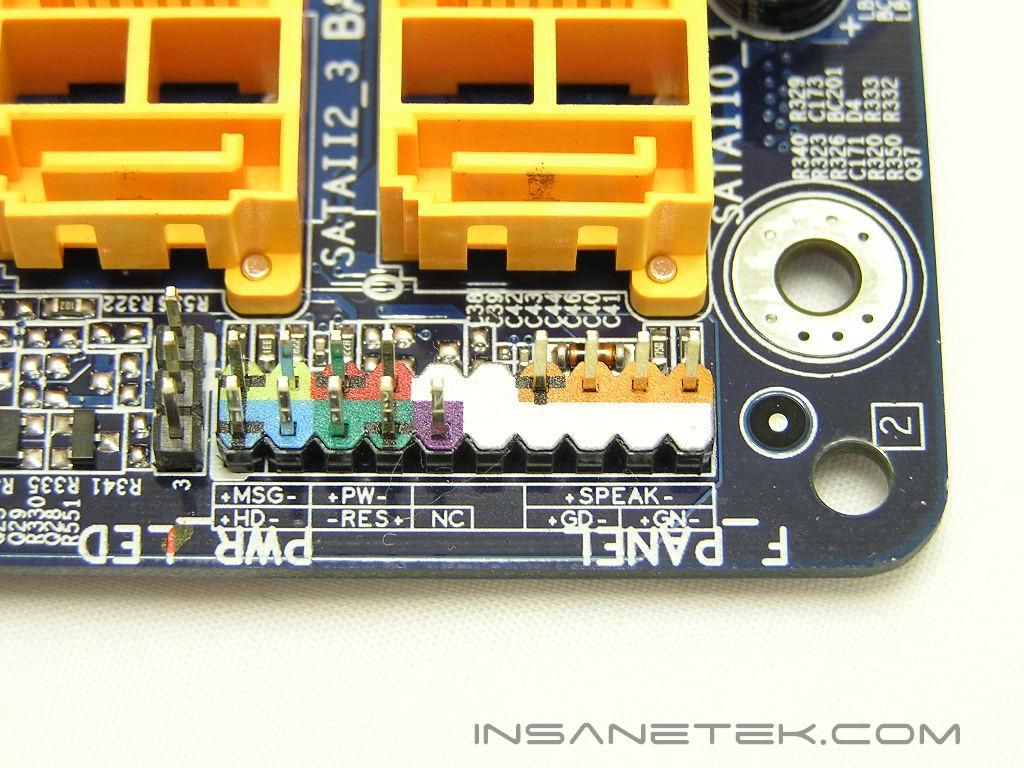
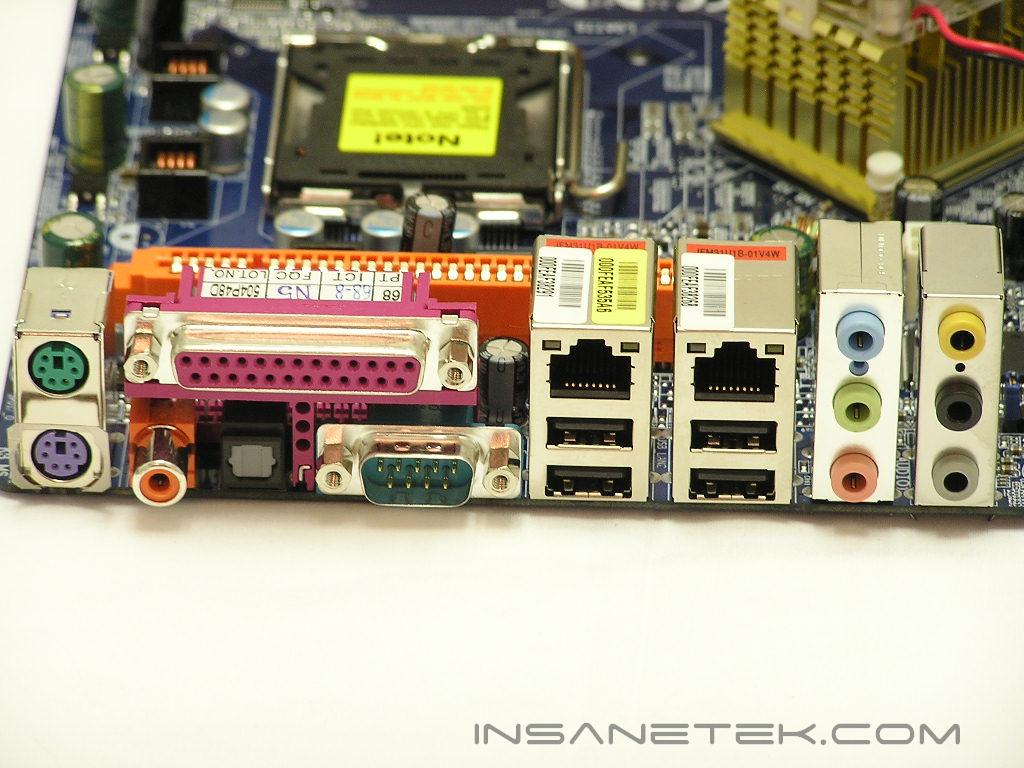
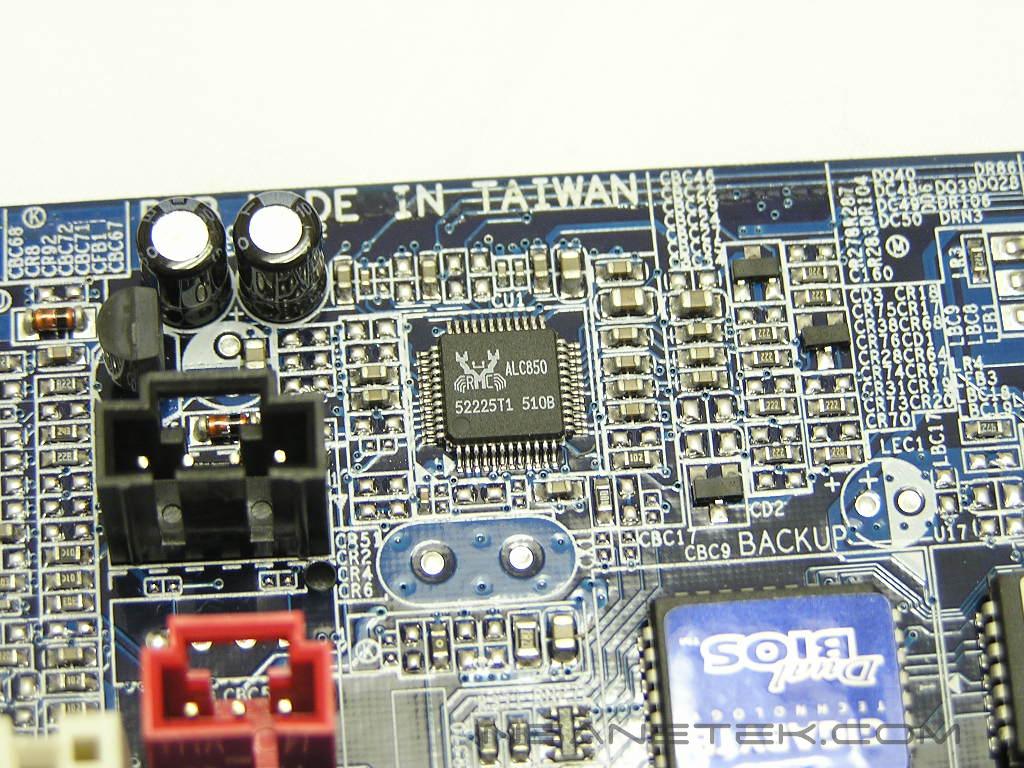
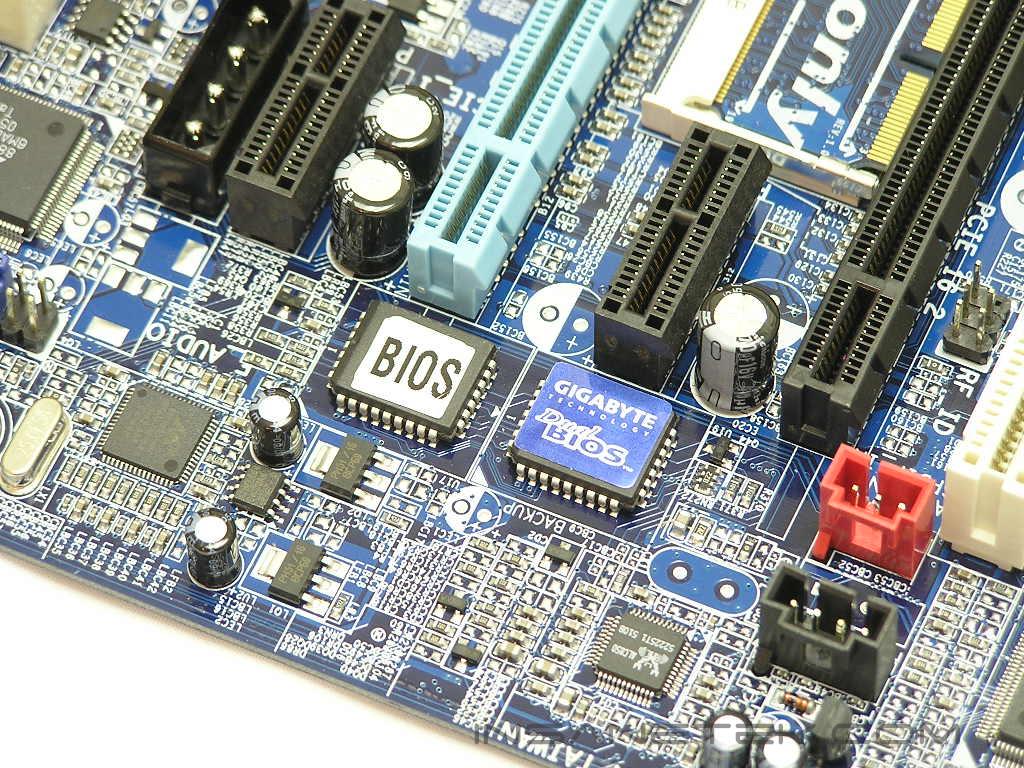
Right below the SATA ports is the front I/O connection. It is color coded and nicely labeled to allow hassle free installation. The power LED connection is actually the black one to the left, placed vertically. At the back I/O, you’ll find the PS2 keyboard and mouse, a parallel port, a serial port, four USB ports, two RJ45 jacks, 8-channel audio solution, and SPDIF IN/OUT. The 8-channel audio is controlled by the Realtek ALC850 audio controller. One great feature about Gigabyte motherboards is the Dual BIOS design. There are two physical BIOS chips on the motherboard that if flashing your BIOS goes bad, you can always roll back to your old one. There’s no need to RMA the board or get another BIOS chip.
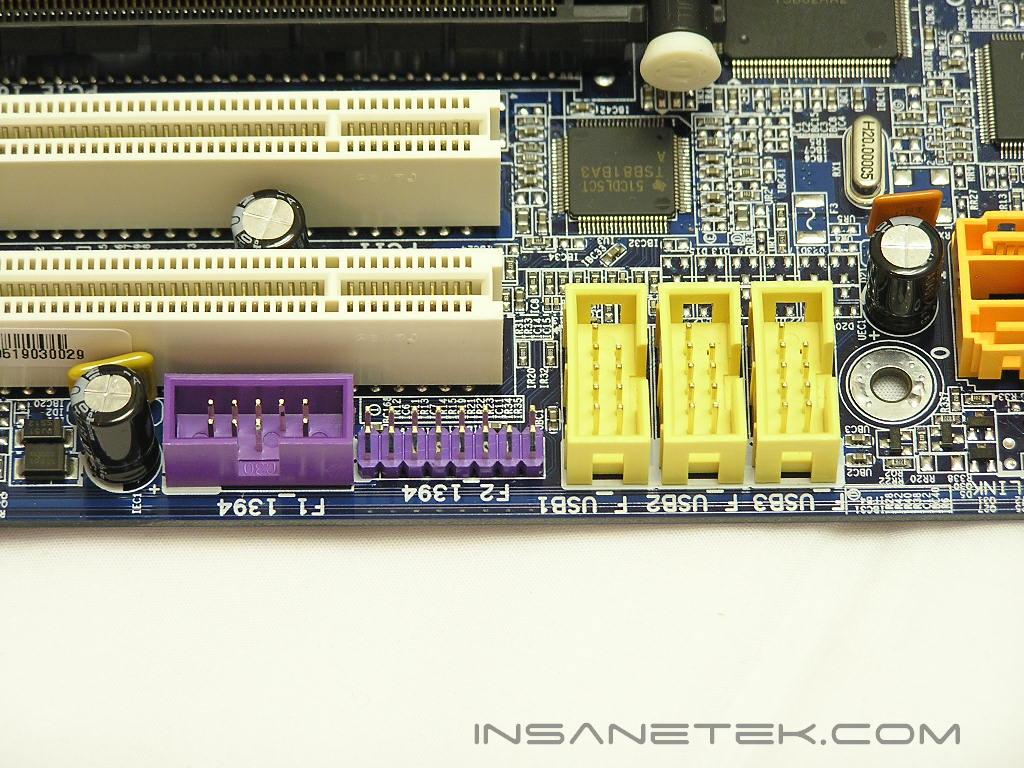
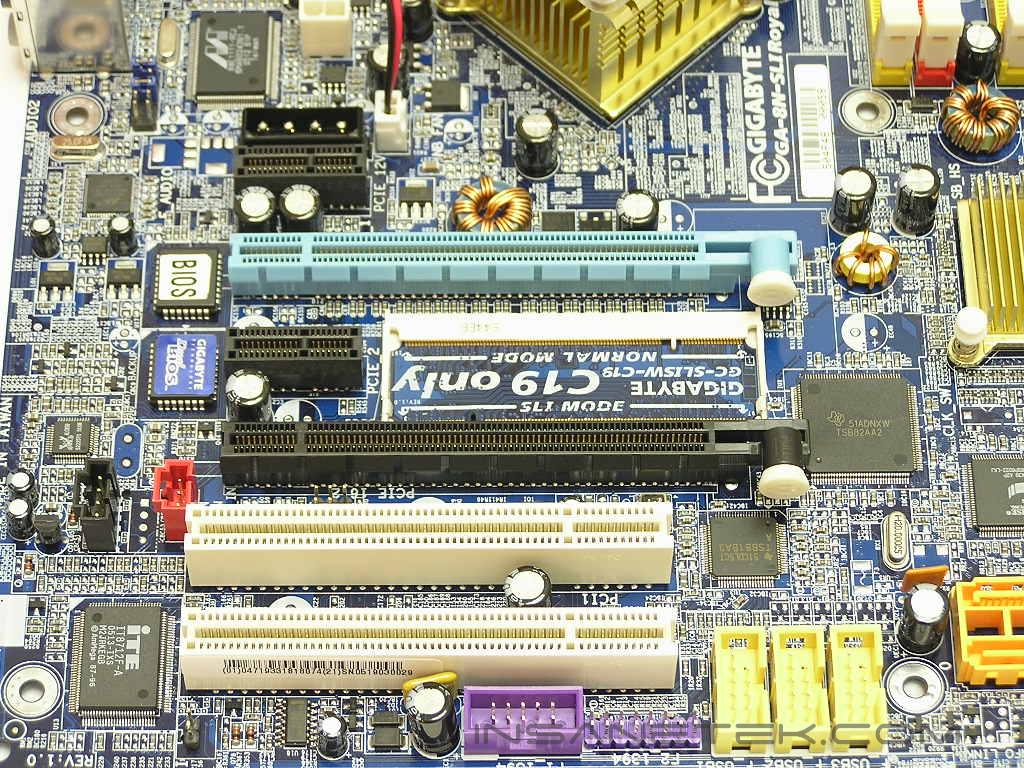
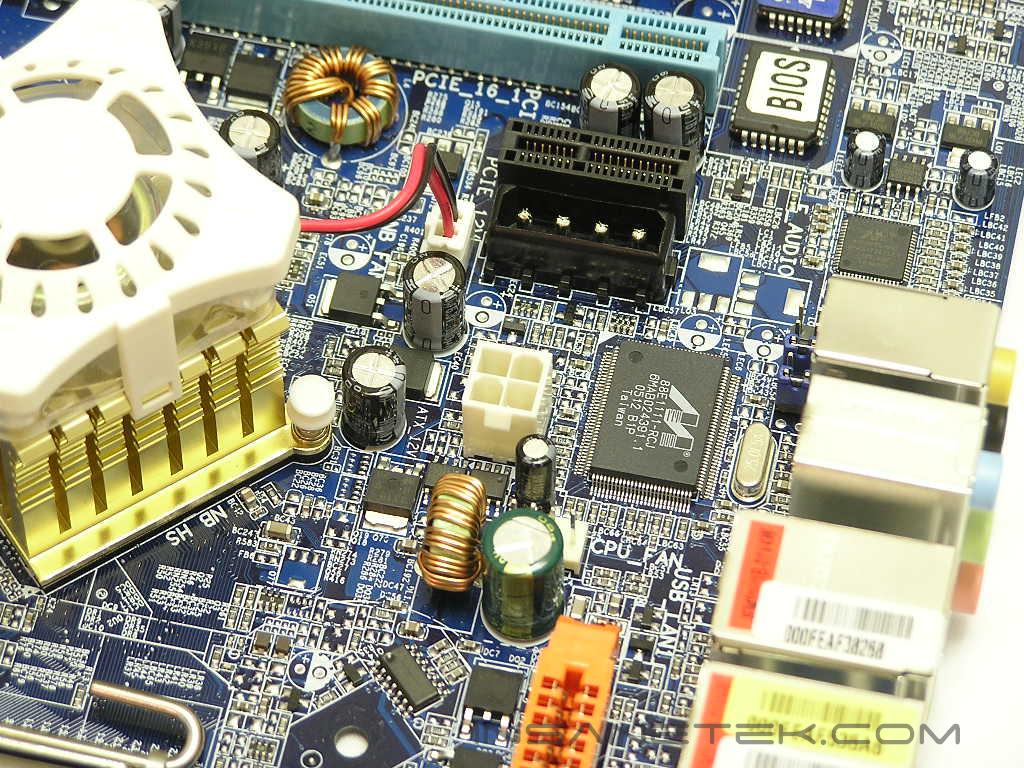
To the left of the SATA ports are the additional USB and IEEE 1394 headers. They are nicely color-coded to ensure easy installation of USB and IEEE 1394 PCI brackets. Speaking of PCI, there are only two PCI slots available for current add-on cards. Above the PCI slots are the dual PCI-E slots. The main one is colored blue, and is the one to use when running a single video card system. Above the blue PCI-E slot is the Molex connector that is required to run SLI. While the location of the connector is a horrible place, it needs to be as close to the video cards as possible. The same location is used for every other C19 boards currently available.
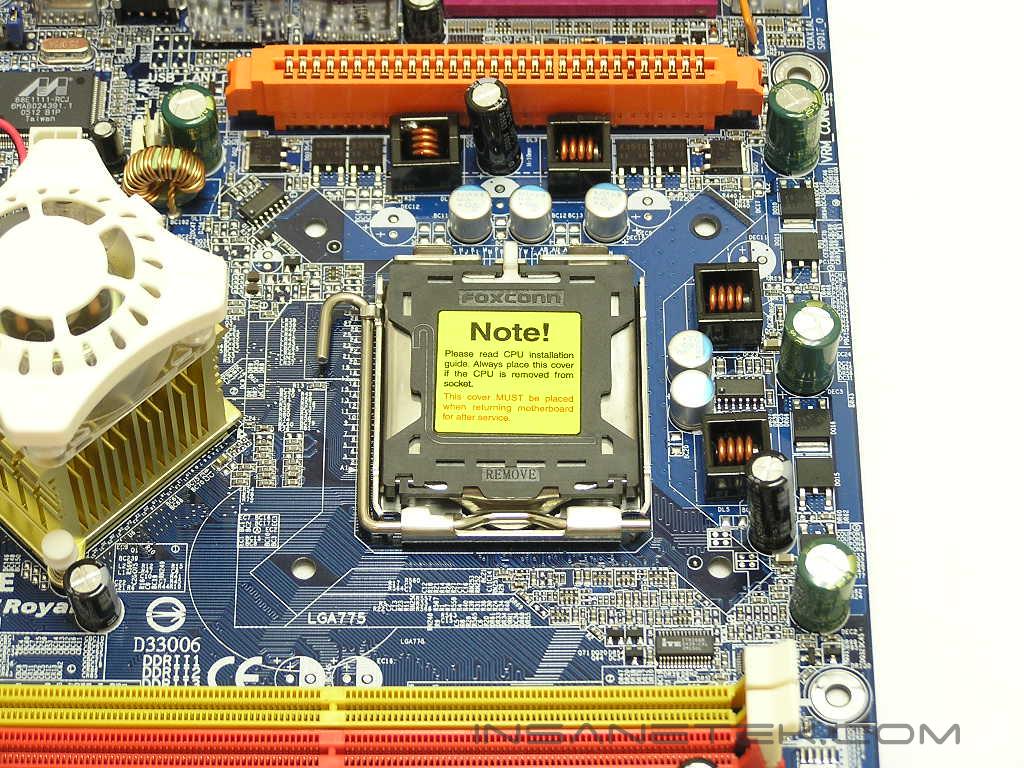
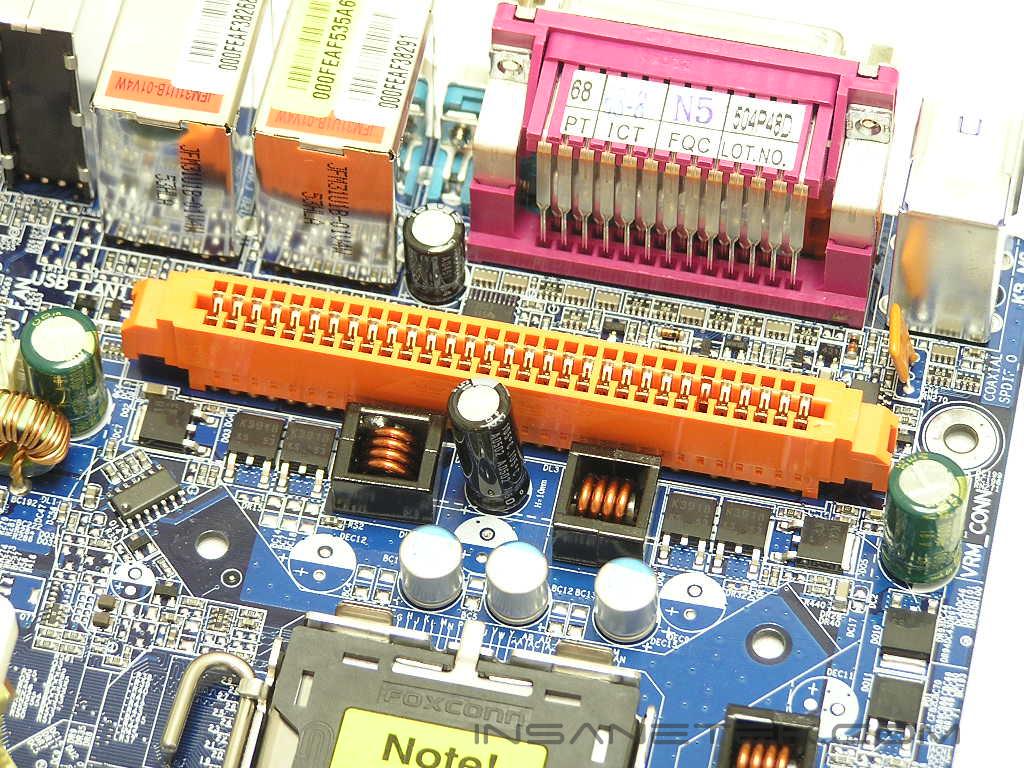
The CPU socket seems to have room for large heatpipe heatsinks. Users with large coolers, like the Zalman CNPS7700, might have a problem. The Northbridge fan and the U-Plus DPS will get in the way of extra wide heatsinks. The U-Plus DPS sits in the orange slot next to the CPU, but does not have any secure locks to lock the card in place. While the DPS sat nicely in the slot and didn’t move while I used it, I would strongly advise you to remove it before you transport your system. The 12v 4pin connector to feed the CPU is located above the 4pin Molex connector for the video cards. I hate this location. It requires the power cable to stretch and wrap around the CPU heatsink. There are already enough things going on around that area and an extra cable stretched all the way across doesn’t help.
BIOS
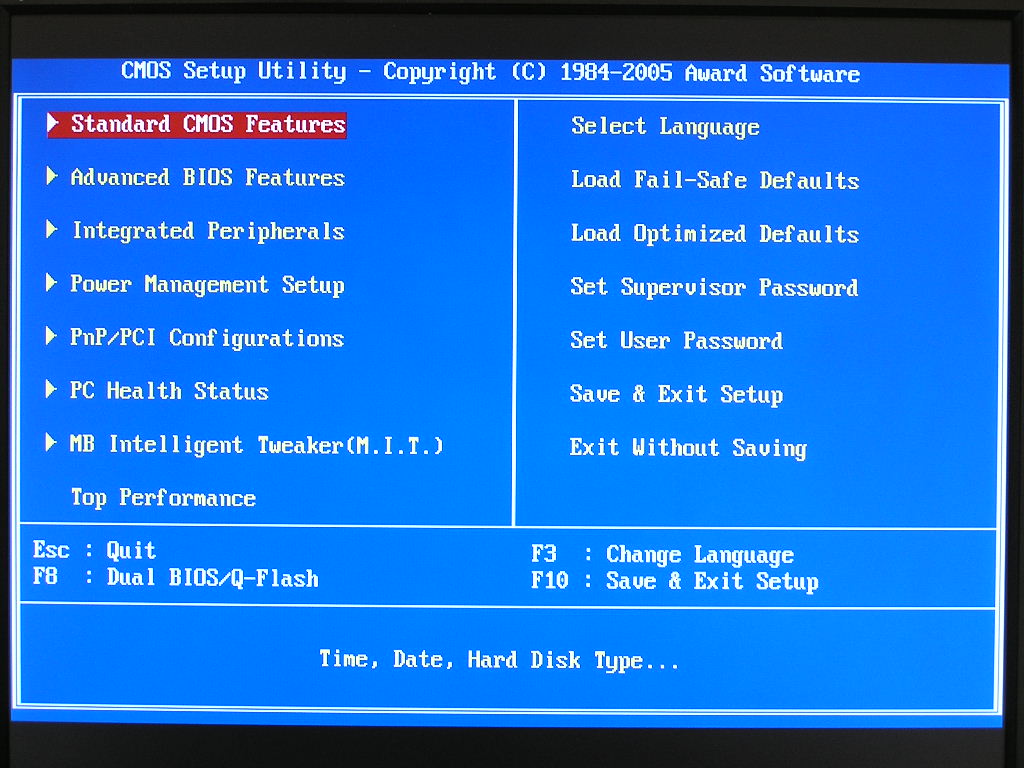
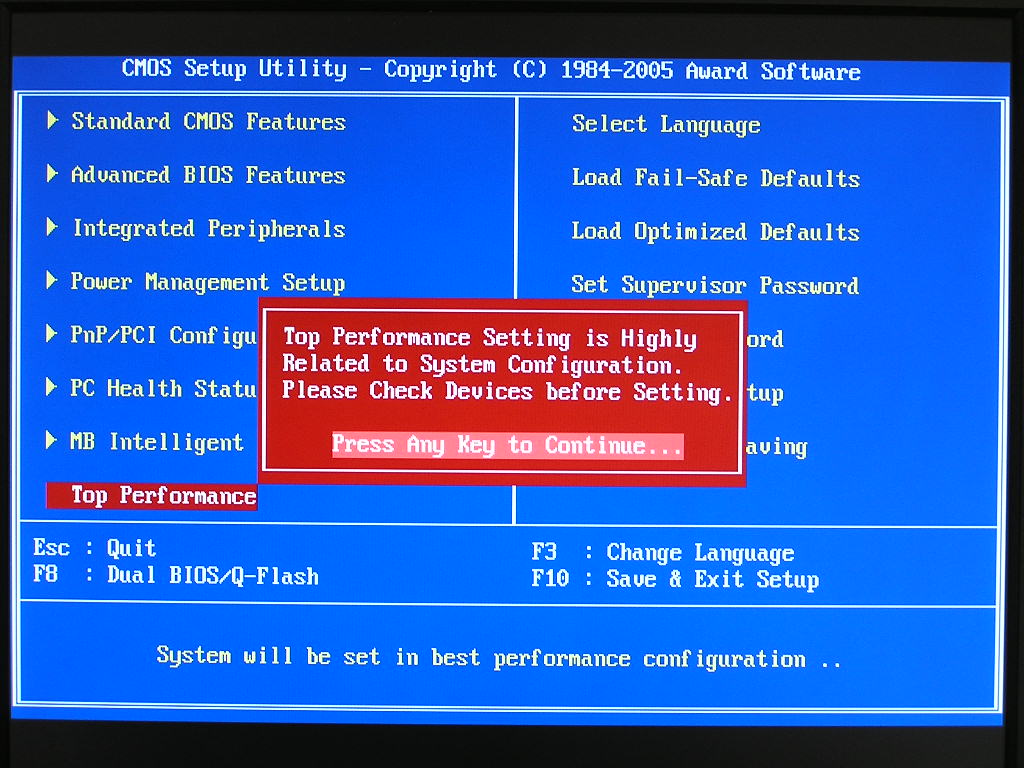
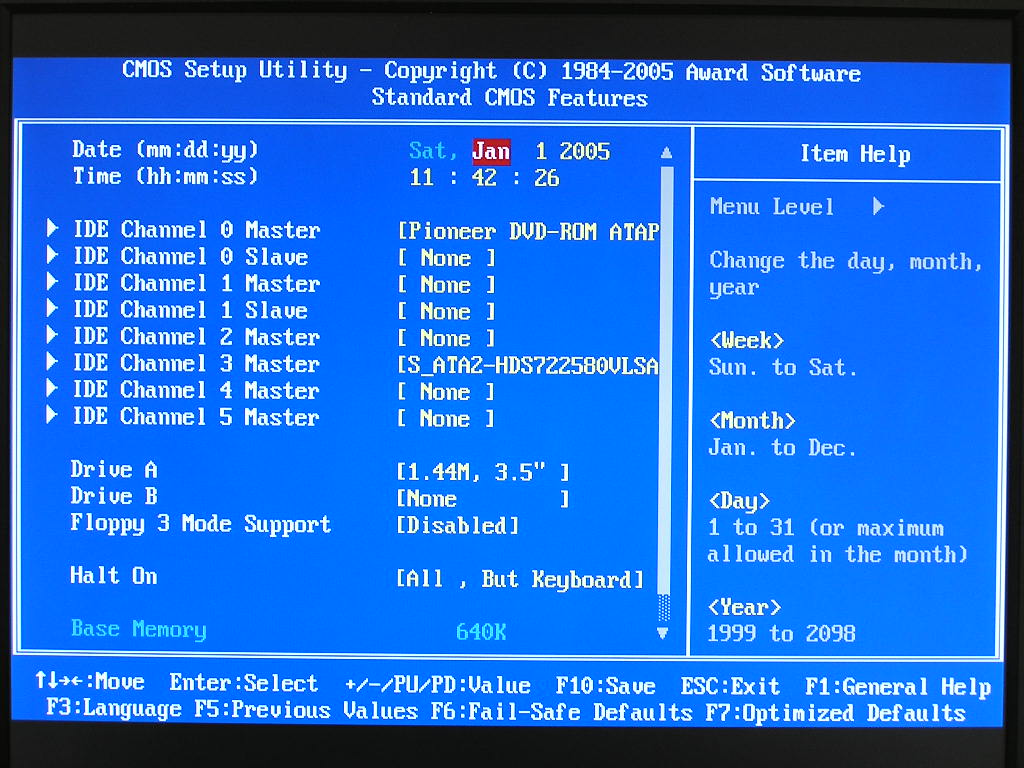
Gigabyte motherboards are not known to be extremely overclockable. After being accustomed to the DFI and Abit motherboards that come with plenty of memory tweaking options, not seeing the options in a motherboard was quite surprising. Yet, there are a good amount of tweaking options for the savvy enthusiasts. One thing that Gigabyte implemented was a safety feature for their overclocking section. When you’re on the main screen of the BIOS, you’ll have to press Ctrl + F1 to enable the Top Performance portion of your overclocking needs. That opens up the adjustments for memory latencies. All the overclocking needs are found under the Motherboard Intelligent Tweaker (M.I.T.).
-
VCore: Normal, 0.8375v - 1.6v
-
VDIMM: Normal, +0.1v - +0.7v
-
FSB Overvolt: Normal, +0.1v - +0.3v
-
SATAII Overvolt: Normal, +0.1v - +0.3v
-
PCI-E Voltage: Normal, +0.1v - +0.3v
-
LDT Multiplier: 1x, 2x, 3x, 3.5x, 4x, 5x
-
PCI-E Frequency: 90MHZ - 148.4375MHZ
-
System Clock: 400MHZ - 2000MHZ (QDR - quad pump front side bus)
-
Memory Speed: 400MHZ - 1200MHZ (DDR)
-
CPU Clock Ratio: 14x - 18x (depends if your CPU is unlocked)
-
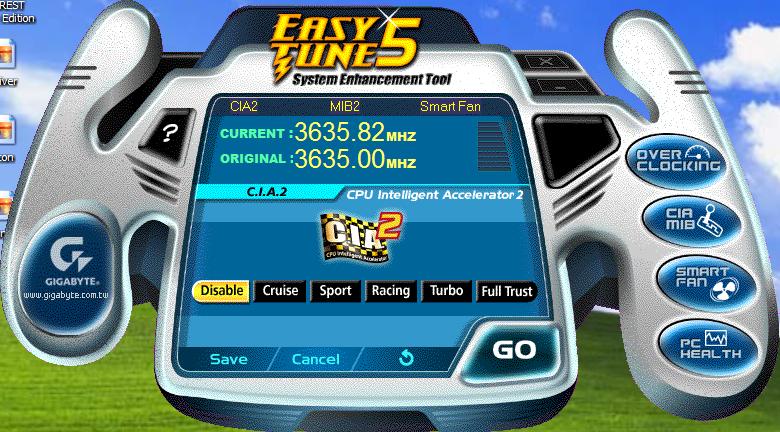
C.I.A.2: Disabled, Cruise, Sports, Racing, Turbo, Full Thrust
-
Memory Timings:
- CAS: Auto, 1-6
- TRCD: Auto, 1-7
- TRP: Auto, 1-7
- TRAS: Auto, 1-7
- TRC: Auto, 1-31
- Addressing Mode (CPC): Auto, 1 clock, 2 clock
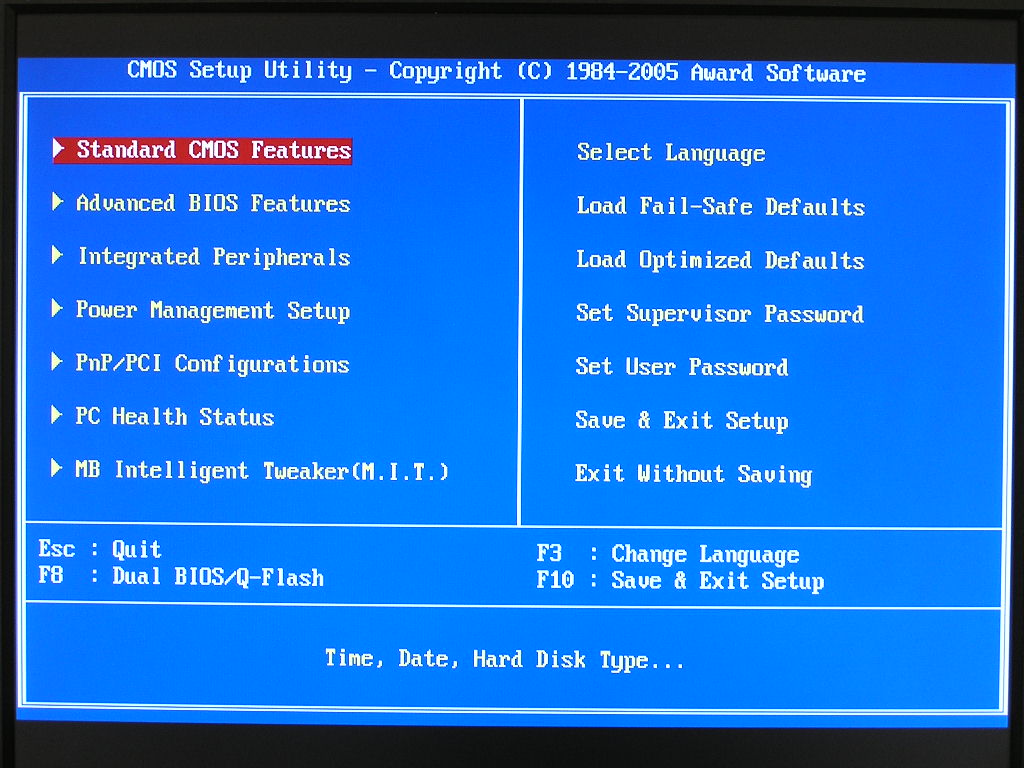
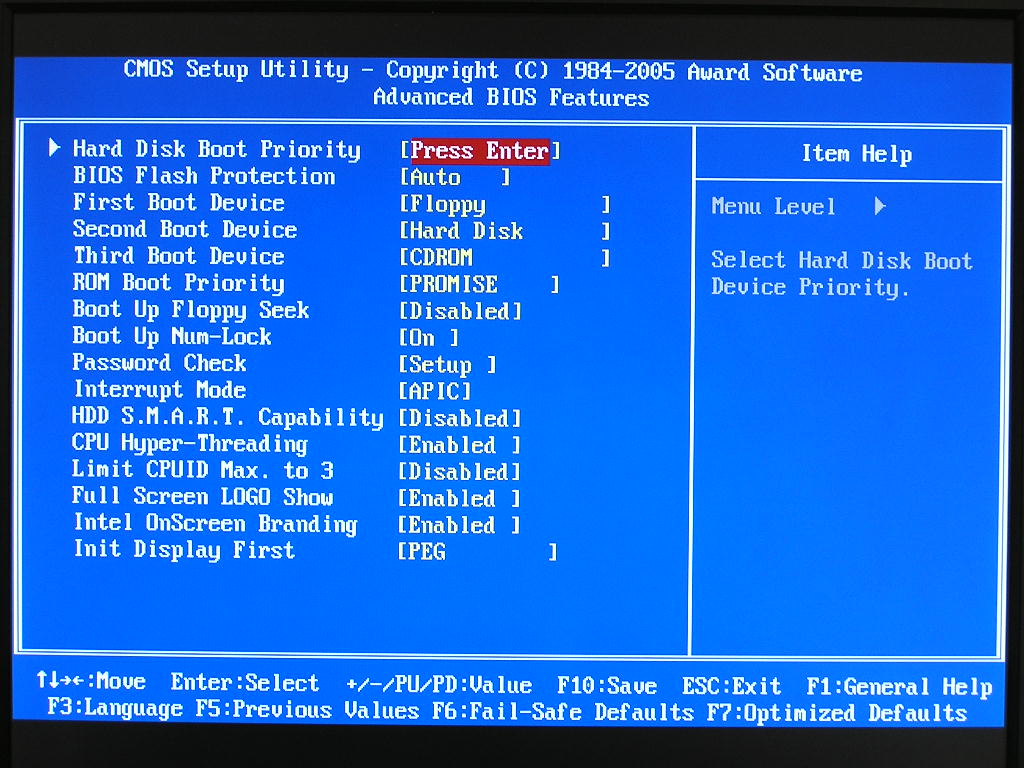
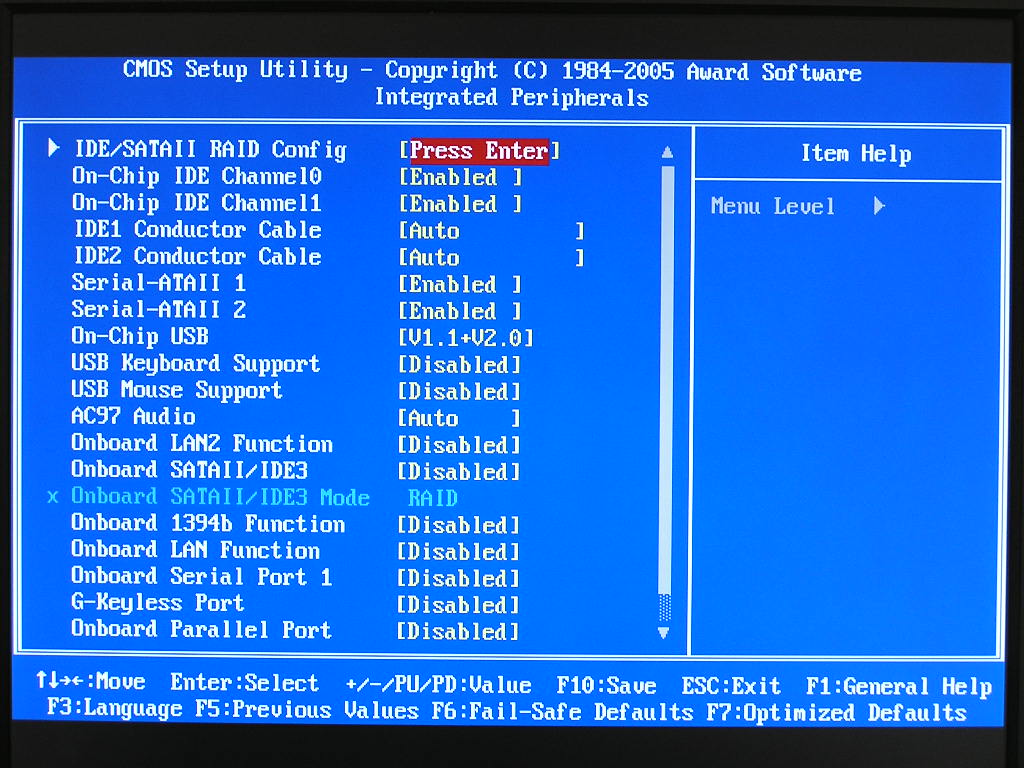
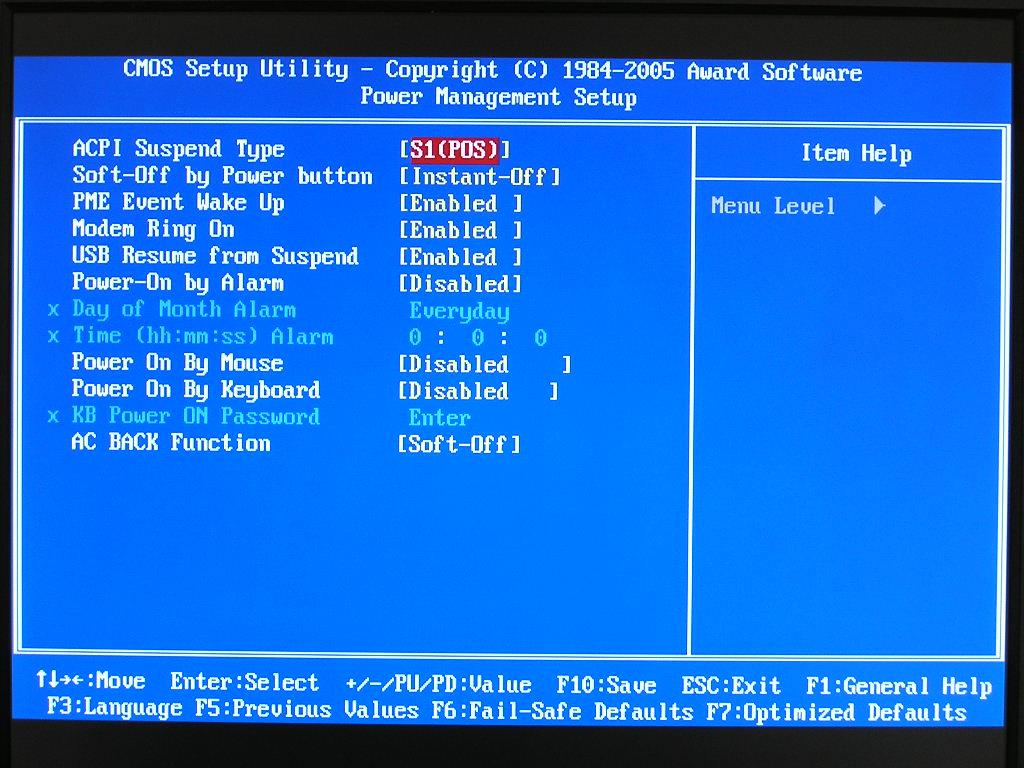
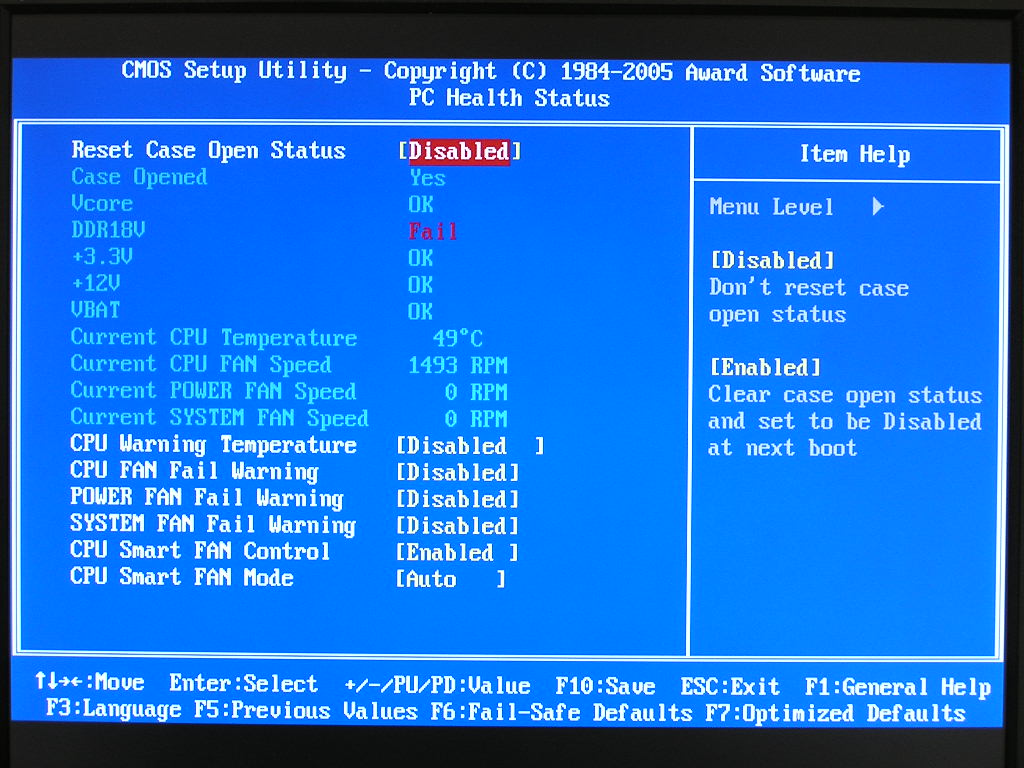
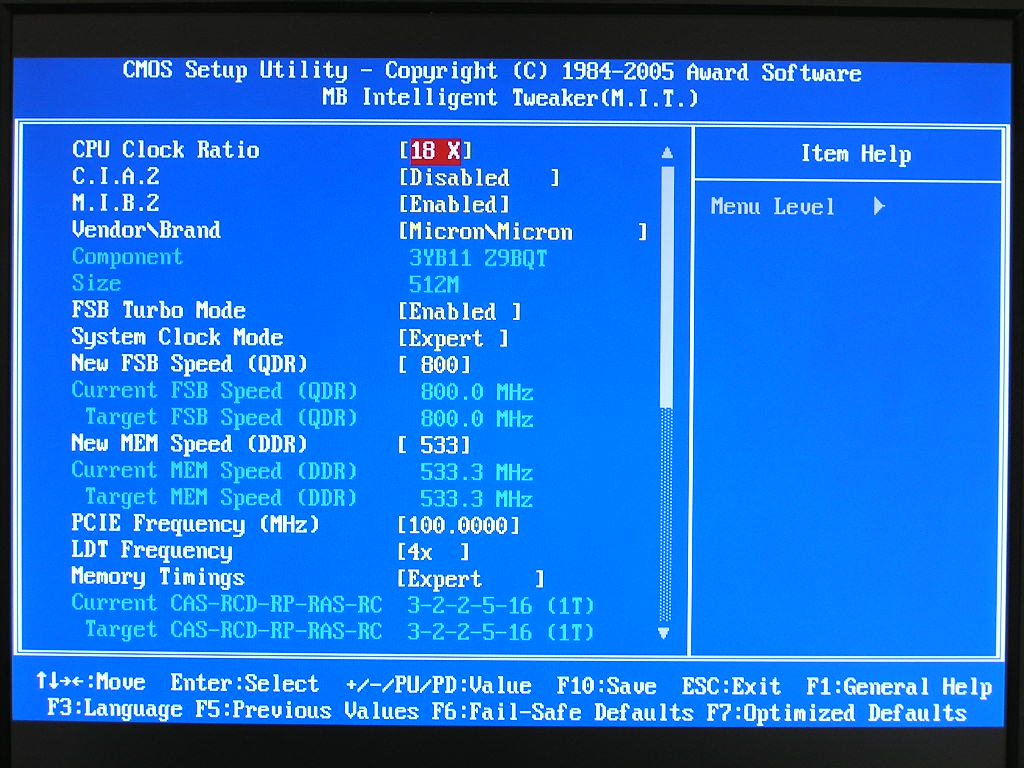
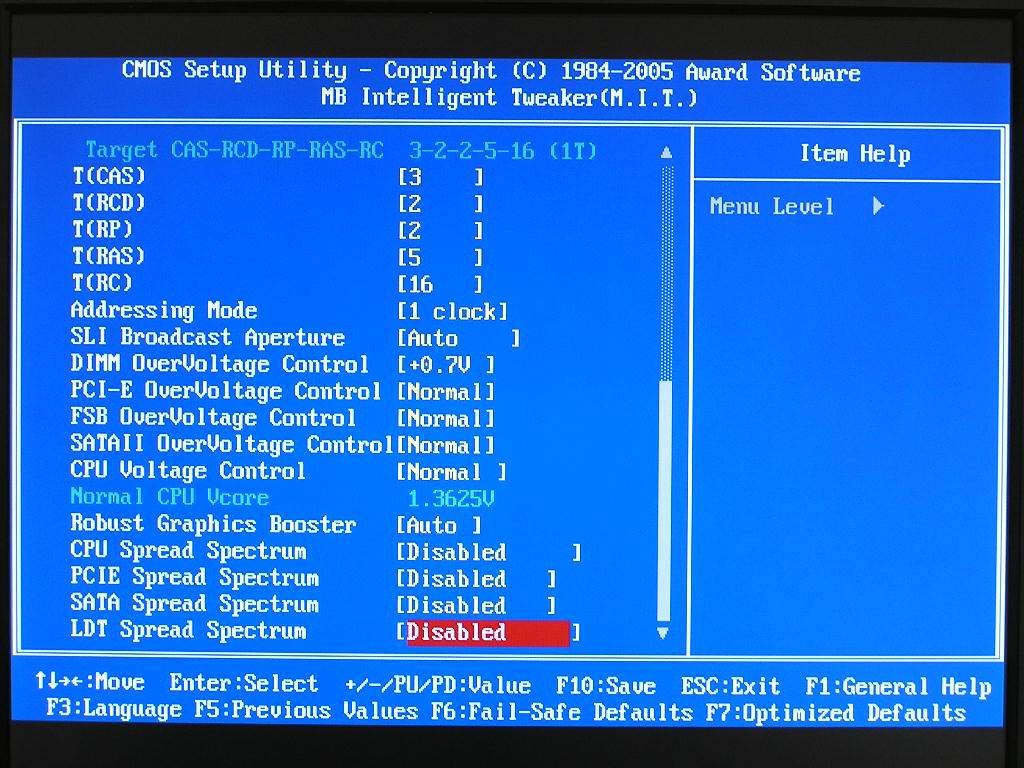
One interesting thing to note about the memory frequency adjustment is that it allows users the freedom of entering any frequency they wish. This means that you can run 200FSB and 800MHZ for memory, or even 1000MHZ. That’s an overclocker’s dream come true! Unfortunately this fairy tale didn’t come true. Instead, entering any memory frequency independent of the FSB will result with a no POST. I would have to overclock the memory in conjunction with the FSB in order for the overclock to be successful. This means that the highest working divider is the 2:3 ratio.
Software
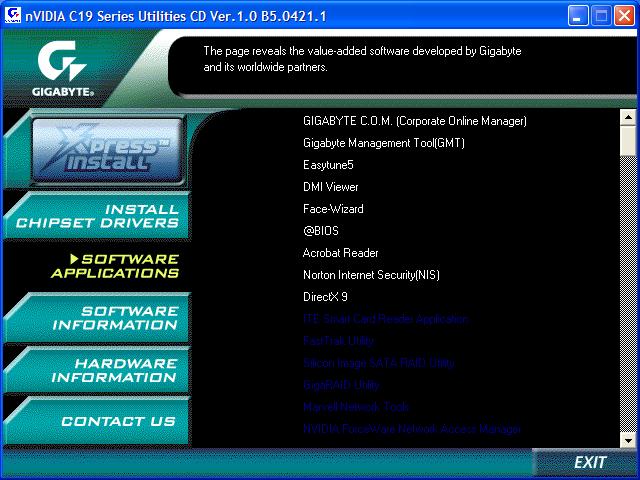
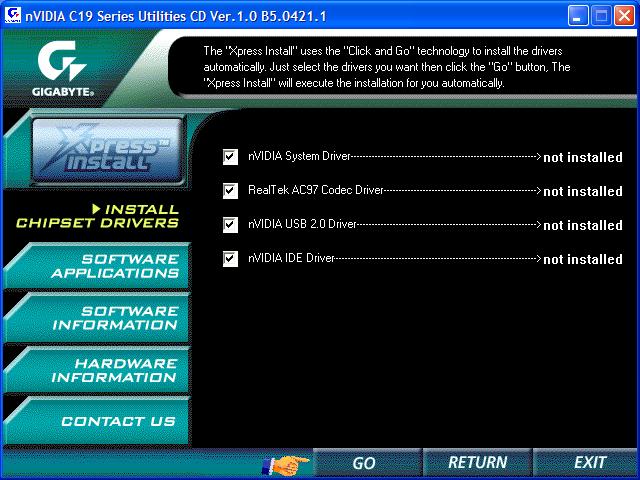
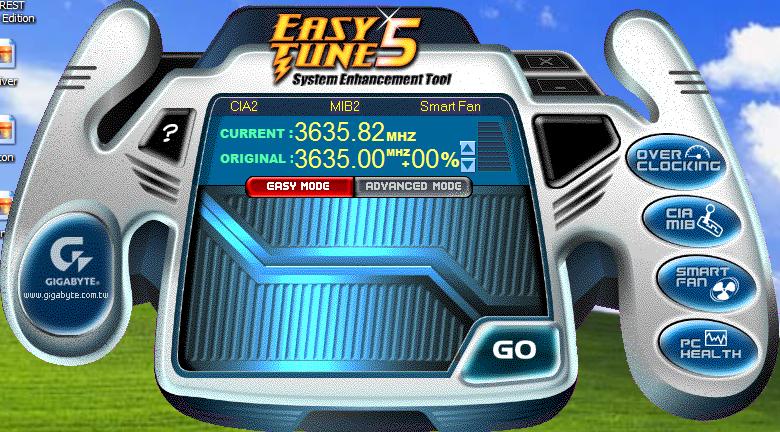
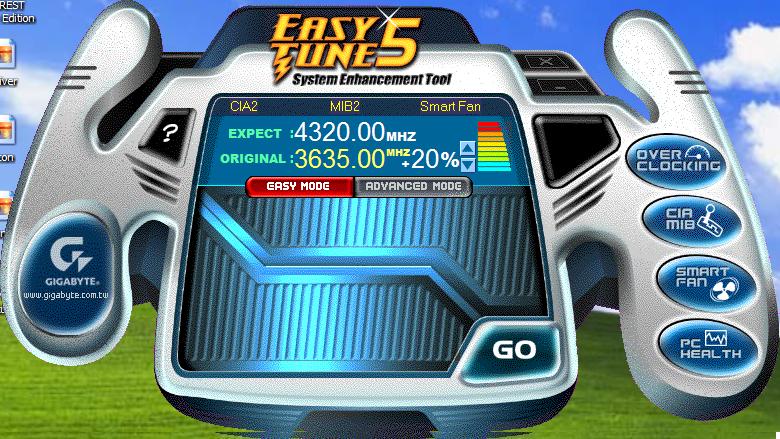
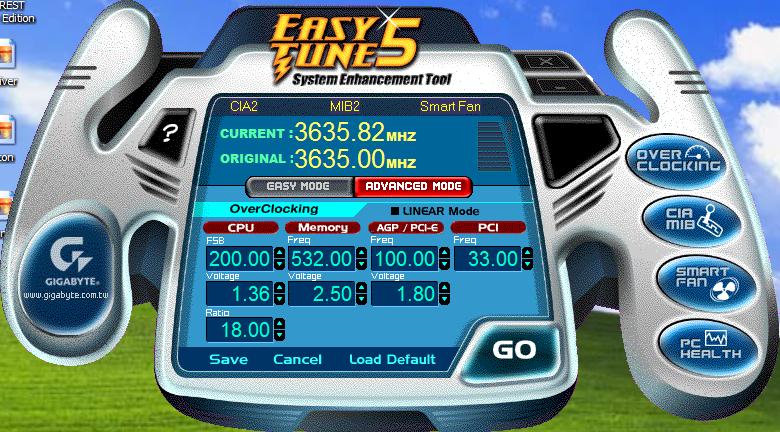
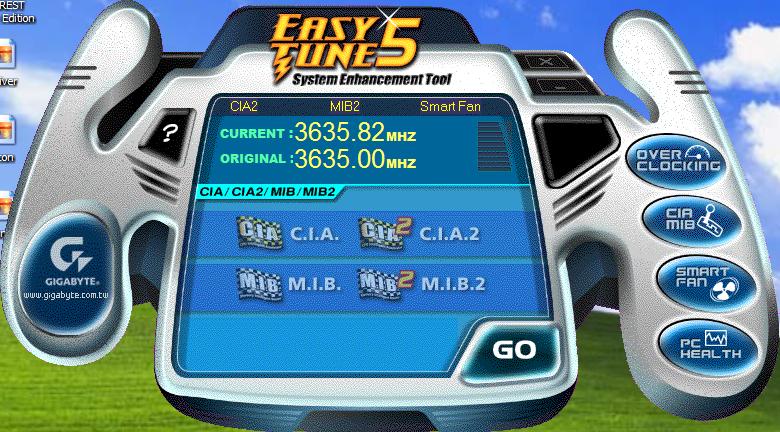
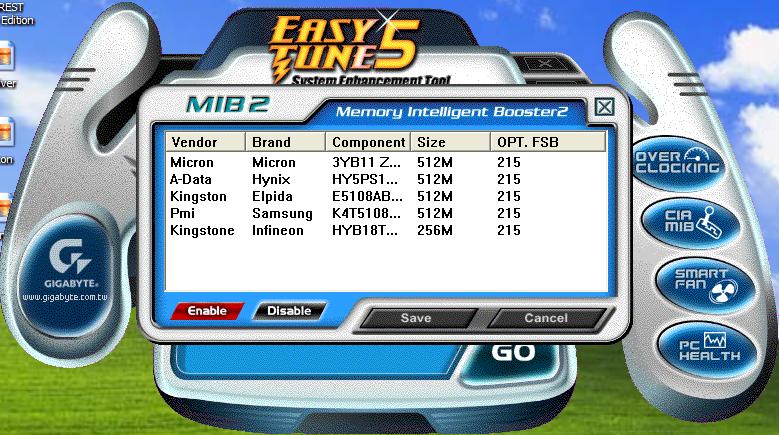
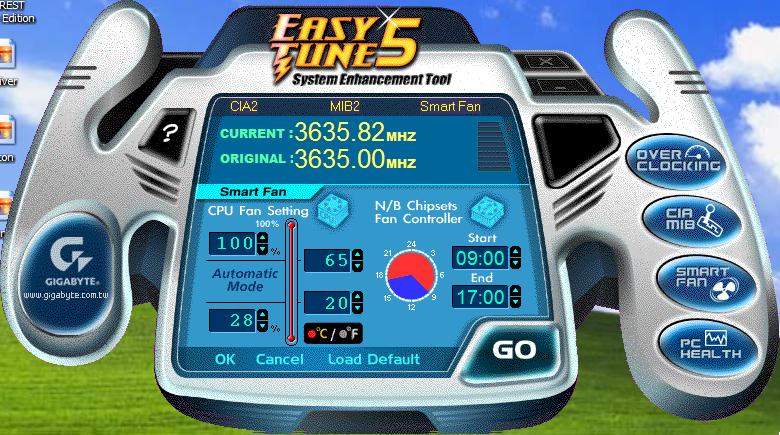
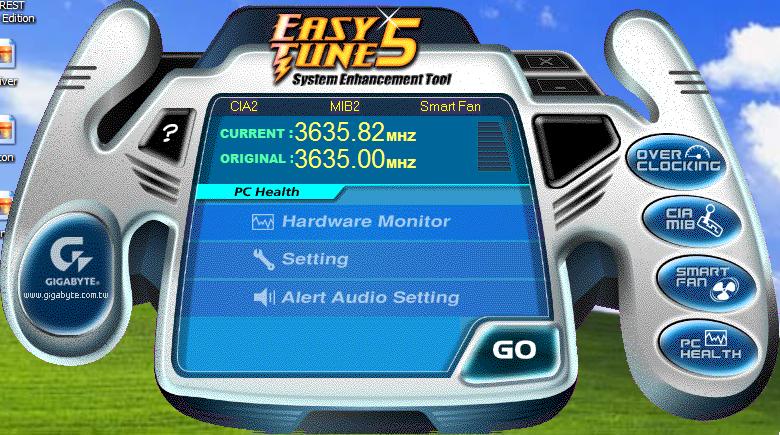
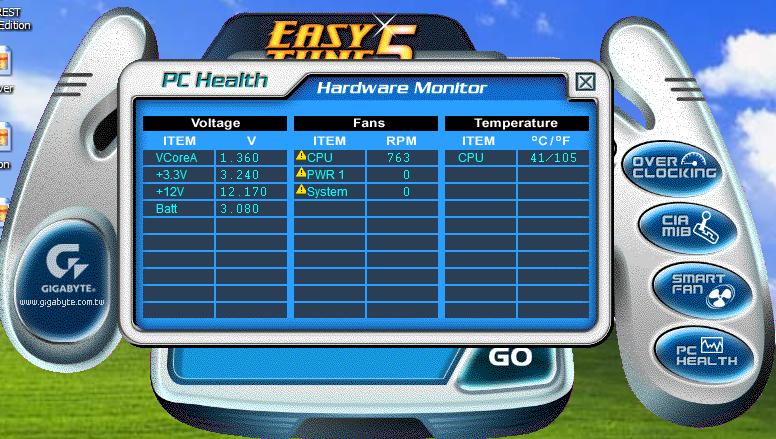
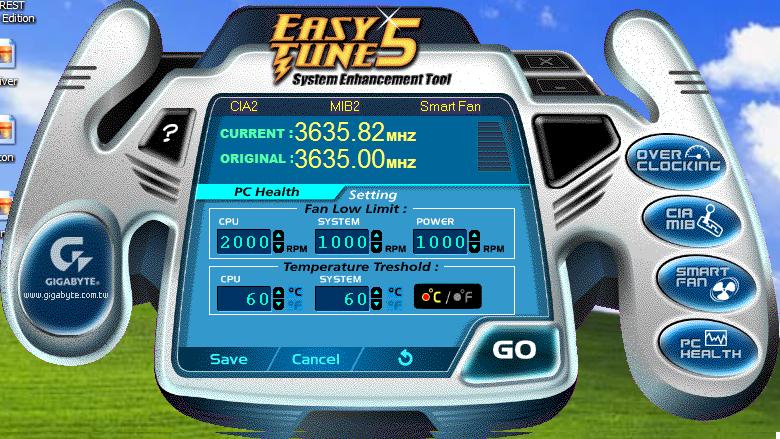
Gigabyte’s inclusion of the bundles software is excellent. Unlike many others that include cheap antivirus utilities, Gigabyte provides a full version of Norton Internet Security 2005. This means that Norton’s antivirus and Norton’s antispyware are included. Gigabyte also includes its Windows-based overclocking utility to allow enthusiasts to overclock on the fly. There are two modes; easy mode and advanced mode. The easy mode overclocks in percentages with a max of 20%. The advanced mode allows users to adjust options on their own. While it was easy to use, I found it a huge hassle to click the UP arrow multiple times just to reach a certain FSB. I’d have to click the arrow 50 times just to go from 200FSB to 250FSB. A sliding bar would’ve been so much easier. One interesting thing to note is that the EasyTune5 allows the VDIMM to go up to 2.5v. Through the BIOS, VDIMM allowed up to 2.5v (1.8v + 0.7v).
Test Setup and Overclocking
Test Setup:
- Intel Pentium 4 560 3.6GHZ
- Abit Fatal1ty AA8XE
- Gigabyte GA-8N-SLI Royal
- 2 x 512MB Centon Advanced PC2-5400 Low Latency 3-2-2-5
- MSI 6600GT
- Arctic Cooling Freezer 7
- Cooler Master Real Power 550W
- Nvidia Forceware 71.89
- Nvidia nForce4 standalone kit 6.53
- Hitachi 80GB SATA
Overclocking:
I was quite anxious to overclock a motherboard with the C19 chipset. Nvidia said that they were able to reach 300FSB during overclocking in their labs, so I had high hopes of reaching beyond that 300FSB mark. Unfortunately, this wasn’t so. I proceeded to find the highest HTT allowed with dual sticks of memory installed. All memory timings were left at 5-5-5-15 2T, LDT multiplier at 1x, and CPU multiplier at 14x. I made sure that nothing would bottleneck the chipset and motherboard potential. I tested with dual channel sticks in slots 1 & 2 and 3 & 4 and received the same results.
- Highest overclock: 250FSB
While 250FSB is far from Nvidia’s accomplishment of 300FSB, it’s still decent for a motherboard that’s not made to overclock. It’s a shame that it couldn’t really go any higher. Perhaps the GA-8N-SLI Royal needs a new BIOS update to further unleash its potential? We’ll have to wait and see with their new BIOS update.
Results
Sysmark 2004
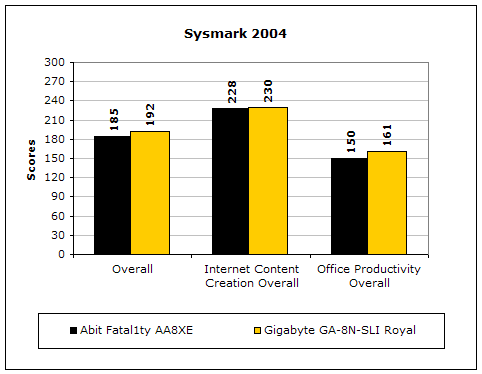
Sysmark2004 is a very common benchmark used to measure a system’s potential in performance. It goes through long and grueling tests that include compression and decompression, as well as office intensive programs.
3DMark2001SE
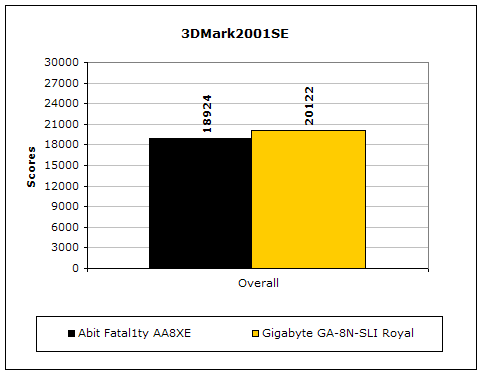
3DMark is probably the overclocker’s favorite benchmark. Unlike 3DMark2003, which stresses mainly the video card, 3DMark2001SE tests all of the system’s main components. Increasing the CPU speed, memory speed, and video card speeds will result in better results for the final score.
PCMark2004
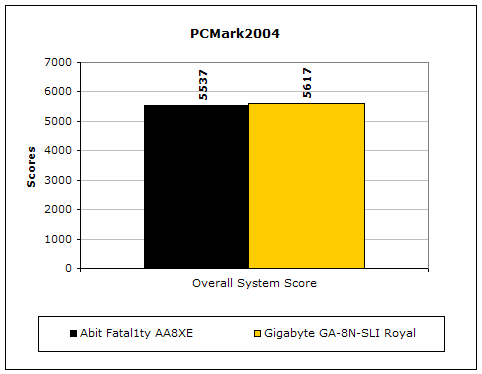
The PCMark2004 system benchmark puts the entire system to work.
PCMark2002
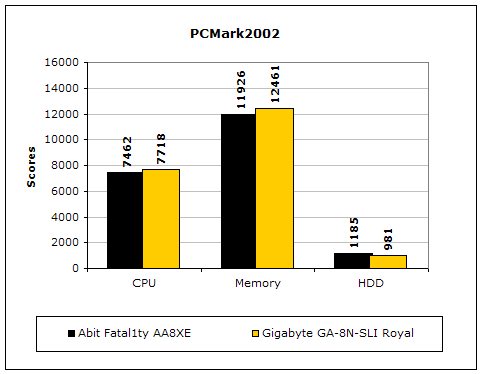
PCMark2002 is older than PCMark2004, but still very similar.
Results Continued
Everest Home Edition
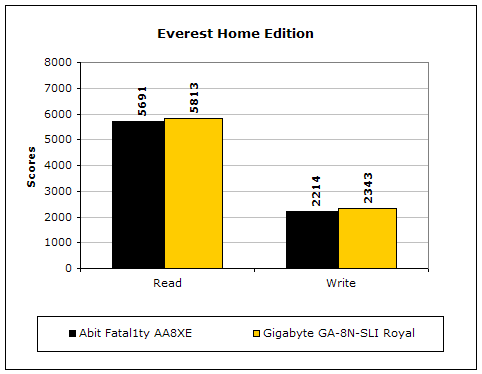
Everest Home Edition is a good benchmark for testing memory performance. Since the motherboard’s overclocking potential and memory bandwidth is closely related, I find this benchmark to be trustable.
SiSoft Sandra
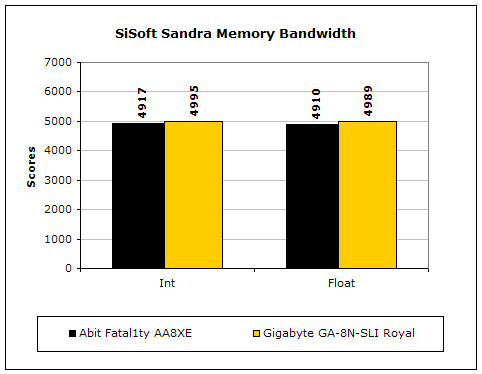
Like Everest Home Edition, SiSoft Sandra memory bandwidth tests the motherboard’s memory bandwidth performance.
Super PI
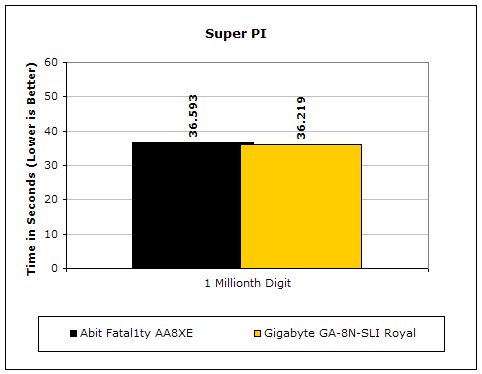
Since the value of PI is an infinite value, Super PI is a speed test to find the digit you’re looking for. In this case, we chose the millionth digit. Super PI benefits greatly from higher FSB, as well as low latencies.
PiFast
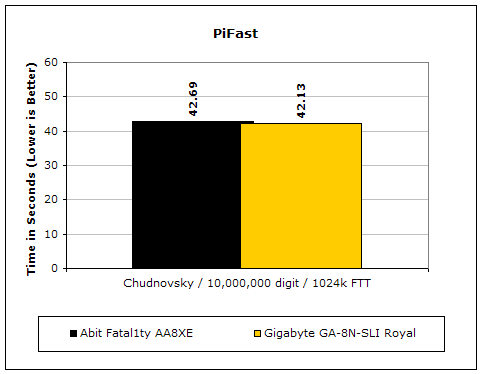
PiFast is similar to Super PI and the results can be greatly affected by a slight adjustment to the memory megahertz and latency.
Unreal Tournament 2004
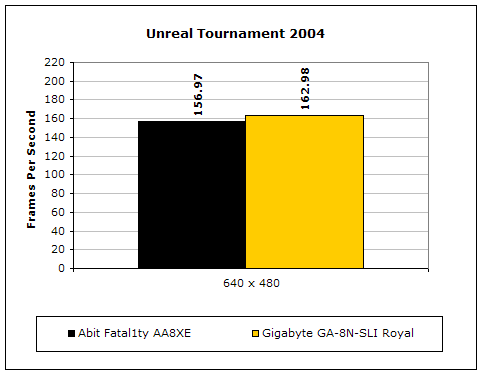
Unreal Tournament 2004 is a very popular game that is highly affected by the system’s performance. Testing was done under the resolution of 640x480 to minimize the dependency of GPU and CPU power.
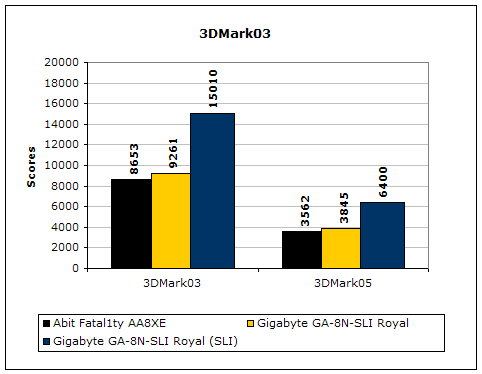
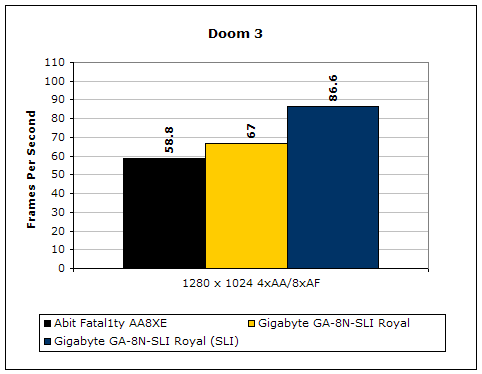
For Some SLI Action
Conclusion and Thoughts
The Nvidia C19 chipset for the Intel LGA775 platform is outstanding when compared to the older 925XE chipset. Based on stock speeds alone, the C19 smoked the 925XE on all accounts. The chipset is fast and can probably bring Intel fanboys what they’ve been missing on the AMD side. The C19 chipset is still in its early stages and will probably improve over time with new fabrications or revisions. While this is the first C19 motherboard I’ve used, the overclocking problem could lie with the C19 chipset or Gigabyte’s implementation. Regardless, there is room for improvement, considering that AMD’s nForce4 can easily reach over 300MHZ without breaking a sweat.
Gigabyte’s GA-8N-SLI Royal motherboard is rock solid and provides excellent performance. The motherboard’s features, bundled accessories, and included software are the key selling points for this motherboard. The U-Plus DPS is a great tool for dividing the workload among the motherboard MOSFET’s, producing less heat. The included Bluetooth adapter is very nice, although I didn’t have a use for it. I’m sure it’ll come in handy in the future. Overclocking the board was half decent. 250FSB is nothing to break open a bottle of champagne for, since the 925XE chipset could easily hit over 280FSB. Yet, it’s still decent for the average overclocker. Lastly, no one can really complain about SLI, right?
Gigabyte has done a great job with Nvidia’s C19 chipset and adding a boatload of features. The board is super fast and super stable. Now the question is, can the board take on the new Intel flagship 955X chipset?
Pros:
- Feature rich
- U-Plus DPS lessens load on motherboard MOSFET’s
- Good overclocking features in BIOS
- Great bundled accessories - Bluetooth adapter!
- Great included software
- Decent price for a high end Intel LGA775 motherboard
- Very fast performance
- SLI capable
- Gigabyte’s Dual BIOS protection
Cons:
- Overclocking a bit weak
- U-Plus DPS and Northbridge fan will cause CPU cooler incompatibilities
- Annoying CMOS clear method
- Bad location of the 12v 4pin connector

We would like to thank Gigabyte for providing us the sample. If you have any questions or comments, feel free to hit us up in the forums. You can also check out more of our latest reviews on the front page.