

Zalman Reserator 1 Plus
Introduction
Zalman has manufactured many coolers, astounding enthusiasts everywhere with performance and silence. As companies moved on to watercooling, Zalman continued to bring consumers a quiet computing environment. It was only recently that I learned to enjoy the benefits of true surround sound in a quiet computing environment. I remember when Athlon XP-Mobile chips were popular; I only worried about sufficient cooling. Noise created from a fan was not important to me. This usually meant coupling the heatsink with a loud Thermaltake Smart Fan. With rival products, like the Thermaltake Big Typhoon and Sonic Tower, a good night’s rest is again possible. What was Zalman’s solution to this?
Zalman released the Reserator 1 Plus, a revision of the original Reserator 1. The Reserator 1 came only with a CPU water block, with the VGA water block being an option. In the new Reserator 1 Plus, a VGA water block is included, making room for an optional Northbridge water block. We didn’t have a chance to review the original Reserator, so there won’t be a comparison between the old one and new one. However, it would be quite interesting to see how it performs against other water cooling solutions. The price tag is high, but what about the performance?
Zalman Reserator 1 Plus
The Zalman Reserator 1 Plus is a completely silent cooler and relies on a heat tower that is fully aluminum. As with all passive coolers, there must be some breeze in the room to help remove the heat at a decent rate. Though passive, it is still in charge of removing most of the heat from your system. Keeping that in mind, the Reserator boasts that it can keep the video card, CPU processor, and Northbridge chipset cool.
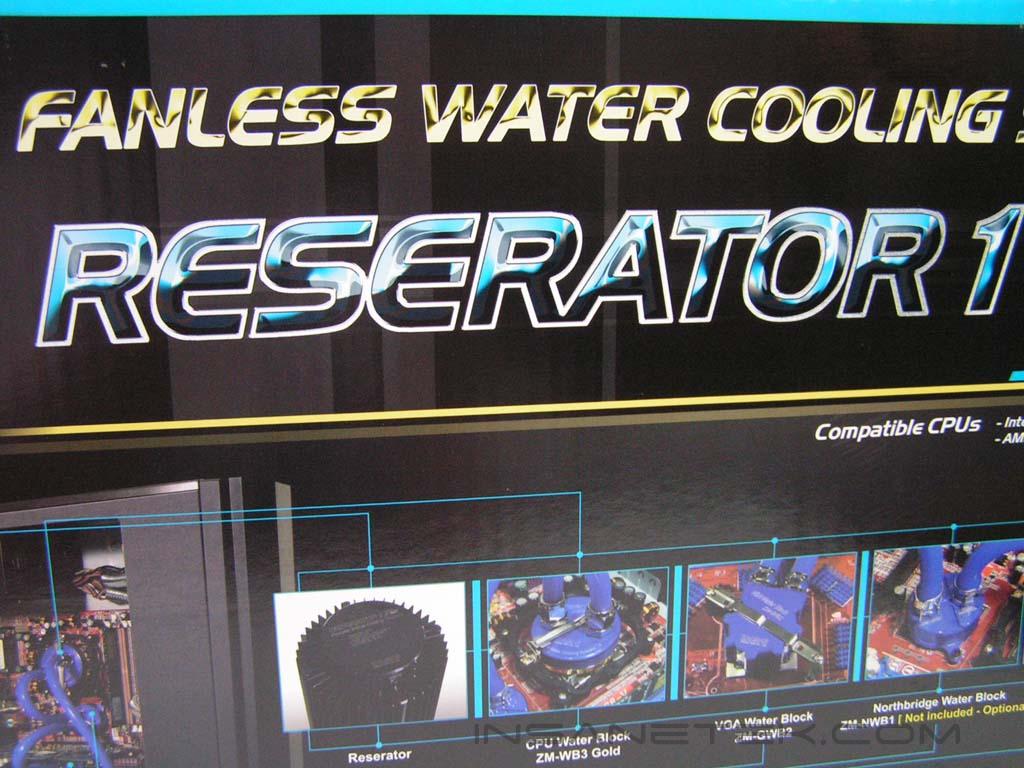
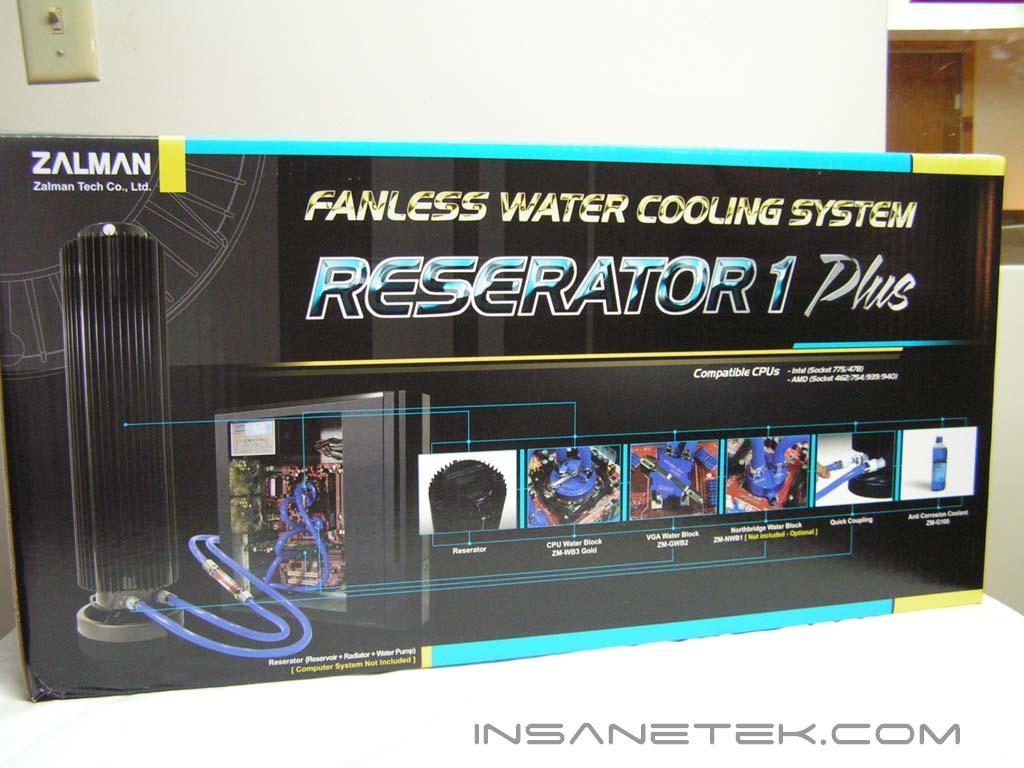
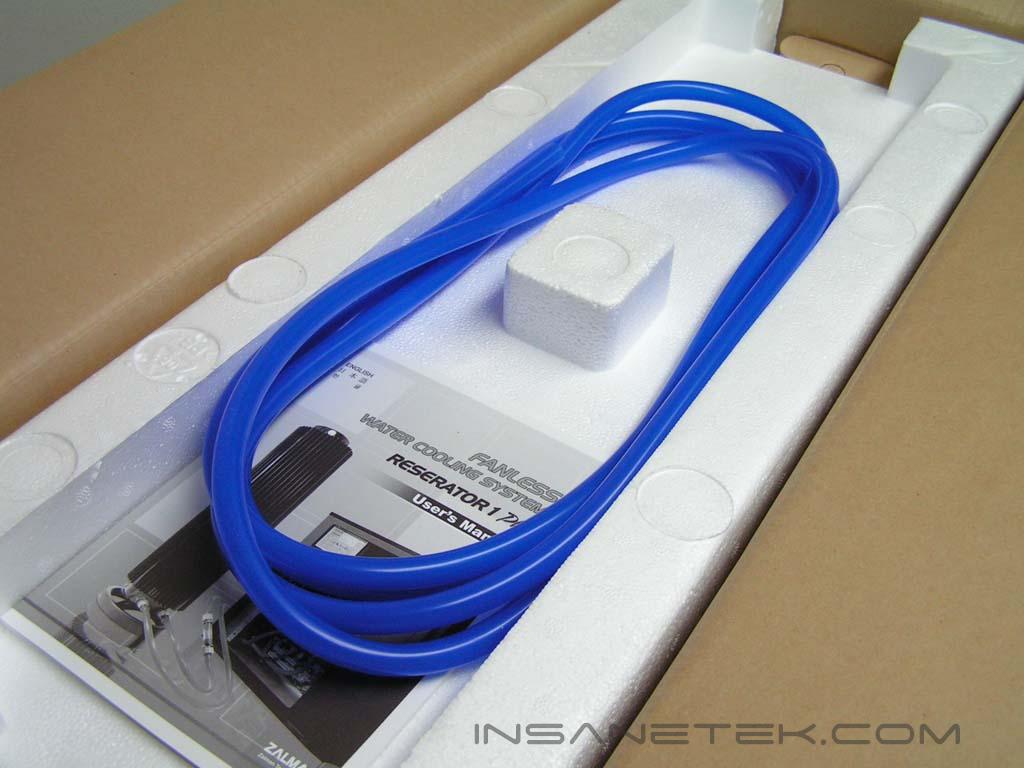
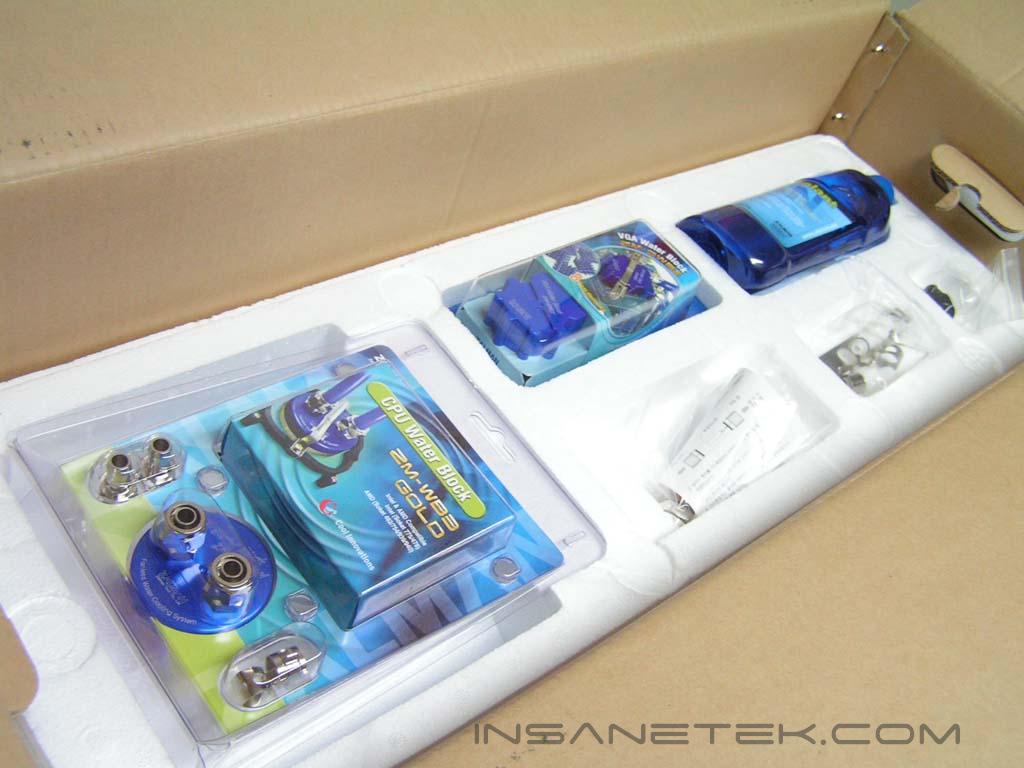
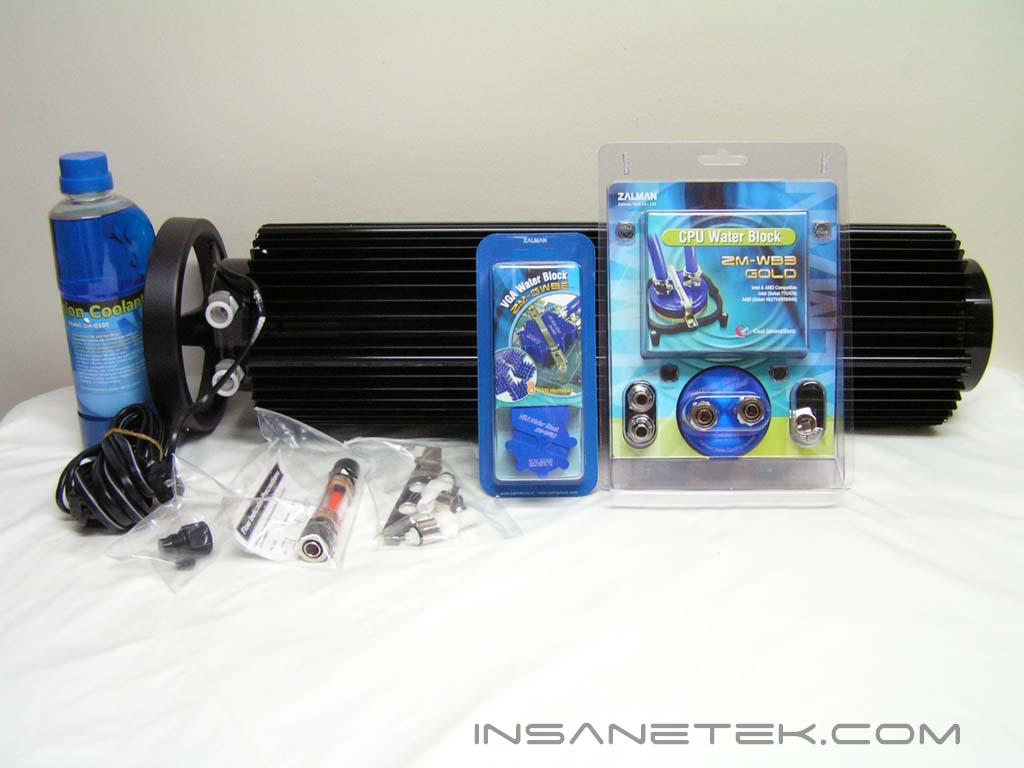
Just when I thought cases came in big boxes, the Reserator 1 Plus came in a bigger box. It was a graphically rich box and outlined the main areas this cooler excels at. The consumer should be warned that the box is extremely heavy. Such a heavy package would leave one to assume that it would be packaged extremely carefully. Indeed, it was. After opening the box, the silicon tubing and an instruction booklet come into view. Under those items is a thick piece of Styrofoam that protects the middle layer of components. Removing the Styrofoam reveals a bottle of anti-corrosion coolant, the VGA water block, CPU water block, mounting accessories and another set of instructions. Finally, removing the Styrofoam underneath reveals the actual Reserator.
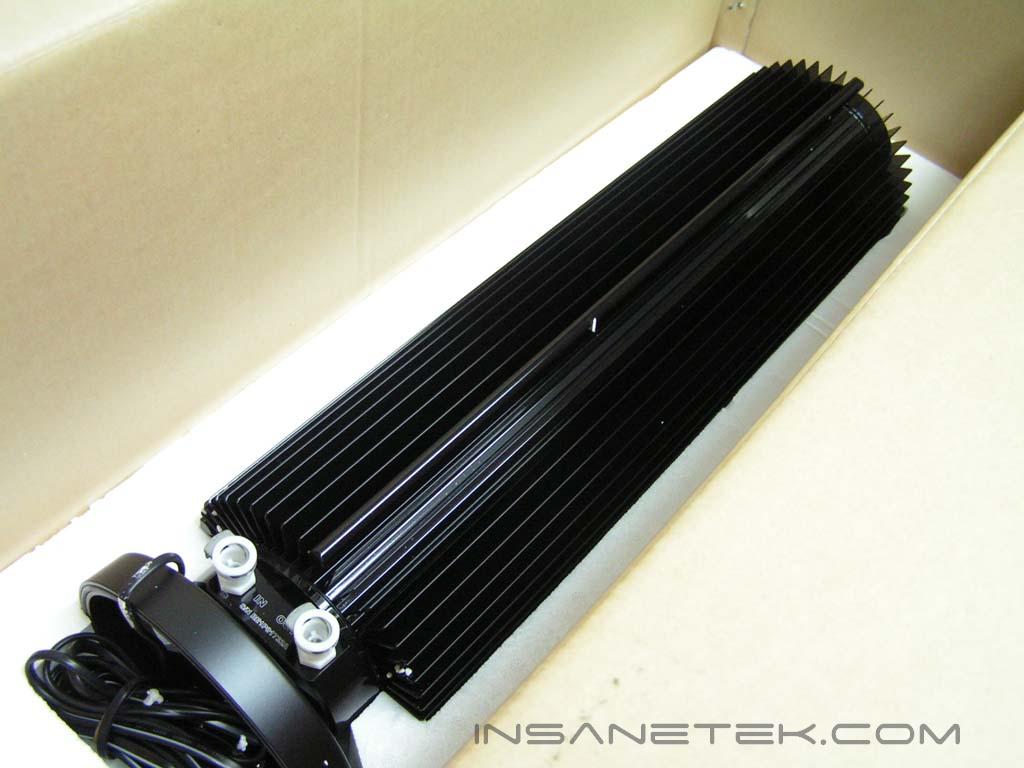
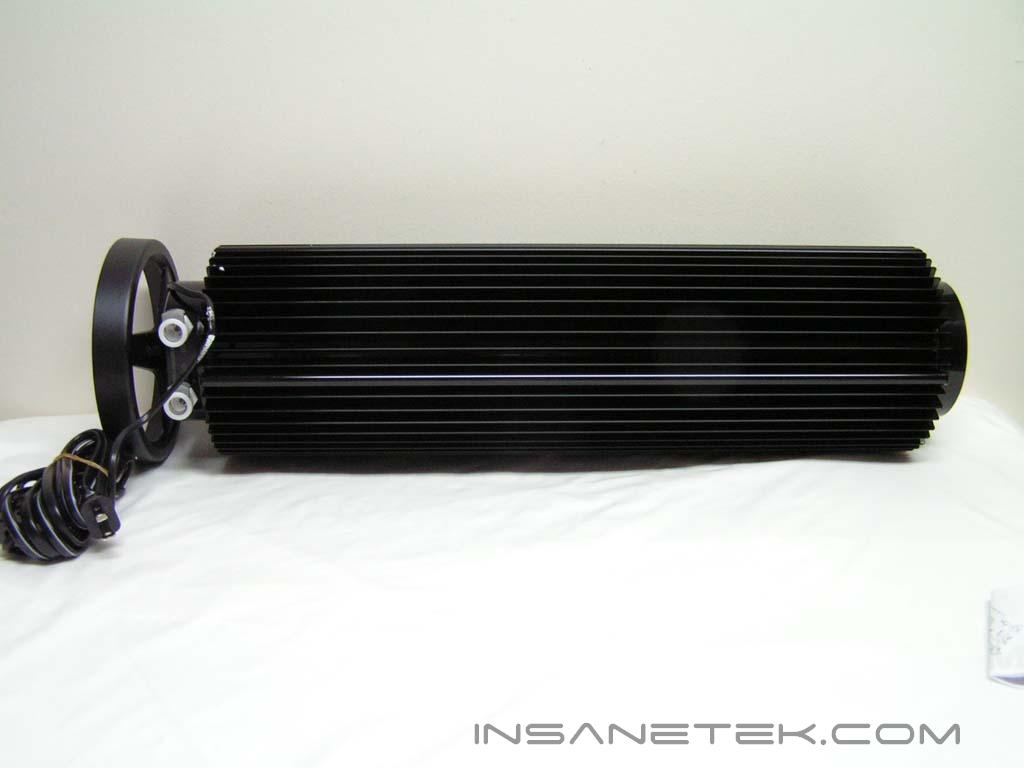
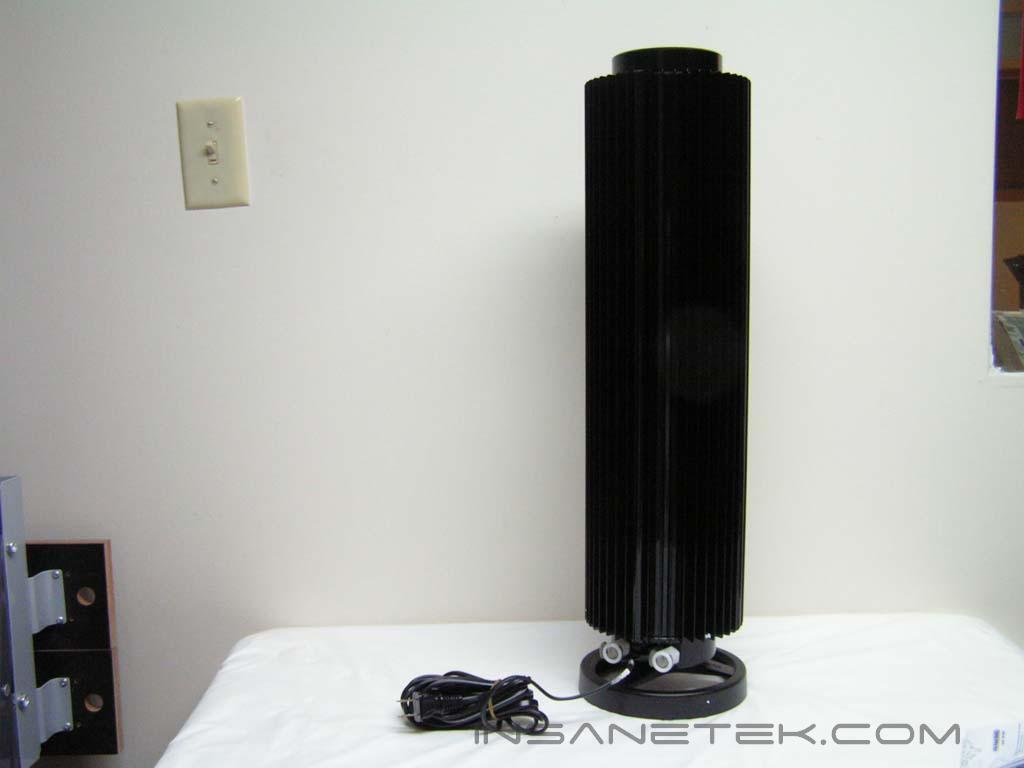
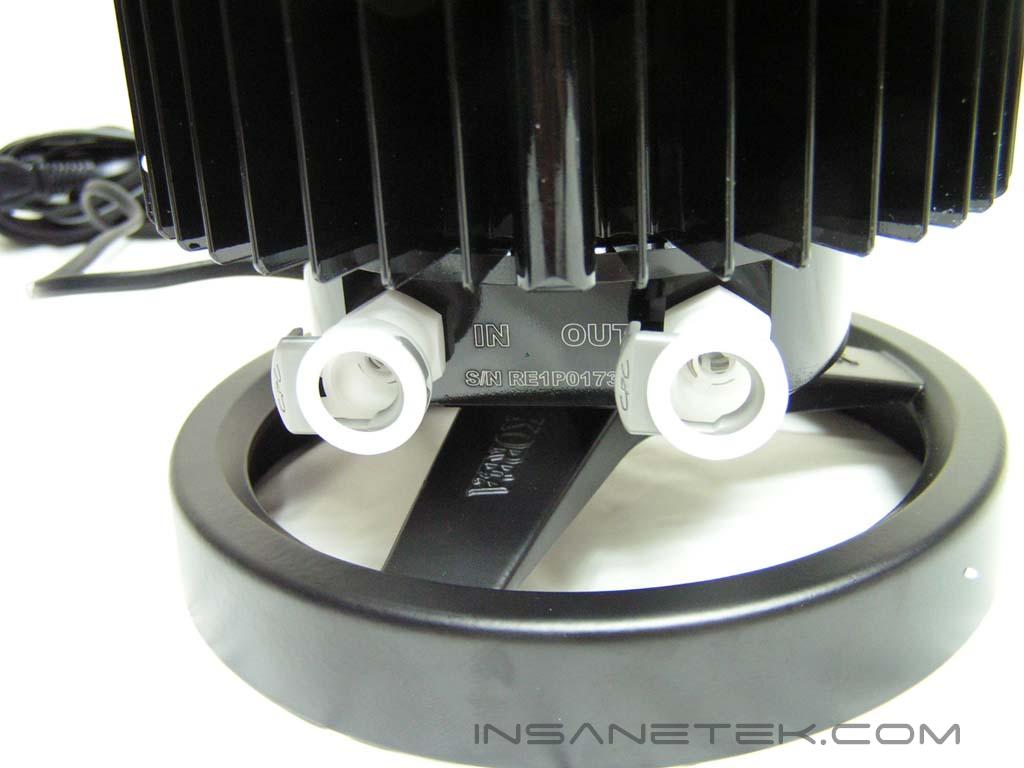
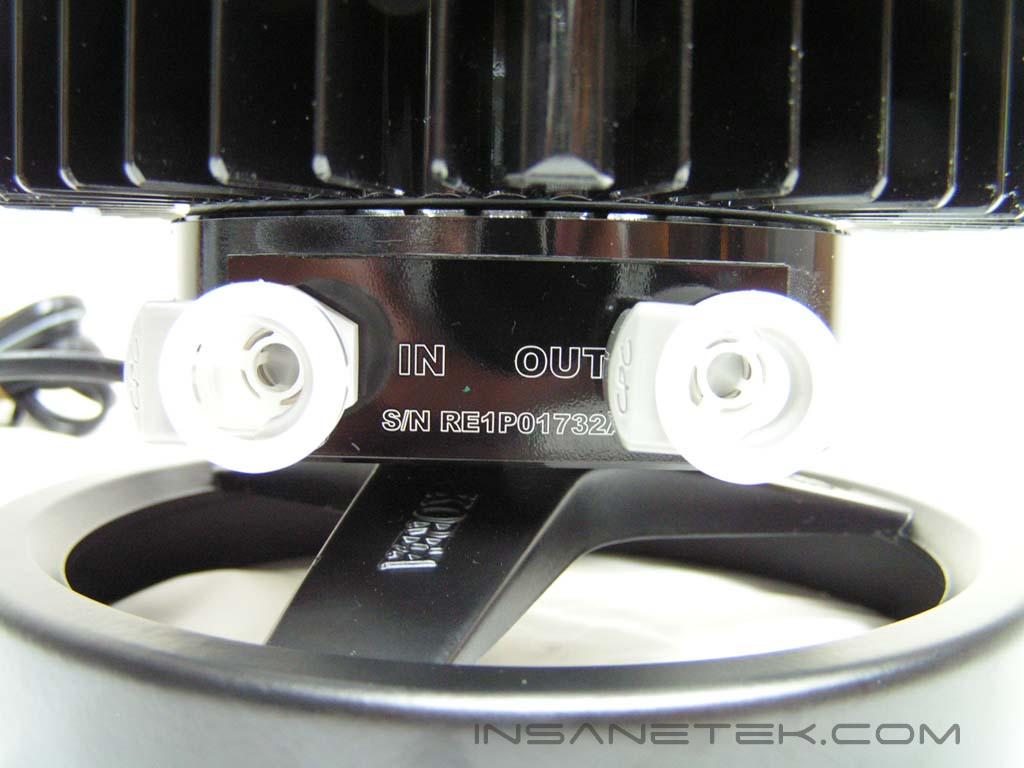
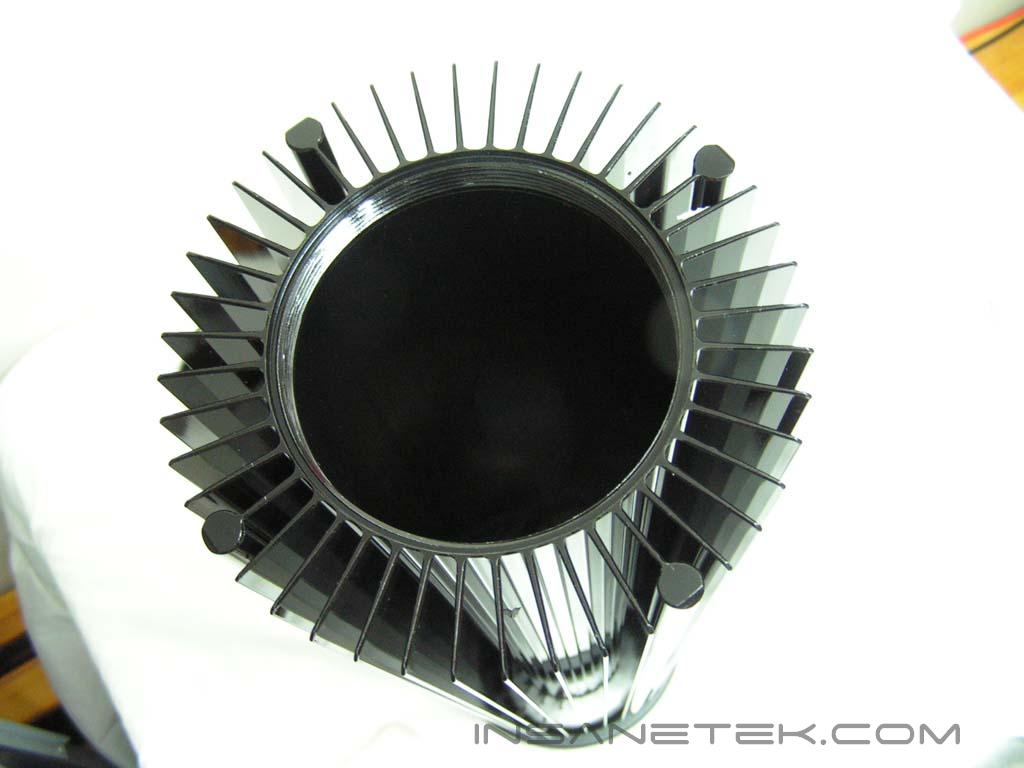
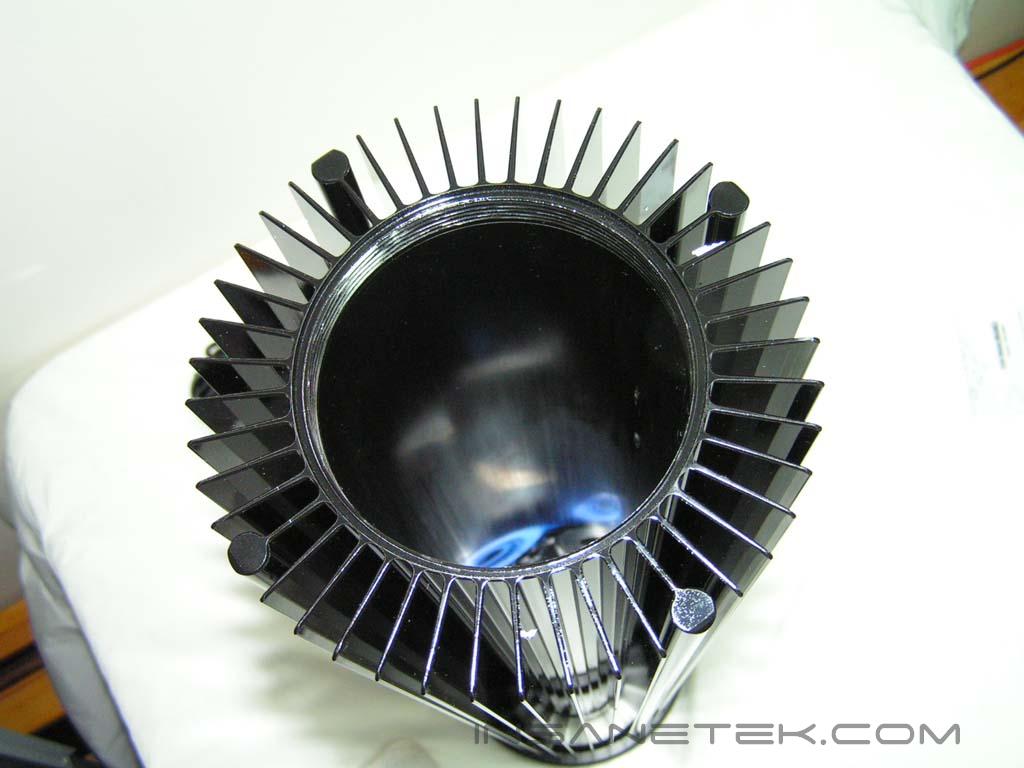
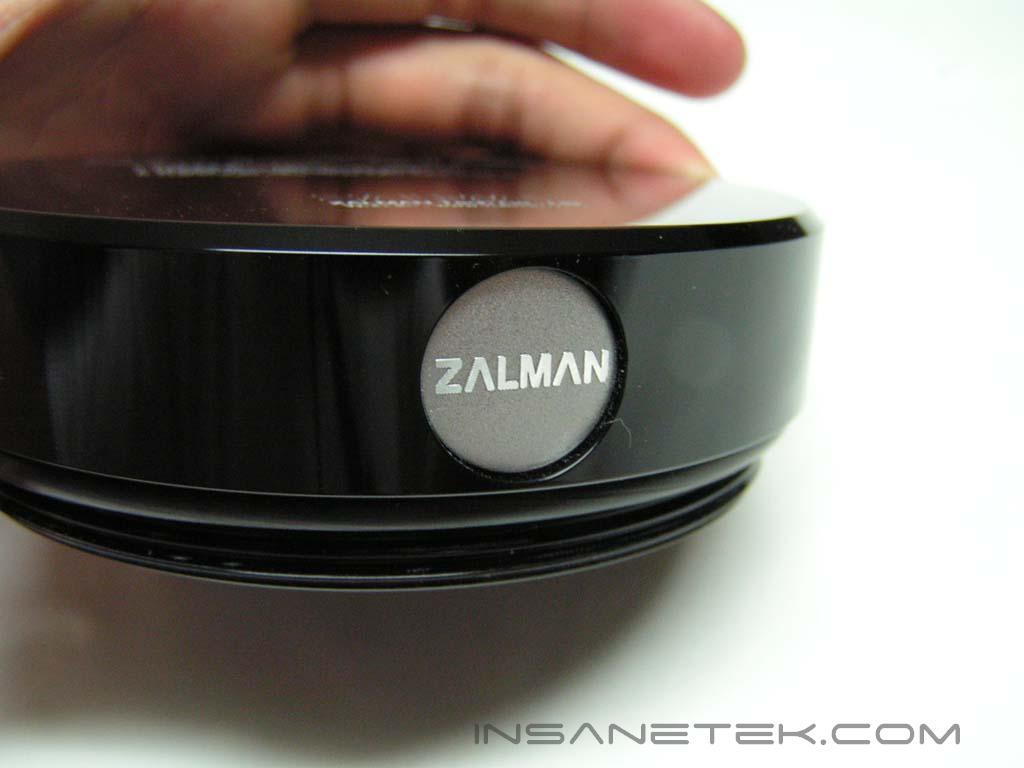
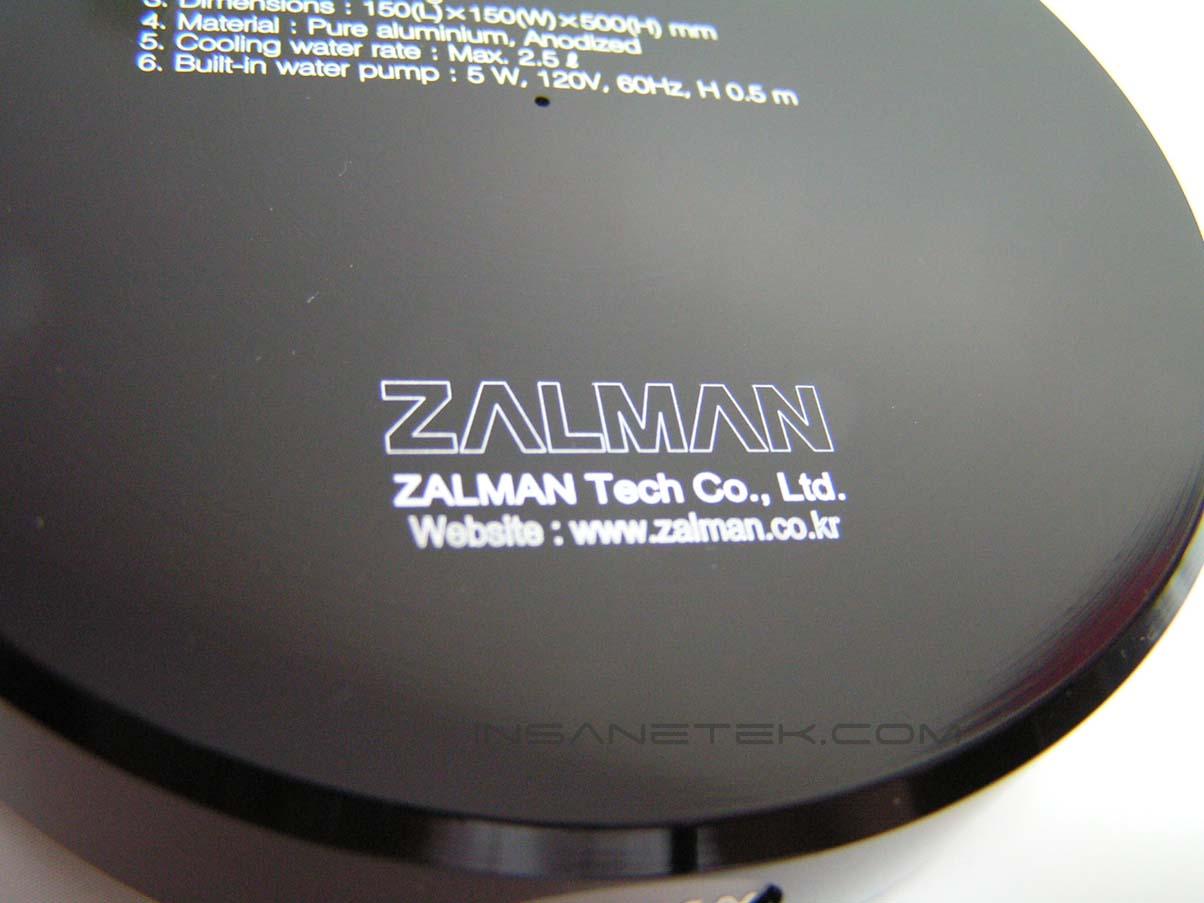
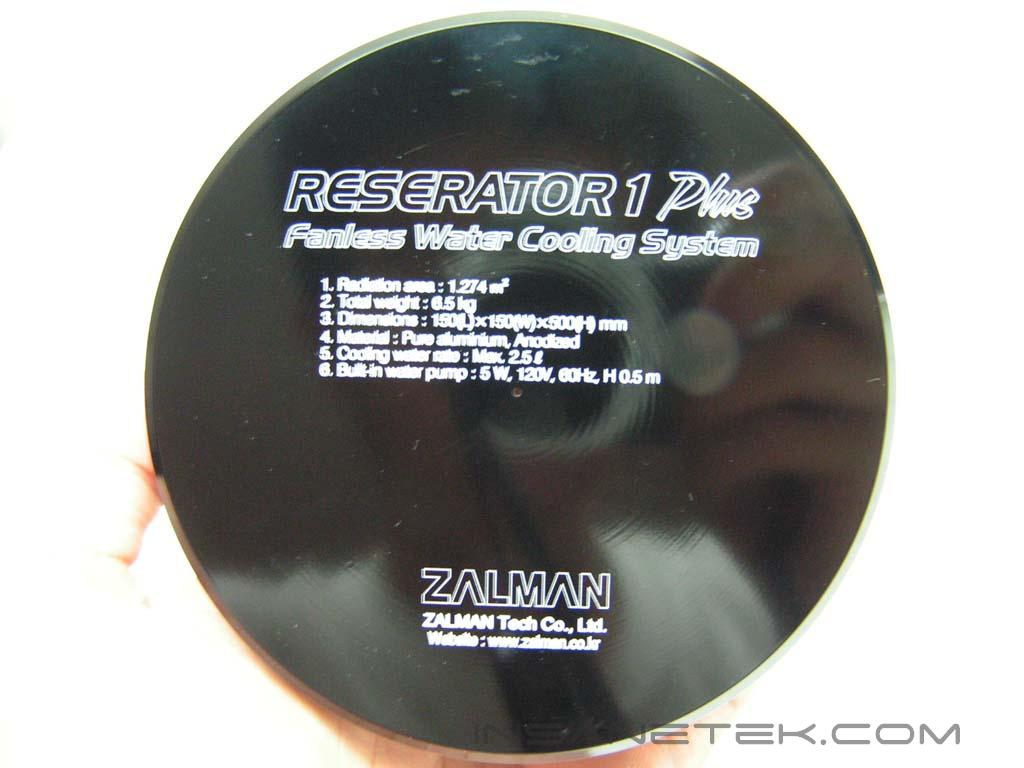
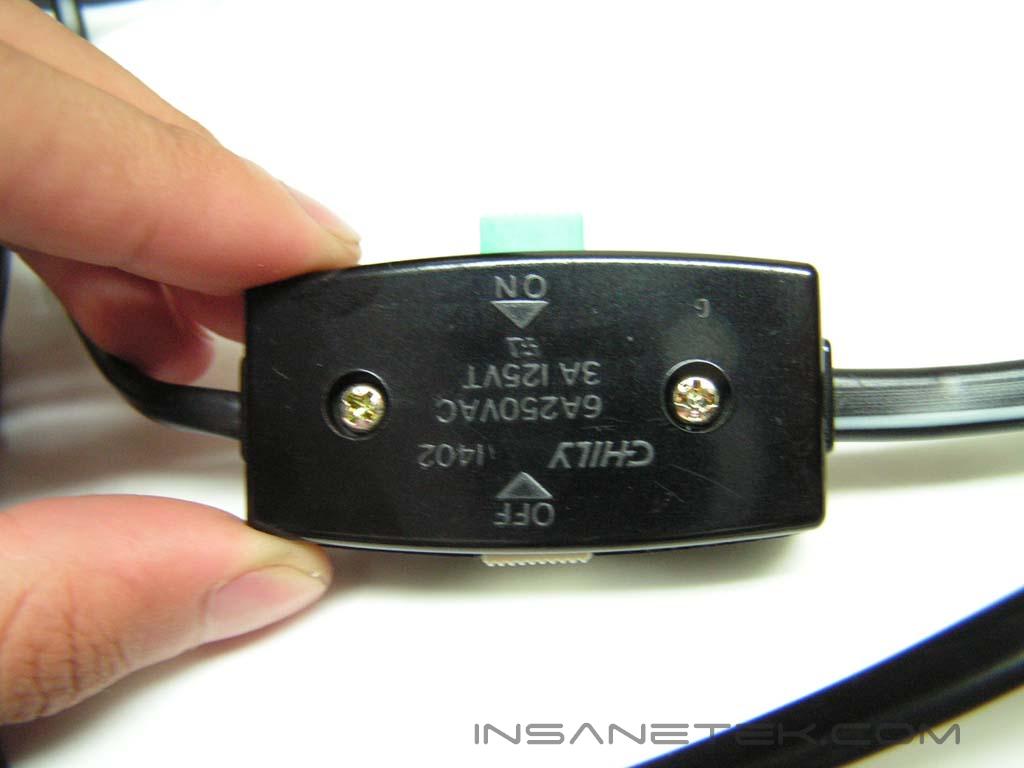
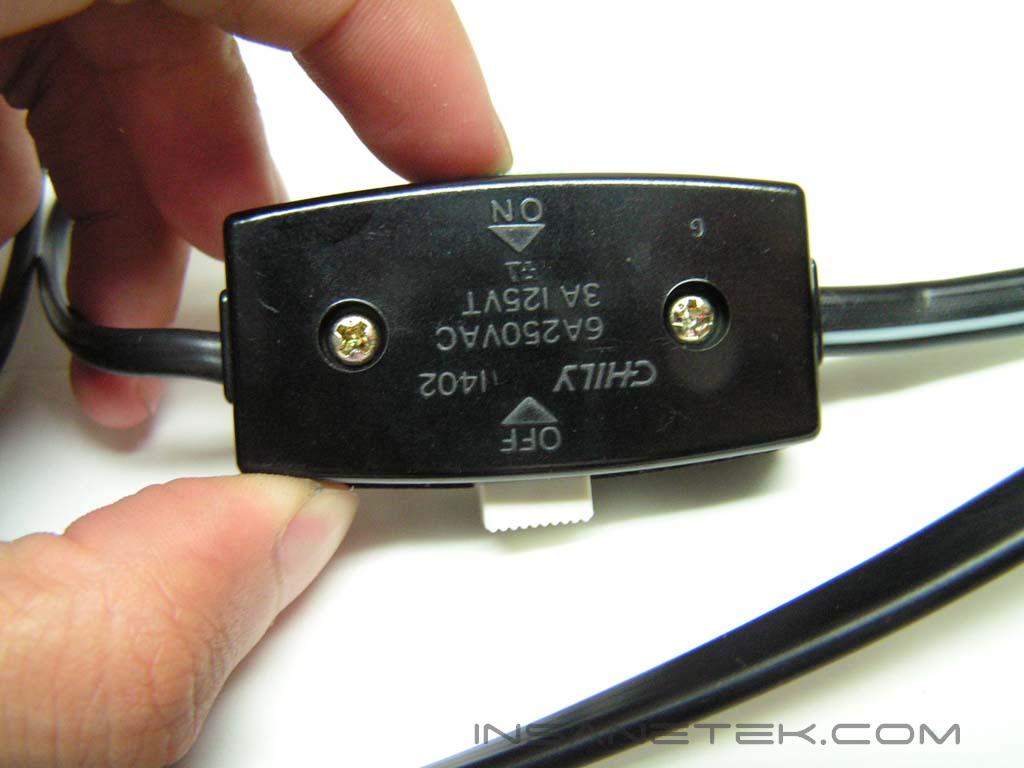
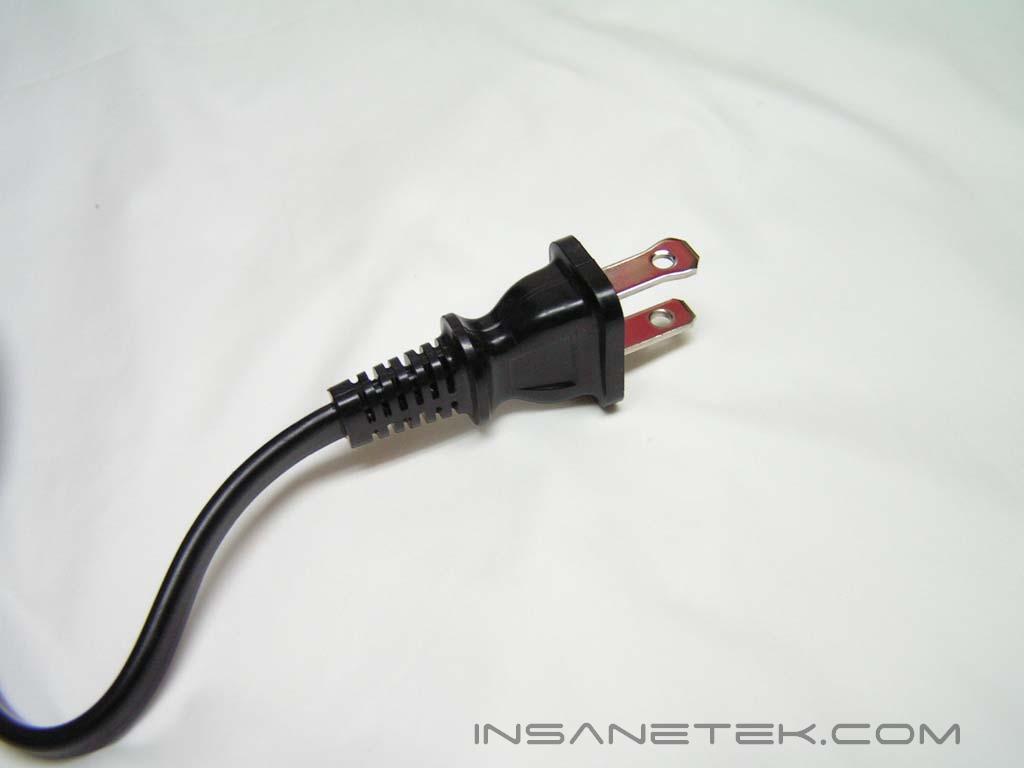
The Reserator is a very heavy piece of equipment. It makes up most of the box’s weight. The word Reserator is derived from the words “reservoir” and “radiator”; that is exactly what this thing does. It houses the water for the entire system while removing heat through outside cooling. Some may ask why the Reserator is so big in size, since the reservoir doesn’t need to be extremely big. There are two reasons for this: more water allows for better distribution of heat and a larger surface area removes heat more efficiently. The pump is located inside the reservoir, where you will be pouring the water in. To access the reservoir, you must twist open the top. The Reserator uses power directly from the AC source. It is completely independent from your computer and won’t fluctuate any rails, as it does not need to go through the power supply. In between the power cable, there is a switch that turns the pump on and off.
The Accessories
CPU and VGA Water Blocks
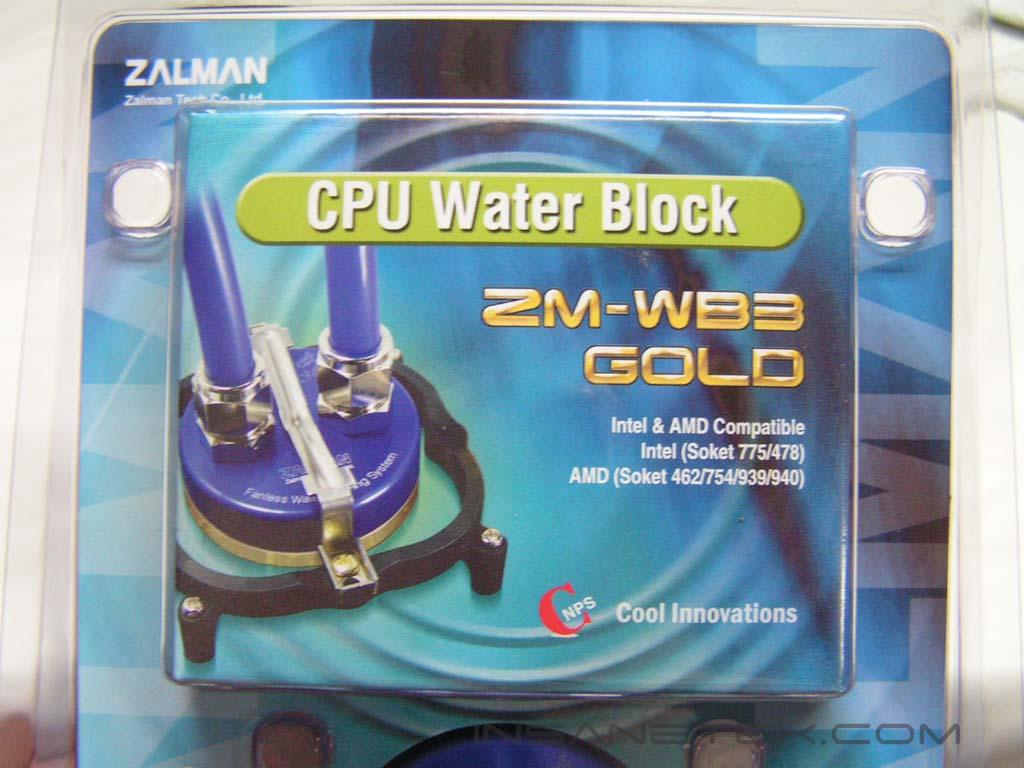
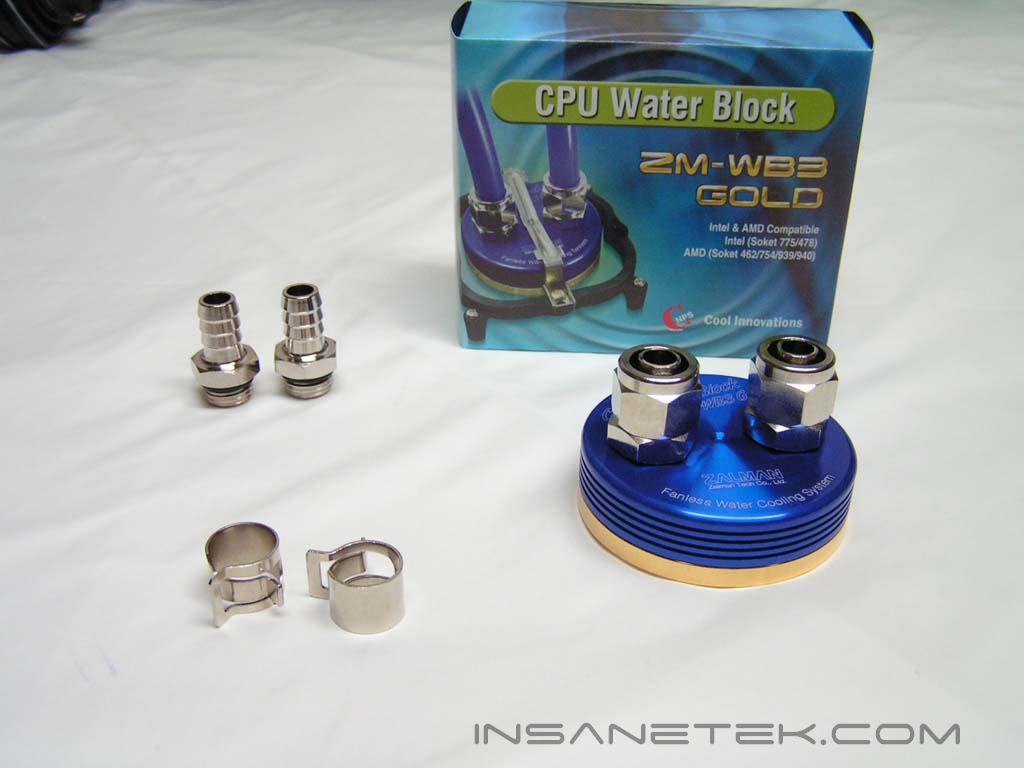
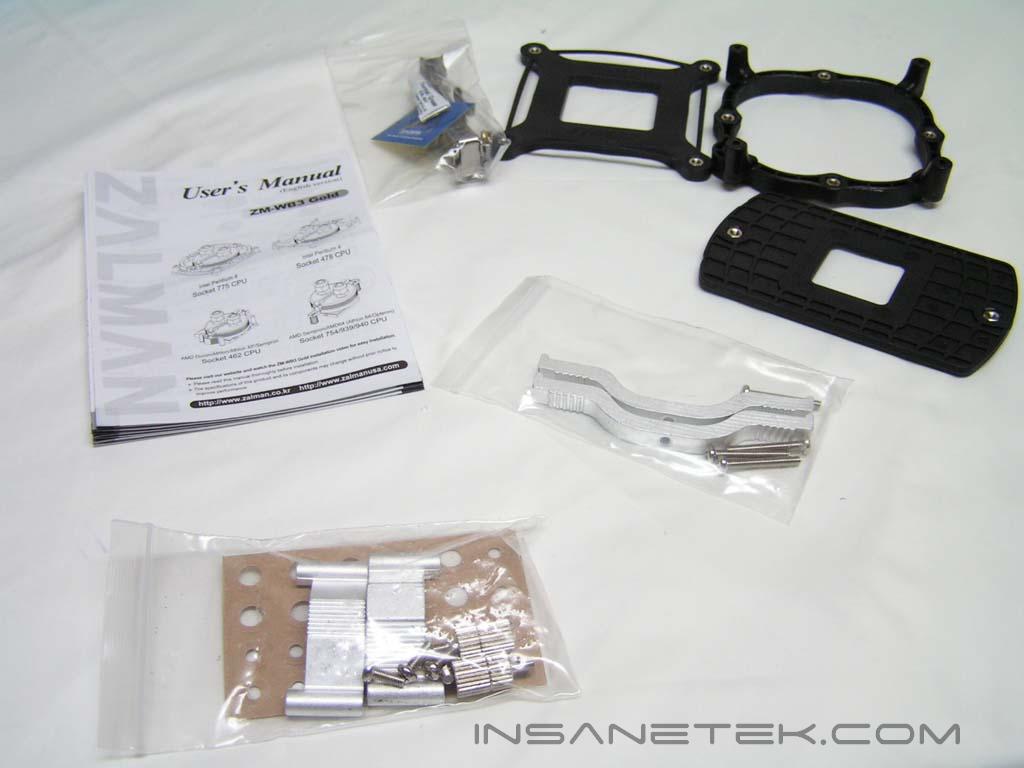
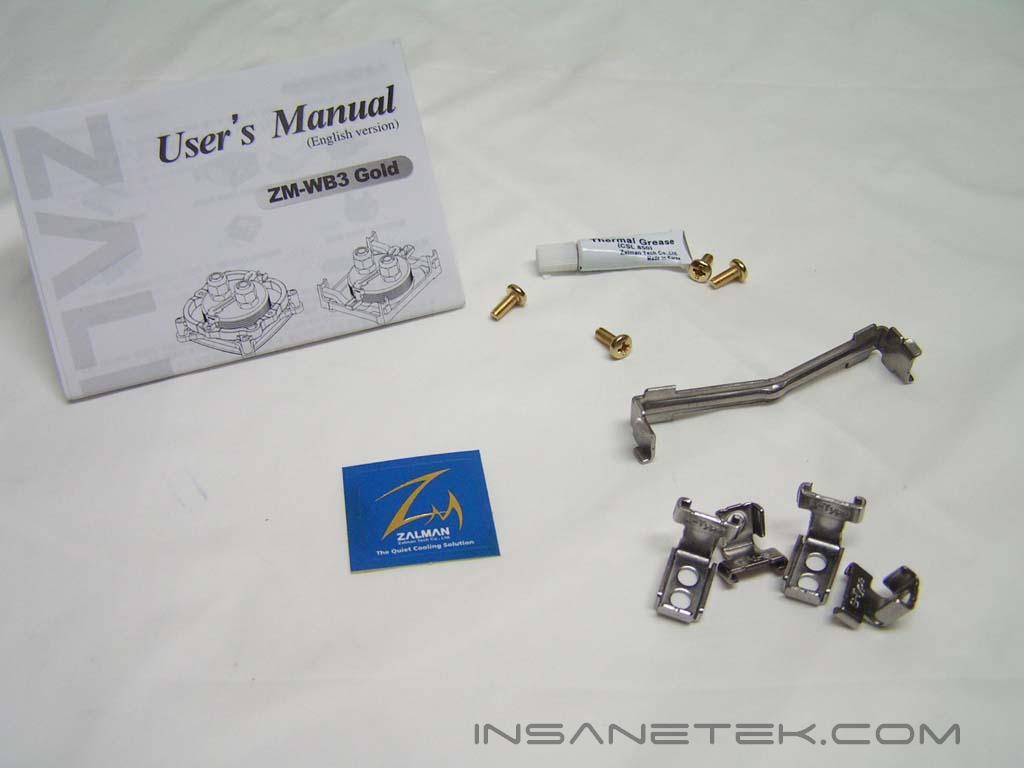
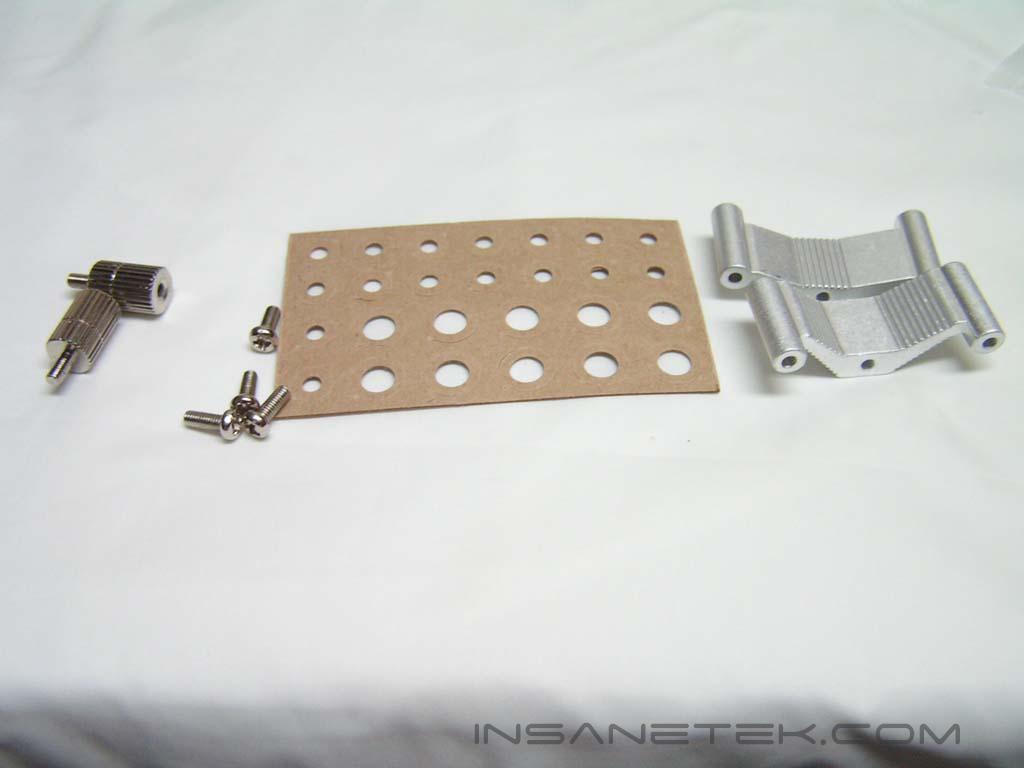
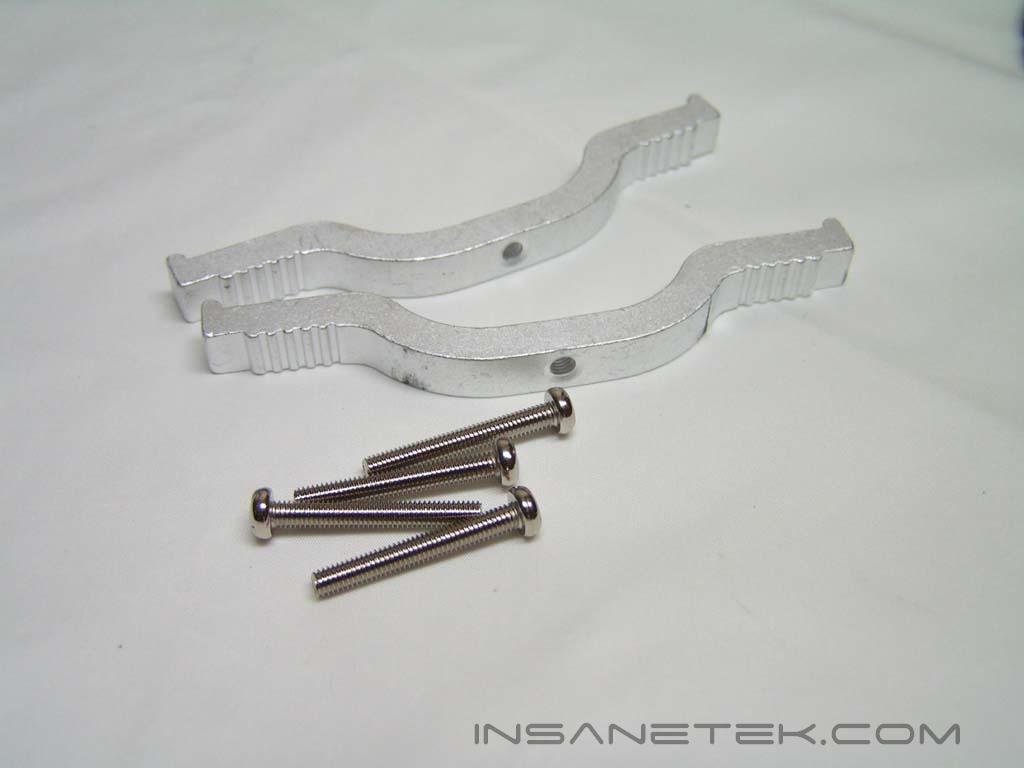
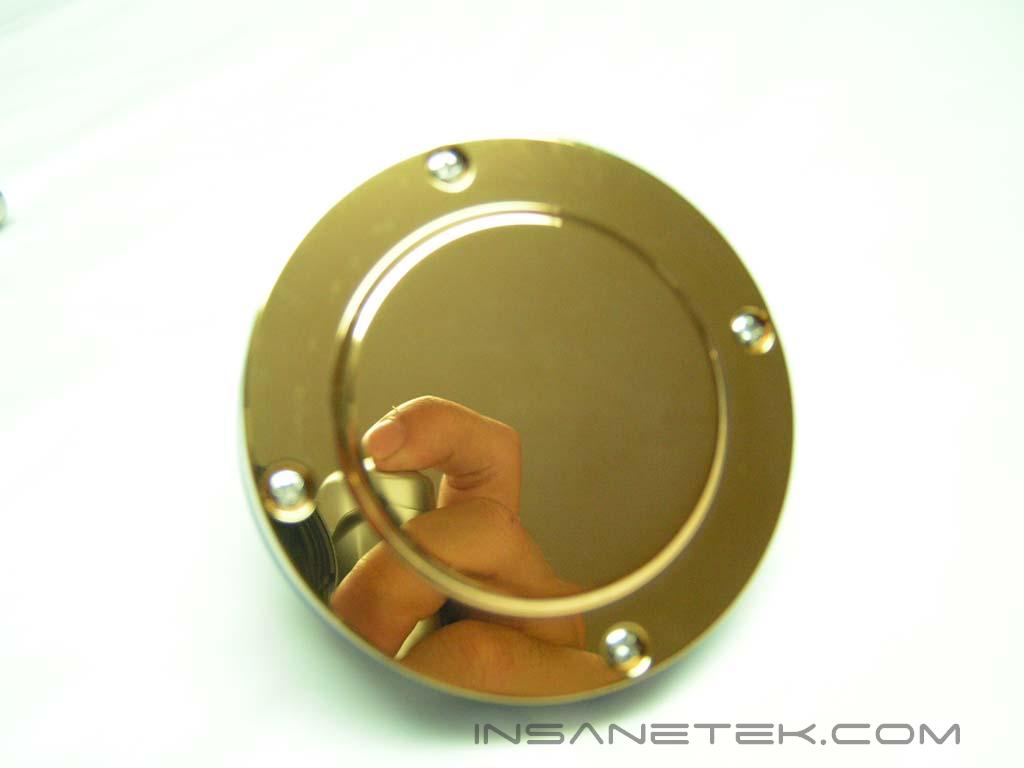
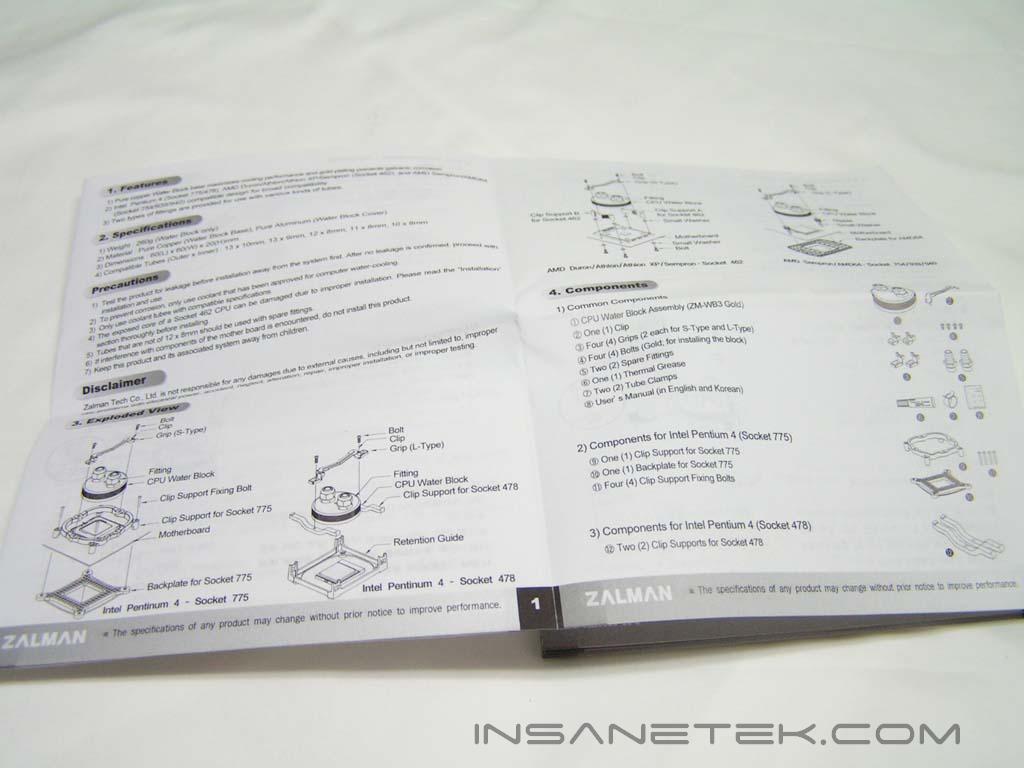
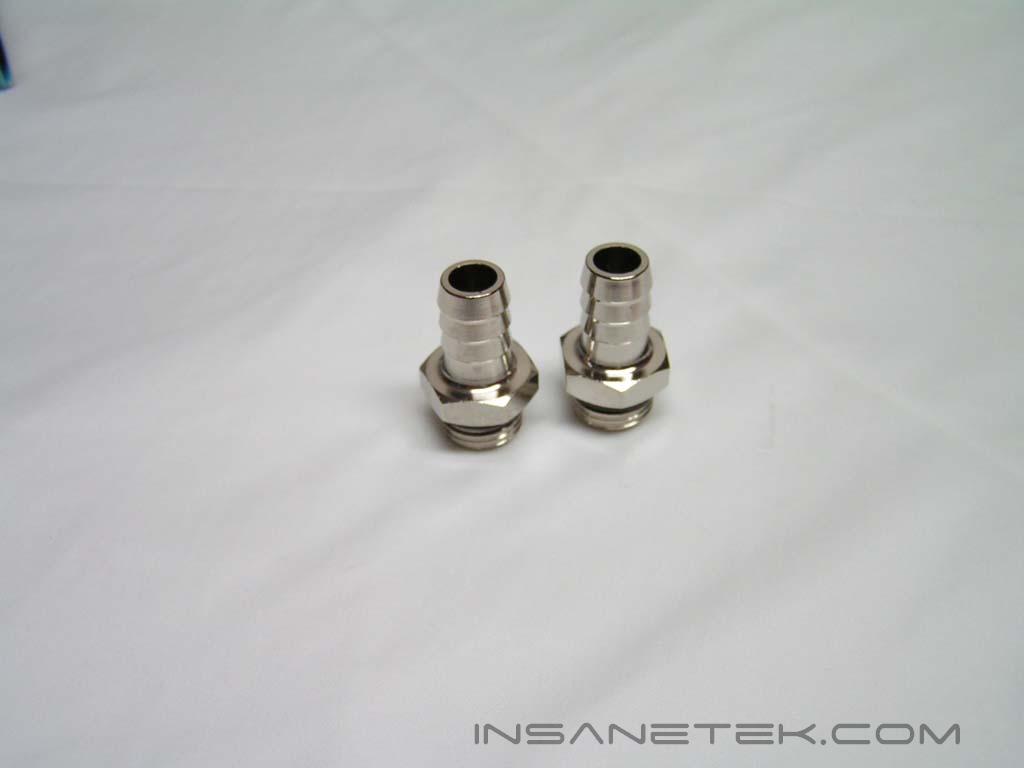
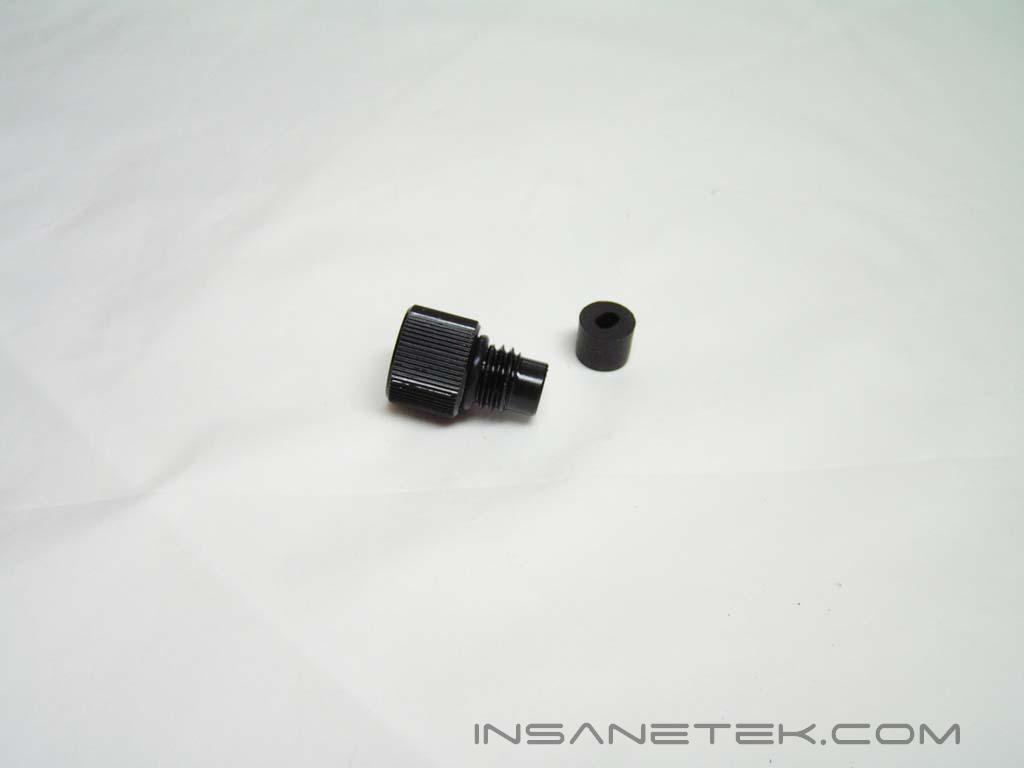
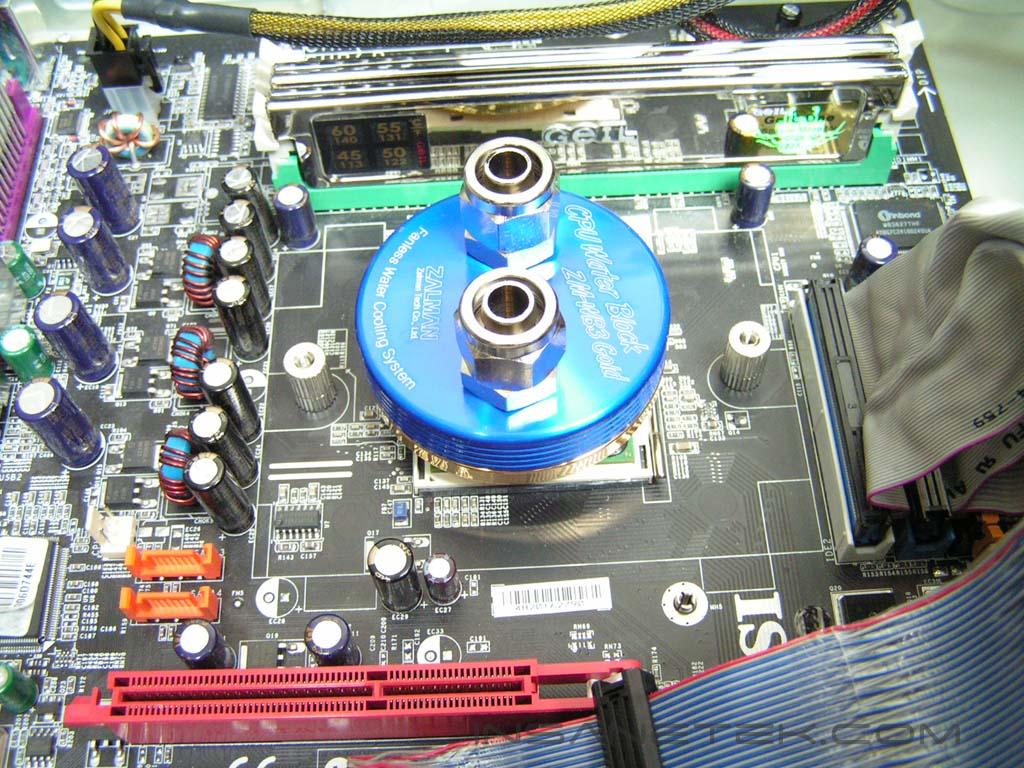
The water blocks were packaged separately in their own plastic boxes. Let’s start with the CPU water block. Included with the CPU water block were replacement valves, hose clamps, and an accessories box with mounting equipment. The mounting equipment provided allows for compatibility with Socket 462, 478, 754, 775, 939, and 940 CPUs. The water block is blue in color, but fully copper with gold plating at the base to prevent galvanic corrosion. The base is extremely flat with no distortions and displays a mirror reflection, which signifies a great lapping job. It has a total of two holes, one for intake and one for outtake. You can unscrew the holes off as installation will require you to.
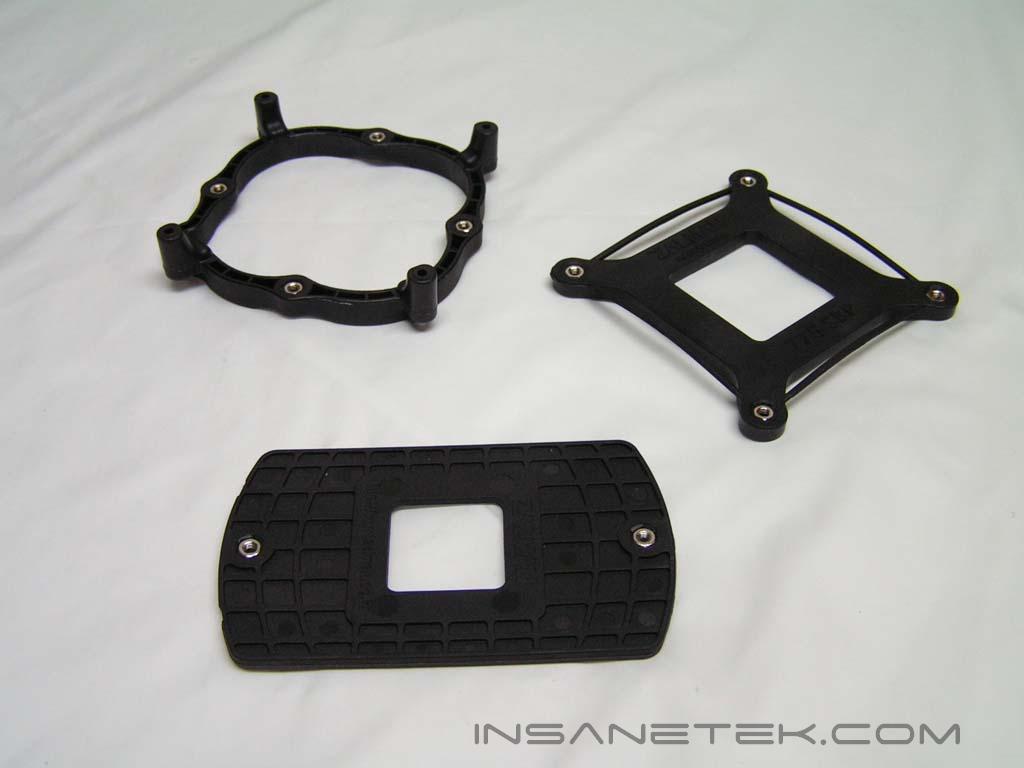
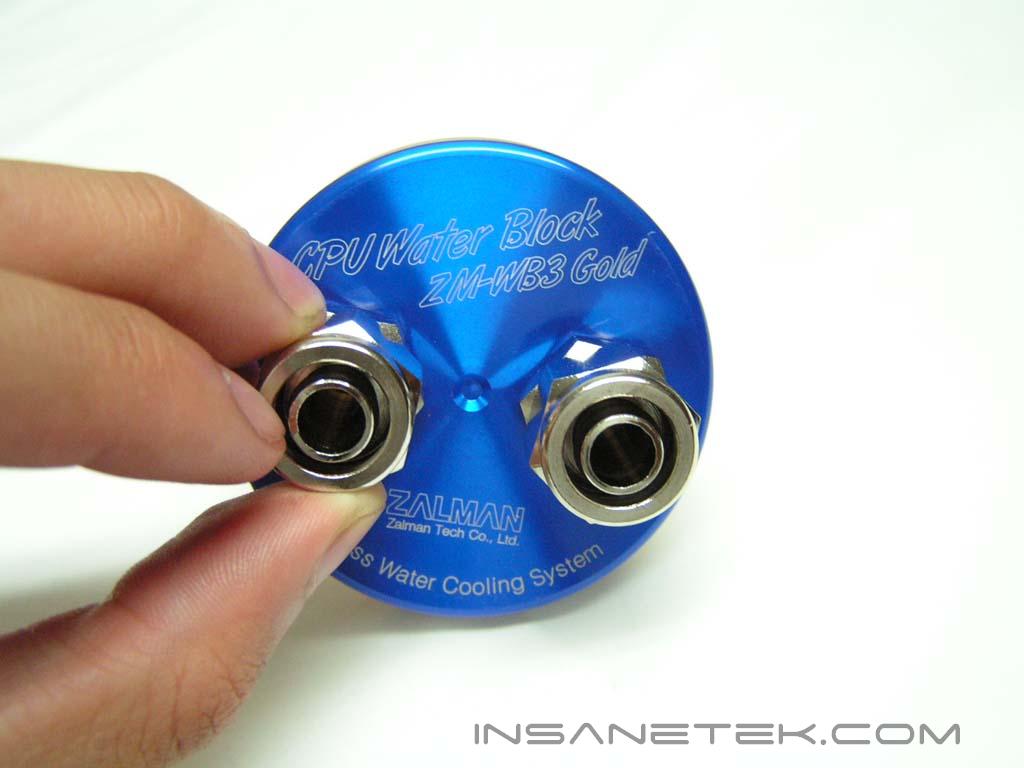
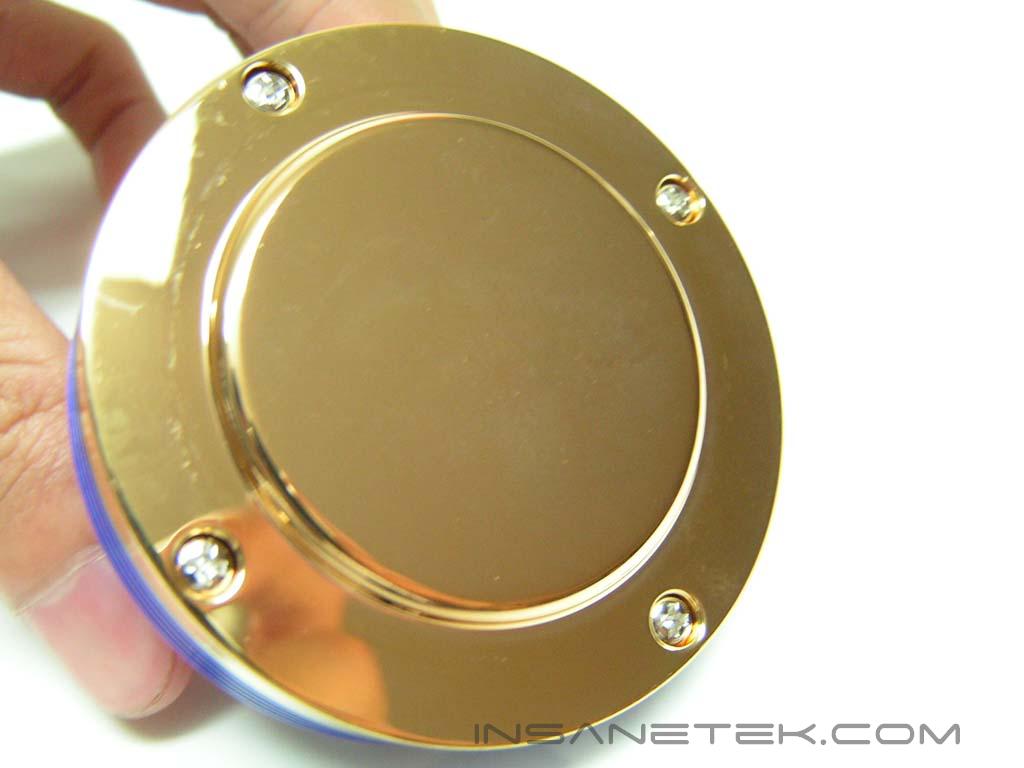
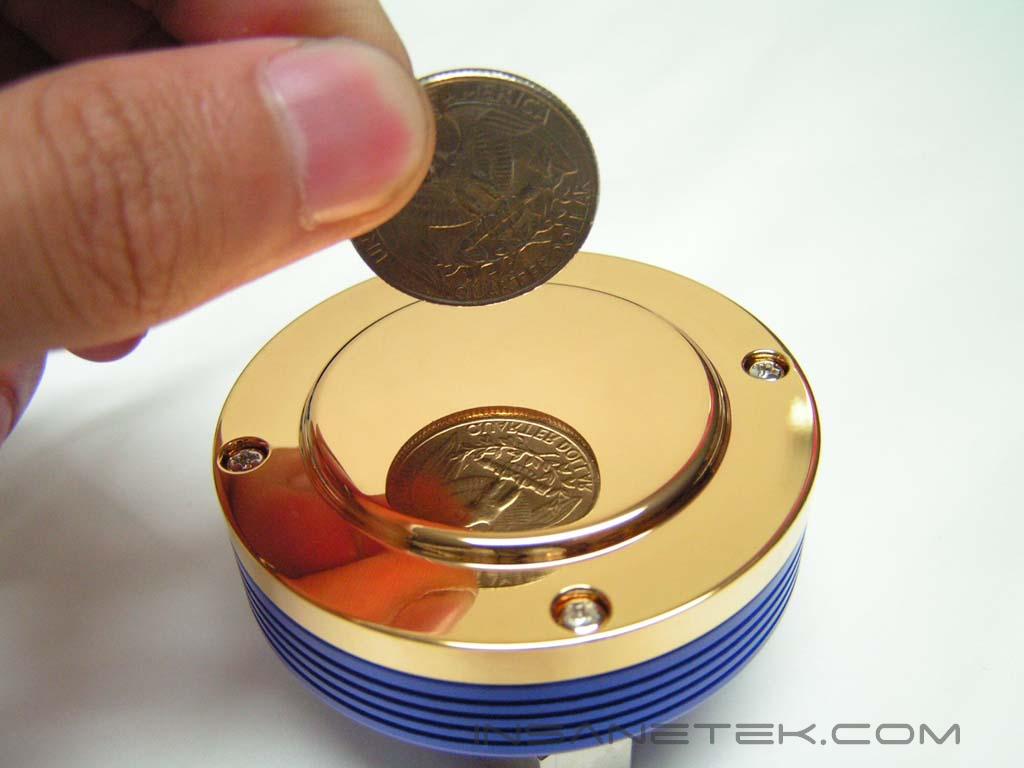
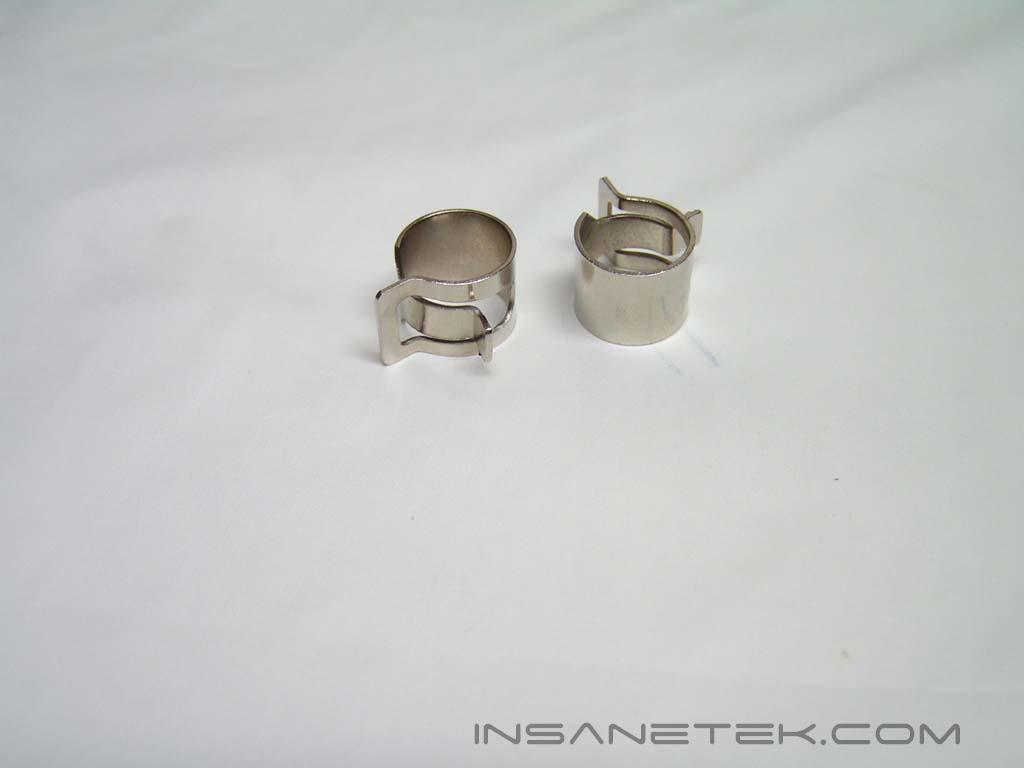
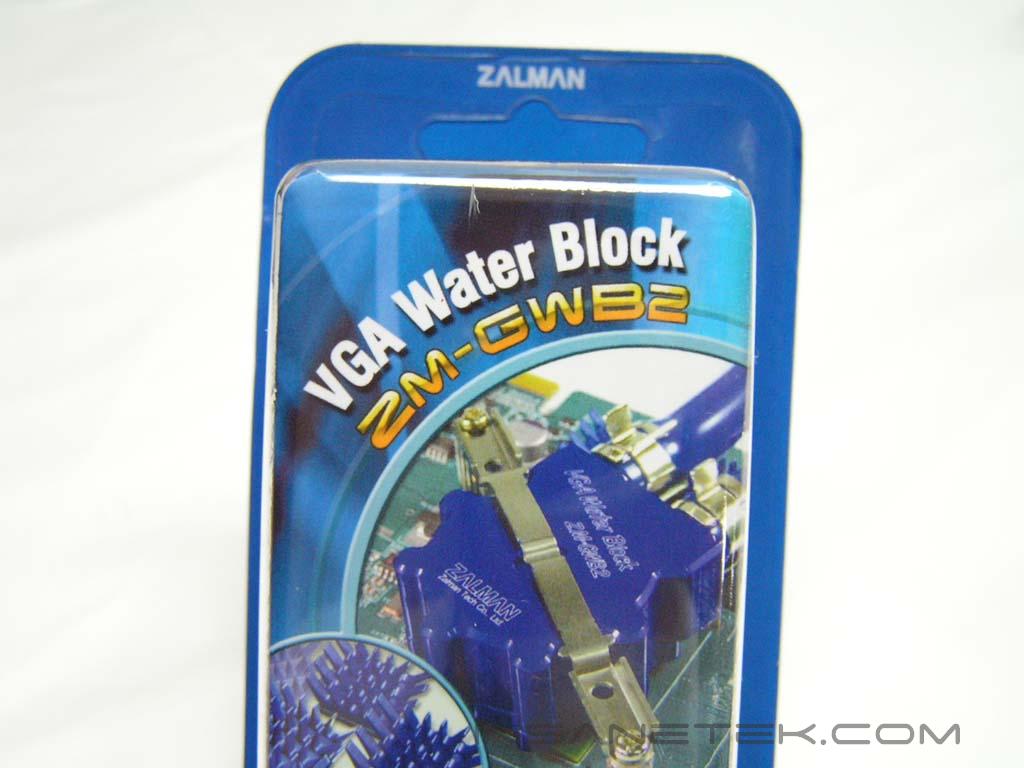
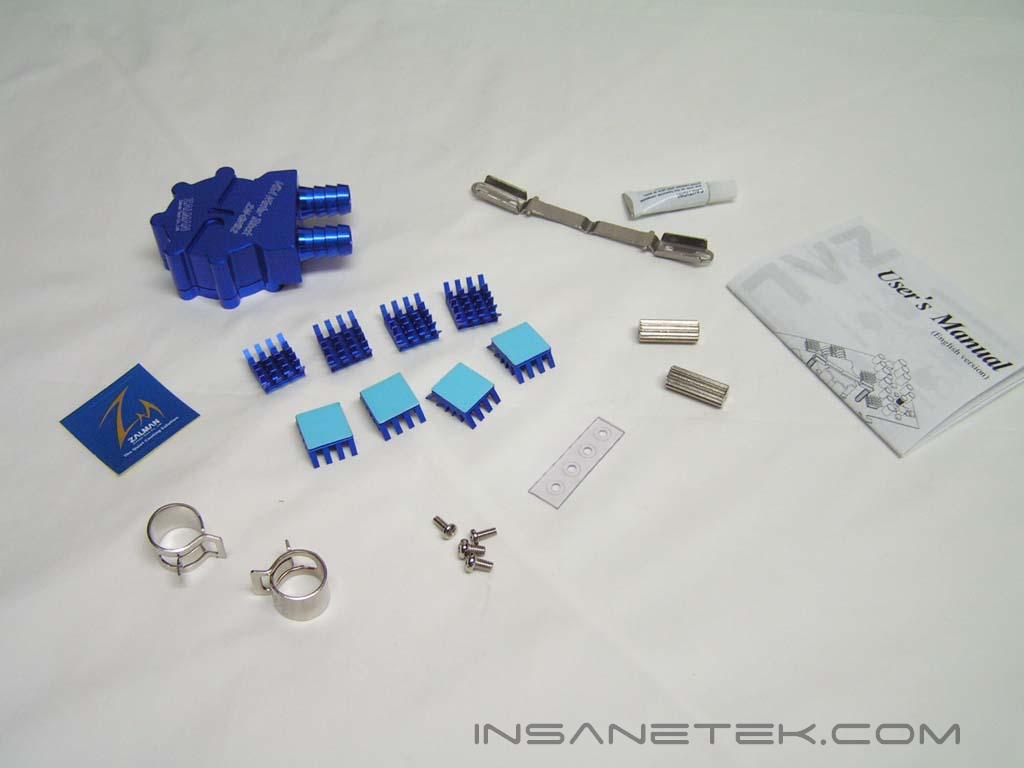
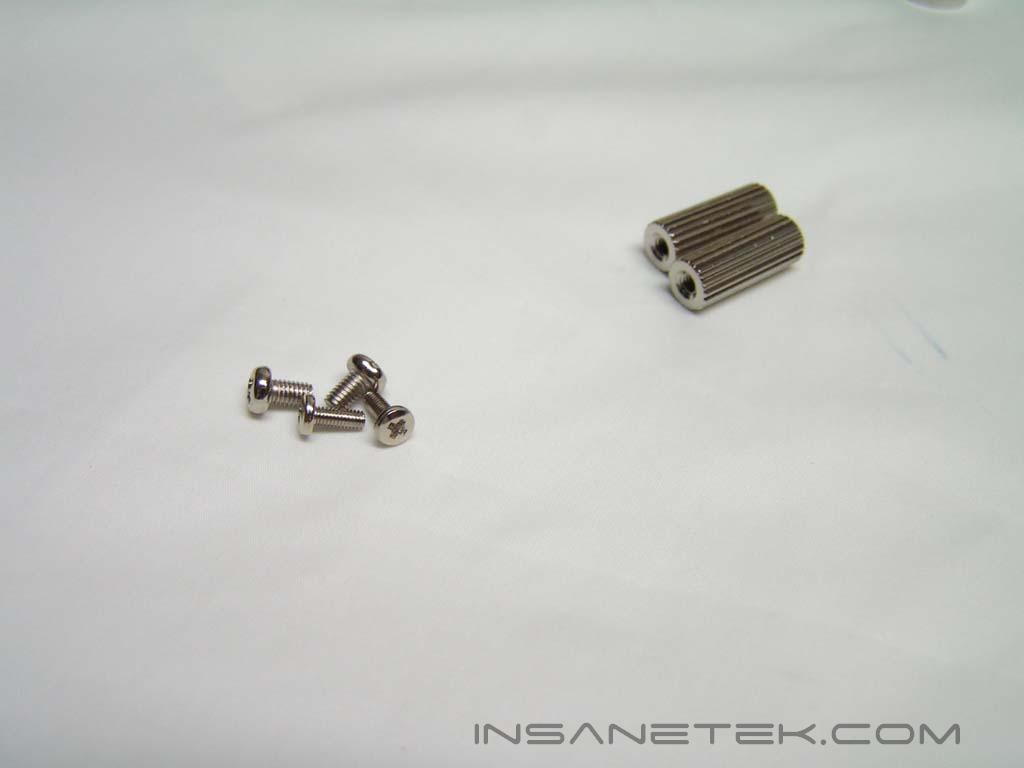
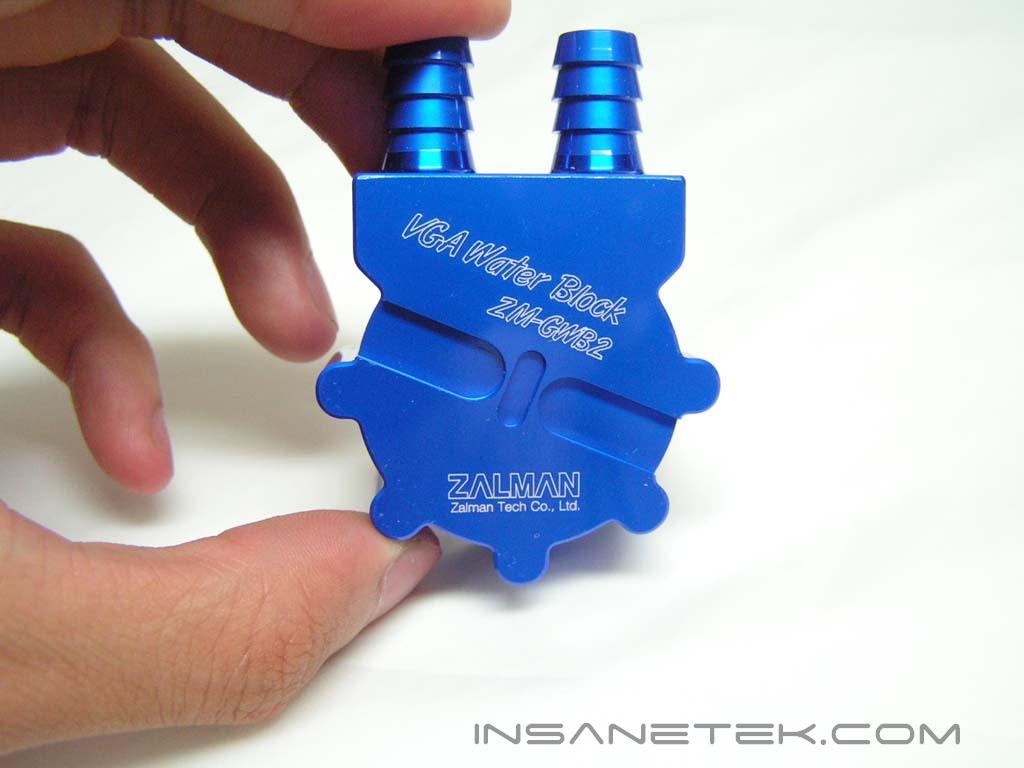
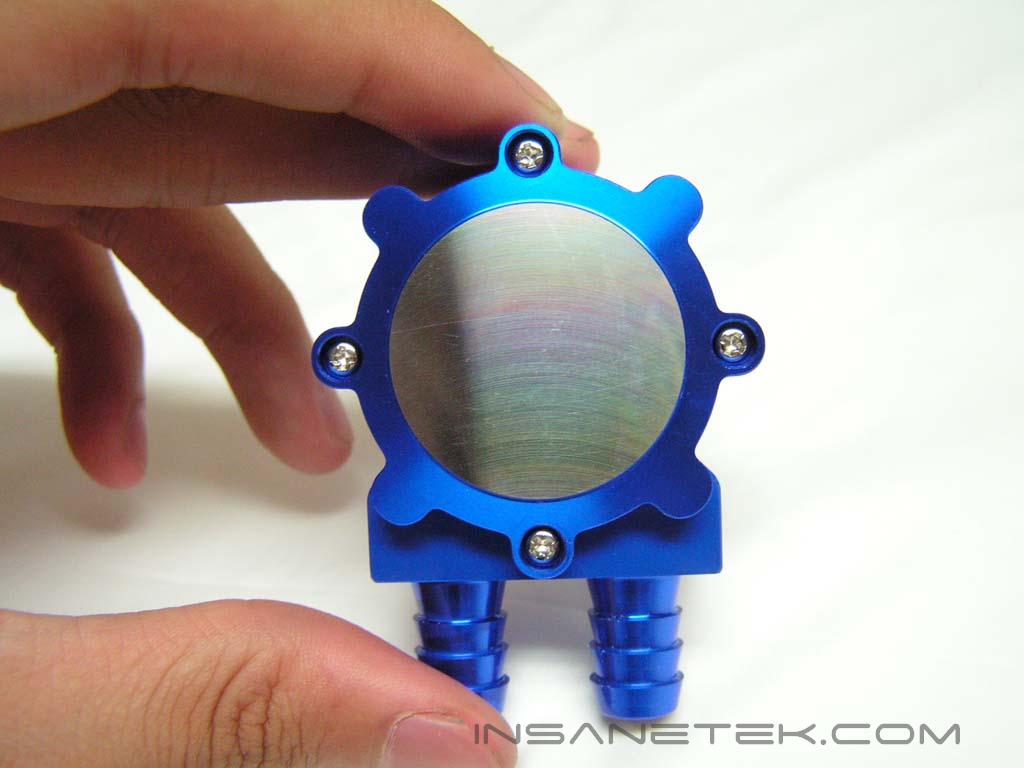
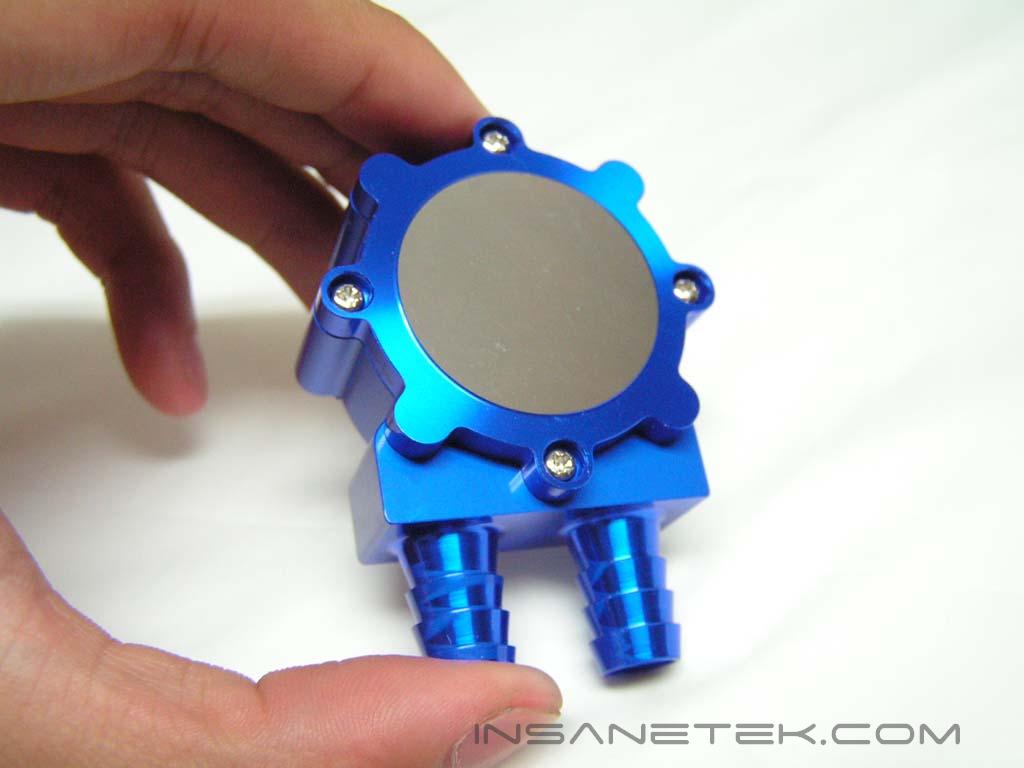
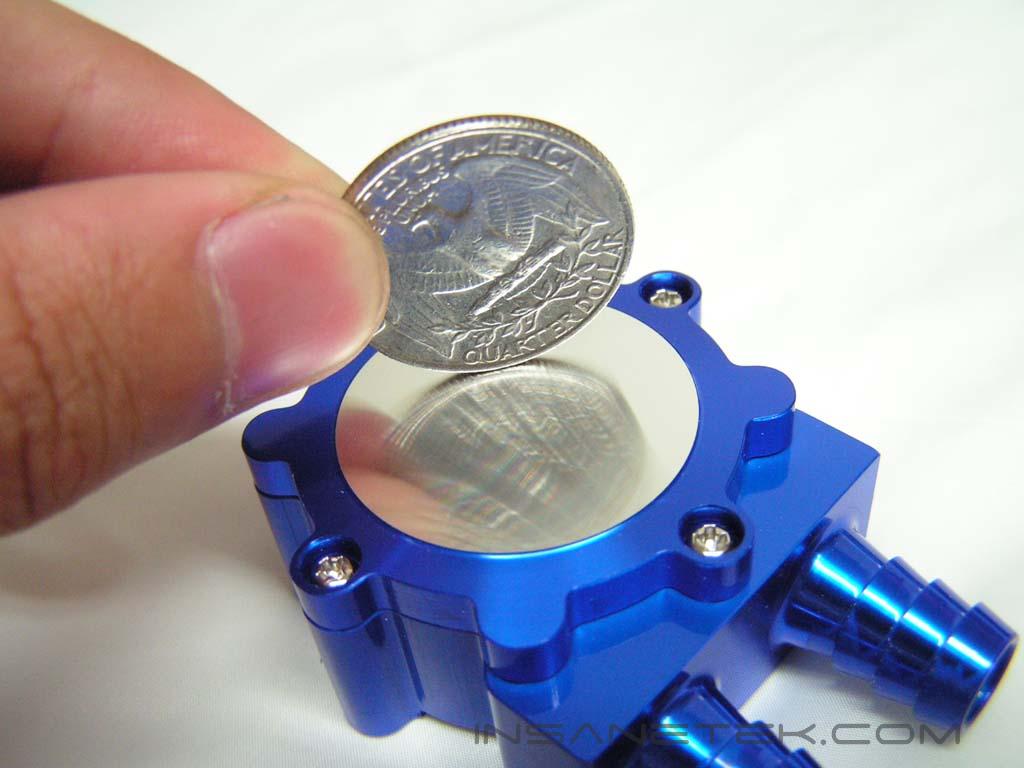
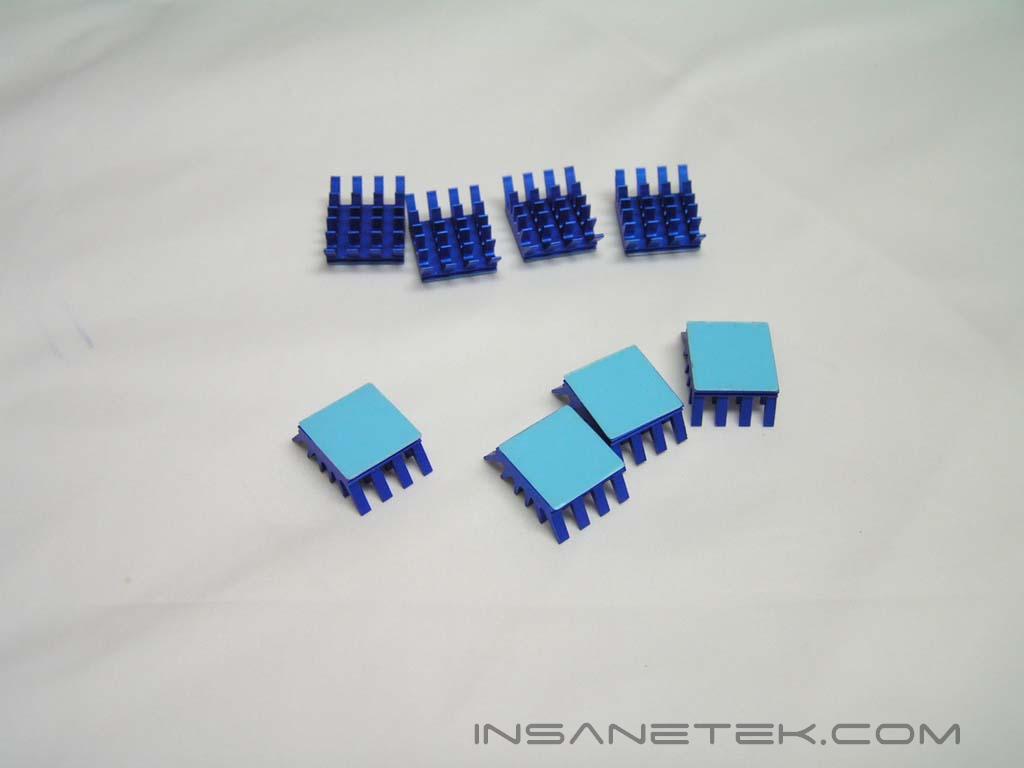
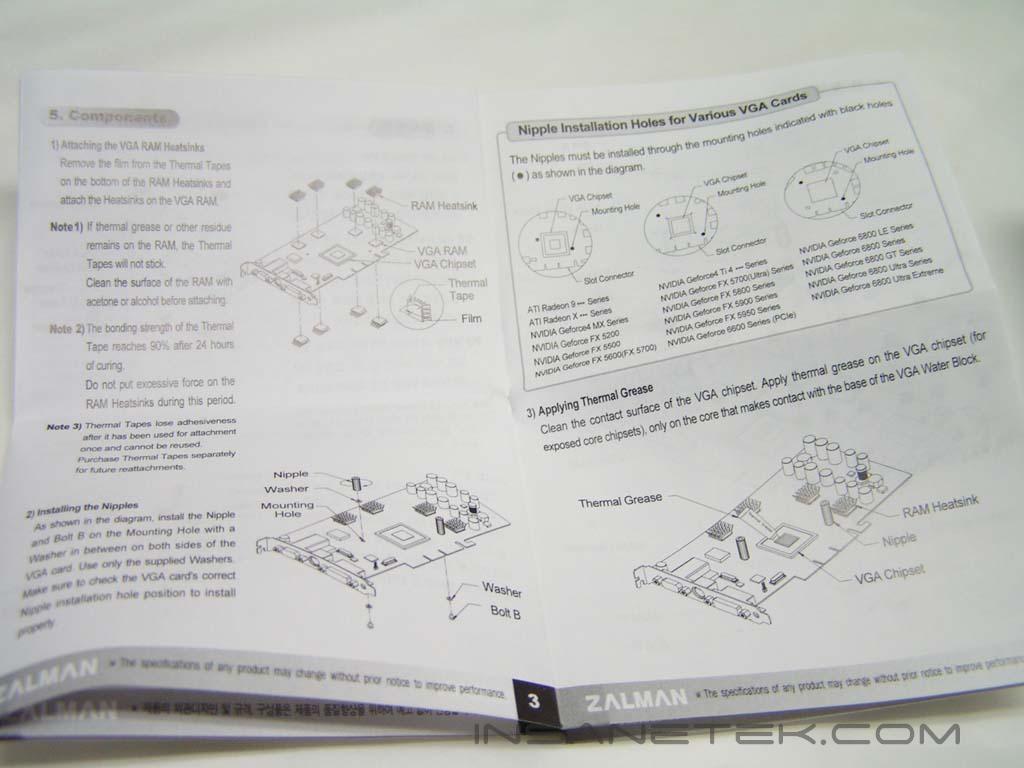
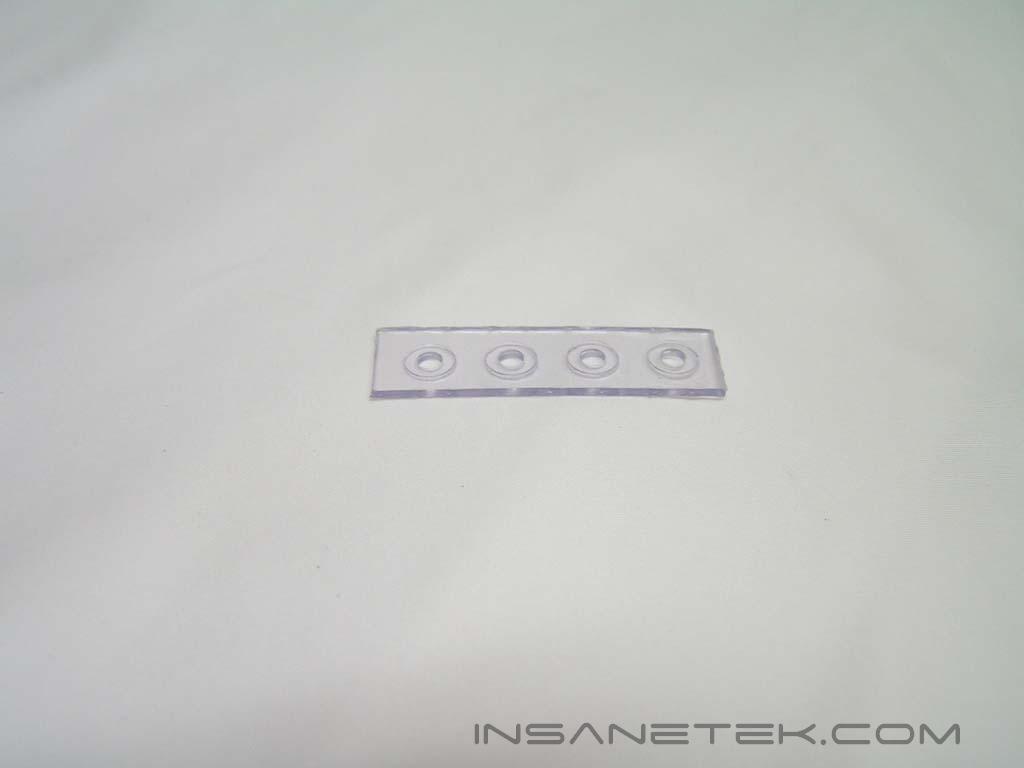
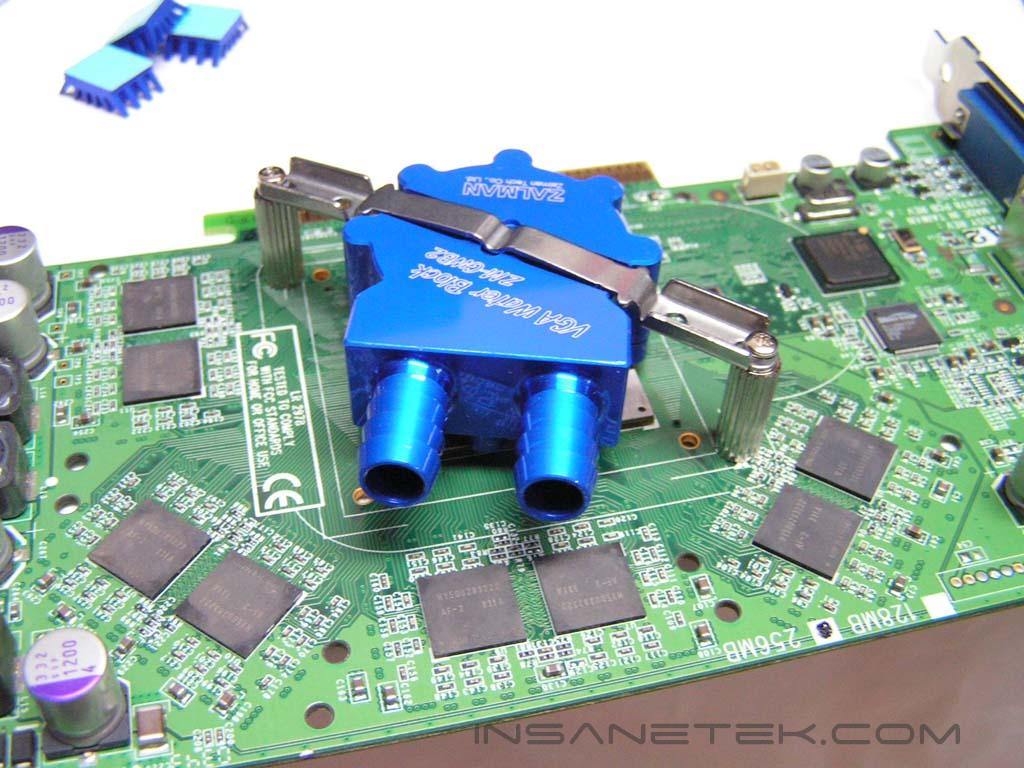
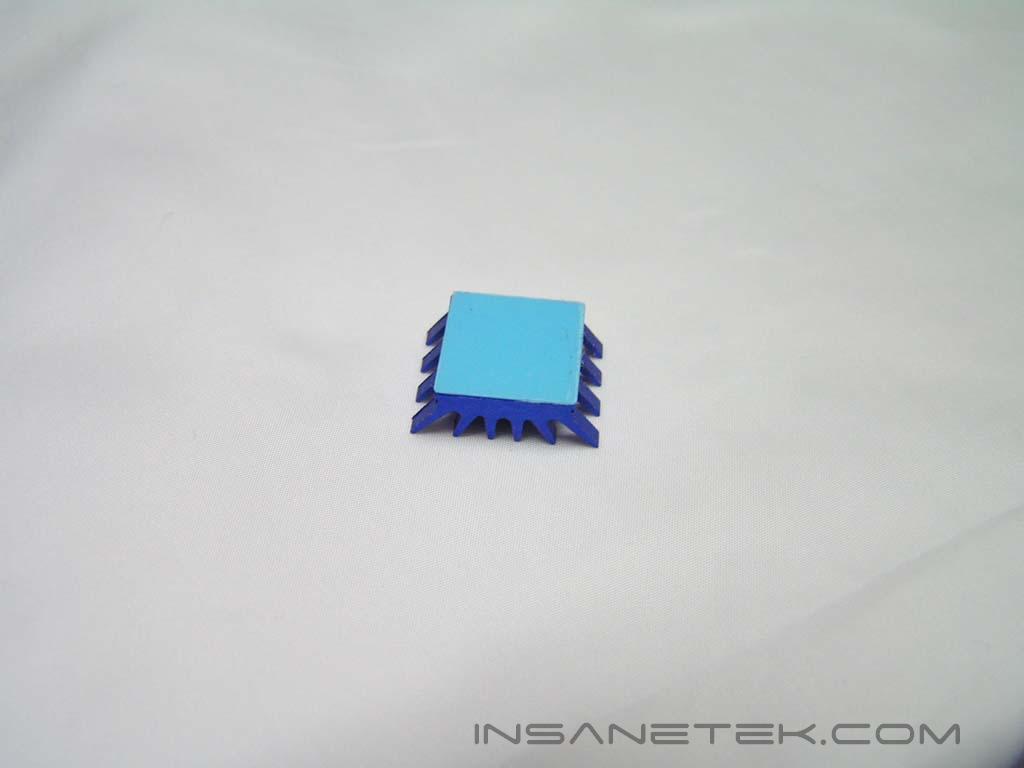
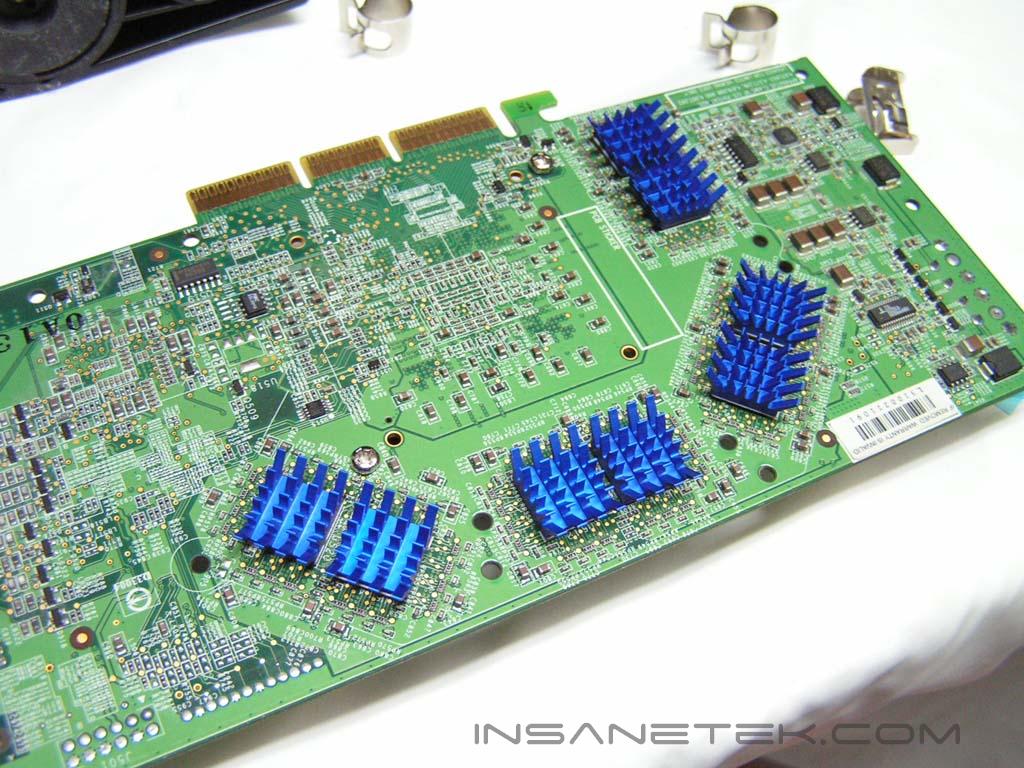
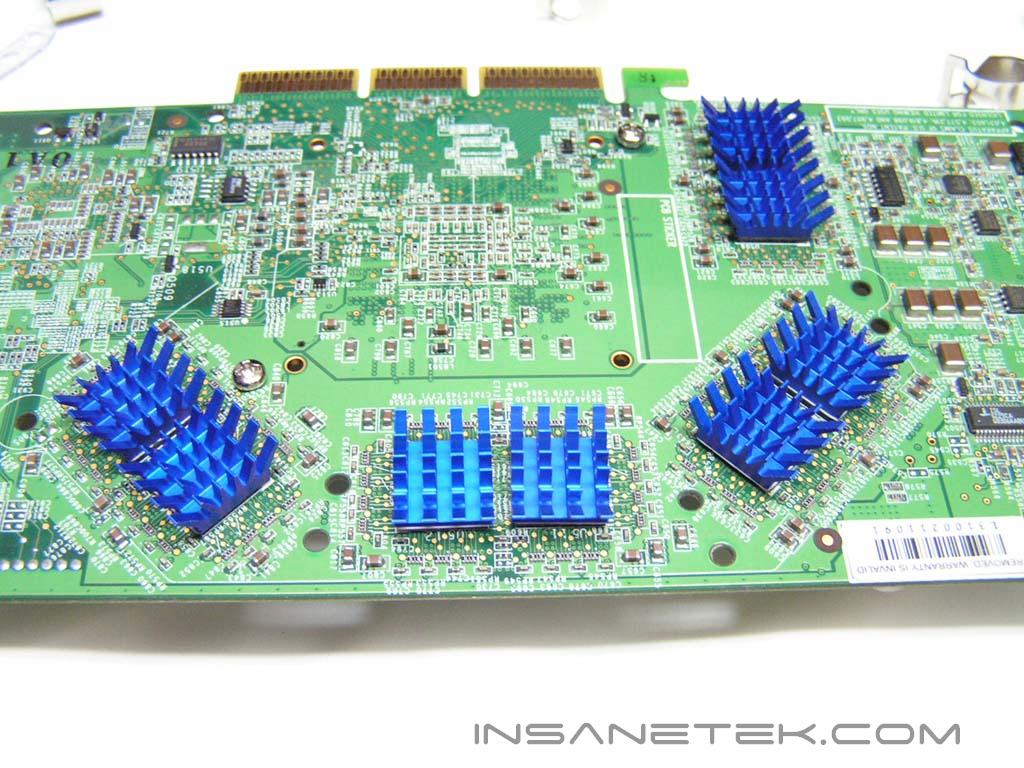
The VGA water block was designed to be ultra lightweight so it doesn’t bend your graphics card. It is also blue in color to match the aesthetics of the CPU water block. The base is pure aluminum with a somewhat circular lap job. The intake and outtake holes can not be detached. When you put the hose on, you must first place a hose clamp around the hose. The mounting accessories for the VGA water block allows for installation on any card that has mounting holes. It is universally compatible with Nvidia and ATI cards. Along with the mounting accessories, Zalman included a total of eight VGA RAMsinks. They are anodized aluminum and make use of adhesive thermal tape to stick on the memory chips of the graphics card. After about 24 hours, the tape will be extremely hard to remove. It cannot be reused afterwards.
Other Included Accessories
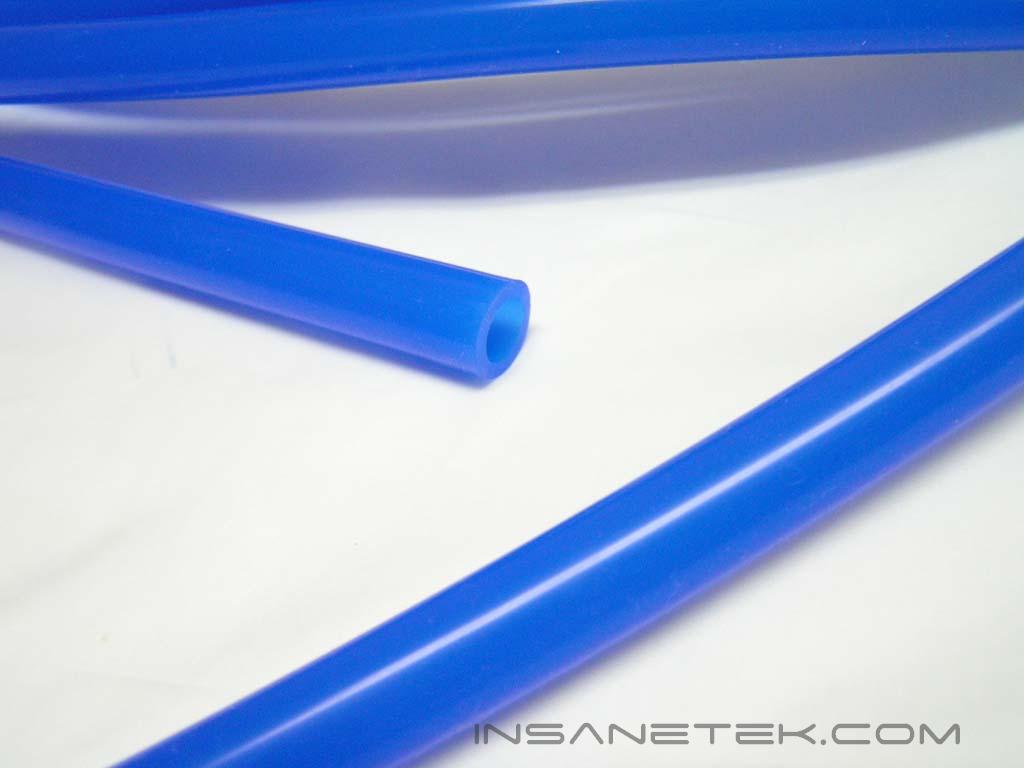
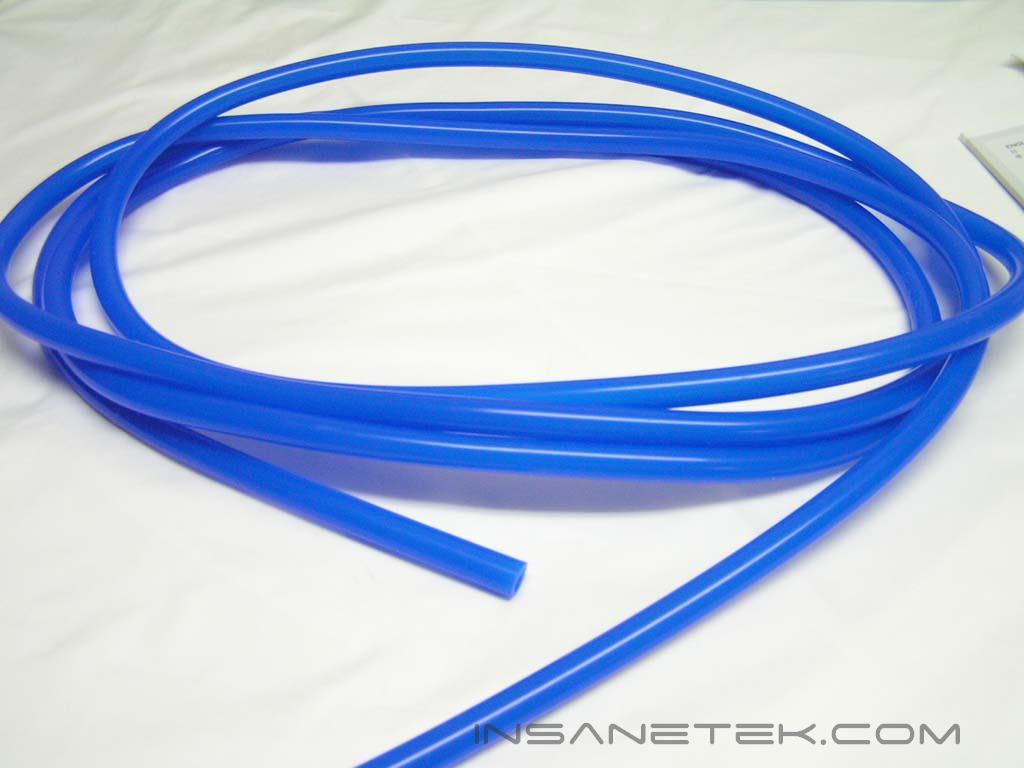
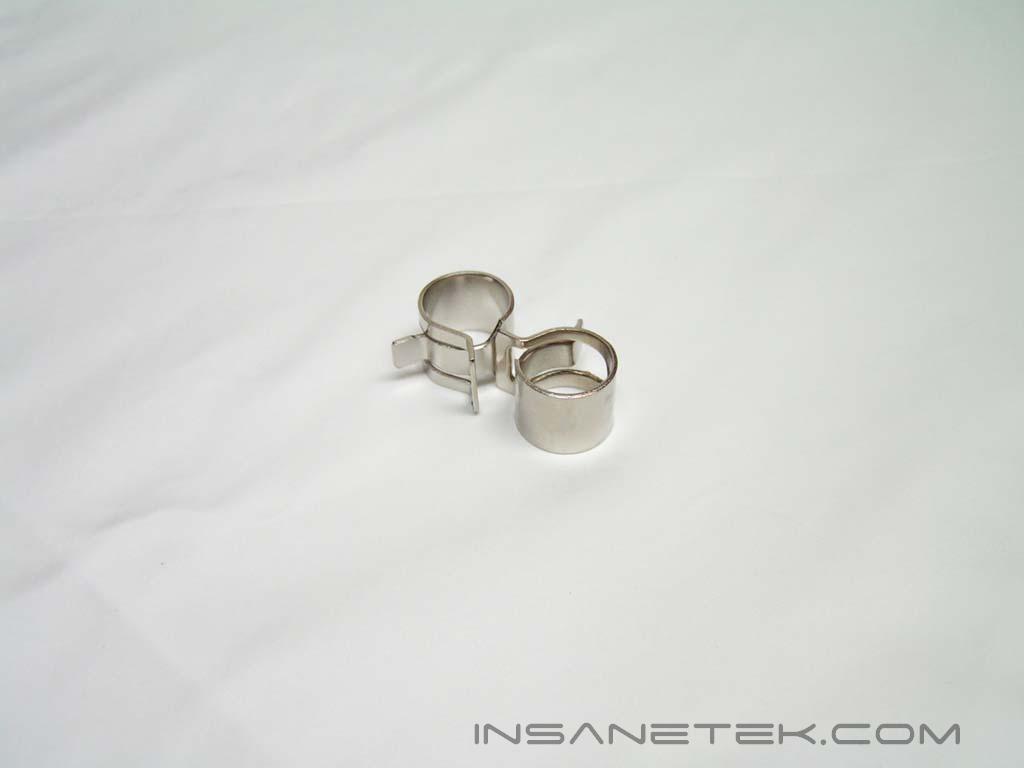
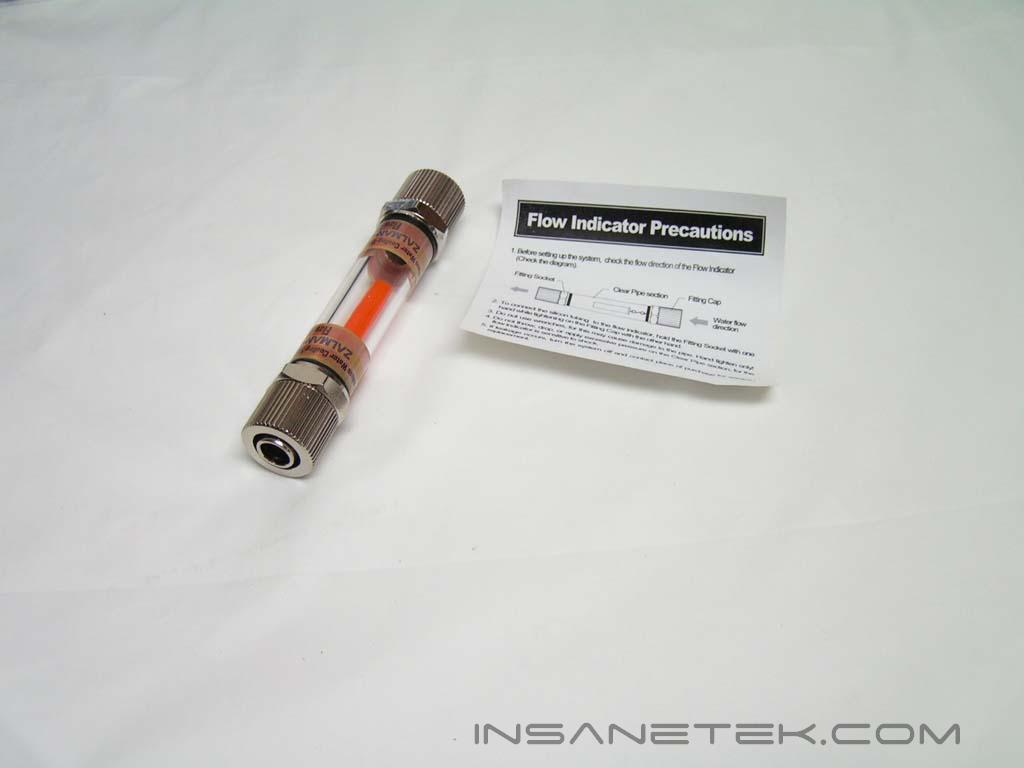
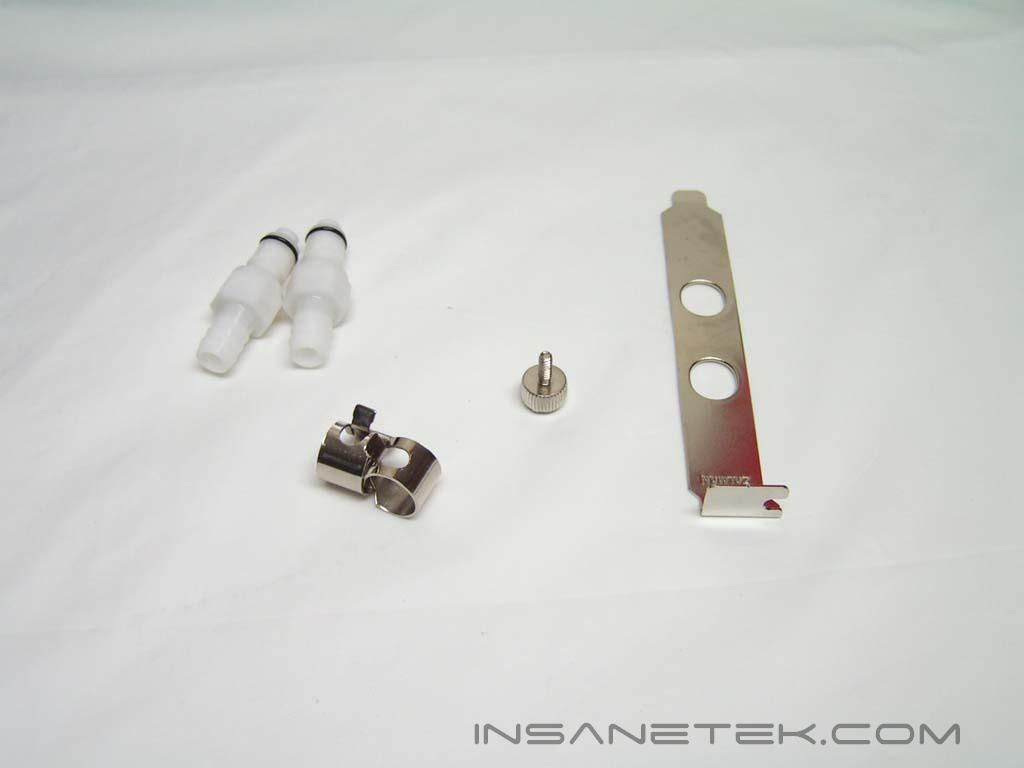
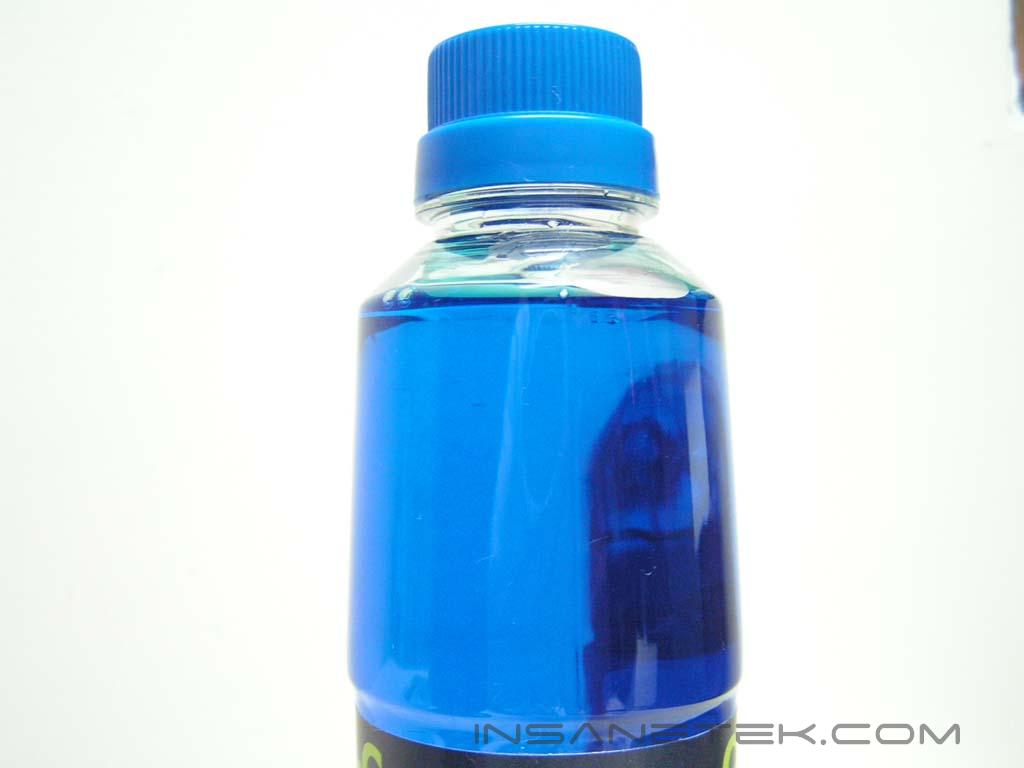
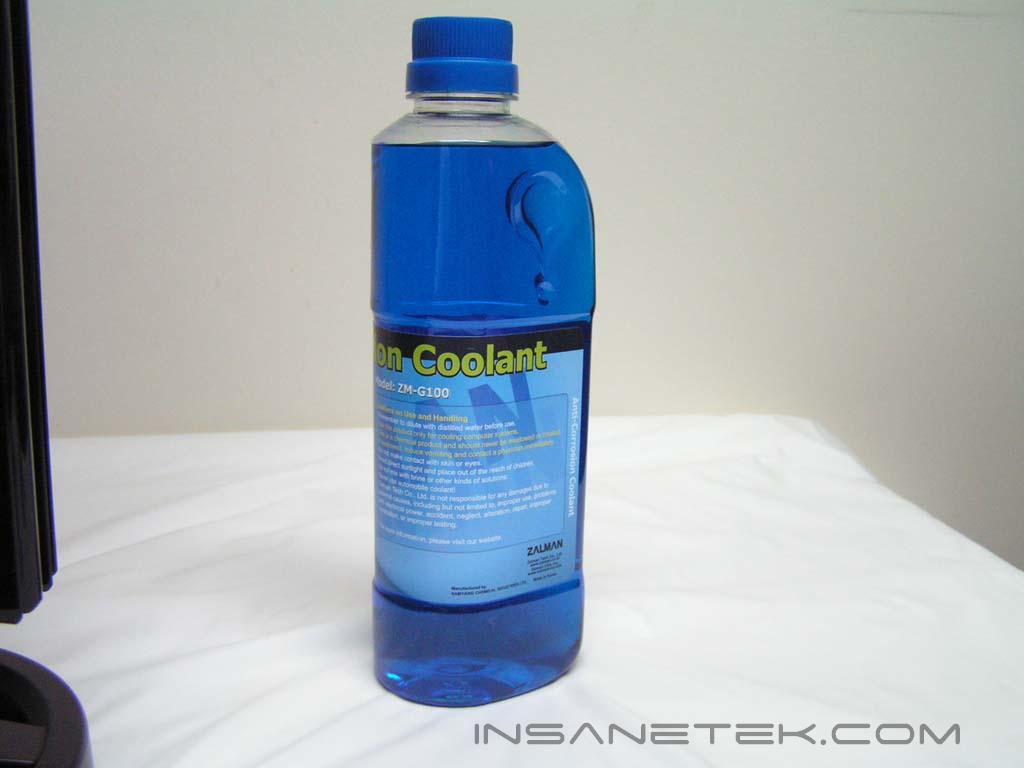
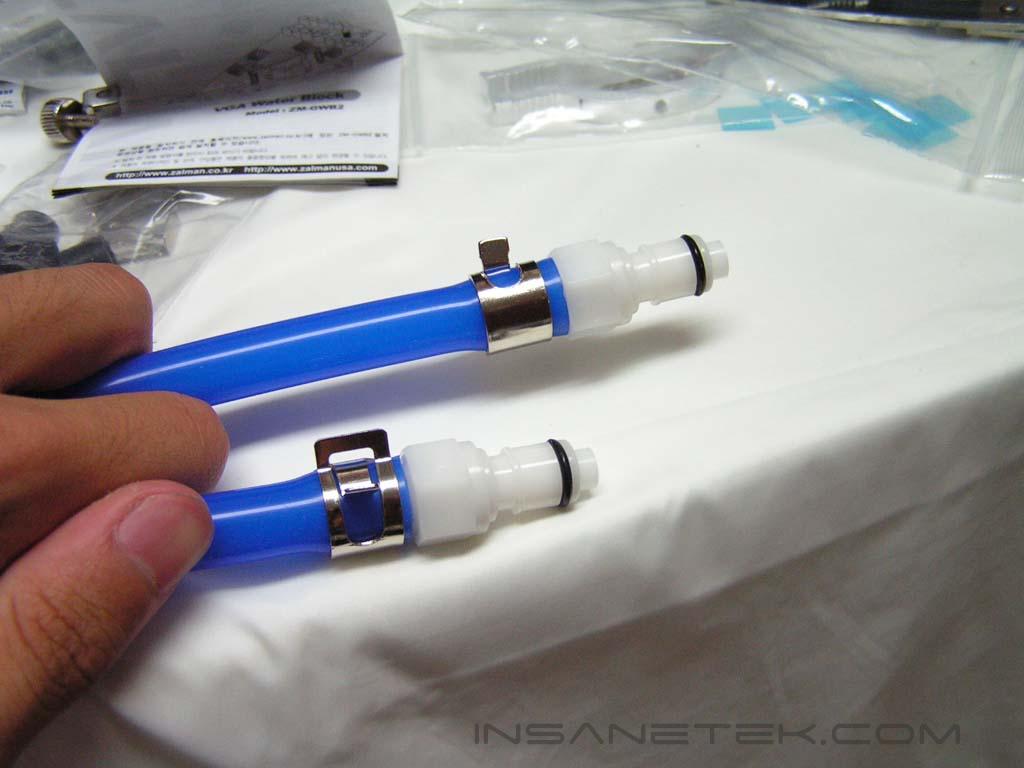
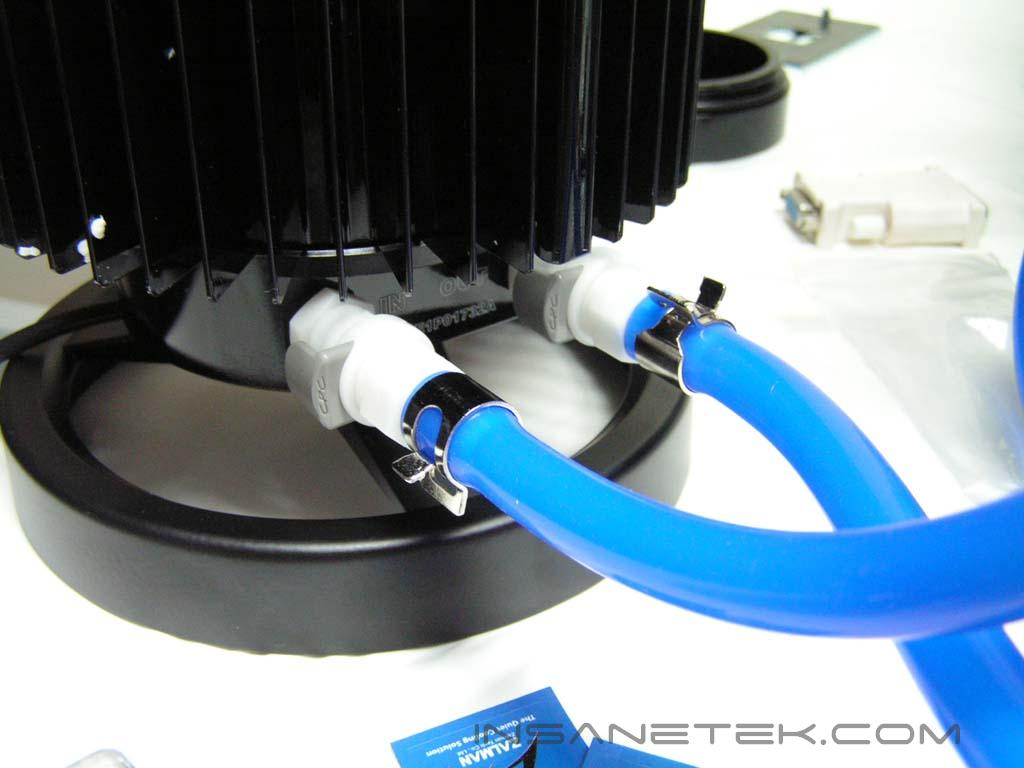
The other accessories included were the flow meter, the PCI bracket, 13 feet of 1/2” outer diameter silicon tubing, hose clamps, a bottle of coolant and quick disconnect pieces for the Reserator. The flow meter informs the user that water is properly flowing in one direction. The PCI bracket included has two holes for the tubing to go through, which allows the user to use this external kit with the side cover installed. This PCI bracket should be installed at the very bottom of the PCI expansion slots, so that nothing will be in the way and won’t get tangled in other wires. The hose clamps are only used for two things in this kit. If you choose to replace the CPU water block’s intake and outtake holes, then there will be three things that need clamps. Wherever you see intake and outtake holes shaped like the ones located on the VGA water block, you will need to use a hose clamp to prevent leaks. The bottle of coolant provided is blue in color and will need to be mixed with distilled water to ensure that is no corrosion or any algae buildup. The Reserator 1 Plus features the use of quick disconnects on the actual Reserator. These quick disconnects will snap in when installed and you can easily release them with a push of a button.
Installation
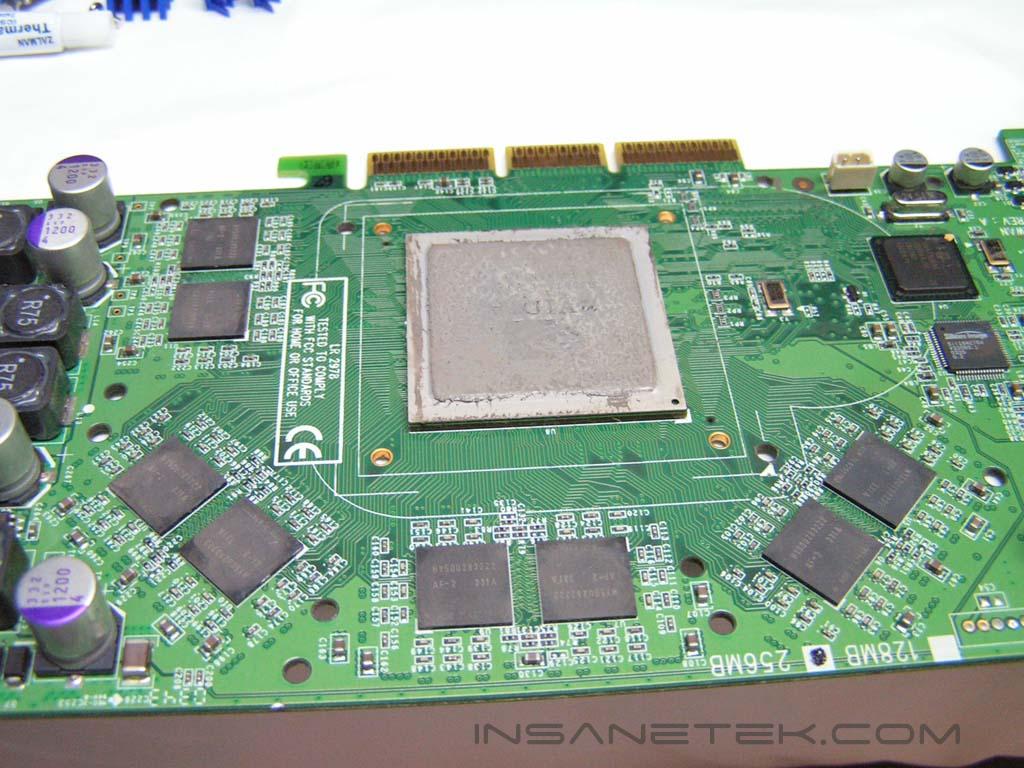
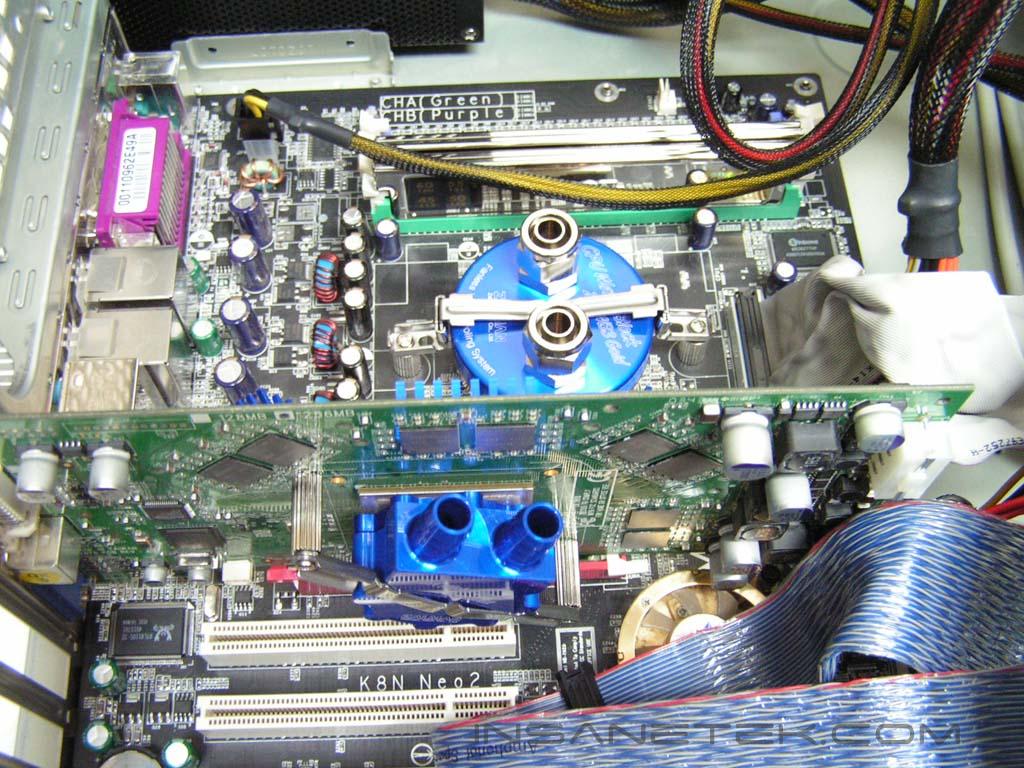
To begin installation, I found it easiest to work on the graphics card. After taking it out of the computer and taking off its stock heatsink, clean off any previous thermal compound on both the core and memory chips. Then proceed to reapply another layer of fresh thermal compound (Zalman provides a stick) only on the core. Do not apply any on the memory chips since the memory sinks will not stick if it is not clean. Then, mount the necessary screws and align the VGA water block correctly to the screws and screw it together. When that’s done, carefully peel off the protective blue plastic on each memory sink and place them on the memory chips. Zalman only provided eight of them, so it is ideal for 128MB video cards.
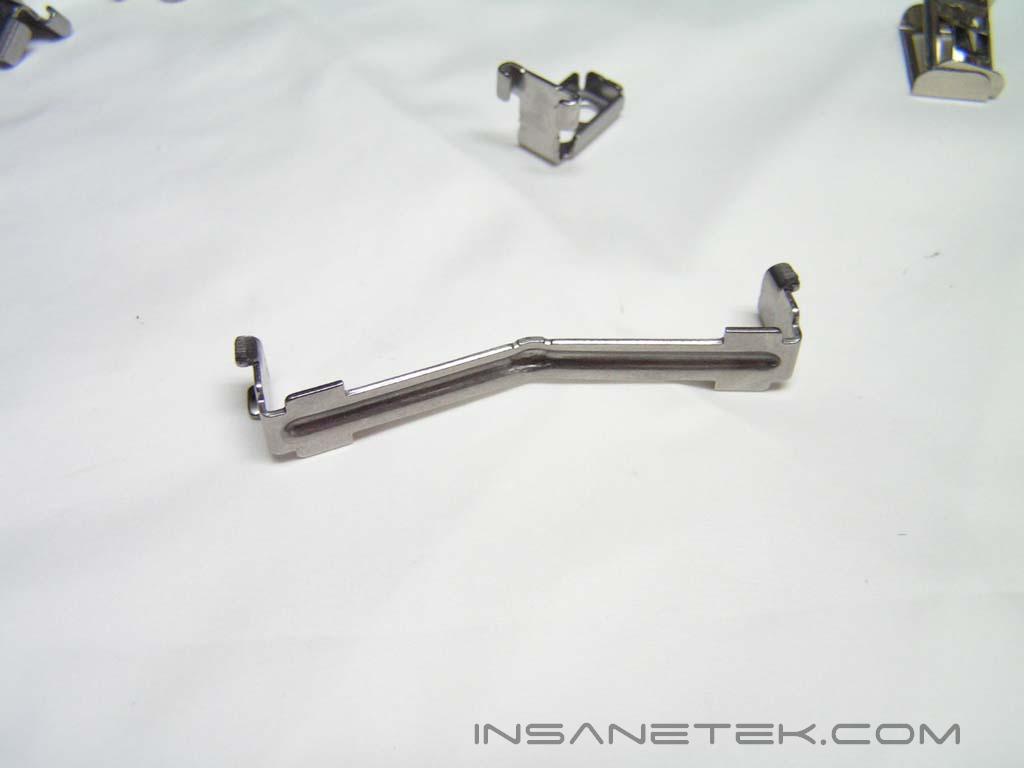
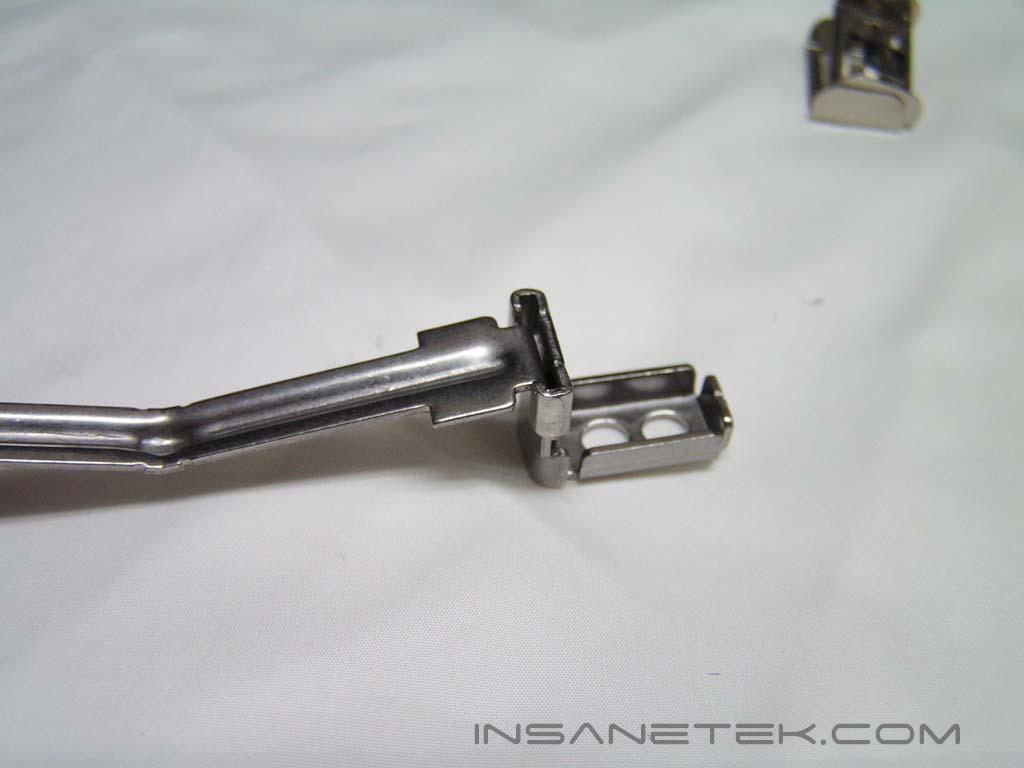
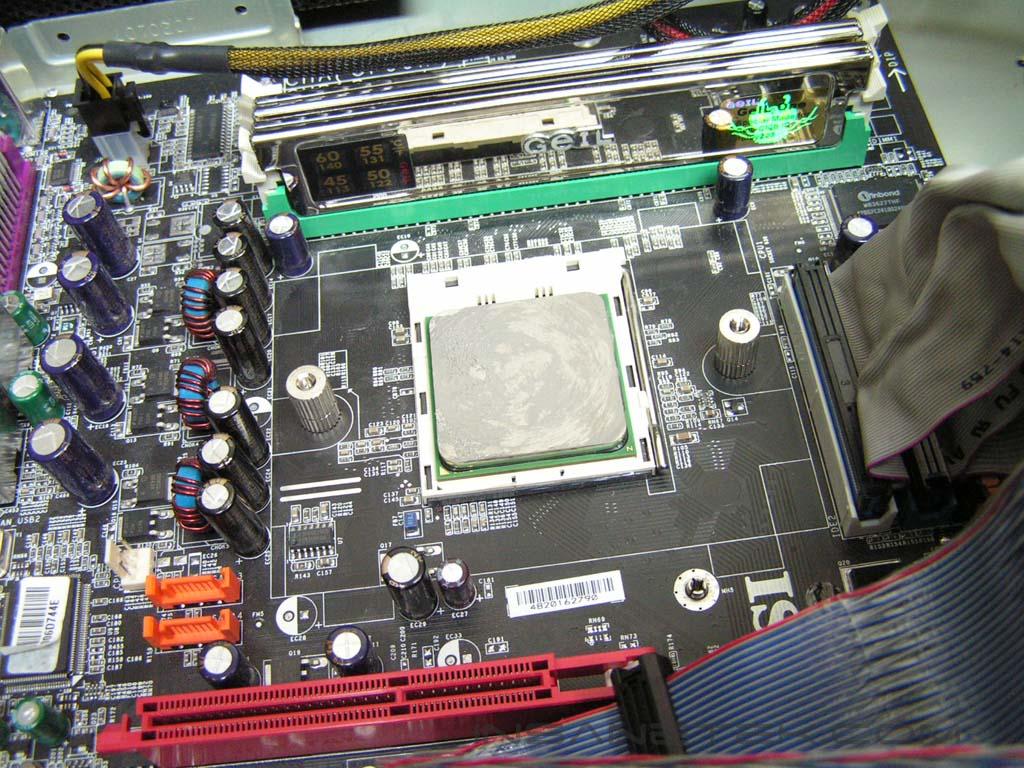
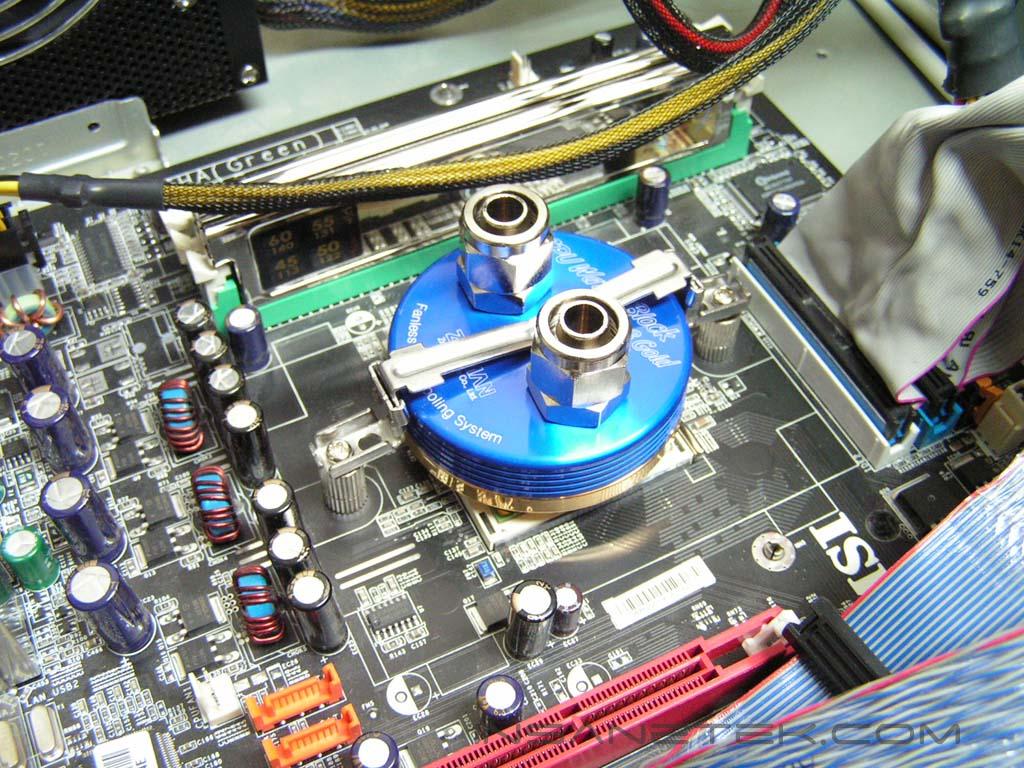
Now it’s time to install the CPU water block. This requires removal of the motherboard but that shouldn’t be too much of a hassle. Carefully unplug every PCI device and remove the motherboard. Then line up the correct mounting accessory for your Socket and screw it together. The system I have is Socket 939, so nipple screws were used to secure the mounting accessory. Clean off previous thermal compound and reapply a new thin coat. Place the CPU water block on the processor and screw them together. Make sure it’s tight and the CPU water block is flat against the processor.
Installation Continued
After both water blocks are mounted, it is time to set up the tubing. This was perhaps the harder part of the whole process, since it involves measurements or better judgment of how long a tube should be before you cut it. For those that are familiar with the type of 1/2” OD tubing Asetek uses, the silicon tubing that Zalman uses is much easier to cut. Cut a short piece for the Reserator to the flow meter. The orange thing in the flow meter with the small pin inside should be facing the white quick disconnect on the Reserator. Then unscrew the flow meter on both sides. Put a hose clamp and the unscrewed piece on the tube and then insert the quick disconnect and flow meter. After that is done, readjust the hose clamp to fully surround the quick disconnect and screw the piece back onto the flow meter. Connect this quick disconnect into the OUT of the Reserator.
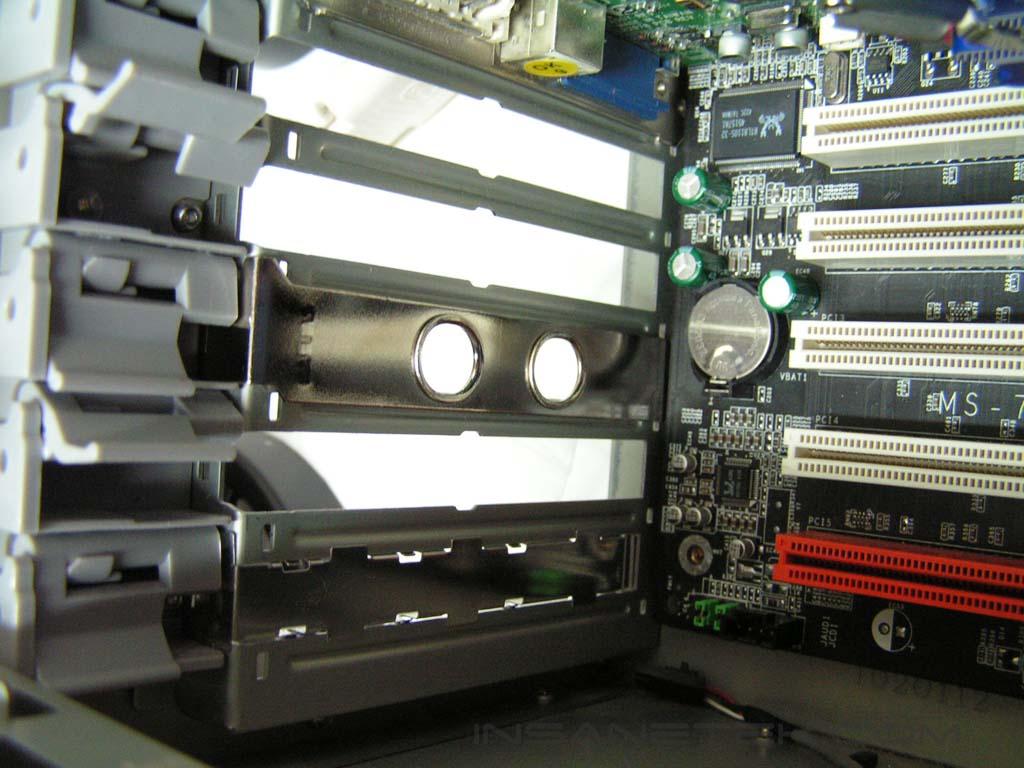
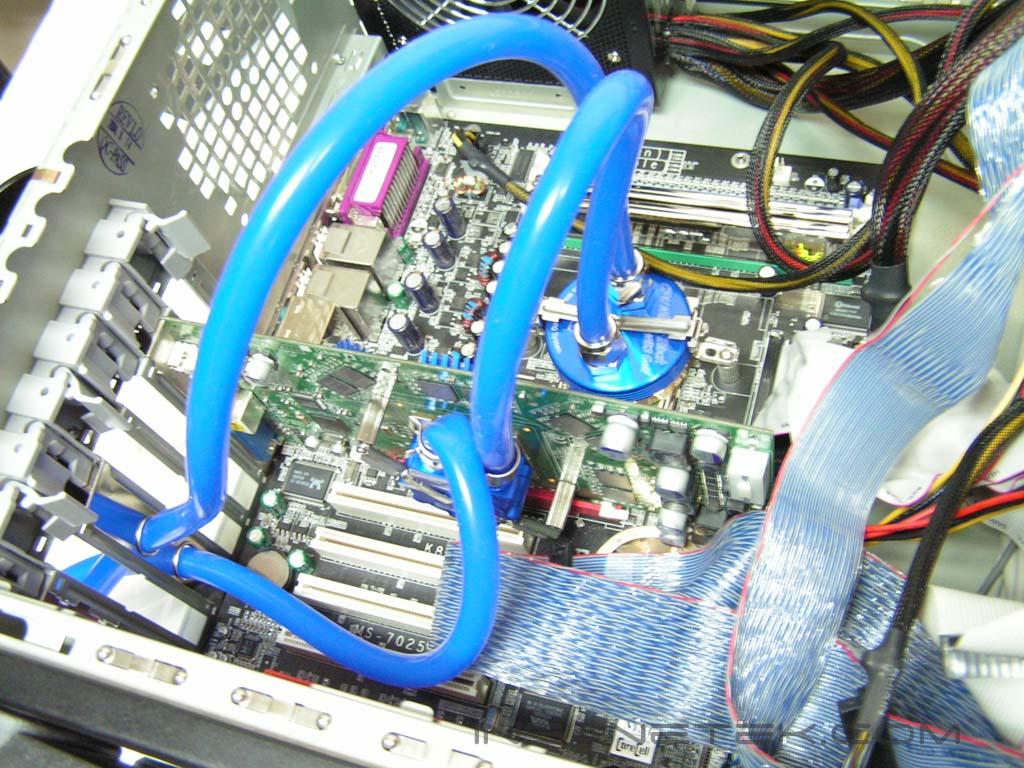
Cut a long piece of the tube for the flow meter to the CPU water block. This piece of tube should be long enough so you can relocate the Reserator if you wanted to. Unscrew the piece from the CPU water block and place it on the tube. Then insert the tube onto the hole and screw it on. Do the same with another piece of tube from the CPU water block to the VGA water block. Don’t forget to use a tube clamp for the VGA water block. From the VGA water block, cut another piece to connect it to another quick disconnect of the Reserator. This piece will require two hose clamps, one on each end. After you connect the quick disconnect, that concludes the installation process. The only thing left to do is fill up the Reserator with the coolant and two liters of distilled water. Don’t forget to test for leaks after you install it. The pump will turn on if you flip the switch from OFF to ON after you plug it into the AC source. There is no need to “jump start” the power supply.
Test Setup and Results
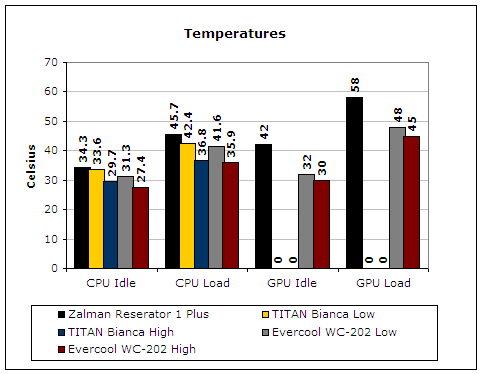
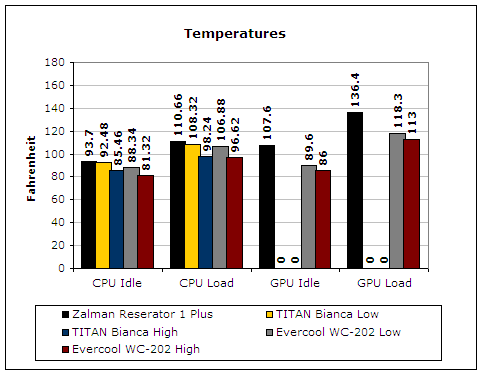
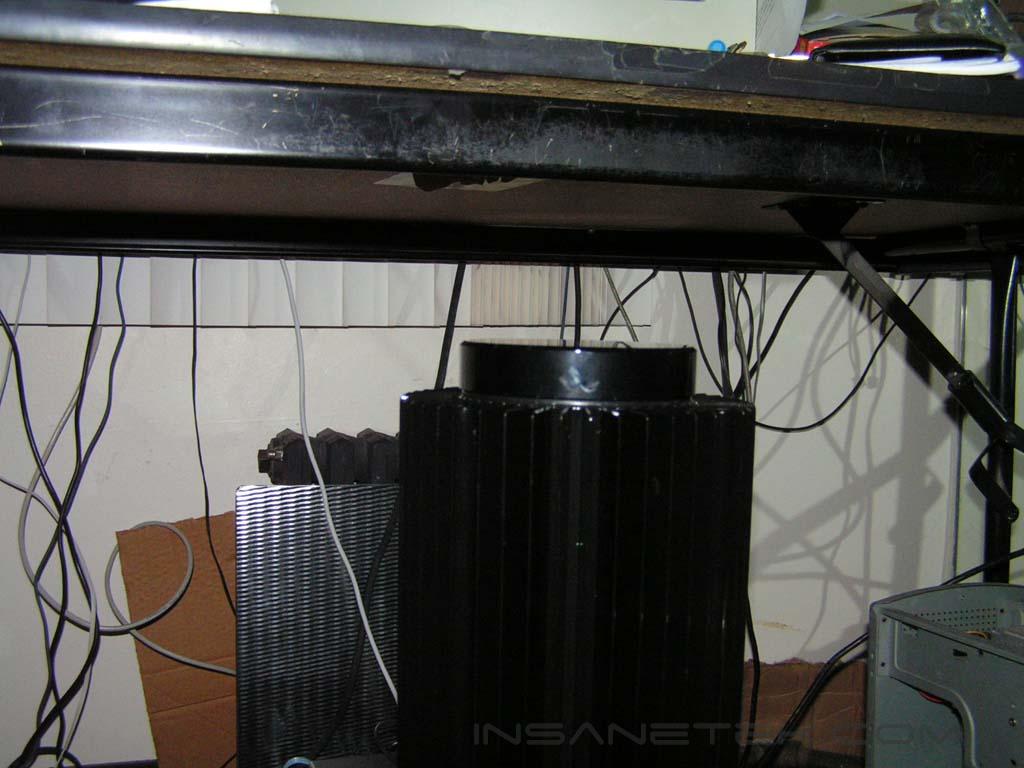
Testing will be conducted on an AMD Athlon64 platform. Temperatures shall be monitored with a Compunurse temperature probe on the side of the processor’s heatspreader. Ambient temperature was maintained at 27.3°C with +/-0.1°C. Arctic Silver 5 thermal paste was used throughout the entire testing process. One instance of CPU Burn-in was used to created maximum load on the processor. The internal temperature diode will be used to record the temperatures of the video card. To create maximum load for the video card, the system will go through four loops of 3dmark03. The actual Reserator will be placed on the floor to the right of the computer. There will not be any scientific testing conducted due to lack of proper equipment. The purpose of this test was to determine the results a home end user would obtain.
Testing Setup
- AMD Athlon64 3000+ Venice (overclocked at 9x250 = 2250mhz @ 1.62v)
- MSI K8N Neo2 Platinum
- 2 x 512MB GeIL ONE PC4800
- Leadtek Geforce FX 5950 Winfast A380 Ultra (575MHz Core Frequency / 975MHz Memory Frequency)
- Hiper 480W Power Supply
Competition
- TITAN Bianca TWC-A05 Watercooling Kit
- Evercool WC-202 Watercooling Kit
Testing Procedures
- Idling at desktop for 45 minutes
- Full load with one instance of CPU Burn-in for 45 minutes
Results:
Conclusion and Thoughts
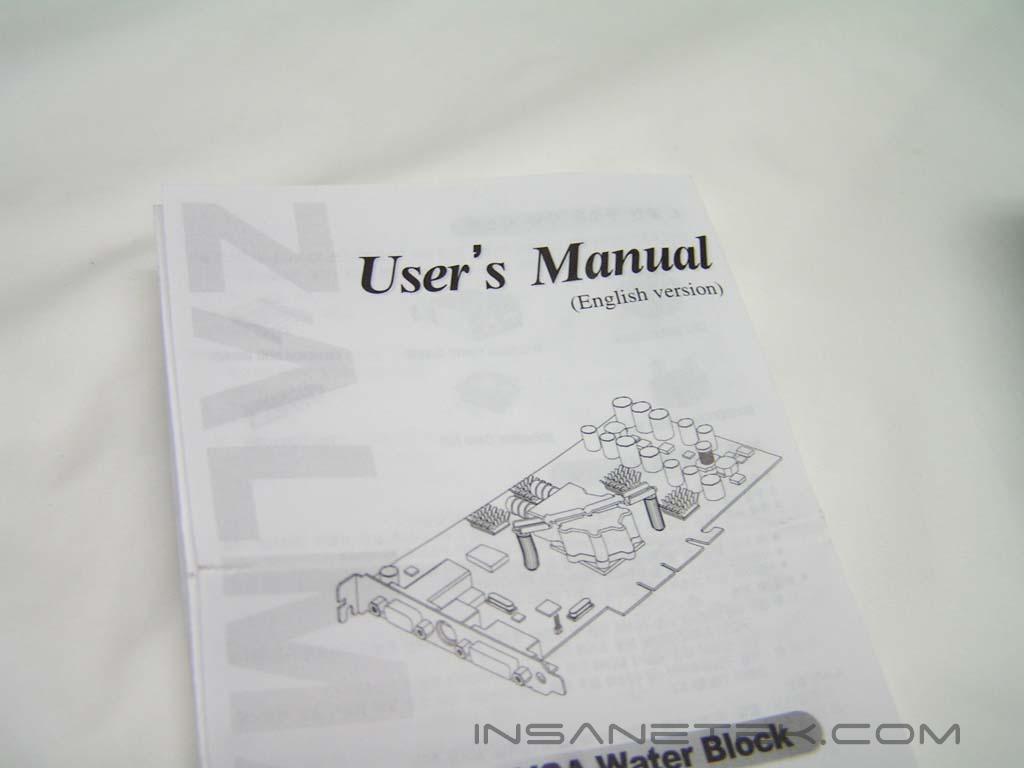
Using a fan to cool components isn’t the only way to achieve great results. Zalman’s Reserator 1 Plus proves that theory. It was able to compete with other cooling kits requiring the use of a noisy fan. The Reserator 1 Plus was completely silent throughout the whole testing process. The pump did not have the annoying hum that sometimes resonates with other kits. Perhaps the only reservation I have about the Reserator is that during the winter when the heat is on, wouldn’t performance be greatly affected? You could always manage to put it outside, but who wants to waste effort on that? The whole installation process took me longer than expected. Although the instructions were very clear, there was much to be done. Judging from the results, improvements could be achieved if the VGA water block had a copper base like the CPU water block. If you desperately need a totally silent cooler so you can enjoy your home theatre setup, sleep, or just surround sound in general, this cooler is definitely recommended. The price tag might be a turn off, but you won’t regret spending a little more on this kit. However, if you are into heavy extreme overclocking, this is not a kit you should be looking into.
Pros:
- Detailed instruction manual
- Sufficient tubing length provided
- Completely silent
- Huge reservoir
- CPU and VGA water block included
- Doesn’t connect to power supply for power
- Different mounting brackets provided
- Decent performance
Cons:
- Reserator is quite heavy
- Not for extreme overclocking

We would like to thank Zalman for providing us the sample. If you have any questions or comments, feel free to hit us up in the forums. You can also check out more of our latest reviews on the front page.