

ATake Phantom Robot VGA Cooler
Introduction
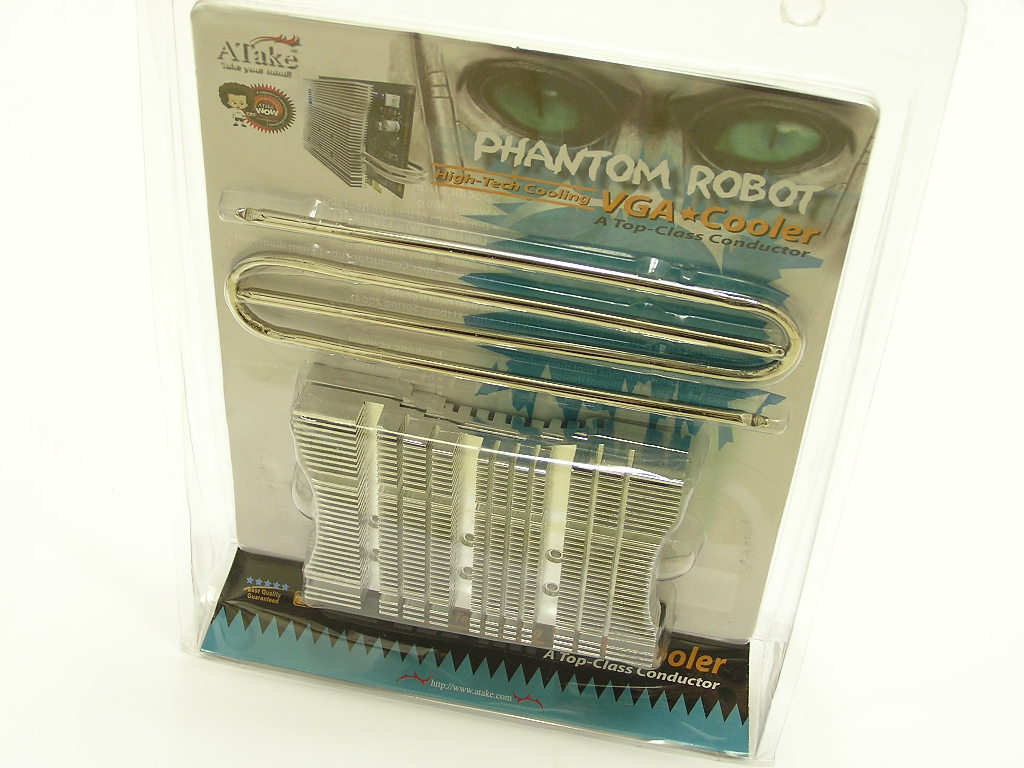
I’m sure that most of you are unfamiliar with the company ATake. Don’t worry, I’ve never heard of them either. A quick stop at their website reveals that they mainly manufacture computer accessories like keyboards, mice, KVM switches, and cooling products. What we have today is their new Phantom Robot VGA cooler. With cutting edge graphic cards putting out some serious heat, better cooling has become a necessity for even some of the slightest overclocks. A stock graphic cooler can get rather loud at times and silent enthusiasts hate it when that happens. Fortunately, Zalman was smart in introducing a heatpipe VGA cooler. Many companies followed, including ATake. Today’s Phantom Robot VGA cooler resembles the previously reviewed Zalman ZM80D-HP.
ATake Phantom Robot VGA Cooler
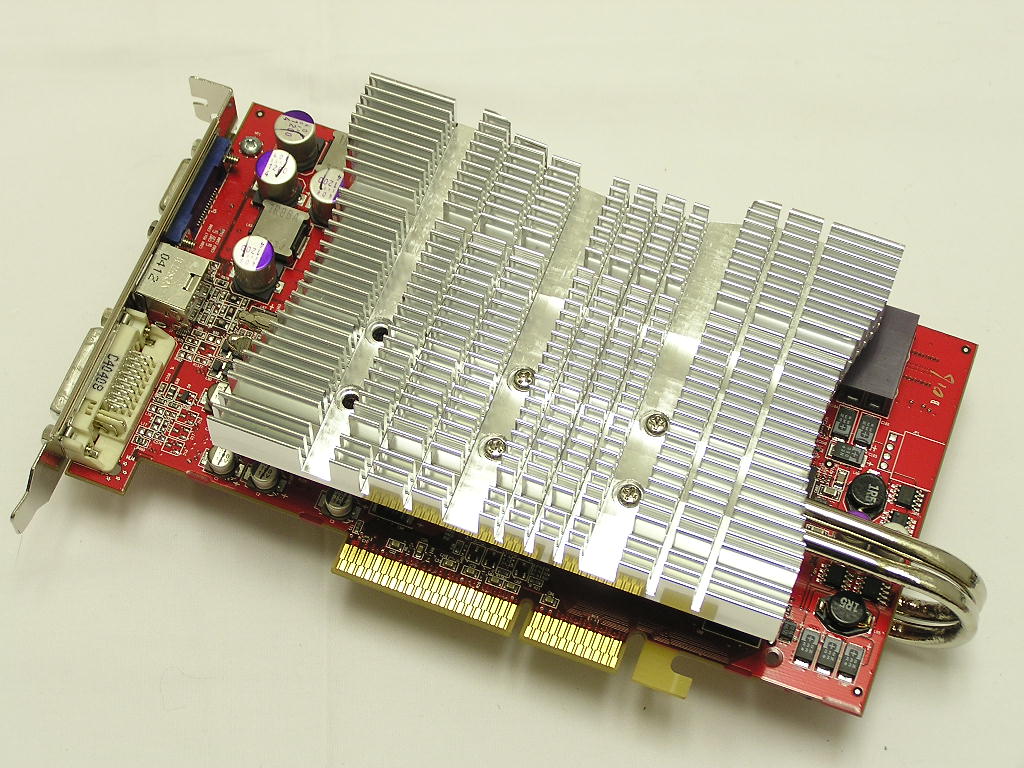
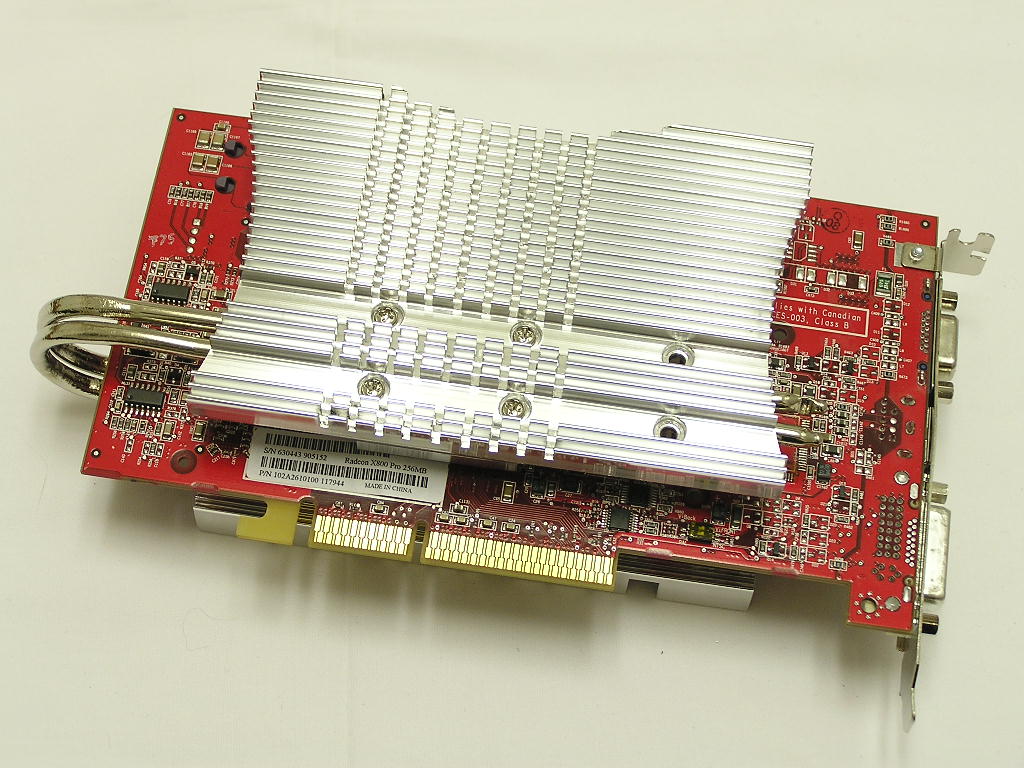
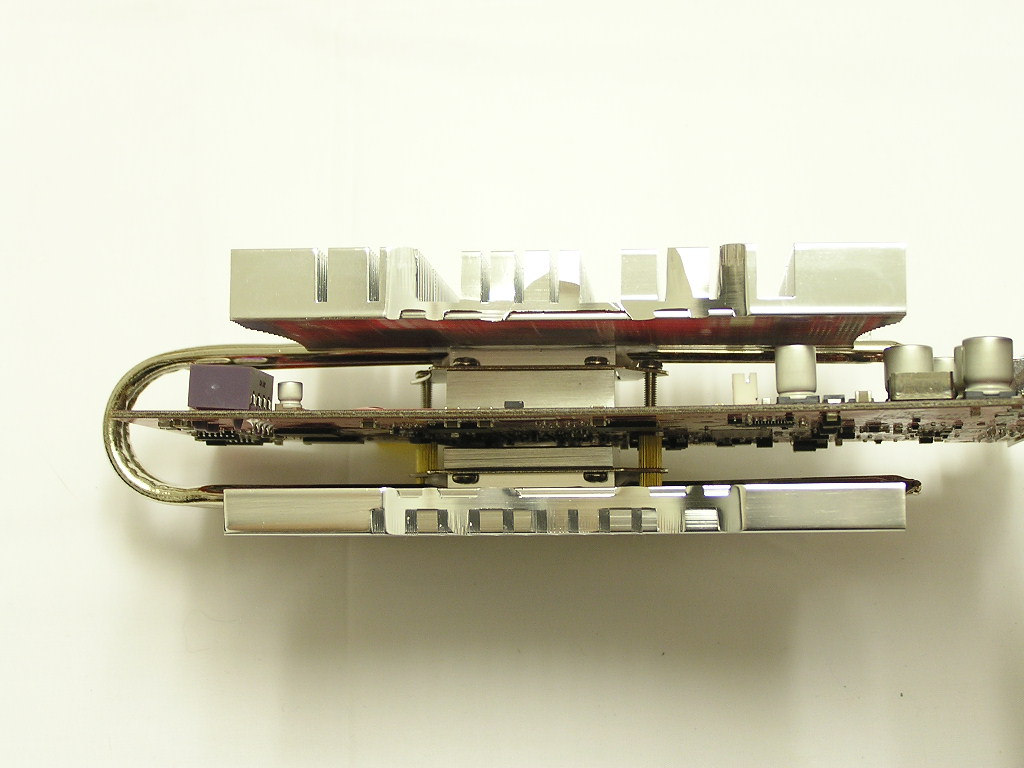
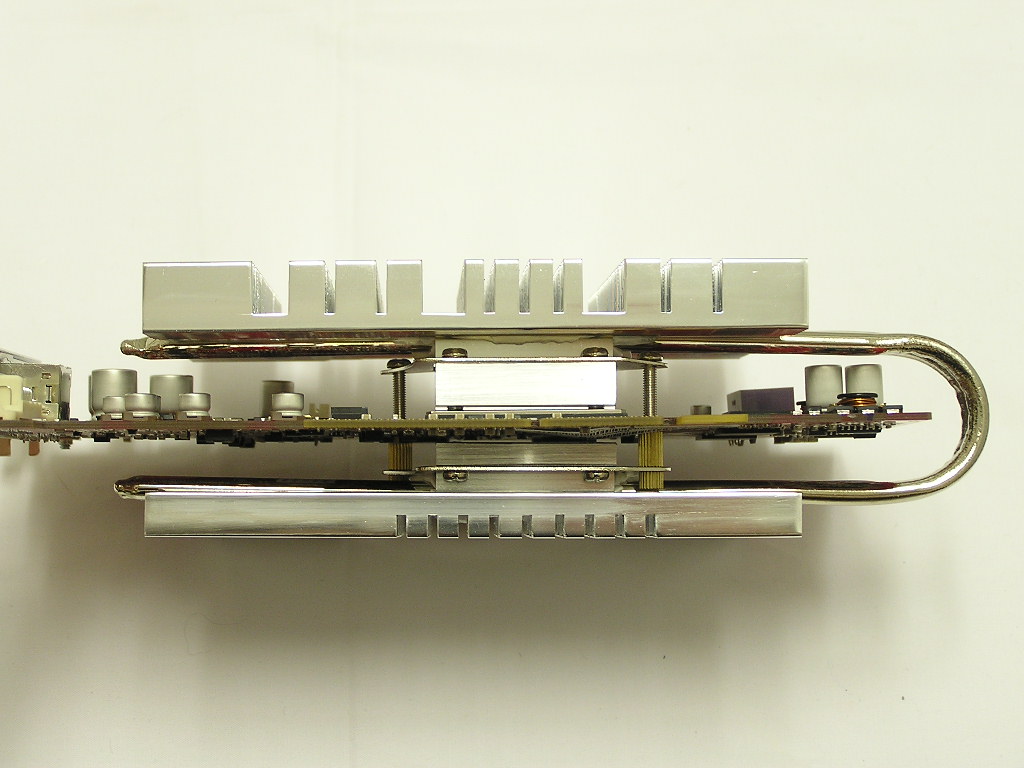
The Phantom Robot comes in a simple package that includes all the necessary accessories for installation. However, there was one important thing missing in my package. There were no instructions included! I didn’t need an instructions manual because I’m familiar with how these things install, but not everyone has that experience. I quickly scanned ATake’s website for some kind of installation instructions and found none. This is not acceptable. A company should not assume that you’re a computer geek and know how to work with all computer accessories. They should think that all users are computer illiterate and provide detailed instructions. Anyway, back to the contents. Included in the package are two large aluminum plates with a shiny coating. The larger, thicker piece of the plates is the front plate that installs on the side of the GPU. The smaller, thinner plate is used to install on the backside of the graphic card. The Phantom Robot VGA cooler features two heatpipes for maximum heat distribution. The cooler is compatible with both ATI and Nvidia graphic cards and comes bundled with aluminum blocks and frames to support these cards.
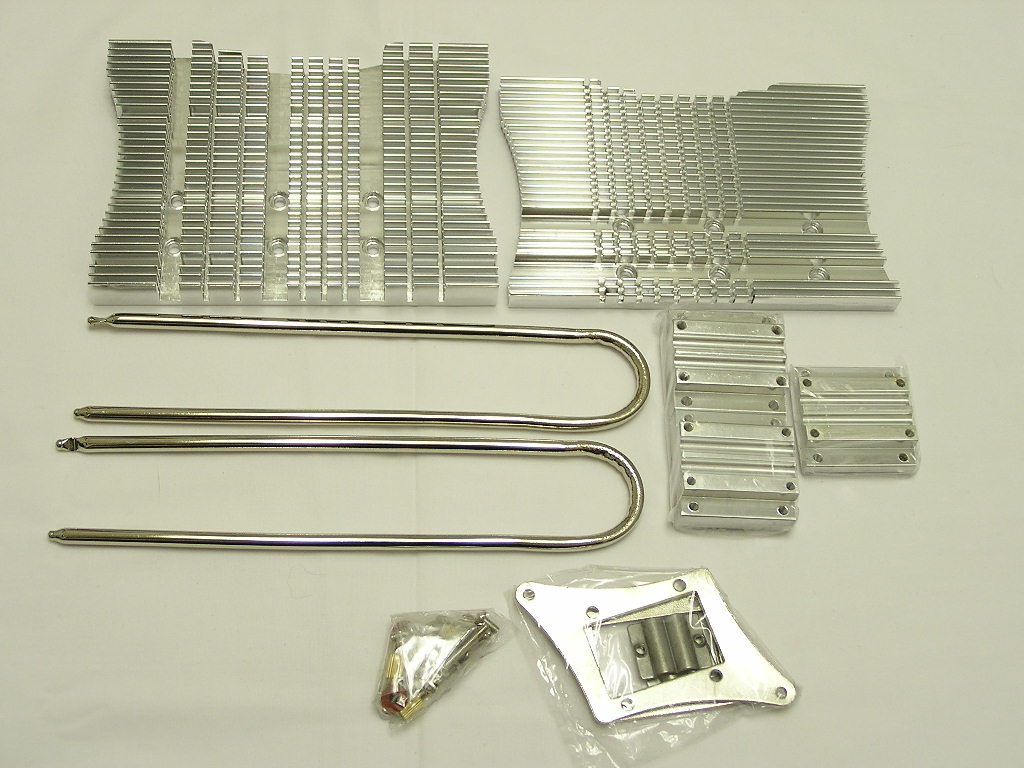
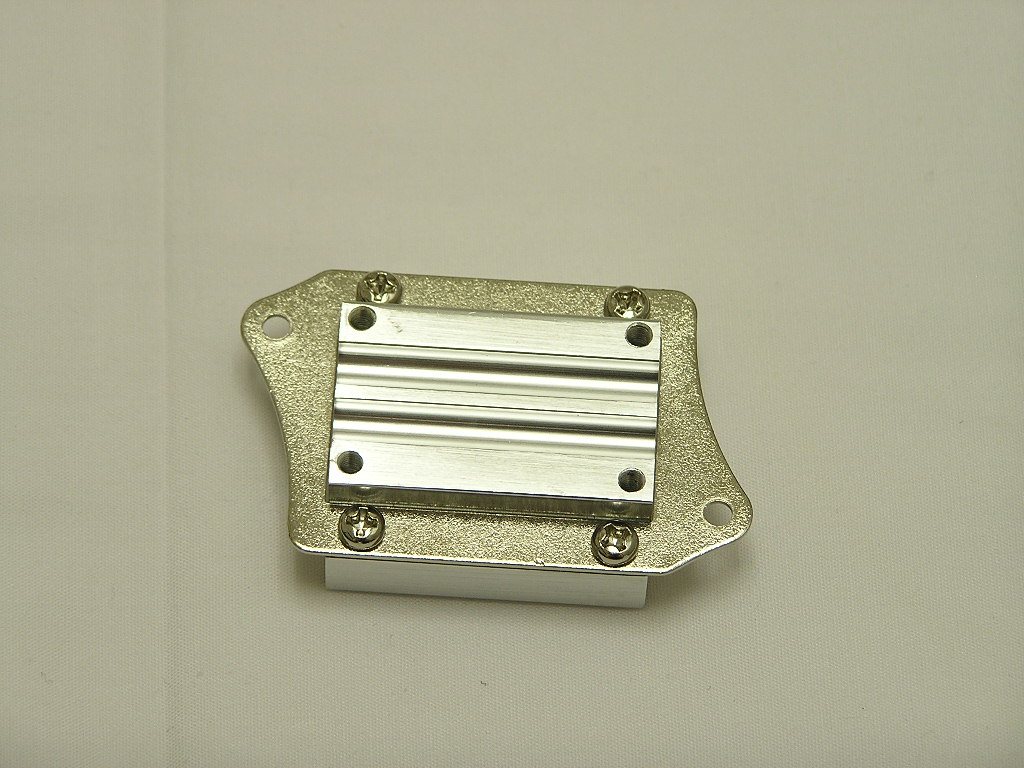
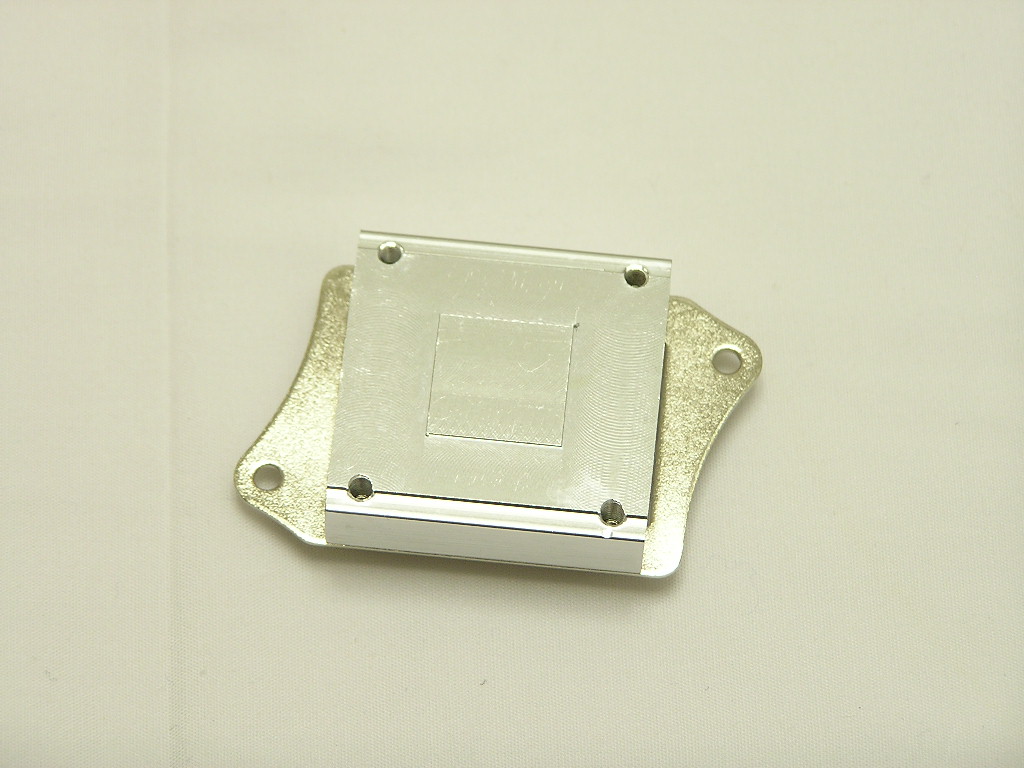
Because the ATake Phantom Robot does not come with any kind of instructions, I had to figure out everything myself. It wasn’t very hard to do and is indeed very easy. The test card used today will be an ATI Radeon X800 Pro, so the installation process I explain will be for an ATI card. The first thing you have to find is the aluminum block for ATI graphic cards. This is easily recognized by the small step in the middle of the base. There are two aluminum blocks that are identical in size but only differentiated by this small step. The step was created to make contact with the GPU, since higher end ATI cards come with shims. Next, separate the smaller frames from the larger frames. The smaller frames are used for ATI cards, because the holes on the PCB are closer together. Make sure that the frame holes line up with the PCB holes. Fit the small frame over the aluminum block and secure it down with the provided screws. All the screws included are of the same size. There are only two that are longer and those are used for attaching the front block and the back block.
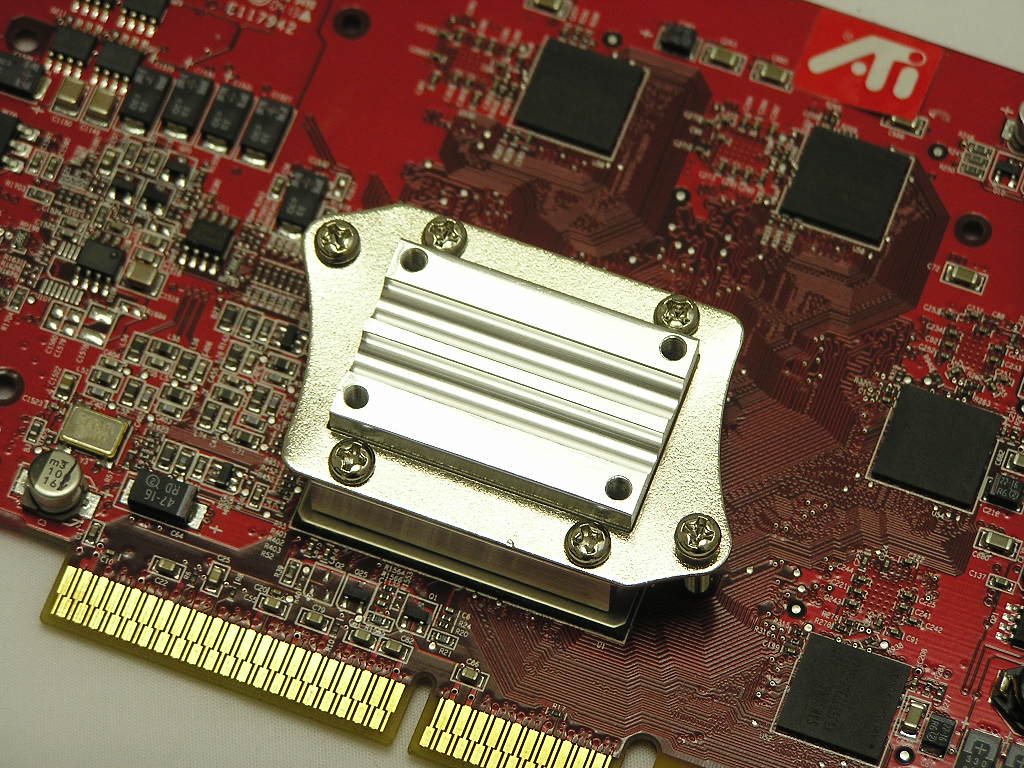
After you’ve spread thermal grease over the core of the graphic card, proceed to mount the block over the core. Speaking of thermal grease, the package comes with white silicone thermal paste, but there was not enough for proper installation. I had to use some of my own. After you sit the block over the GPU, take the two long screws and insert them through the outer holes and straight through the PCB. The screws will be long enough to show a little on the back side of the graphic card. Don’t flip the card around, it’ll cause the screws to fall out. Simply turn it sideways so that you can hold on to the front block while still be able to work on the back side. Place two fiber washers over the ends of the screws on the back side, one on each screw. Take both the nipples and fasten it to the screws. Now the front block should be held to the graphic card. The back block is the smaller thinner block out of the three blocks included. The installation of the back block is the same as the front block. Take the other smaller frame and fasten it to the back block with the provided screws. Once again, make sure that the outer holes will line up with the nipple. Sit the back block over the ends of the nipple and then tighten it down with the provided nuts. Now the back block is secure. Make sure that you flip it over and use a screwdriver to tighten down the entire assembly.
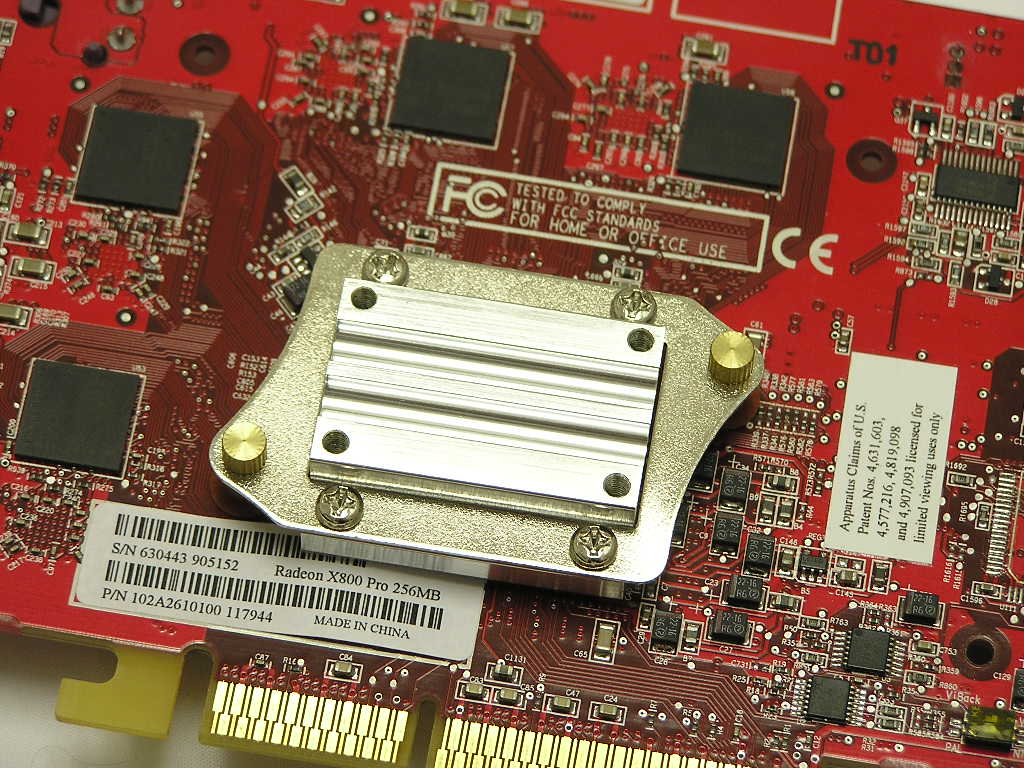
The rest of the process is very easy. Fill the grooves on the front block with thermal grease and place the two heatpipes over it. Adjust the heatpipe length according to your liking and let it sit there. Be very careful not to move it. Spread some more thermal grease across the heatpipes where contact with the aluminum plate will be made. Take the large aluminum plate and sit it on top of the front block. You will see that there are 6 holes on the plate but you will only need 4. The Phantom Robot VGA cooler provides some flexibility as to where you want the block to sit. You can have the plate sitting more on the left or a little more on the right. It’s entirely up to you. Line up the 4 holes with the holes on the front block and use 4 screws to secure the front aluminum plate. After the front plate is secure, turn the card over and proceed the same with the back plate. Voila, you’re done.
Specifications
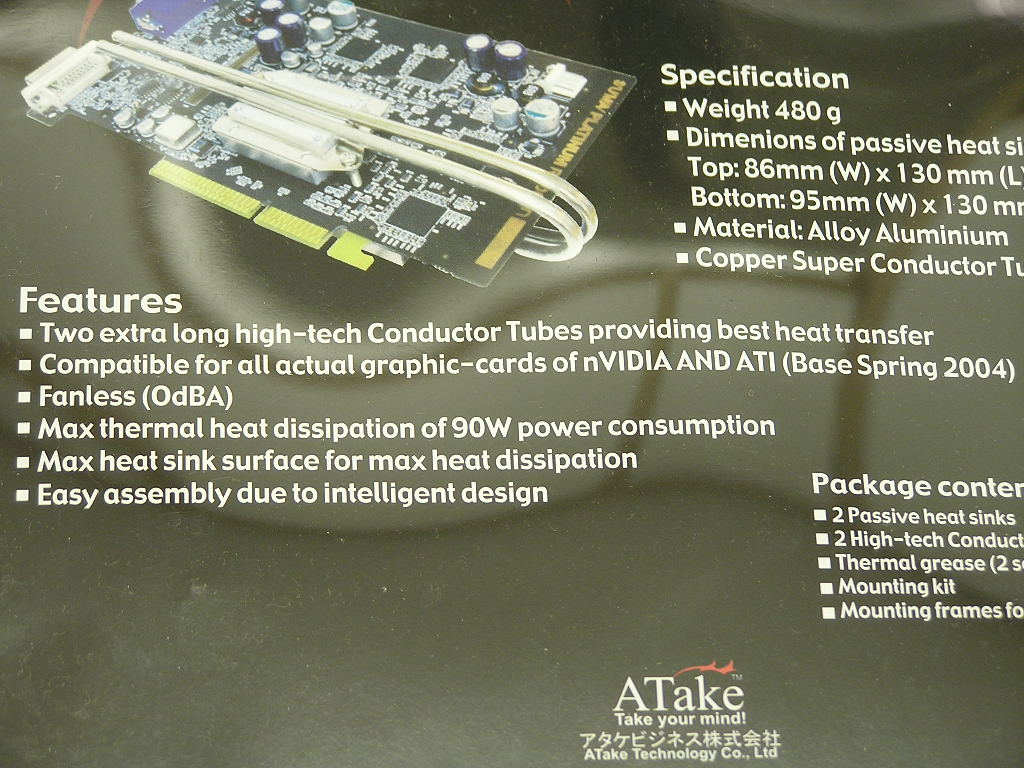
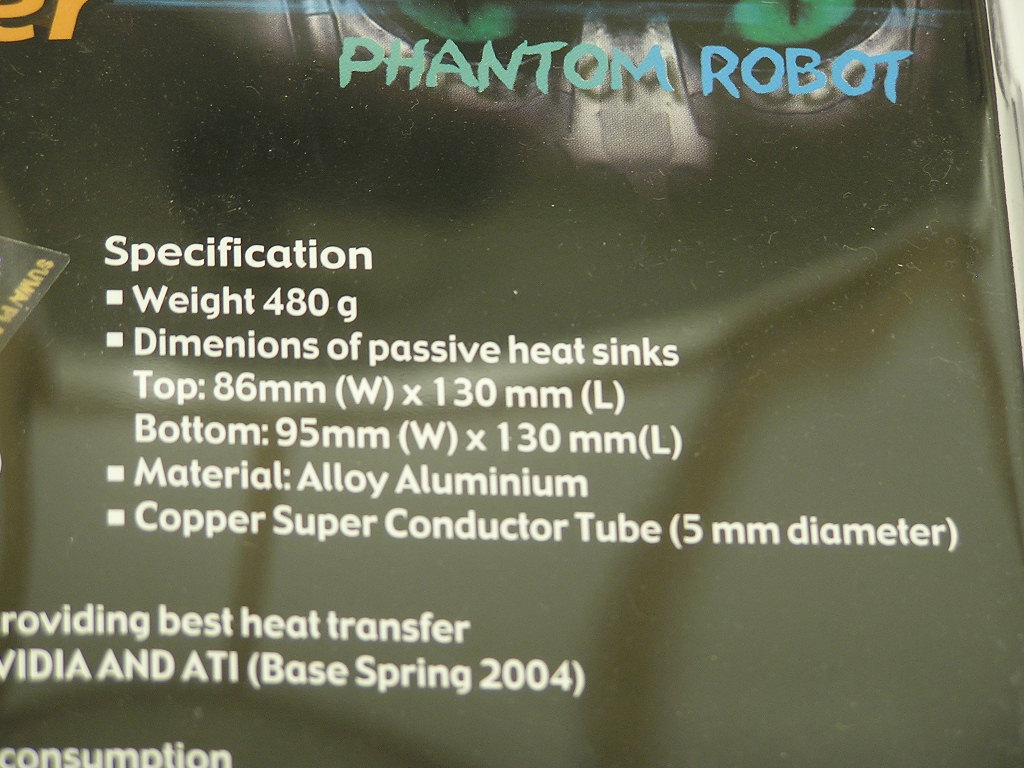
There were very little specifications listed for the Phantom Robot but there isn’t much need. The package provides enough for those users who wish to know a little about the cooler.
Test Setup and Results
Test Setup and Method:
Ambient temperatures were kept consistent at 22°C. Arctic Silver Ceramique was used for the core while generic white thermal paste was used for the heatpipes and plates. Temperature was taken off the ATI Overdrive tab. Idle temps are recorded after sitting on desktop for 30 minutes. Full load temps are recorded while ATITool heats up to find the maximum GPU frequency. The purpose of this test was to determine the results a home end user would obtain. There was no scientific testing conducted, simply because I do not have the proper equipment.
Test System Specifications:
- AMD Athlon64 3000+ Newcastle
- DFI Lanparty UT 250Gb
- 2 x 512MB Centon Gemini Low Latency PC3200
- ATI Radeon X800 Pro
- Ultra Products 600W
Competition:
- Stock ATI cooler
Test Procedures:
- Idle at desktop for 30 minutes
- Full load with ATITool searching for maximum GPU frequency
Results:
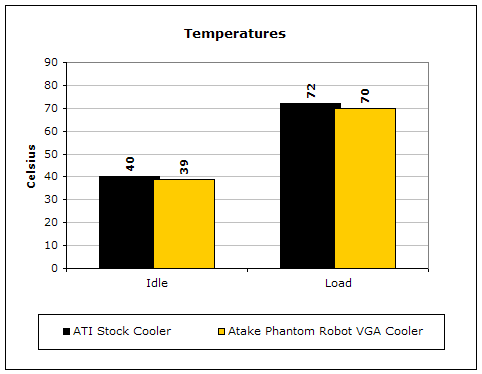
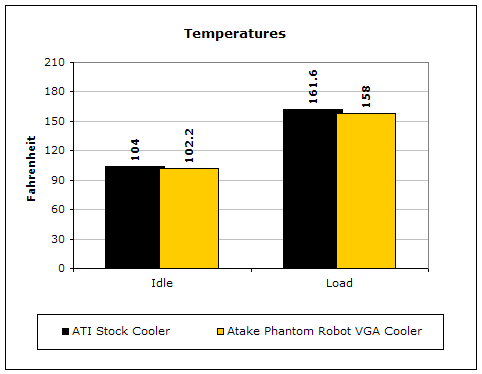
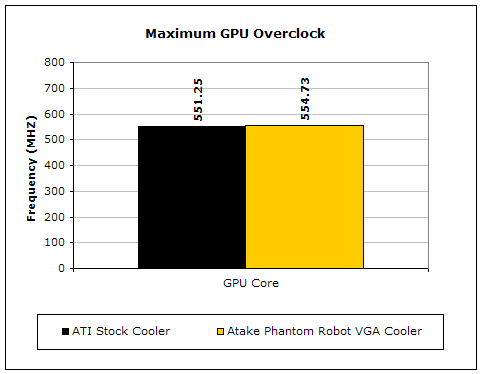
The performance difference doesn’t seem to be all that great, but you have to keep in mind that the Phantom Robot VGA cooler is performing without the use of a fan. The fact that it’s able to perform better without the use of a fan proves a lot. Checking the maximum GPU overclock allowed, the Phantom Robot VGA cooler allowed a 3MHZ increase. That’s not too shabby at all.
Conclusion and Thoughts
The ATake Phantom Robot VGA cooler is a well performing heatpipe cooler that generates absolutely no noise. The silence is great and will definitely satisfy the silent enthusiasts. This heatpipe VGA cooler is a great recommendation for HTPC systems. The last thing you want out of a good movie is computer noise in the background. The ATake Phantom Robot VGA cooler comes with ups and downs. The most important thing is the lack of an instructions manual. Although this can easily be fixed, it’s not something that they should forget about in the first place. The second would be the little amount of thermal grease provided. There wasn’t enough for a complete proper installation. Users will have to run out and get more if they don’t already have some. Other than those two complaints, I definitely like this cooler. It looks awesome. The shiny plating will look great through a case window. The ability to cool 90W of heat is excellent. That’s like cooling a low end CPU without a fan! And lastly, the silence is the best thing about the cooler. With absolutely no noise coming out of it, how can you complain?
Pros:
- Completely noiseless
- Dual heatpipes
- Able to cool 90W of heat
- Shiny plating
- Large surface area
- Requires no fan
- Easy installation
- Great performance
Cons:
- No instructions provided
- Amount of thermal paste a little lacking
- Pricey

We would like to thank Wisetech for providing us the sample. Wisetech is the distributor of the ATake Phantom Robot VGA Cooler. If you have any questions or comments, feel free to hit us up in the forums. You can also check out more of our latest reviews on the front page.