

Gigabyte 3D Aurora
Introduction
Case design is constantly changing, as the need of consumers always change. As a company, you need to act before the need for a certain design erupts. You need to be the first one on the market. Some may act too fast, and the design won’t be well received. Timing is key.
We have very recently reviewed Gigabytes first step into watercooling, the 3D Galaxy. It proved to be a good performer with fantastic aesthetics. The 3D Galaxy showed that Gigabyte can adapt to other markets without trouble and design a very functional kit. We now have the chance to review the 3D Aurora, Gigabyte’s first case, and the counterpart to their 3D Galaxy. Its design in conjunction with the 3D Galaxy makes watercooling an integral part of the case. It has room for their watercooling kit and then some. Will Gigabyte be able keep up with the design needs of enthusiasts in other markets and succeed or are they pushing their luck?
Gigabyte 3D Aurora Exterior
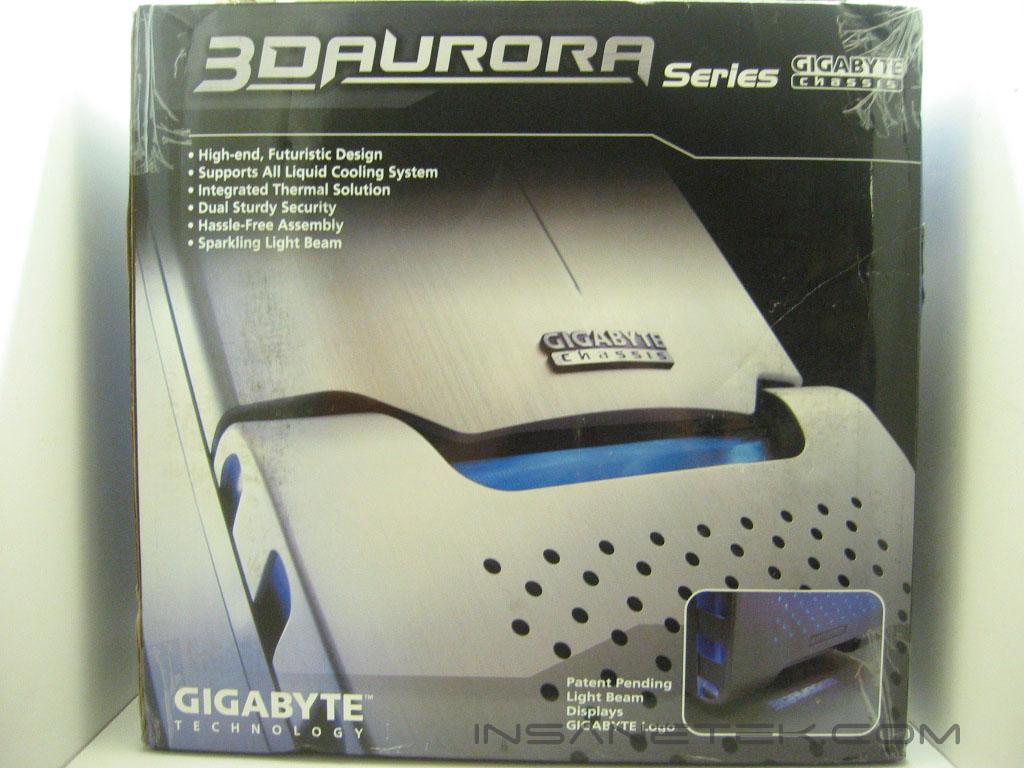
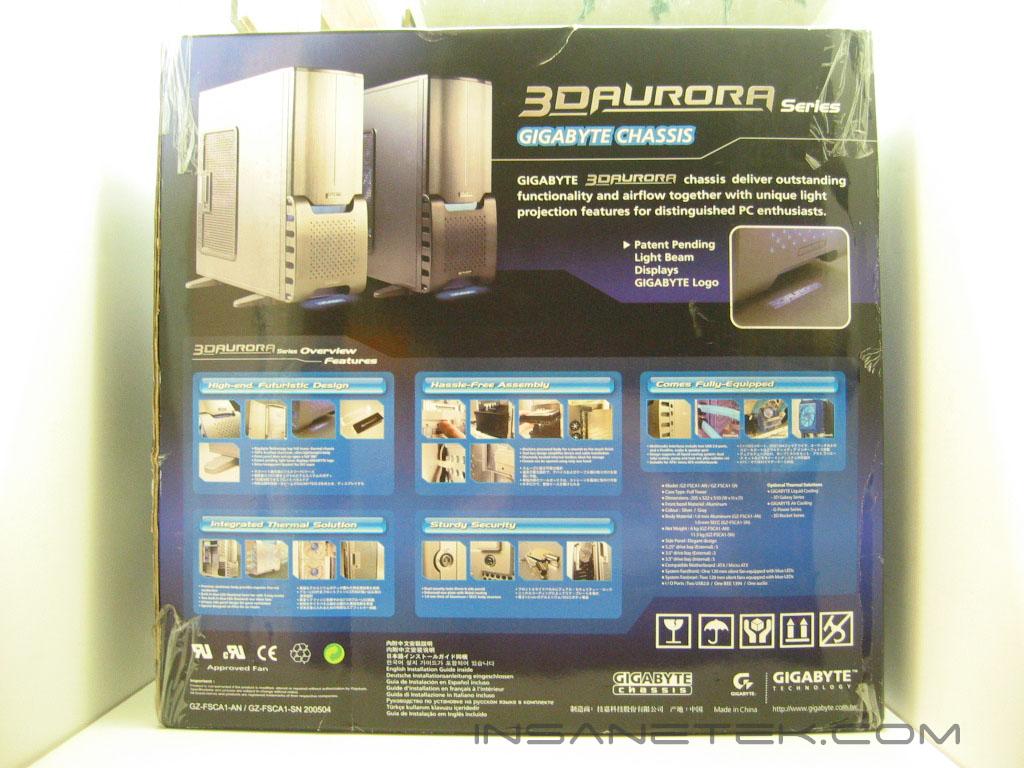
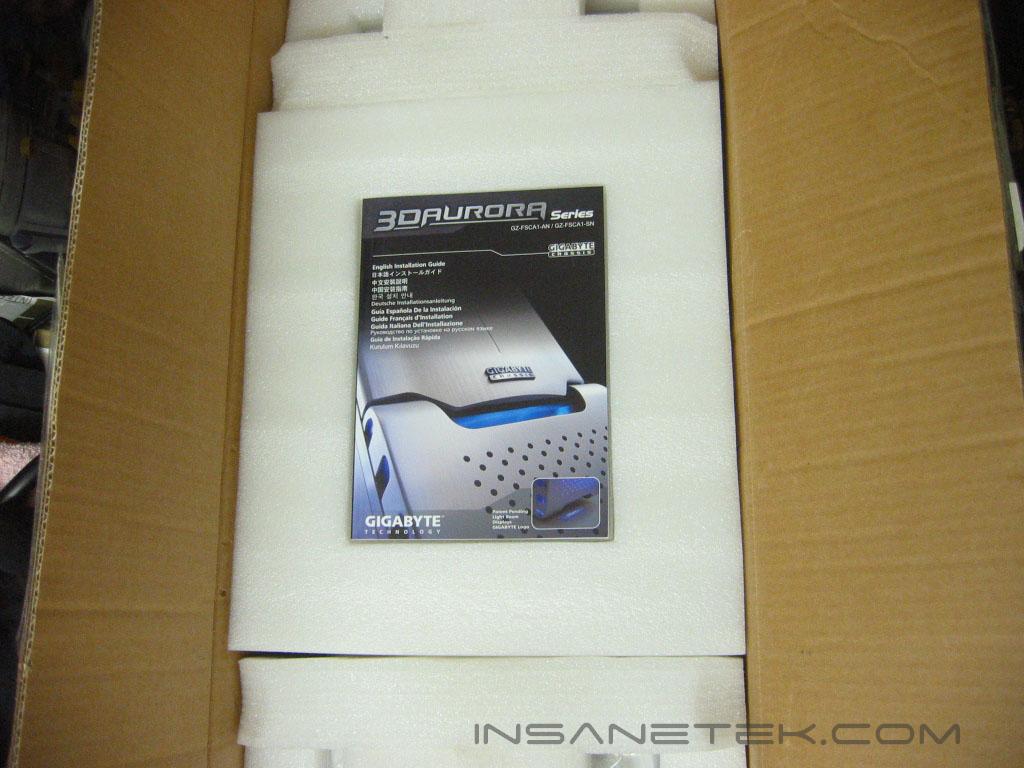
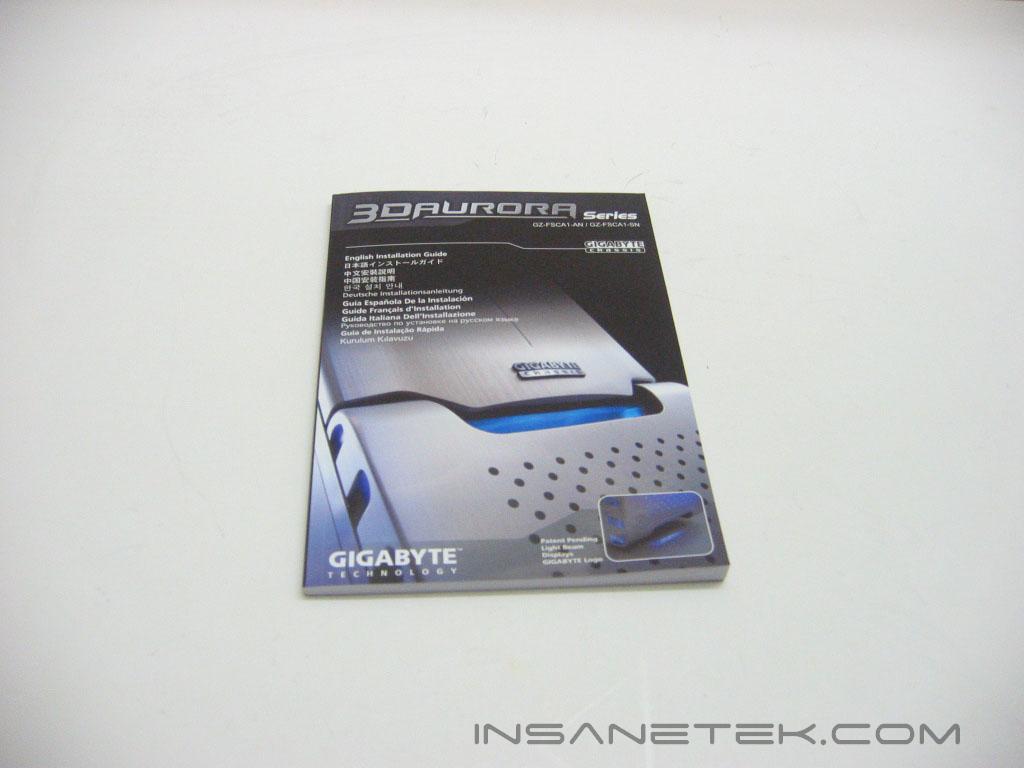
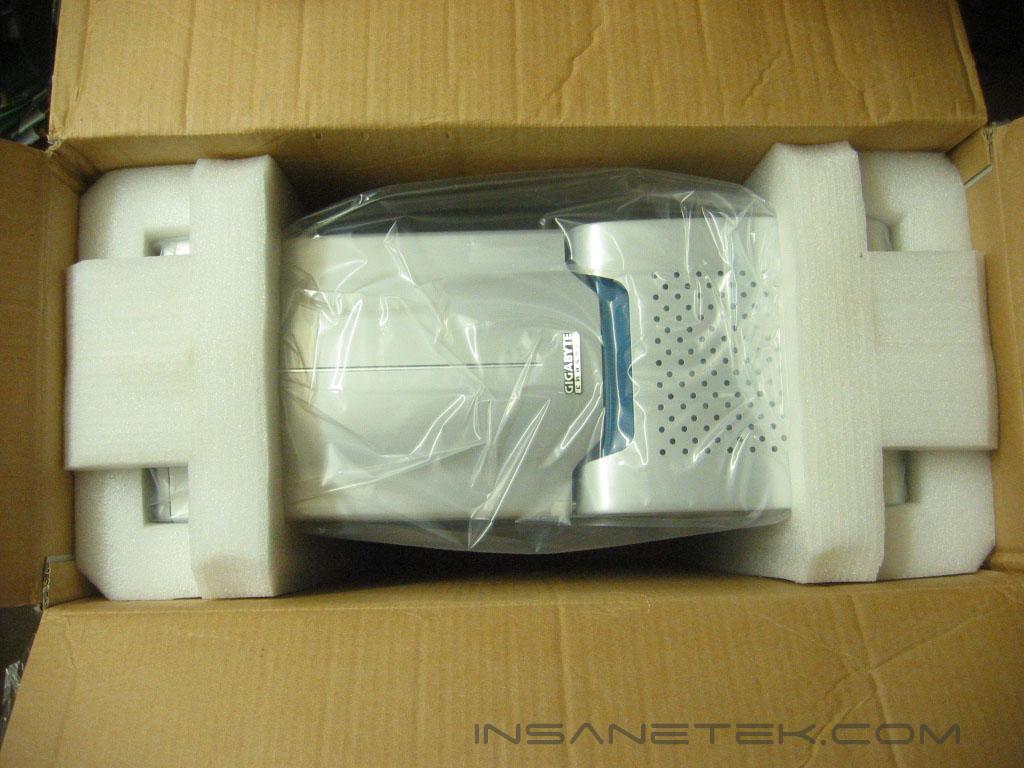
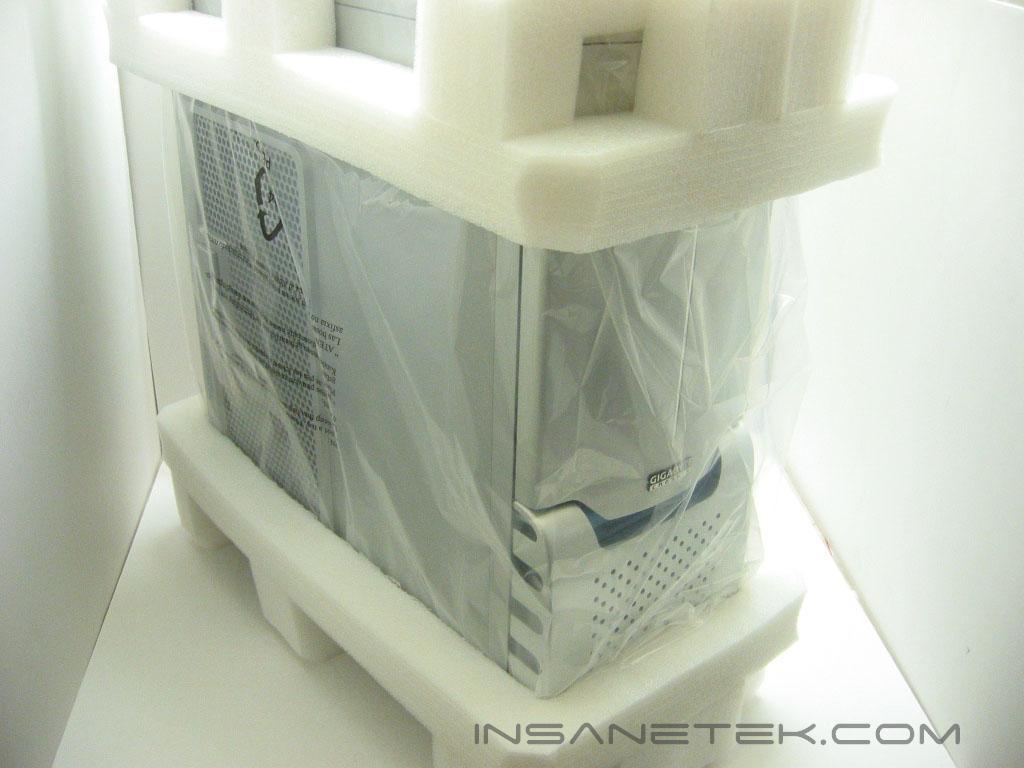
Gigabyte’s box design is very elegant. Both the back and front of the box show photos of the Aurora in a very dramatic light. Underneath the box flaps, the manual sits inlaid into an acrylic foam that protects the front bezel of the Aurora. The packing is what we have come to expect of case packaging, two ends of the case secured by foam that spaces it out from the sides of the box and a plastic bag.
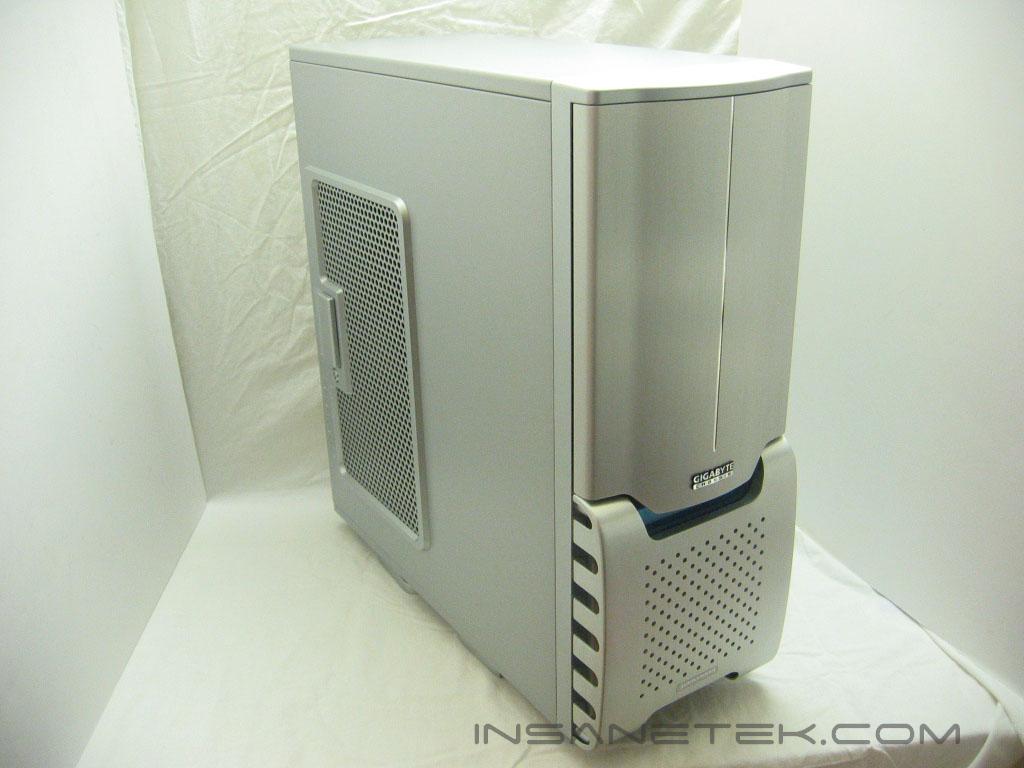
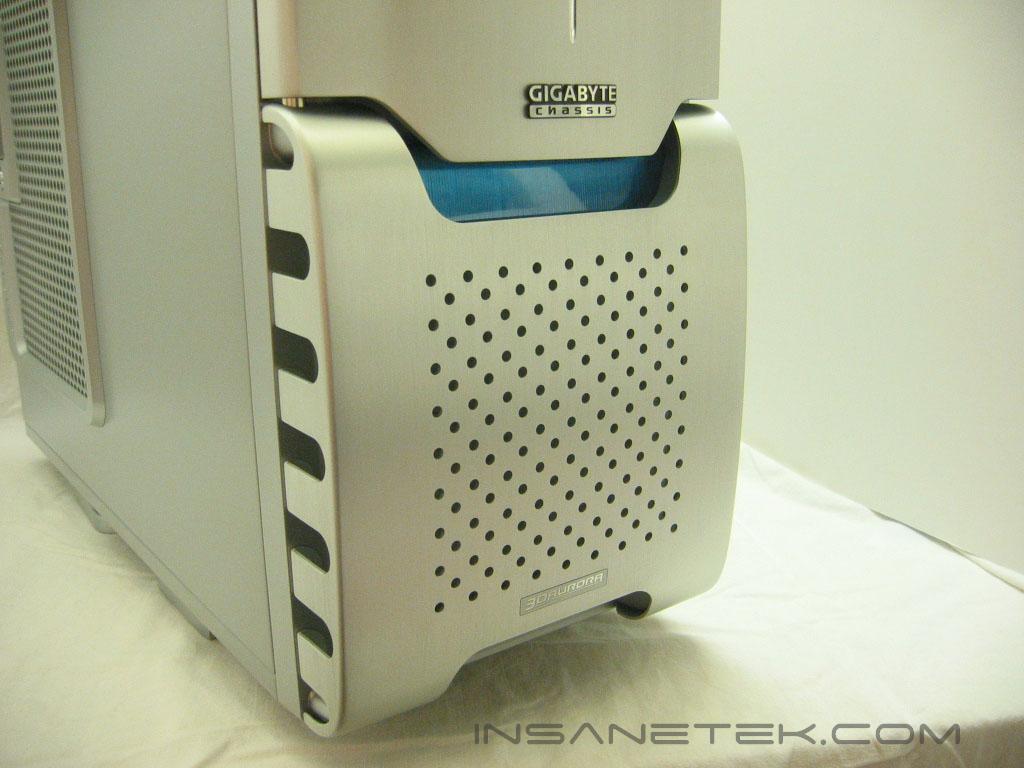
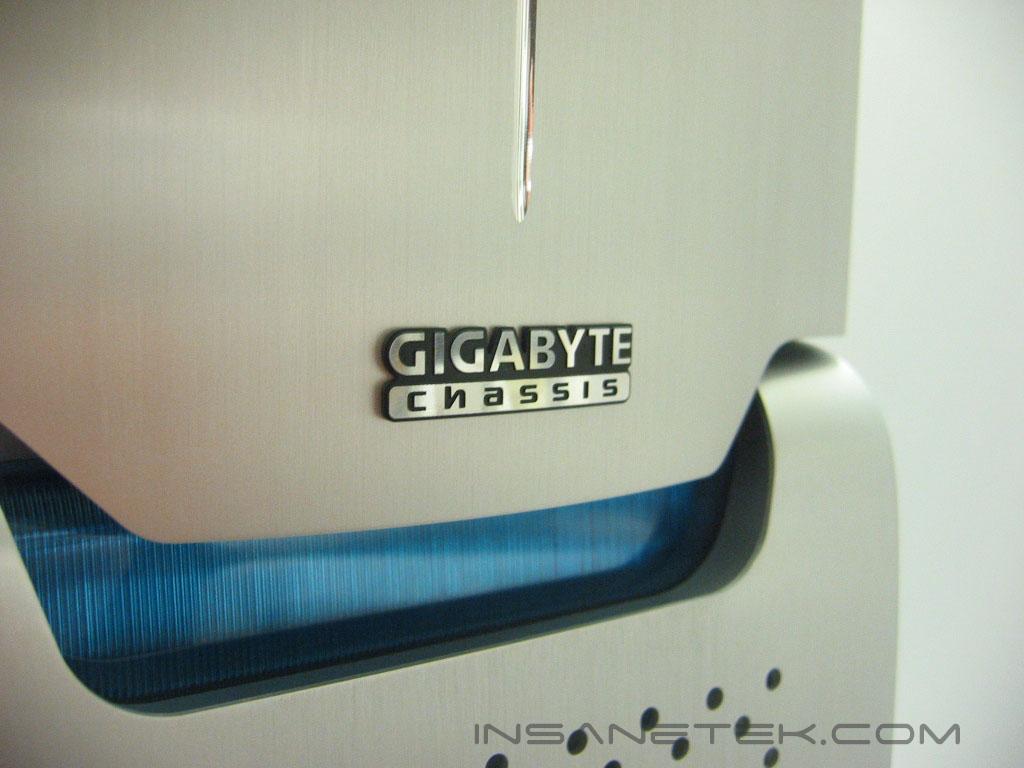
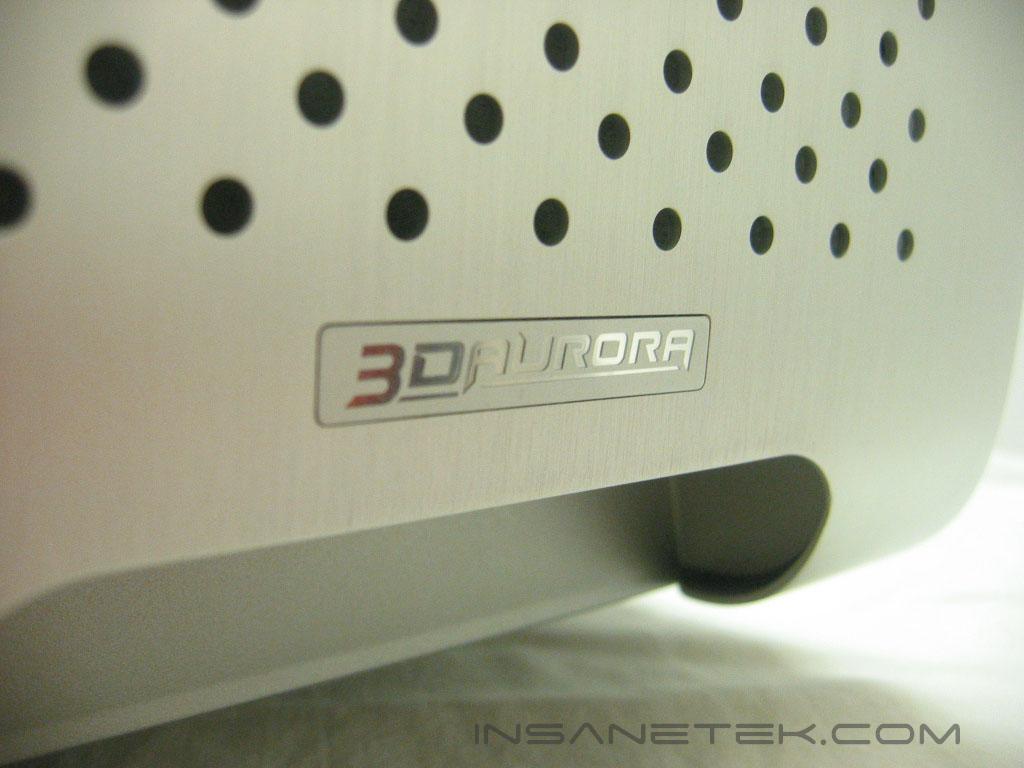
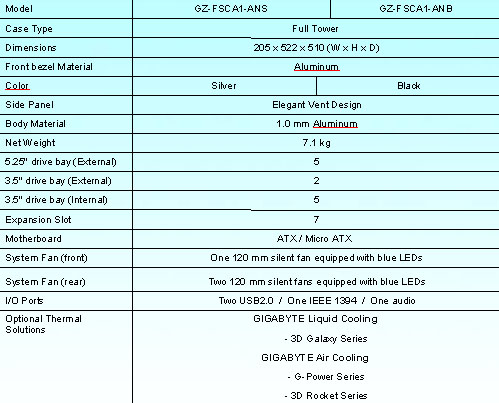
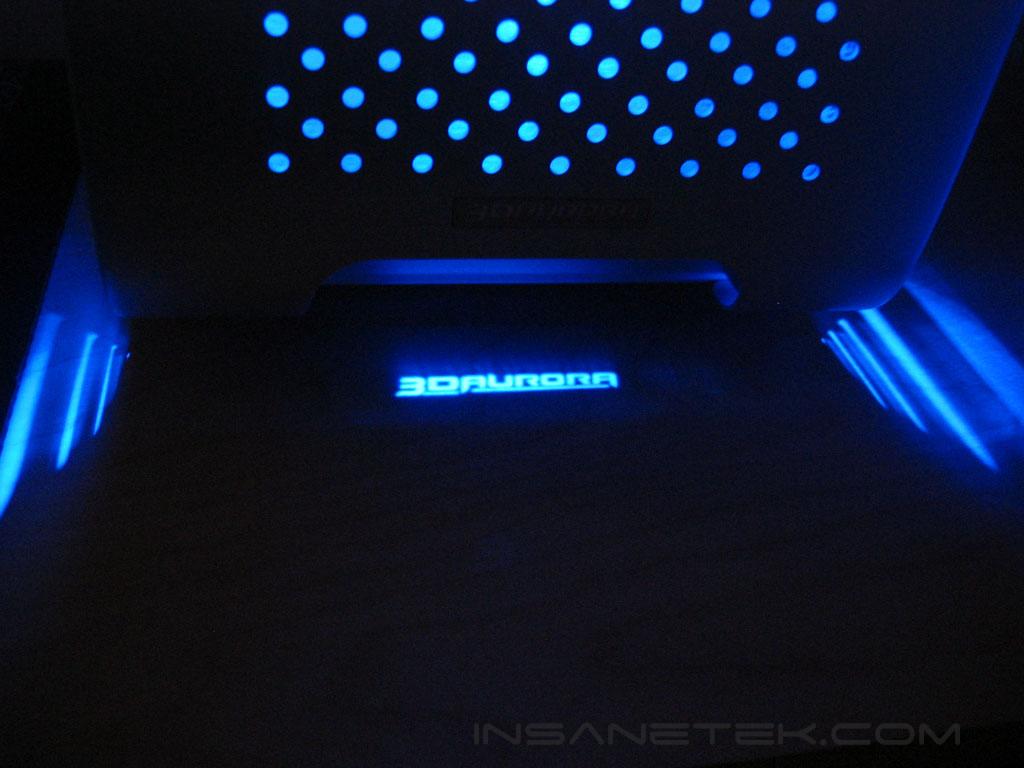
The Aurora is a full tower case constructed out of aluminum. It weighs in a 7.1kg, or about 15.5lbs. It is available in both a silver and a black finish. The Aurora carries a silver and blue motif throughout its design. The front bezel of the Aurora is comprised of two pieces of brushed aluminum, the door which hides the 5.25” and 3.5” drives, and the perforated piece which works as a fan grill. The intake fan is a large 120mm. The Aurora’s design allows it to take in air from the grill at the front of the bezel, as well as humps on both sides of the bezel. Gigabyte’s chassis logo is risen off of the door while the Aurora logo is inlaid into the grill plate. Fine details that make the front panel very attractive. Hidden behind the 3D Aurora logo, on the opposite side of the grill, Gigabyte has placed a piece of film with the 3D Aurora logo on it. As light from an LED shines on it the logo is projected onto the surface the case is resting on. To add even more to this feature, Gigabyte has included a blank film which the end user can create their own graphic on.
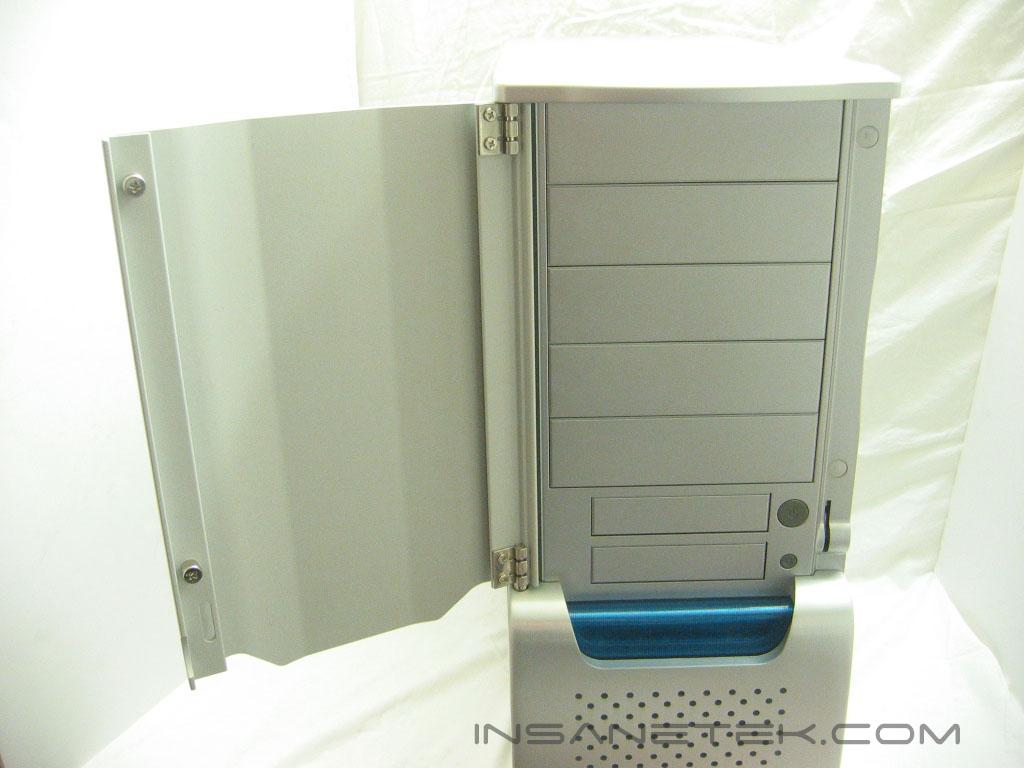
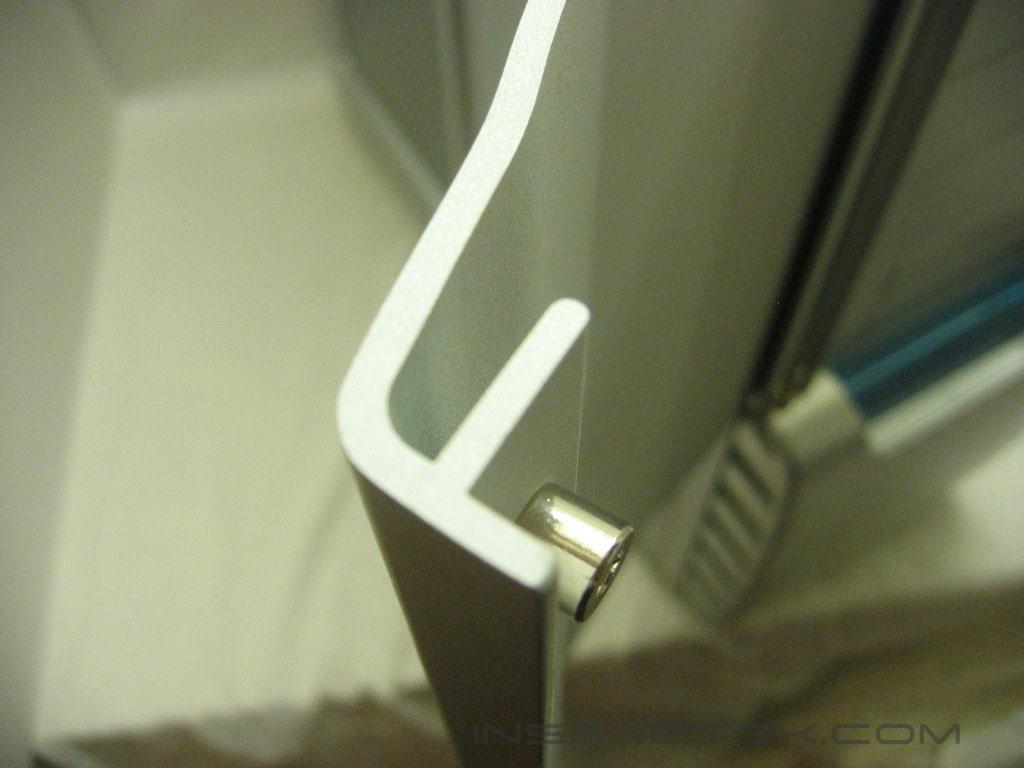
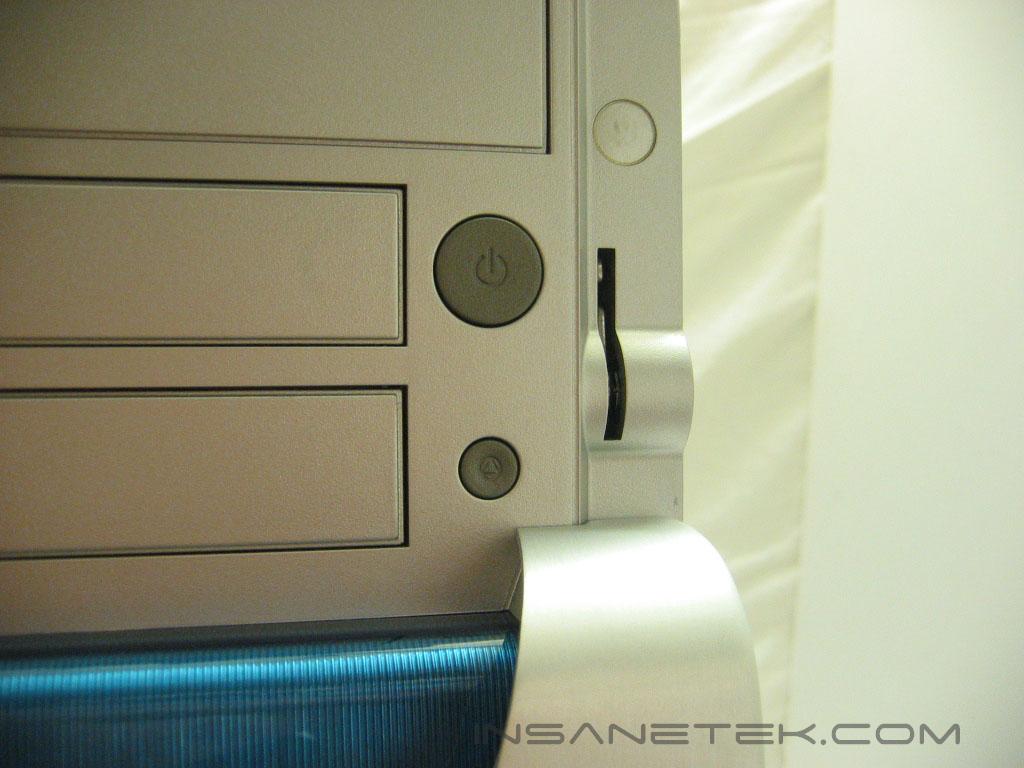
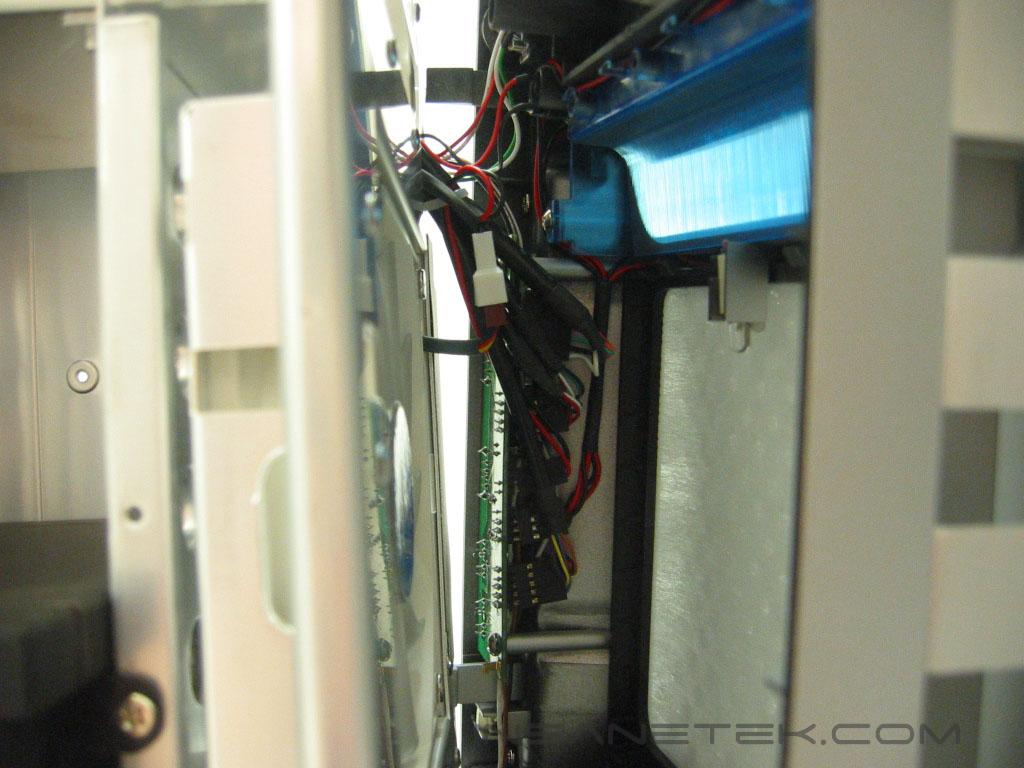
The door opens to uncover five 5.25” drive bays as well and two 3.5” drive bays giving the end user plenty of room for drives, as well as accessories. The door on the Aurora is gigantic. It’s one solid piece of aluminum and gives you a warm, indestructible feeling. The door lock, power, and reset buttons are all grouped in the same area. The reset button on the Aurora can actually be pressed by a finger, rather than having to use some pointy object laying on the desk. Behind the bezel we can see the 120mm fan, a mesh fan filter, the circuit board and wiring for the front I/O, wiring to LED’s within the blue plastic above the grill, as well as a lone LED hanging behind the fan filter.
Gigabyte 3D Aurora Exterior Continued
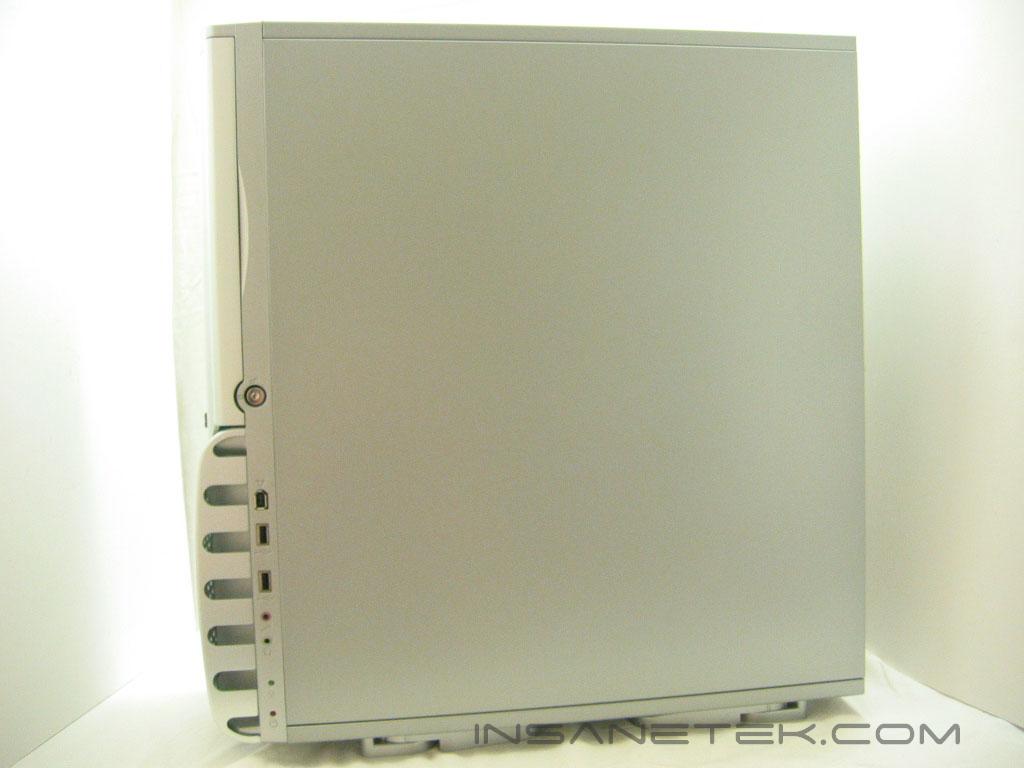
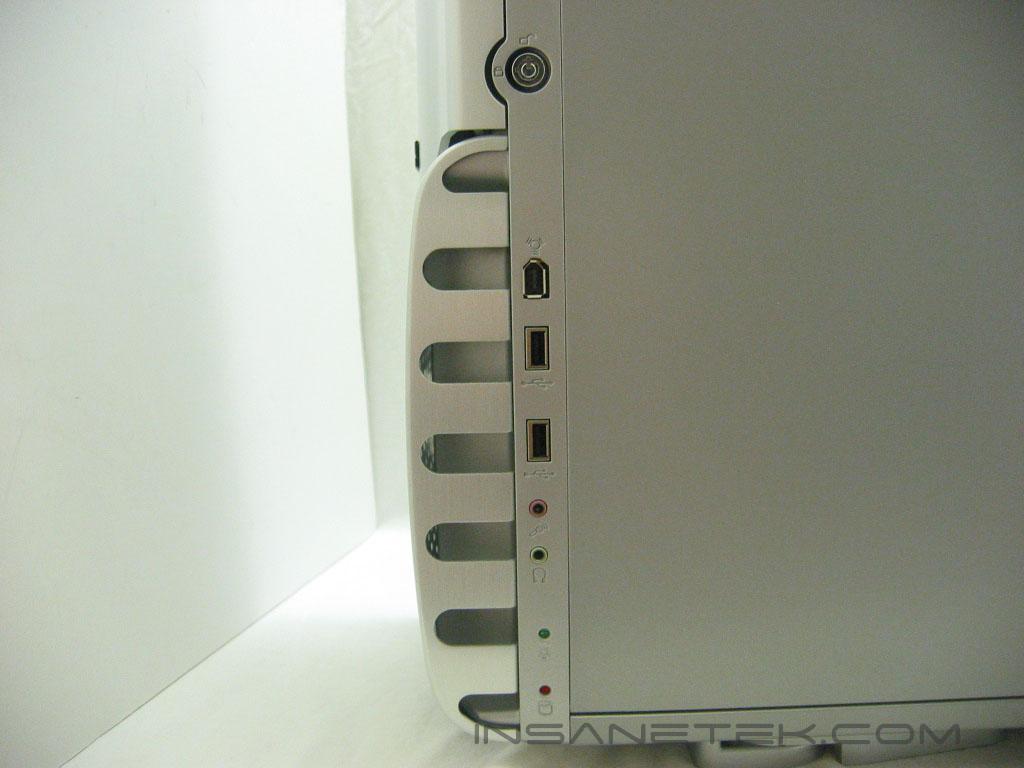
The right side of the Aurora is barren like the majority of cases, with the exception of the I/O panel on the side of the grill. The I/O panel allows for easy access to fire wire and USB ports, as well as a microphone and headphone jack. At the bottom of the bezel are the power and HDD activity LED’s.
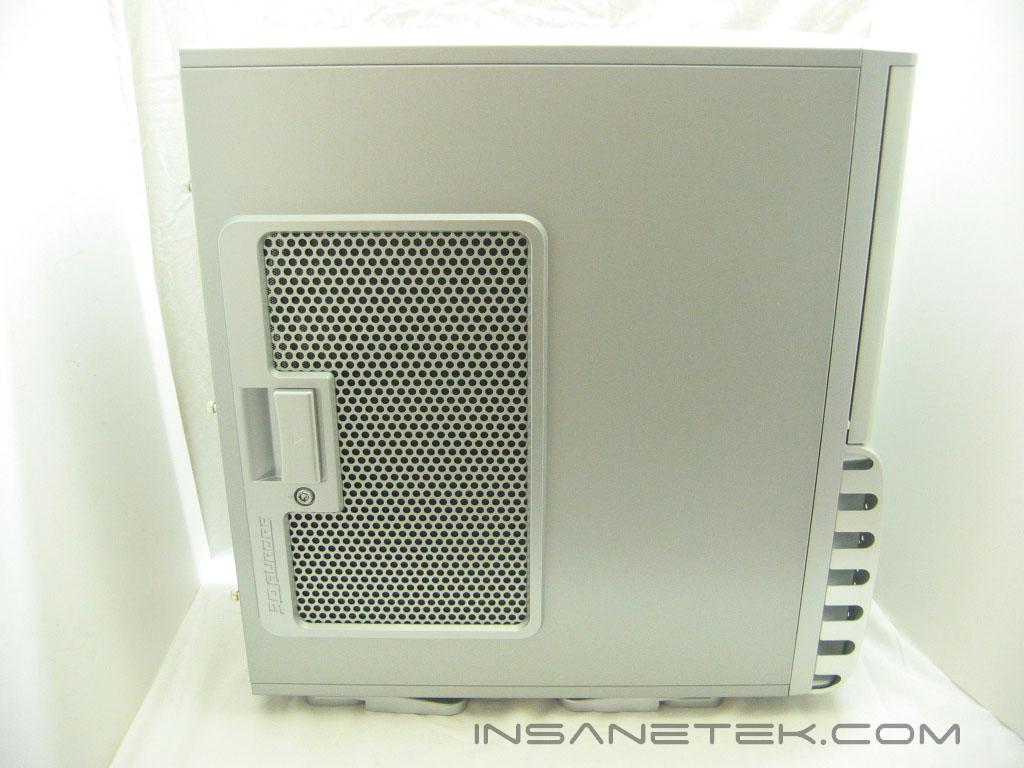
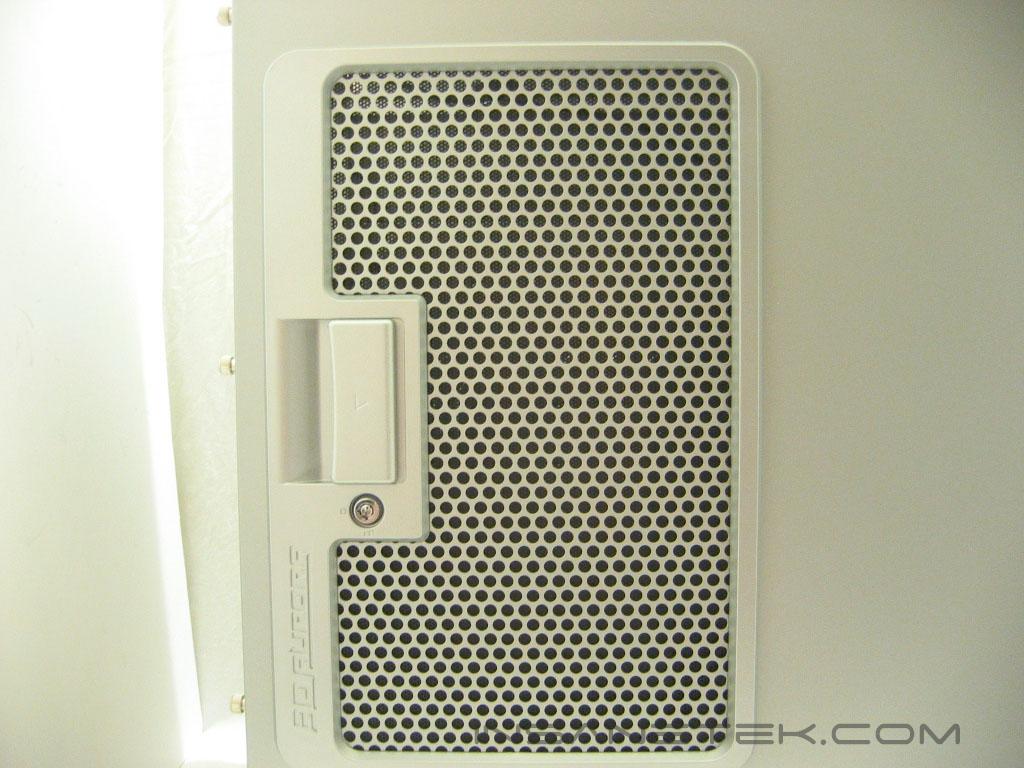
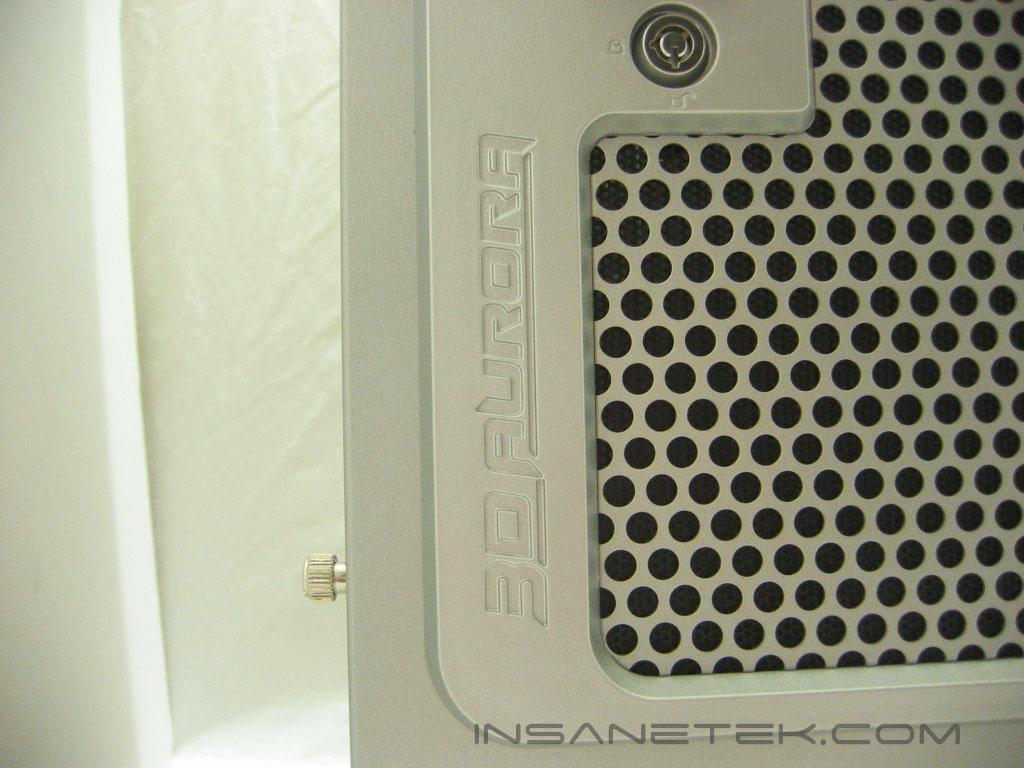
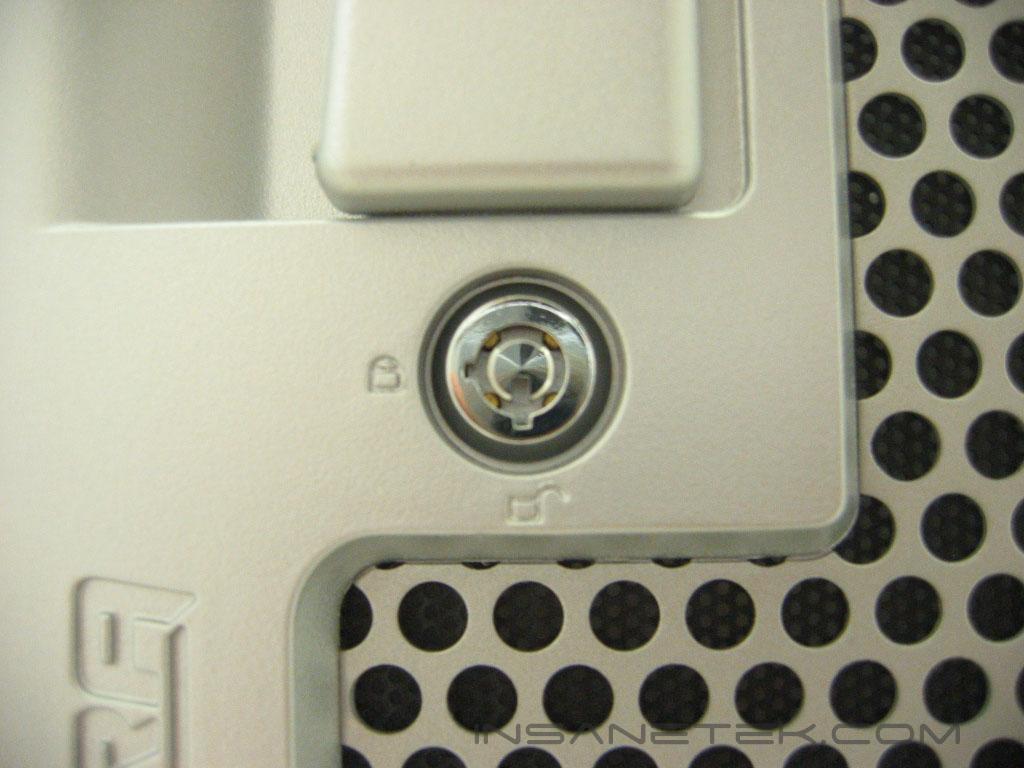
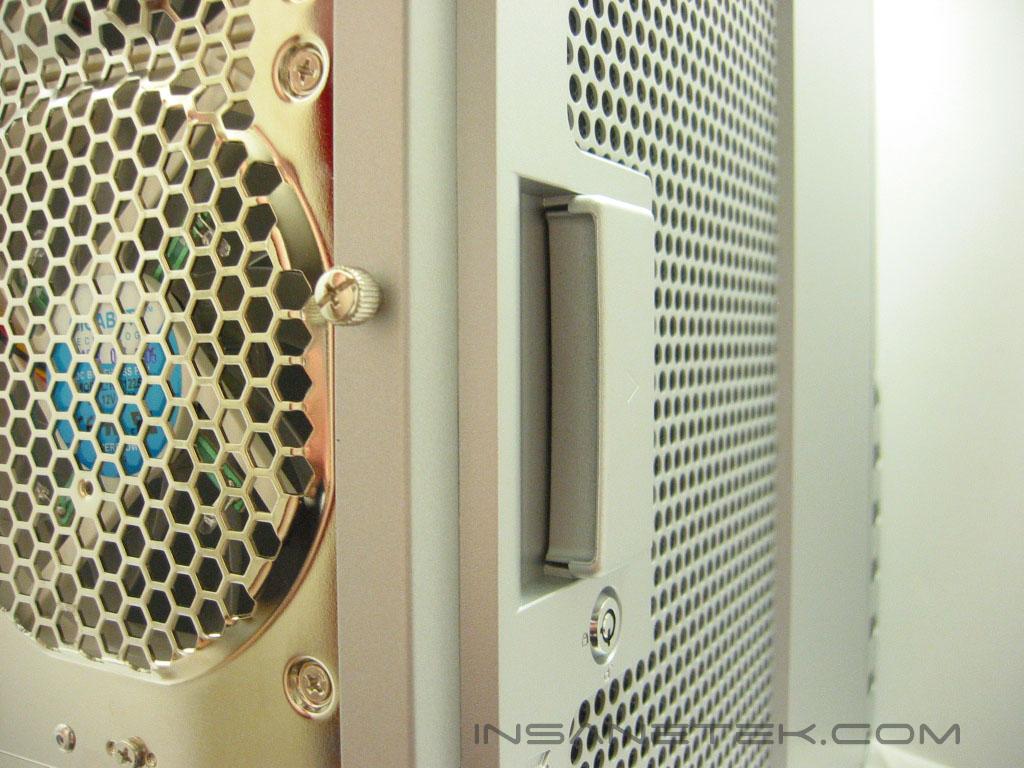
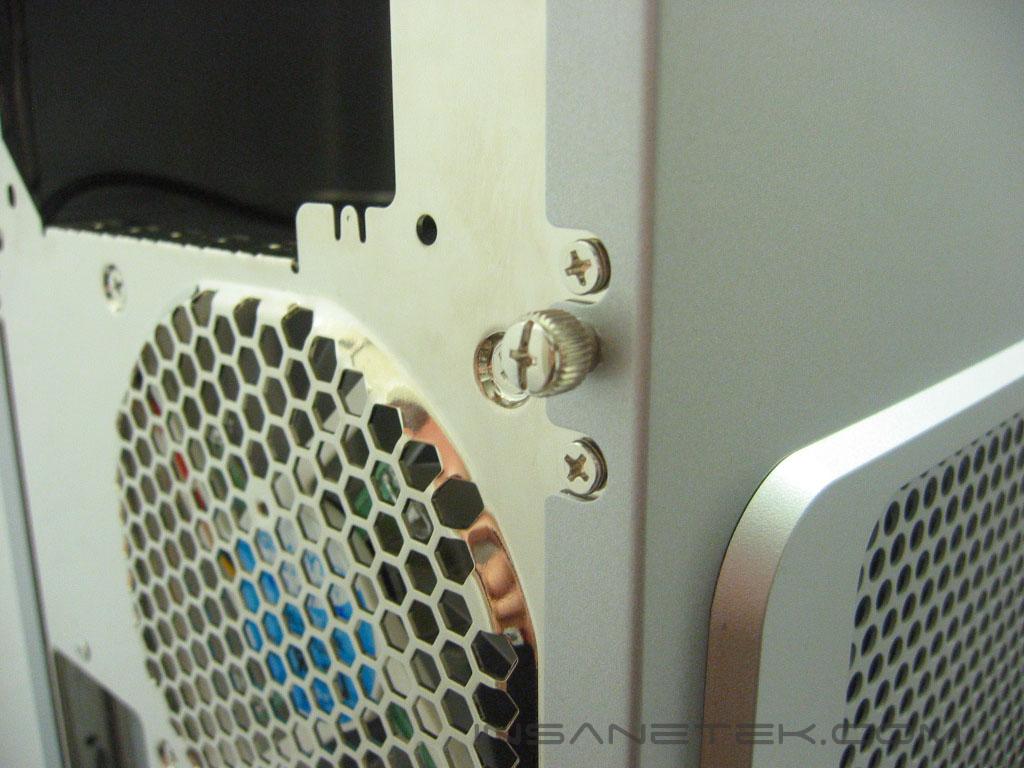
The door panel of the Aurora has a large grating that allows air to move in and out as it pleases. The grating would seem to be better for airflow than a small 80mm fan. The 3D Aurora logo is engraved into the frame surrounding the grating. To the right of the logo is the security lock that locks the door to the chassis. The door handle is rectangular in shape and removing the door is simple. Keeping the case tool-less Gigabyte includes three thumbscrews that secure the door to the case. Unless you tend to over tighten things, there should be no need to use a screw driver to remove the door.
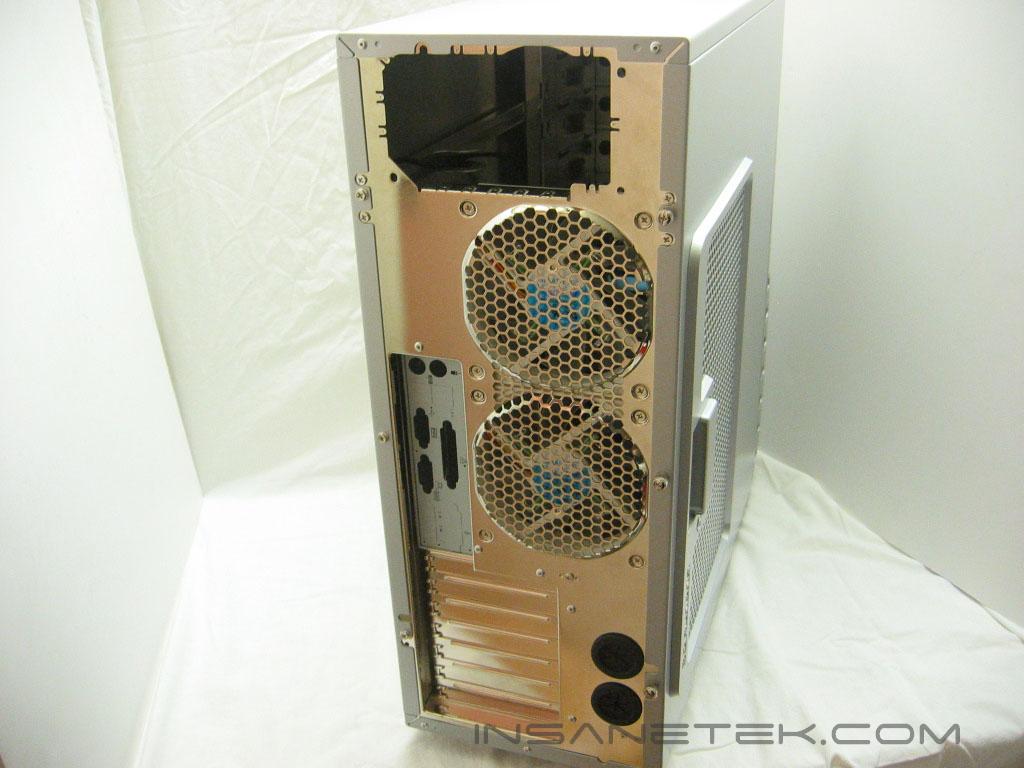
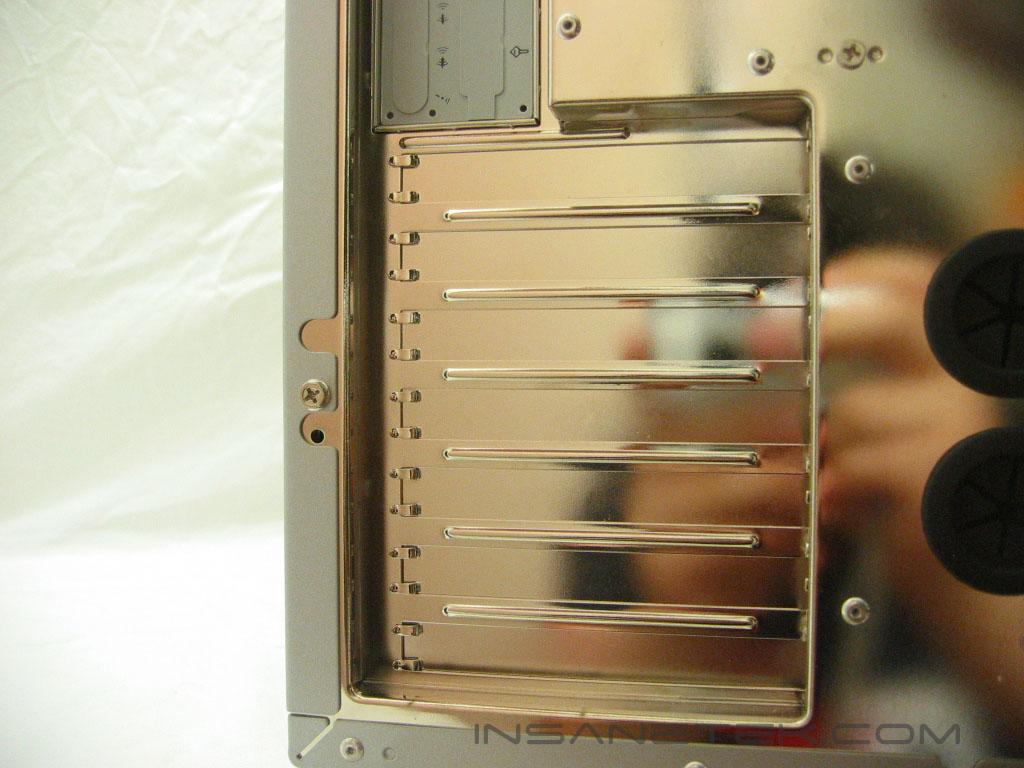
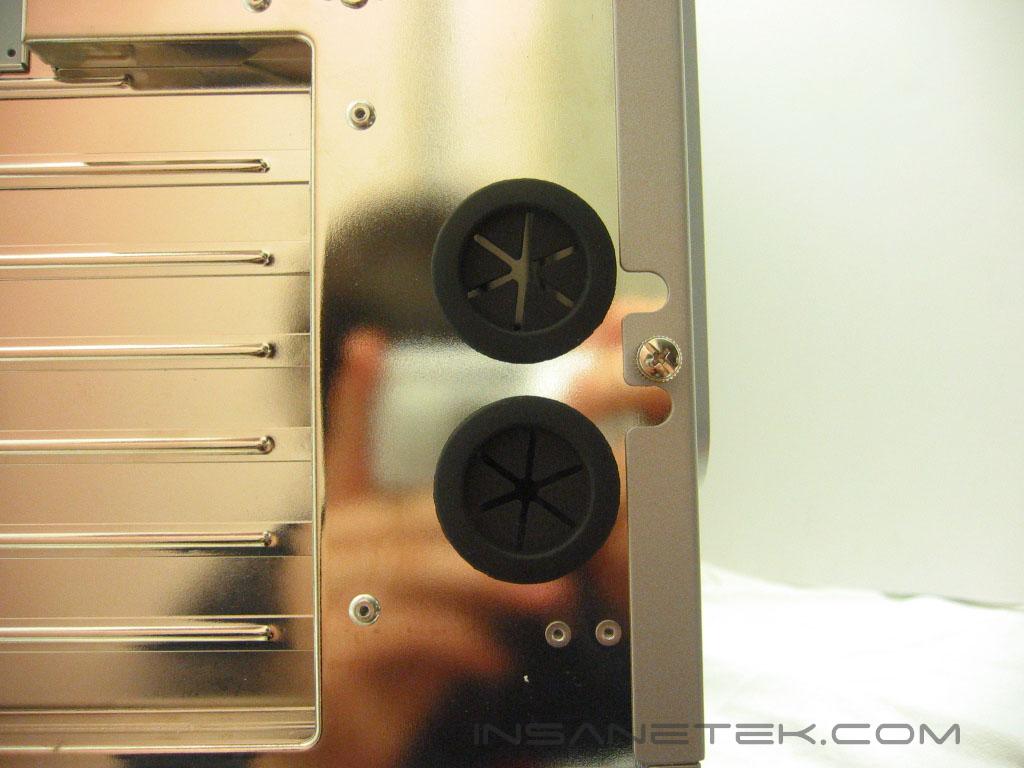
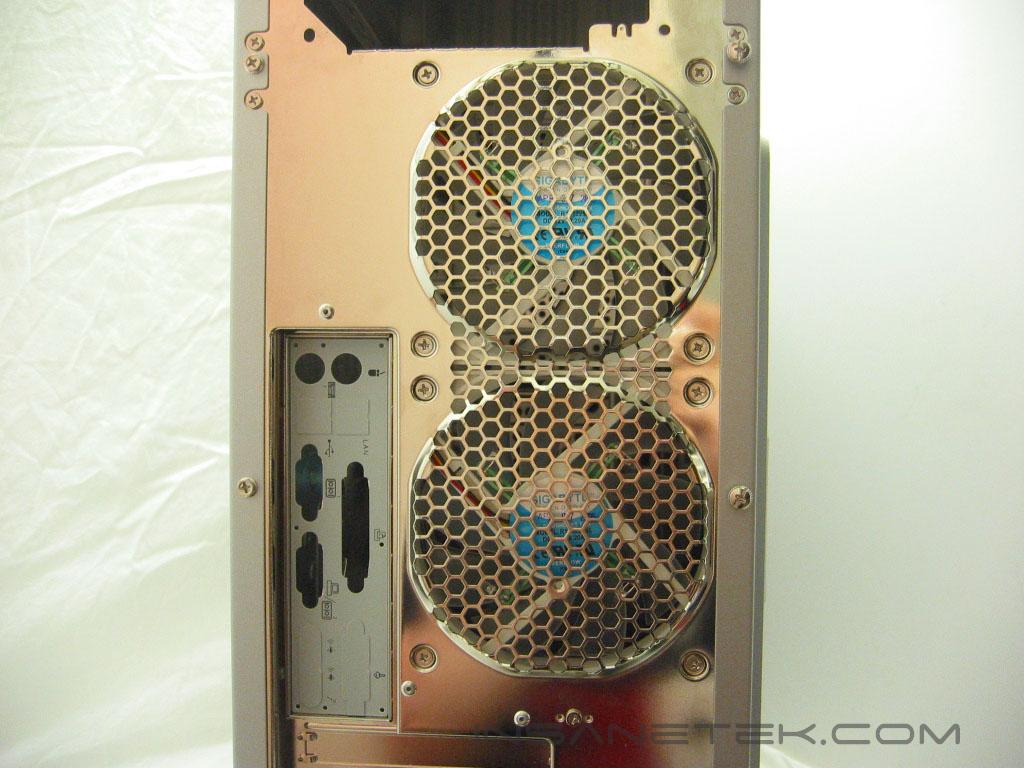
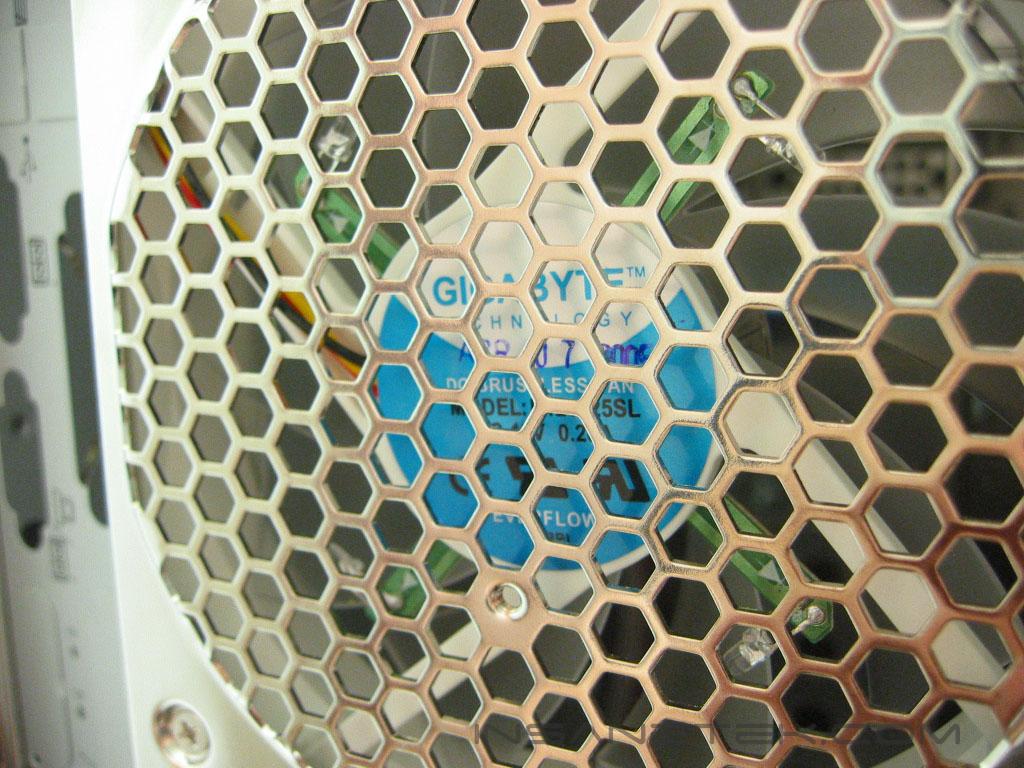
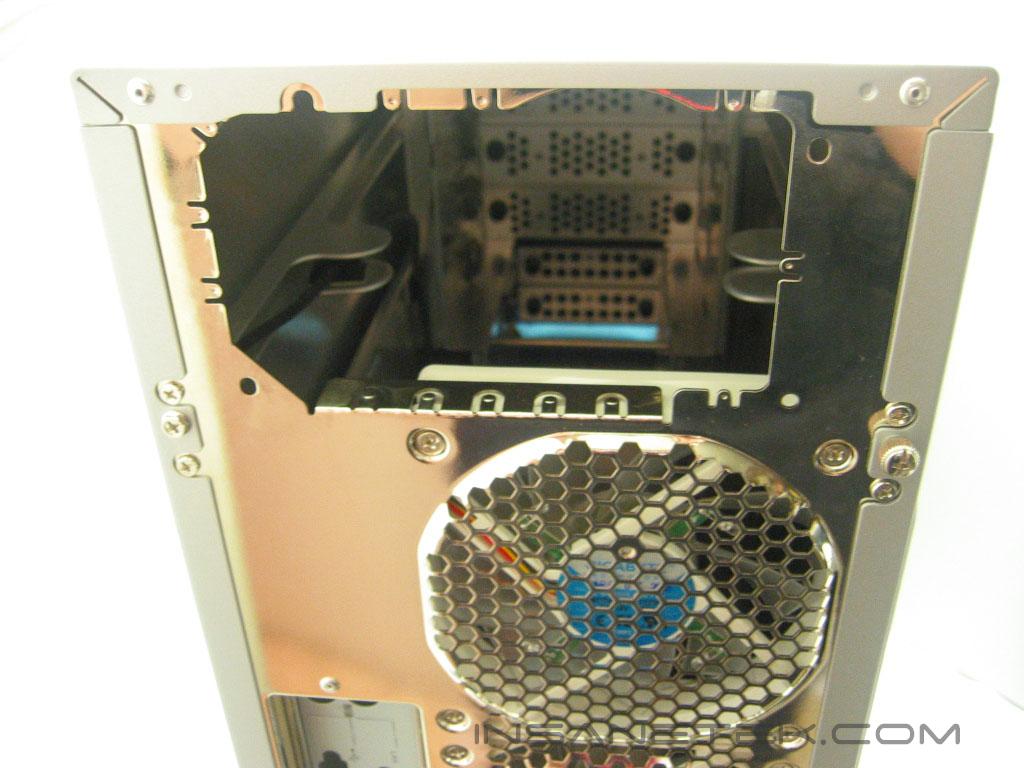
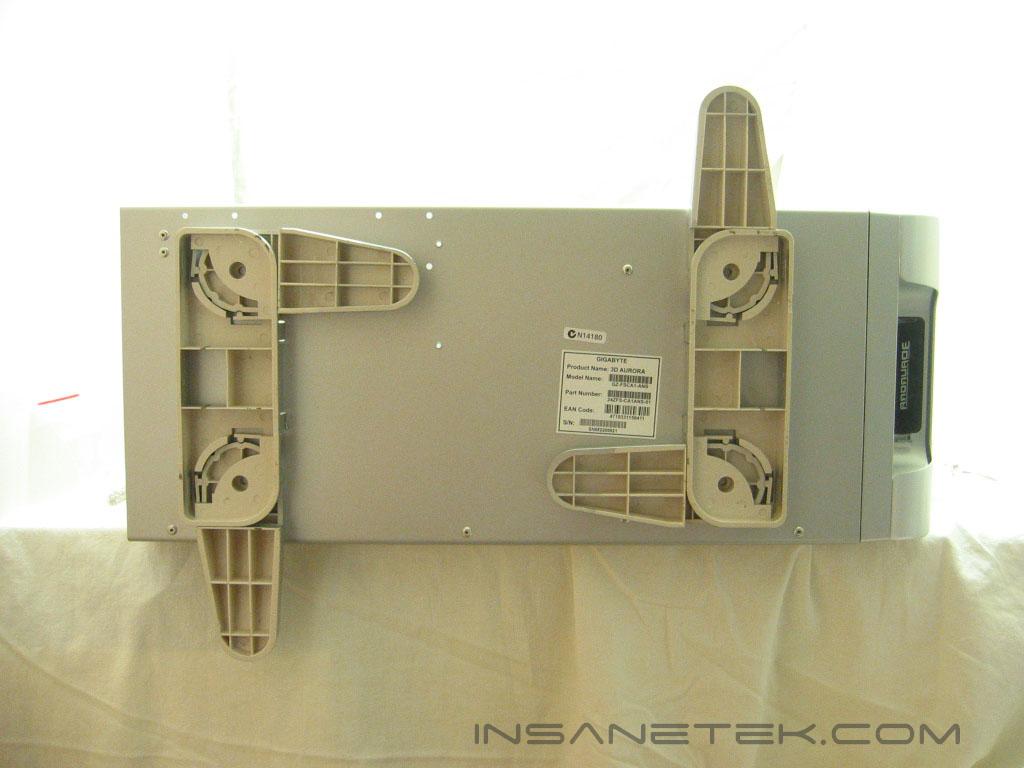
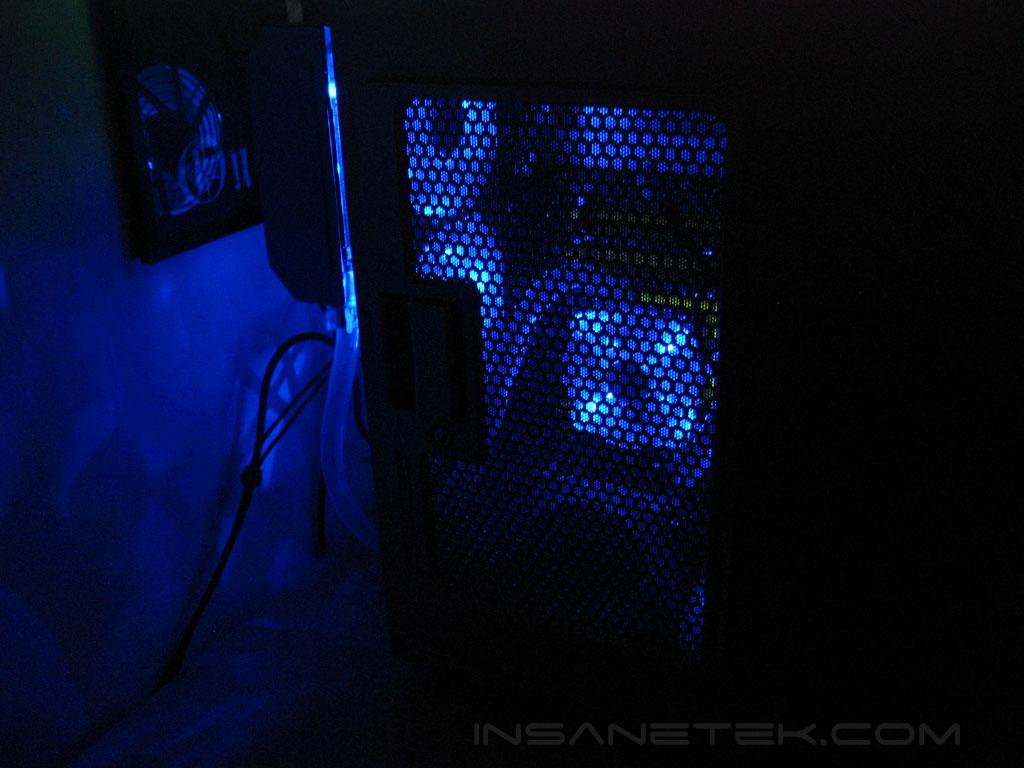
Gigabyte went with nickel coated steel for the rear of the Aurora. They chose this so that no deformations or bending will happen as is possible with an aluminum panel. The PCI slots are uniform, just like any case. One of the ways Gigabyte made the Aurora watercooling ready was incorporating tube inlet/outlets into the rear panel, allowing you to mount the radiator on the outside of the case and not have to shove the tubing through the PCI slots. The Aurora also has two 120mm exhaust fans that provide a decent amount of airflow while keeping silent. They each have blue LED’s that tie into the color scheme of the front panel. The Aurora has plenty of room for most power supplies. The feet on the Aurora are made of plastic and can be turned outward to stabilize it or kept beneath the case for moving.
Gigabyte 3D Aurora Interior
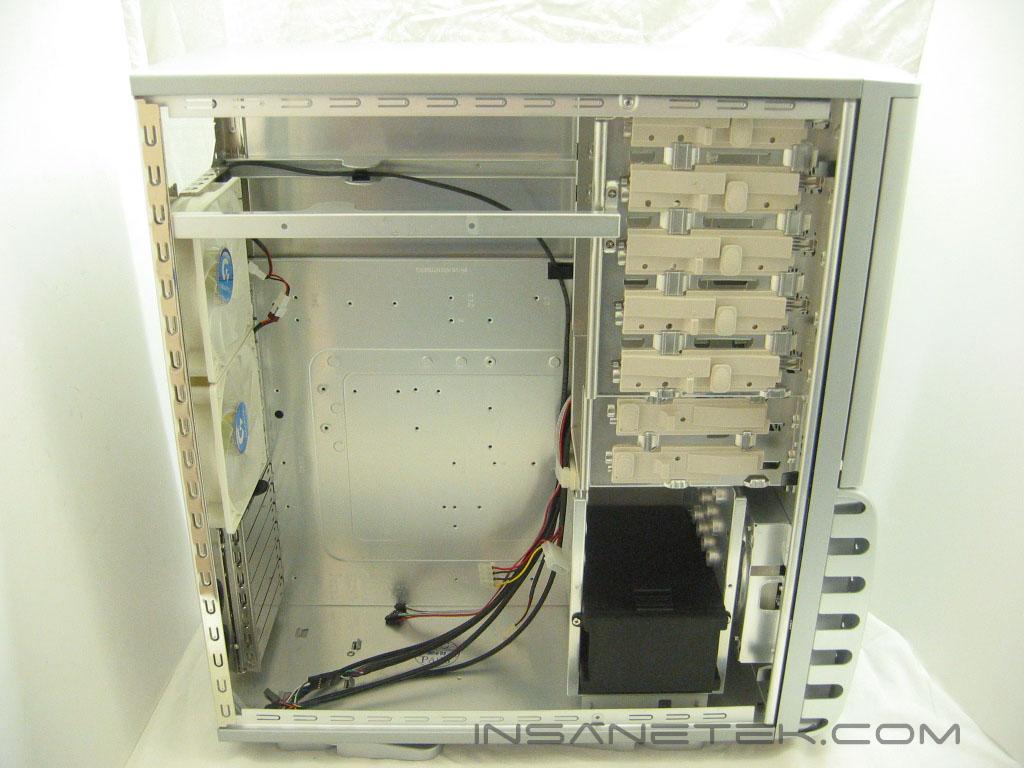
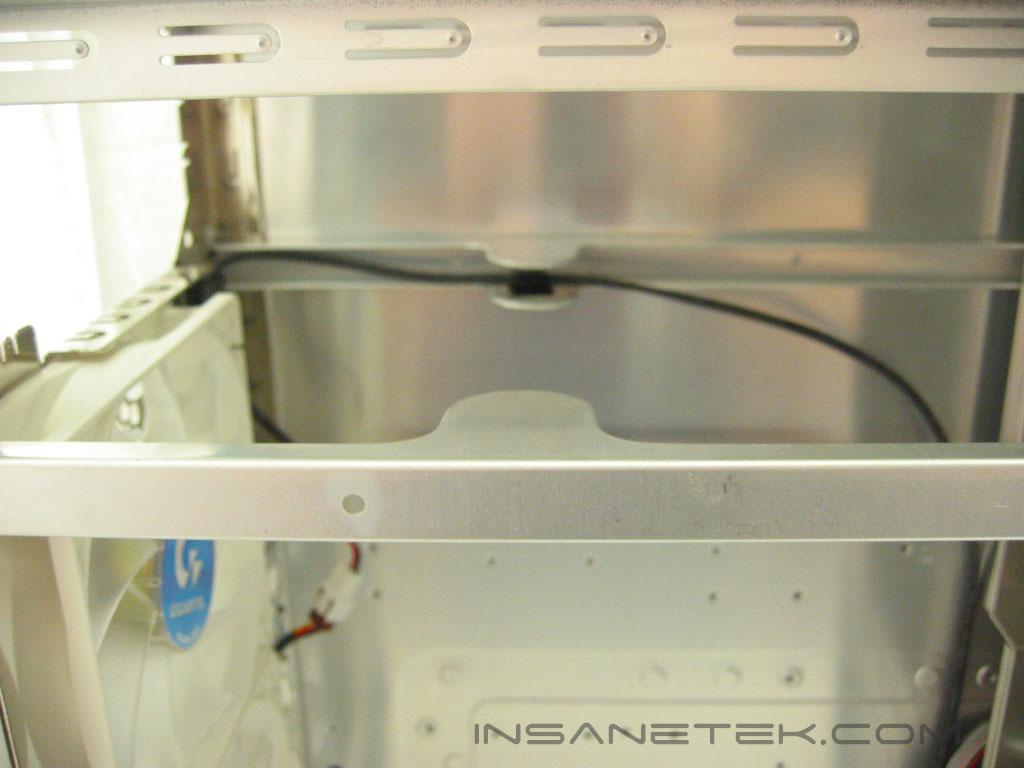
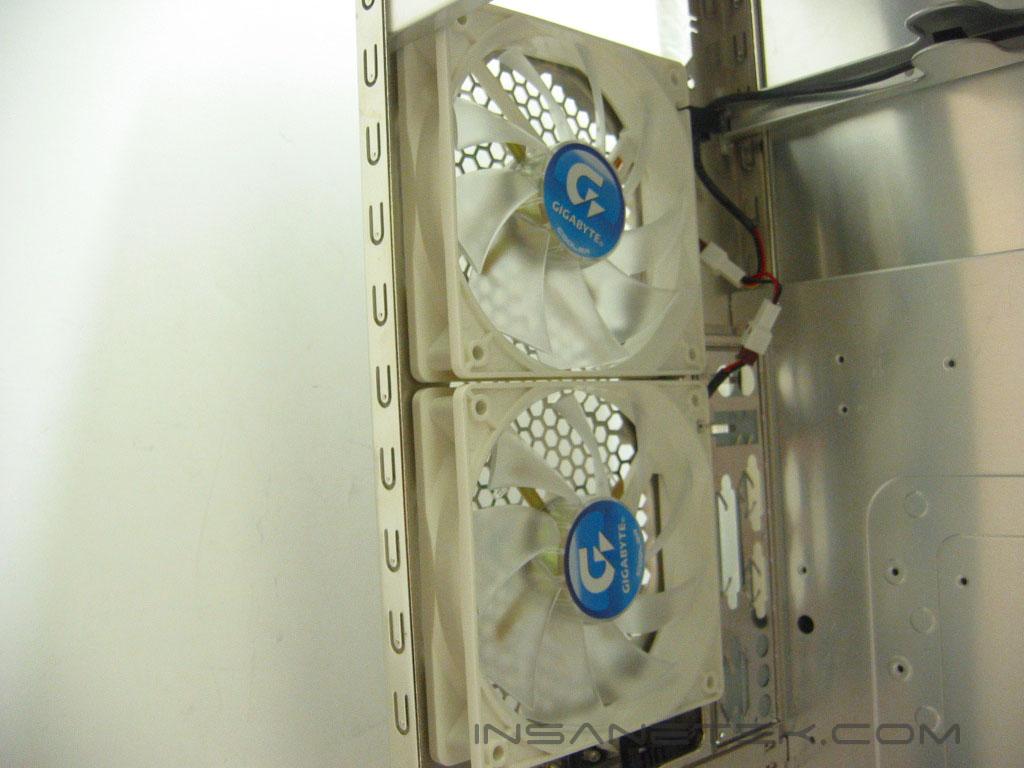
The Aurora has a very basic layout; 5.25” and 3.5” bays in the front, motherboard tray in the rear. The power supply is supported by two bars that run from the 5.25” bay cage to the rear of the case. Two humps protrude from the bars to ensure the power supply is securely resting on it. The humps double as a way to route cabling and keep it out of sight. The Aurora’s rear fans are 120mm in size and glow by use of the blue LED’s. The fan blades are clear so the LED’s can give them a luminance.
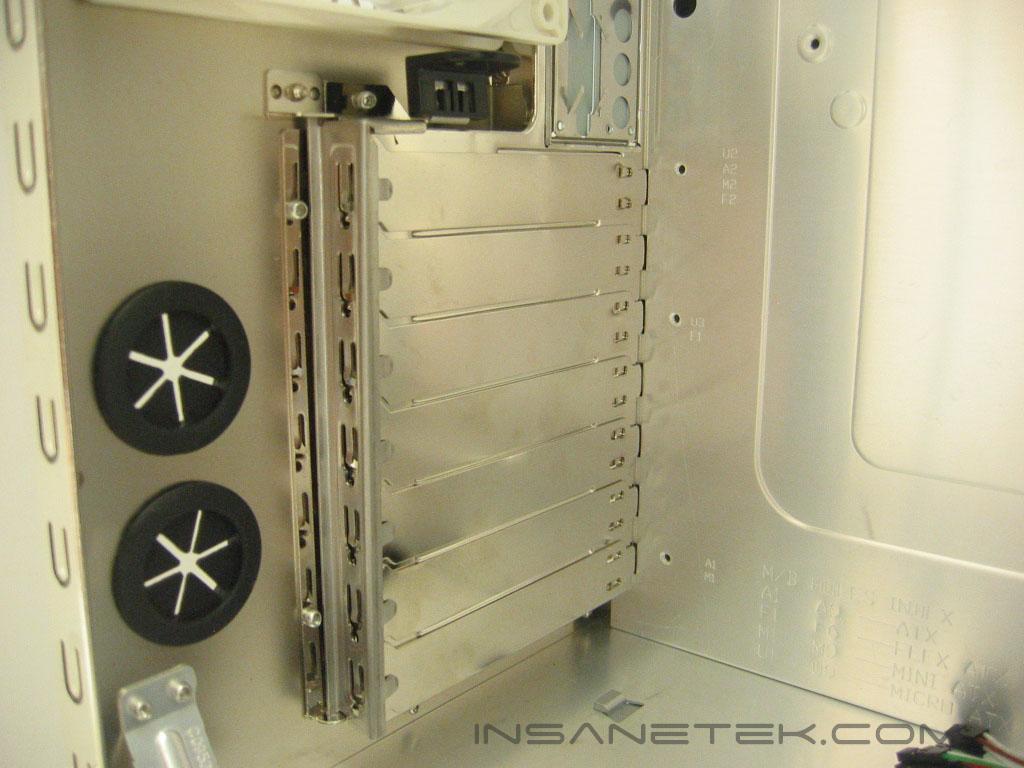
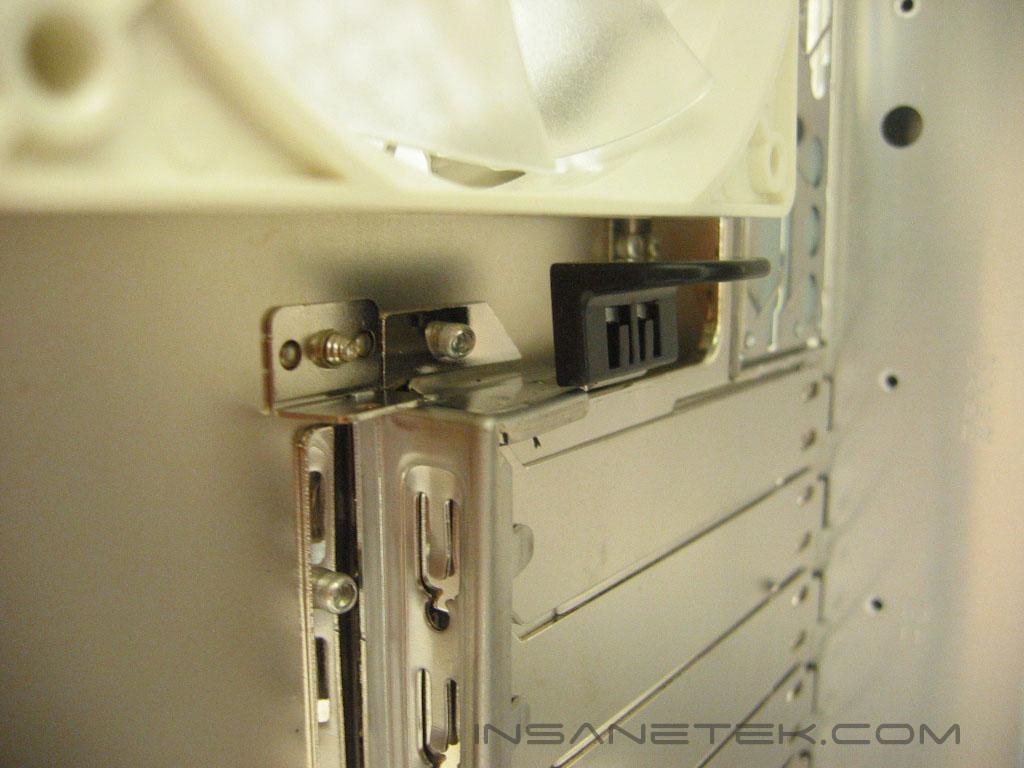
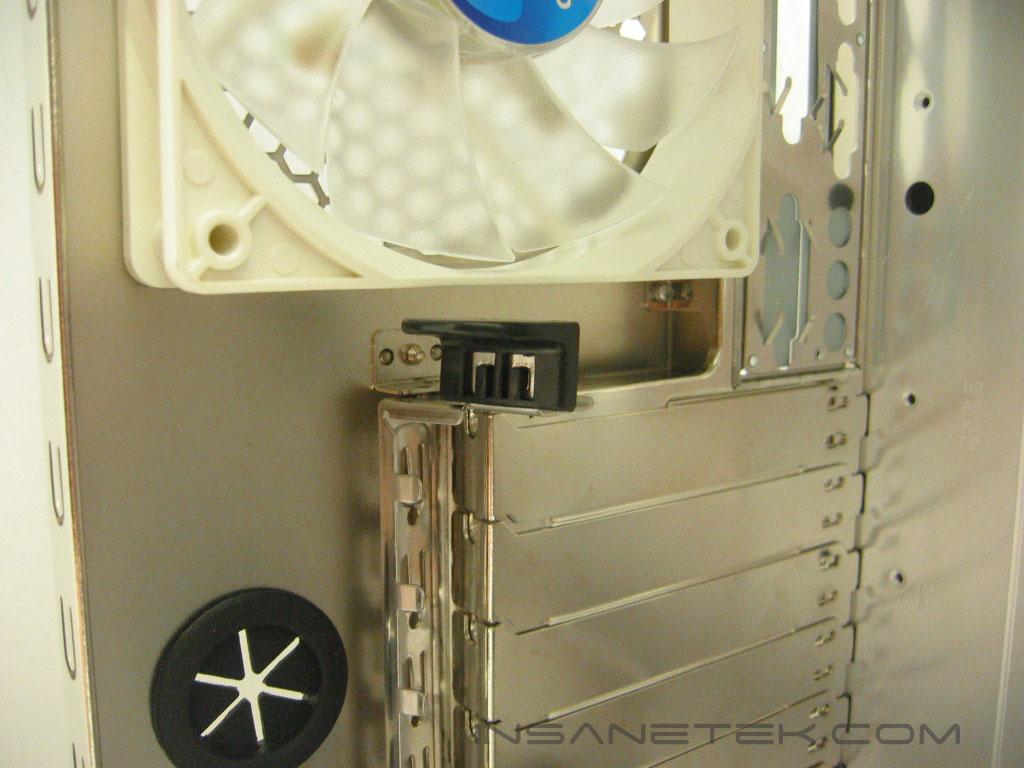
The Aurora has seven PCI slots that are much like any other PCI slots, although Gigabyte has kept them tool-less by use of a clip in fastener. The clip unhooks and swings out for installing a video or PCI card and clips back into the chassis to secure the card. If you feel insecure with the clip method, screws can be used to fasten the card in place.
Gigabyte 3D Aurora Interior Continued
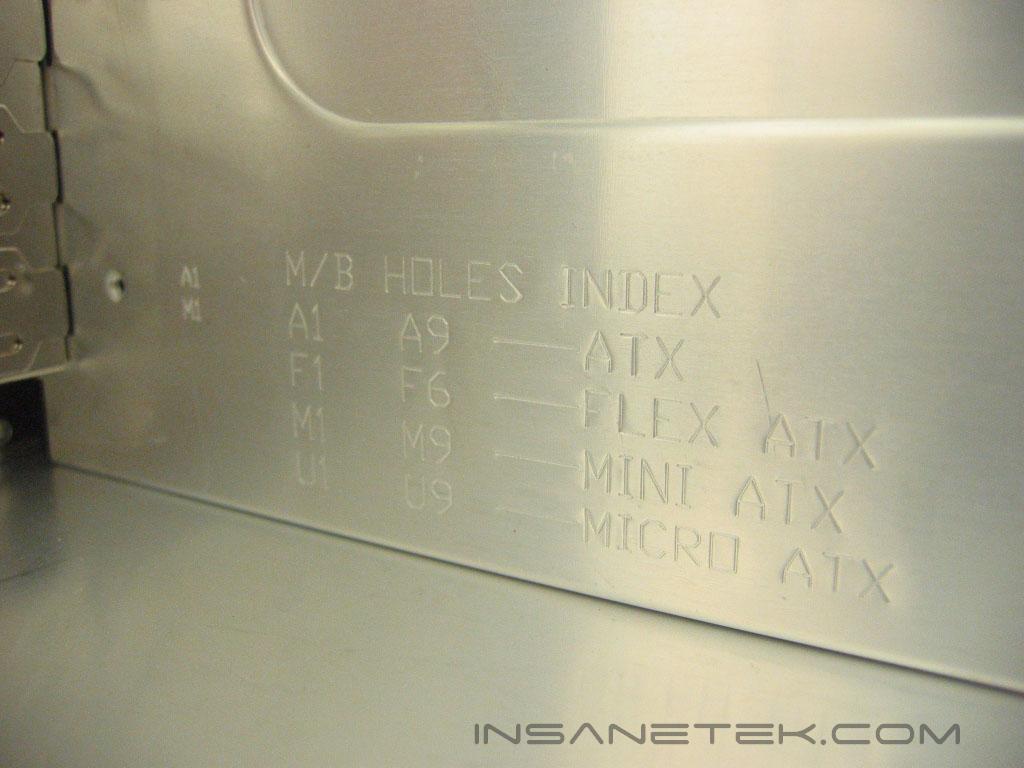
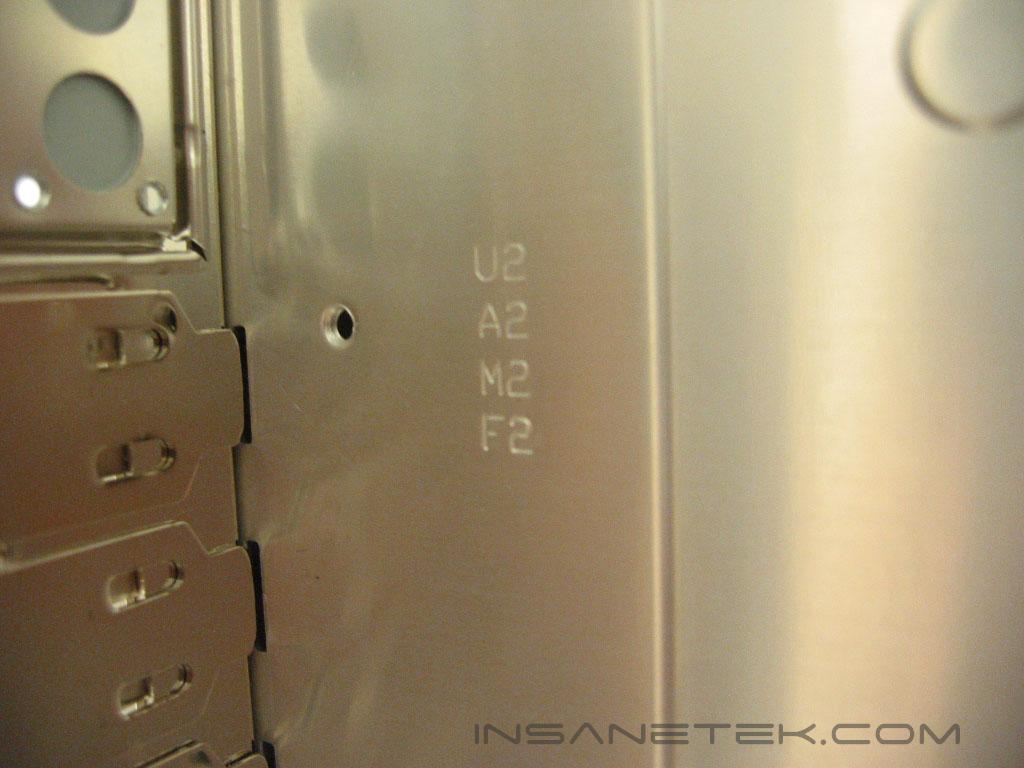
The Aurora allows use of motherboards up to the size of ATX, so those of you with dual Opterons or Xeons on extended ATX boards will have to count yourselves out on this one. The motherboard panel has instructions on what size motherboard needs which holes to have standoffs. Each hole is labeled A, U, M, or F to simplify the installation process.
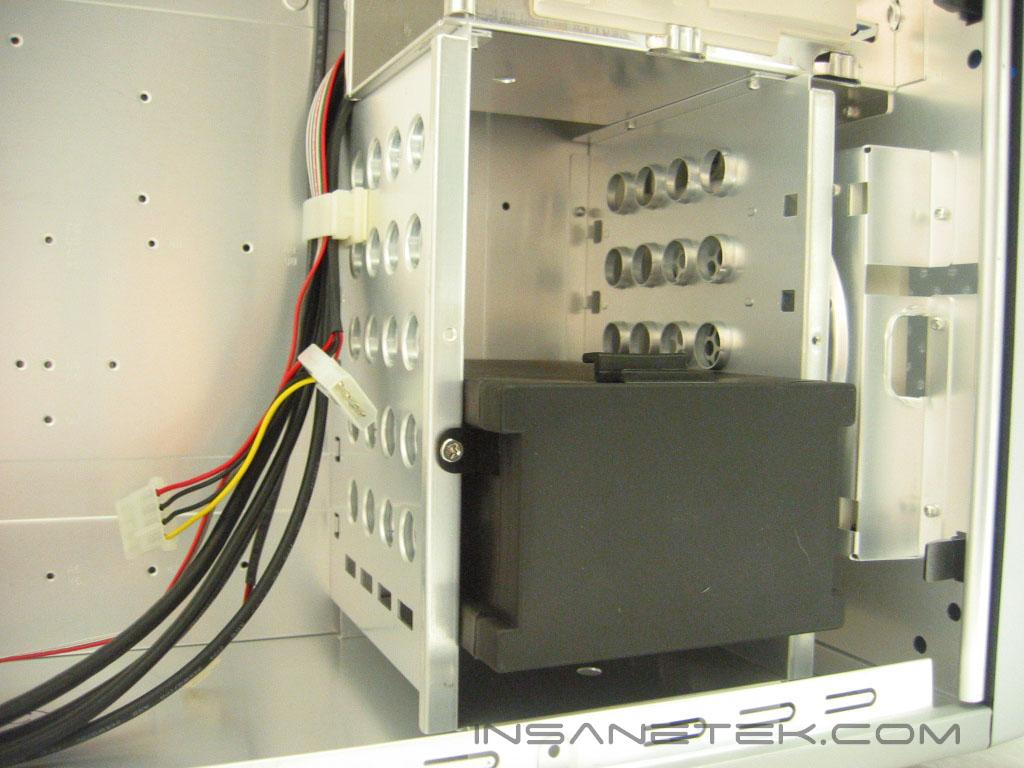
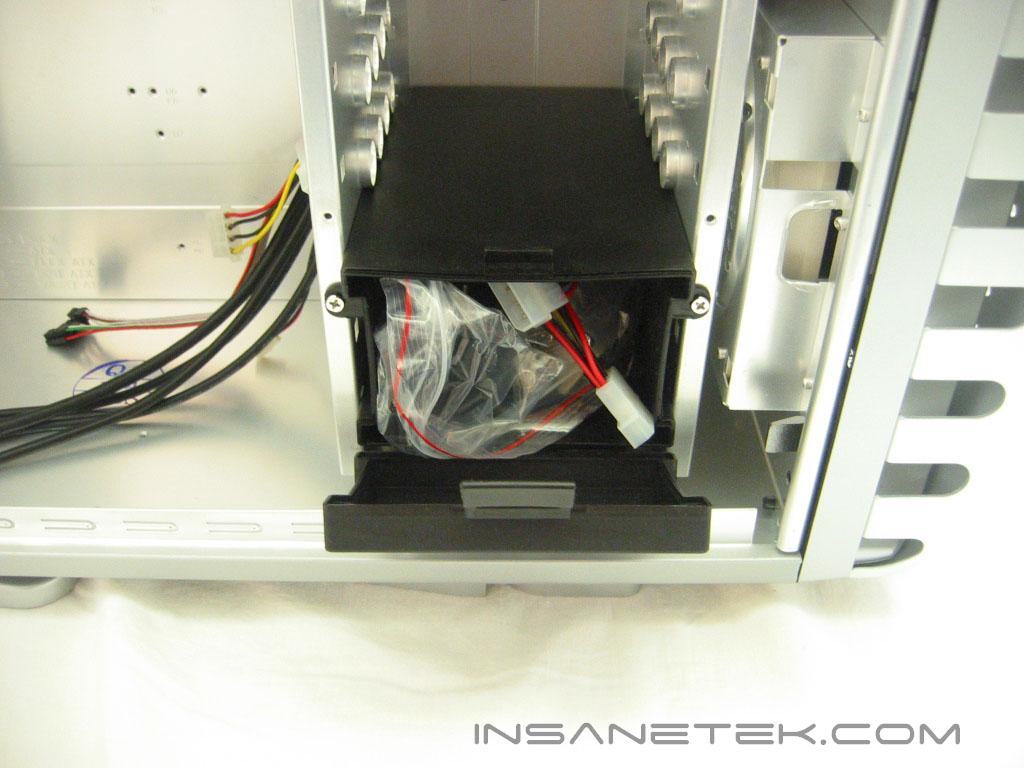
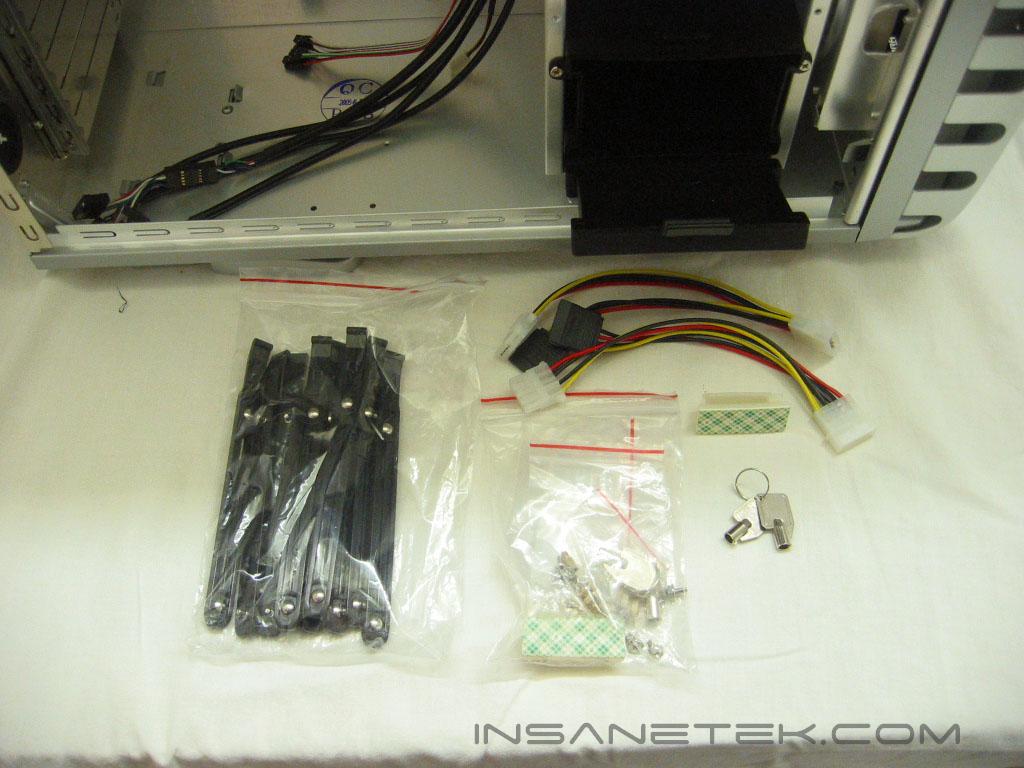
The hard drive cage can hold up to five drives. The hard drives install is tool free by use of a rail system. If you’re not using all of the bays, Gigabyte has an accessory box which can hold anything you wish. It ships holding all of the case accessories: hard drive rails, screws, keys to the locks, cable holders, and SATA power adapters. It may seem strange including SATA adapters with a case, as they usually come with motherboards, however it appears they really want you to make use of those drive bays.
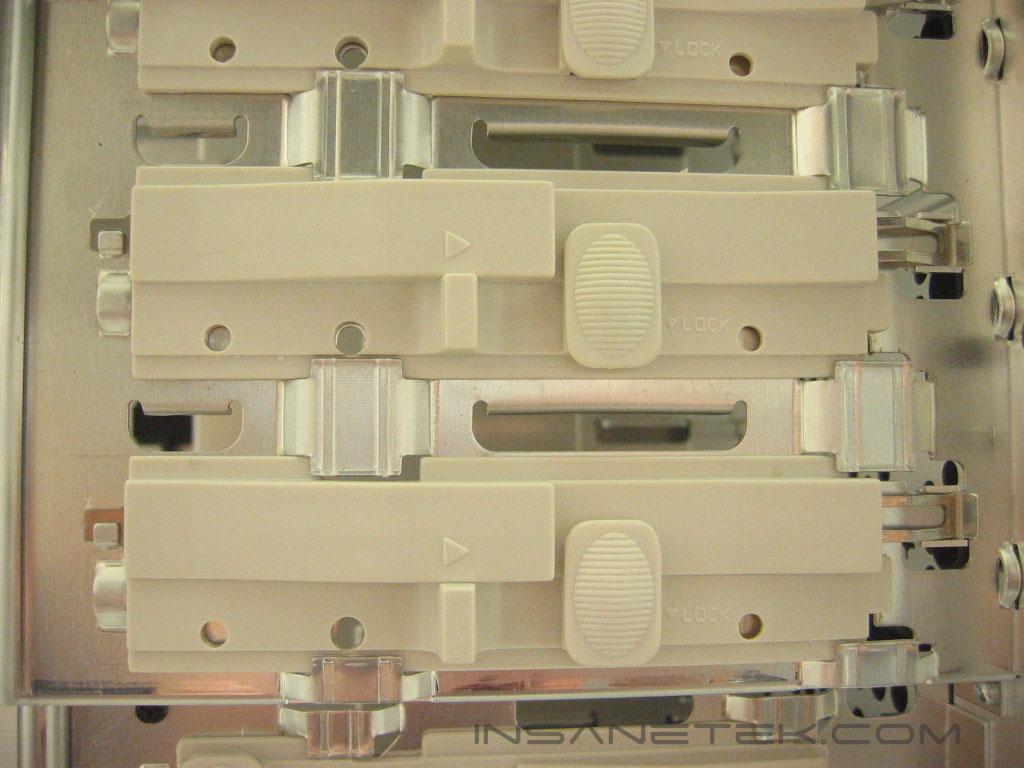
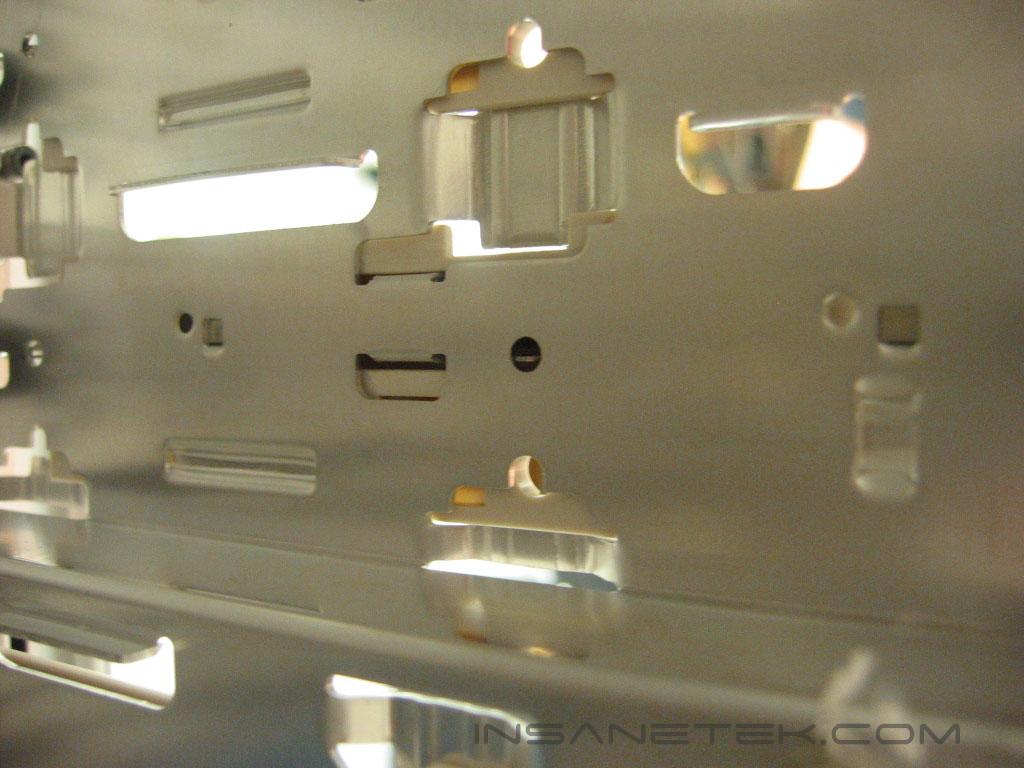
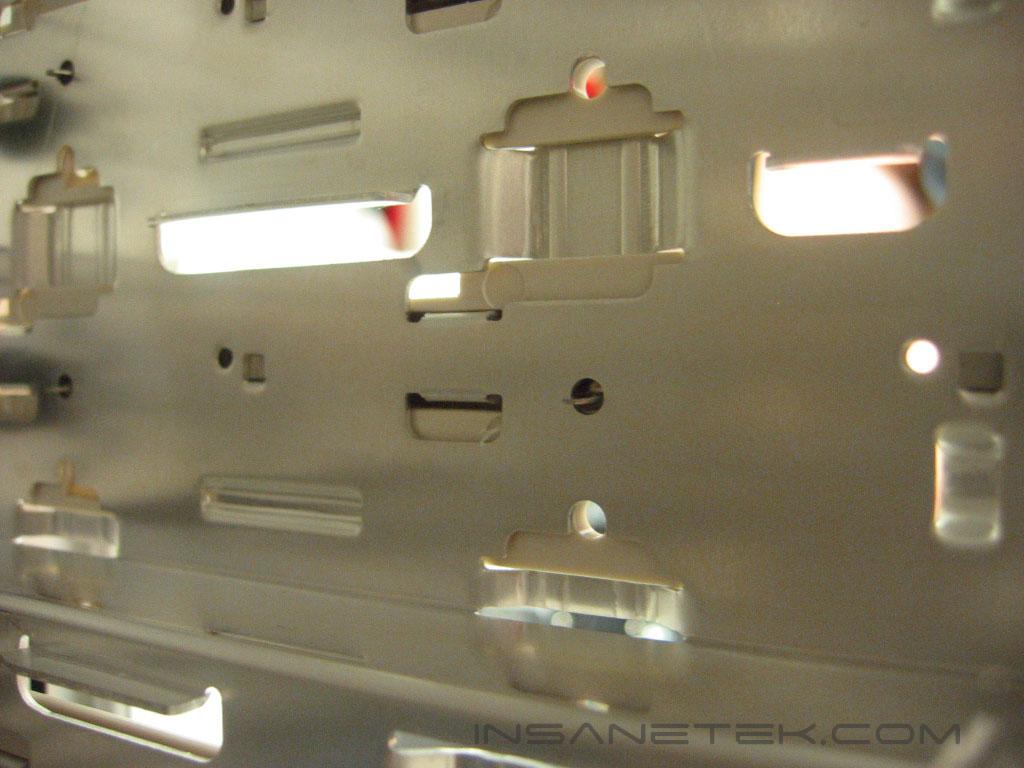
The 5.25” and 3.5” drive bays are also tool-less, they don’t use a rail system like the hard drives. The drive is placed into the bay and once it is in the correct position you push the cream colored plastic forward and hooks are pushed into the screw holes on the drive. The plastic rail can be locked into place so that they cannot be unhooked accidentally.
Specifications
Installation
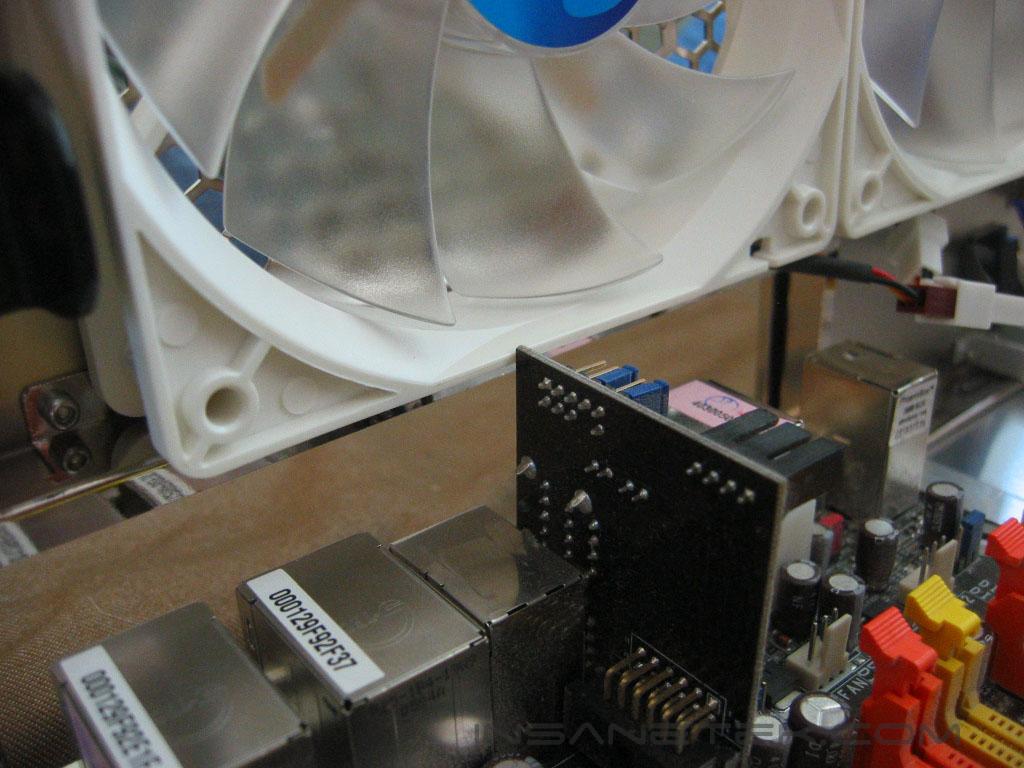
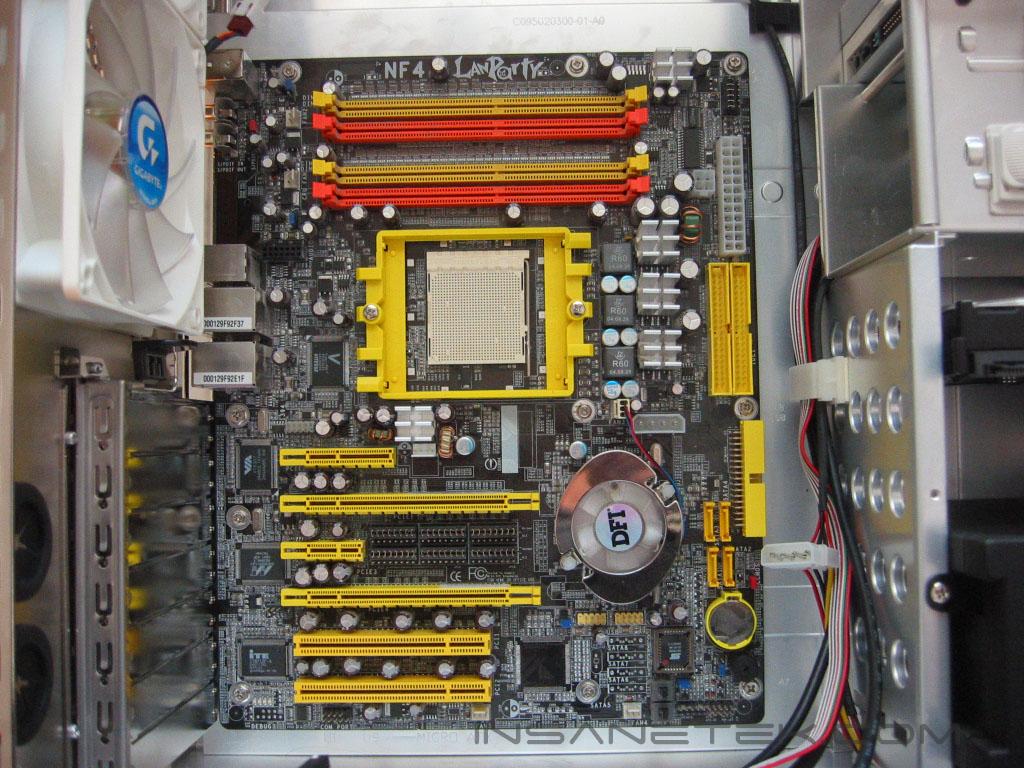
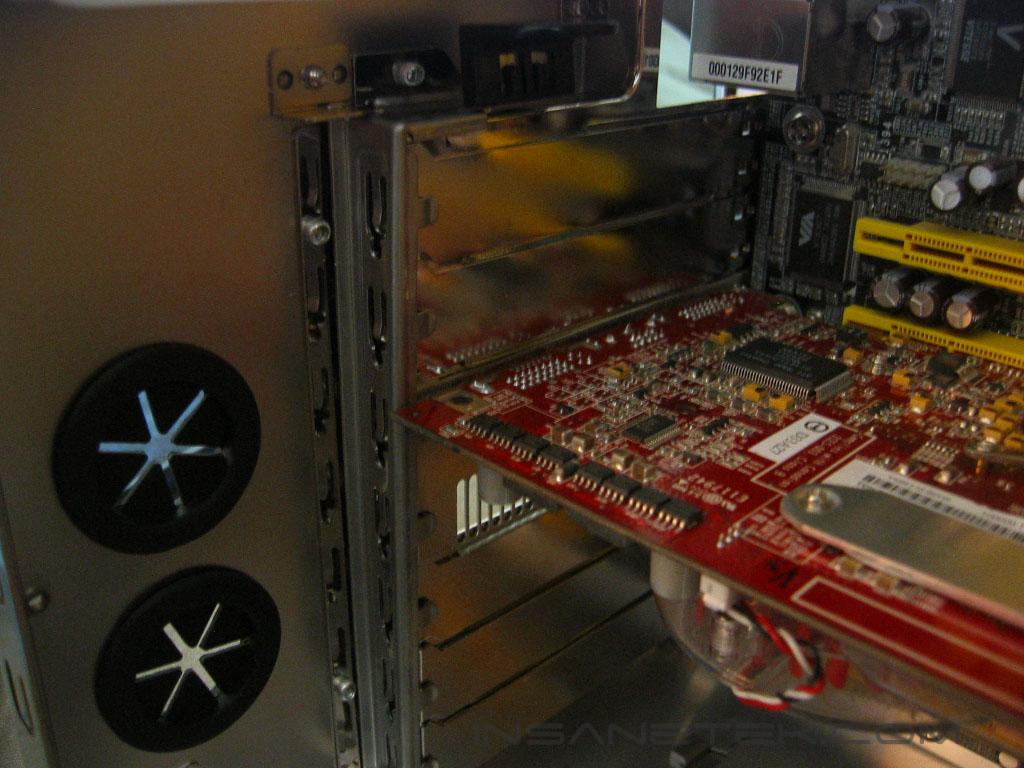
Installing a motherboard is simple, just screw the standoffs into the motherboard tray and then align the holes on the motherboard with them. One problem I ran into while installing my motherboard was the sound card hit the lower exhaust fan. The DFI NForce4 motherboards make use of a sound card that can be removed if not used. It is an entirely separate piece that sits higher than the other I/O components, and in the case of the Aurora, too high. After removing the card the motherboard sat perfectly. Installation of the video and PCI cards is simple with the tool-less mounting system. The Aurora has no problems with dual slot coolers on video cards.
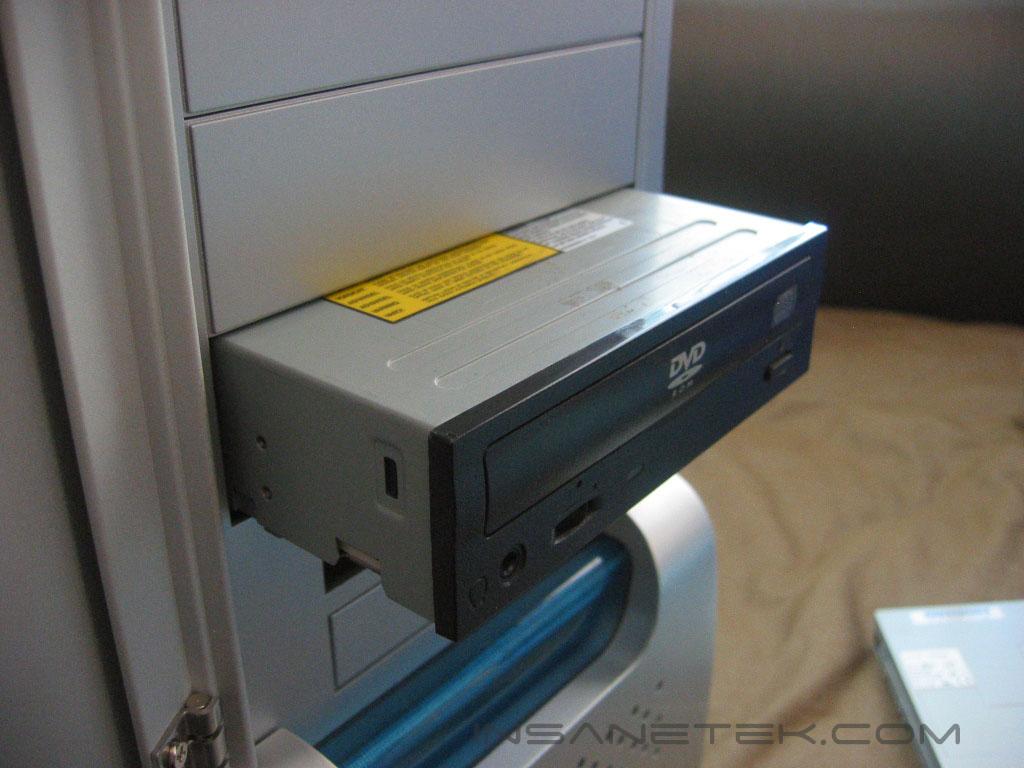
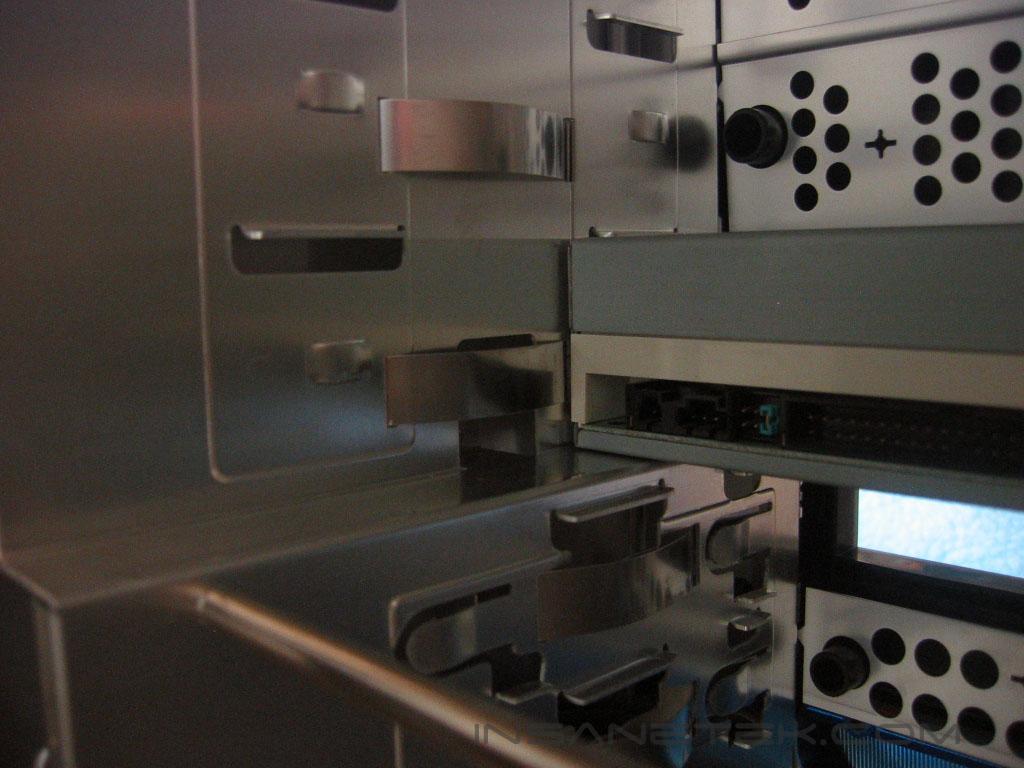
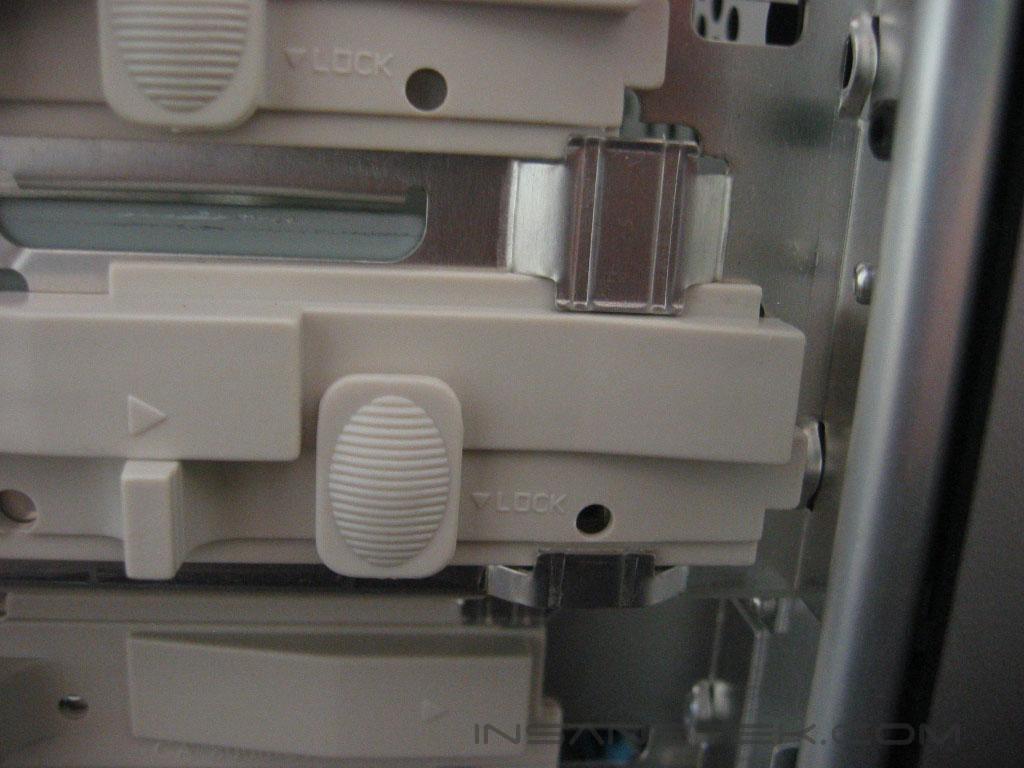
To install a 5.25” or 3.5” drive just pop off the desired bay cover and slide the drive into the case. Once the front of the drive is flush with the case press the rail forward to secure it to the case.
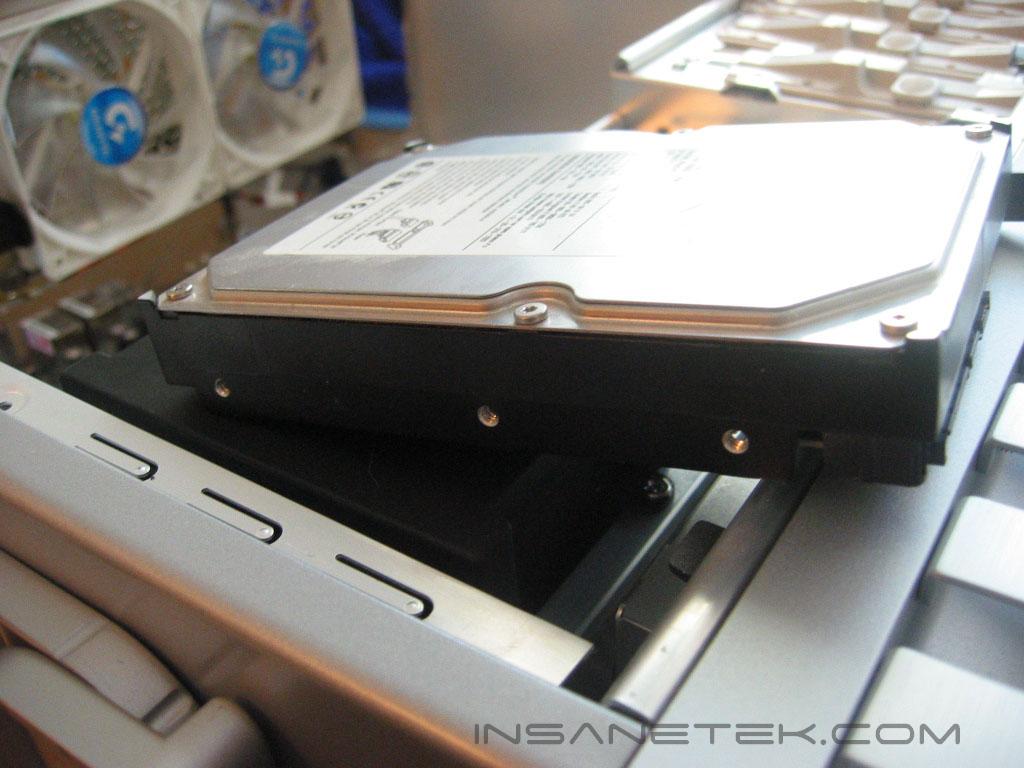
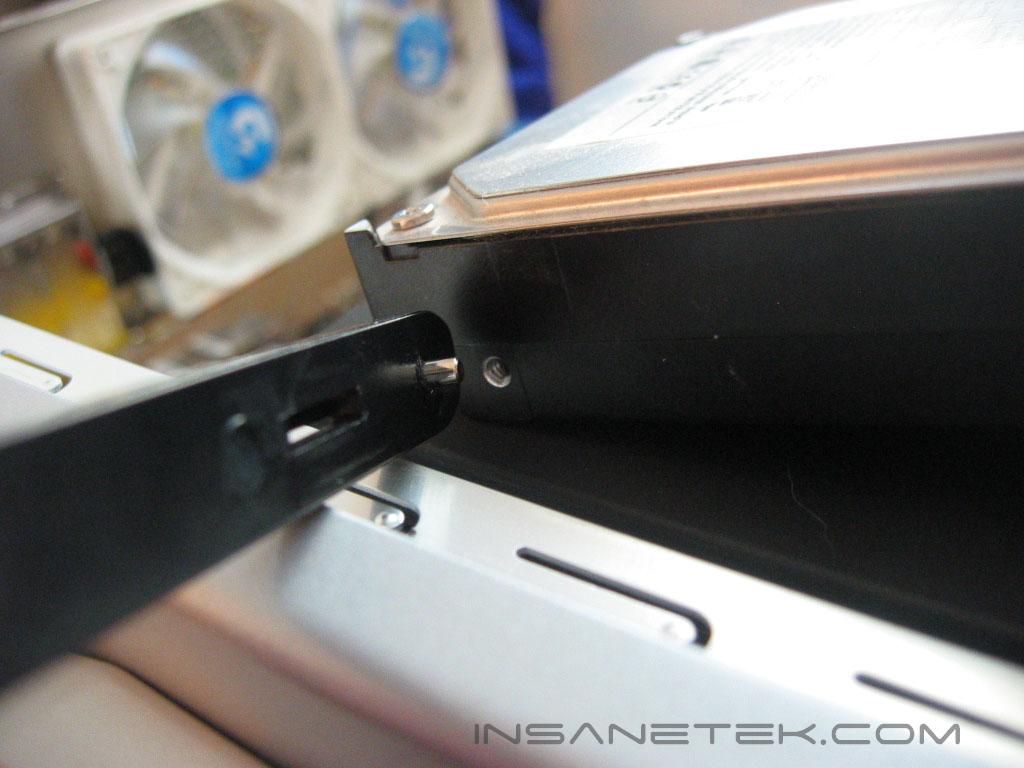
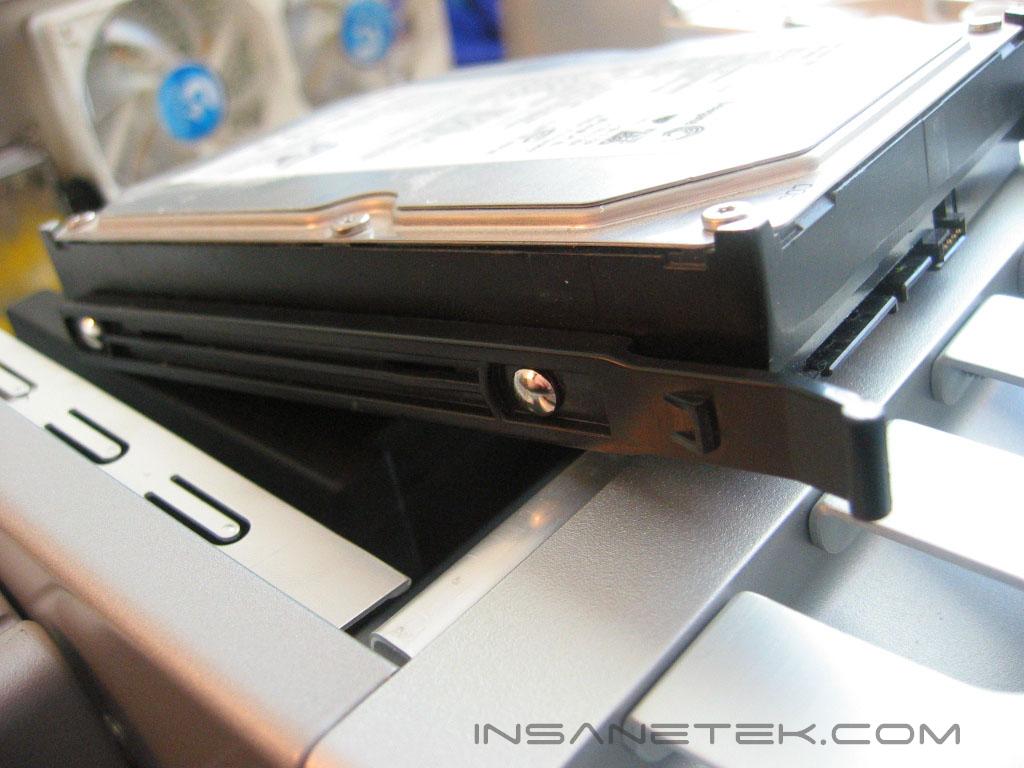
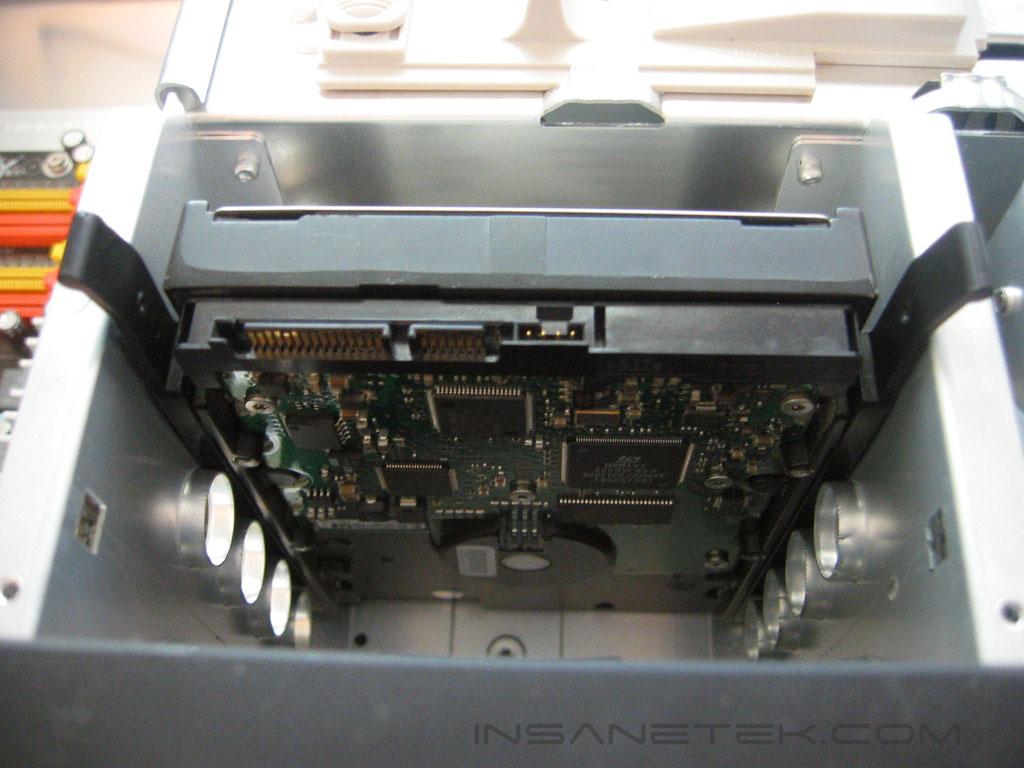
To install a hard drive: clip in drive rails into both sides of the drive by aligning the rails with the screw holes. Then slide the drive into the case until the rails clip into the case.
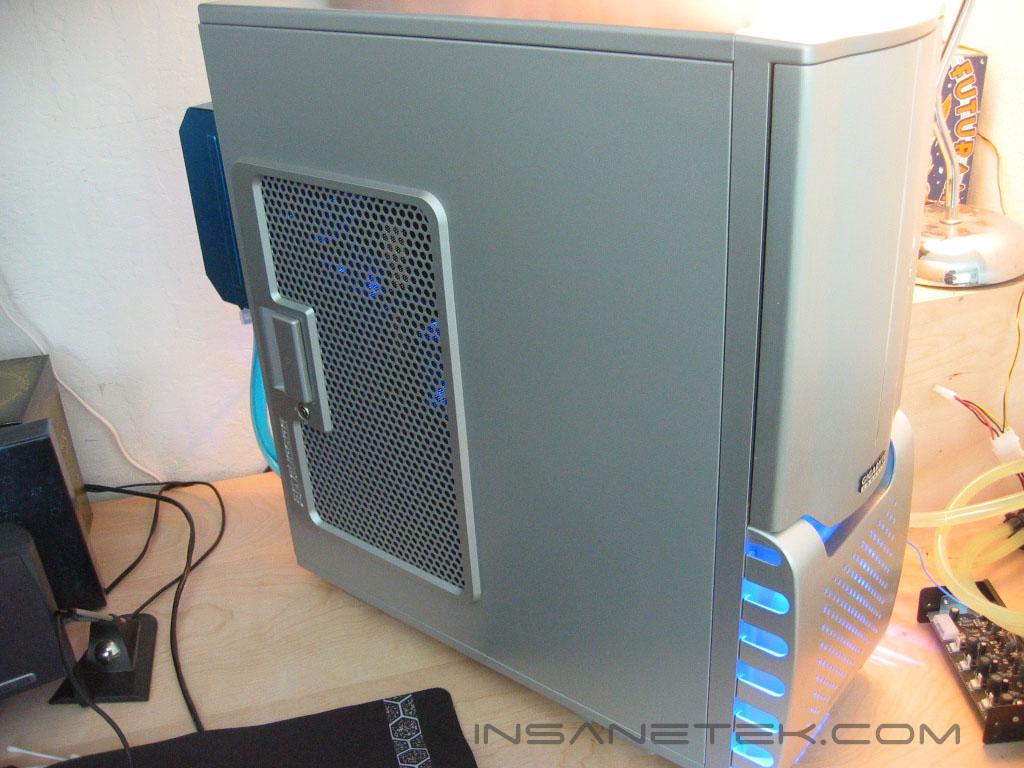
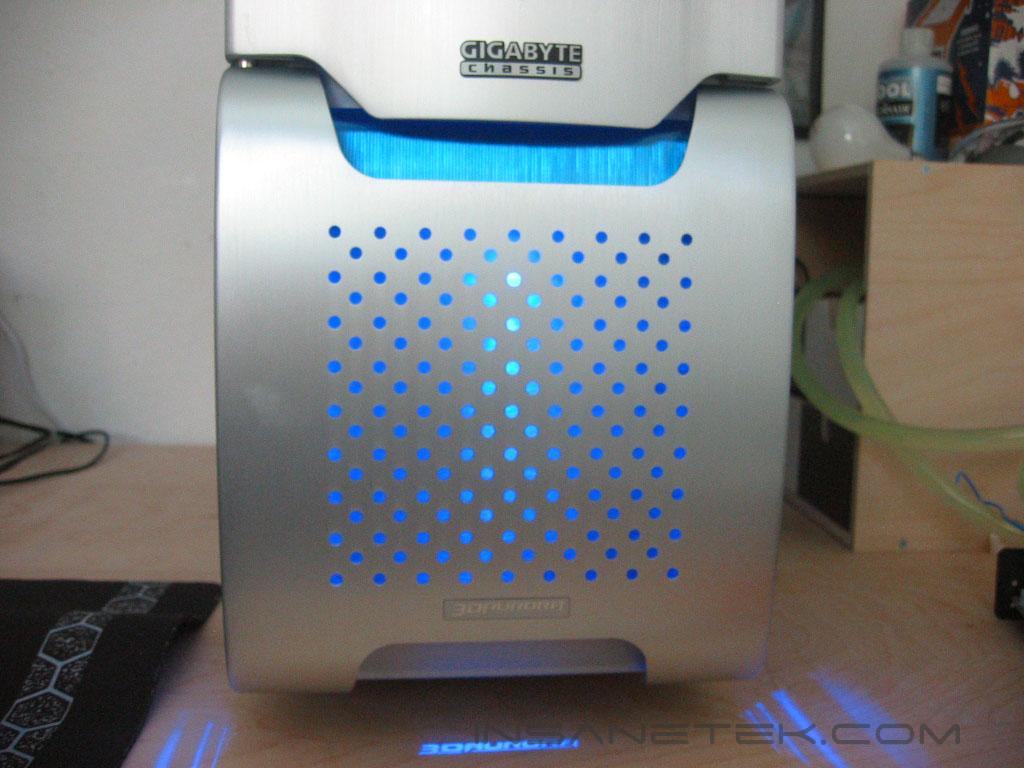
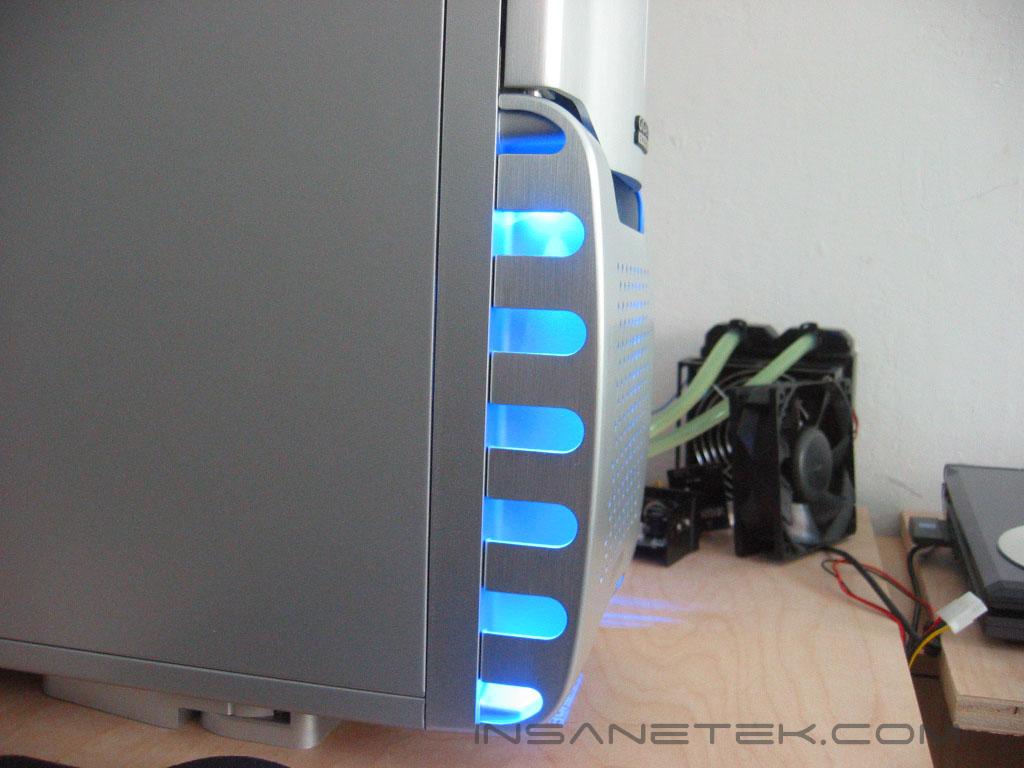
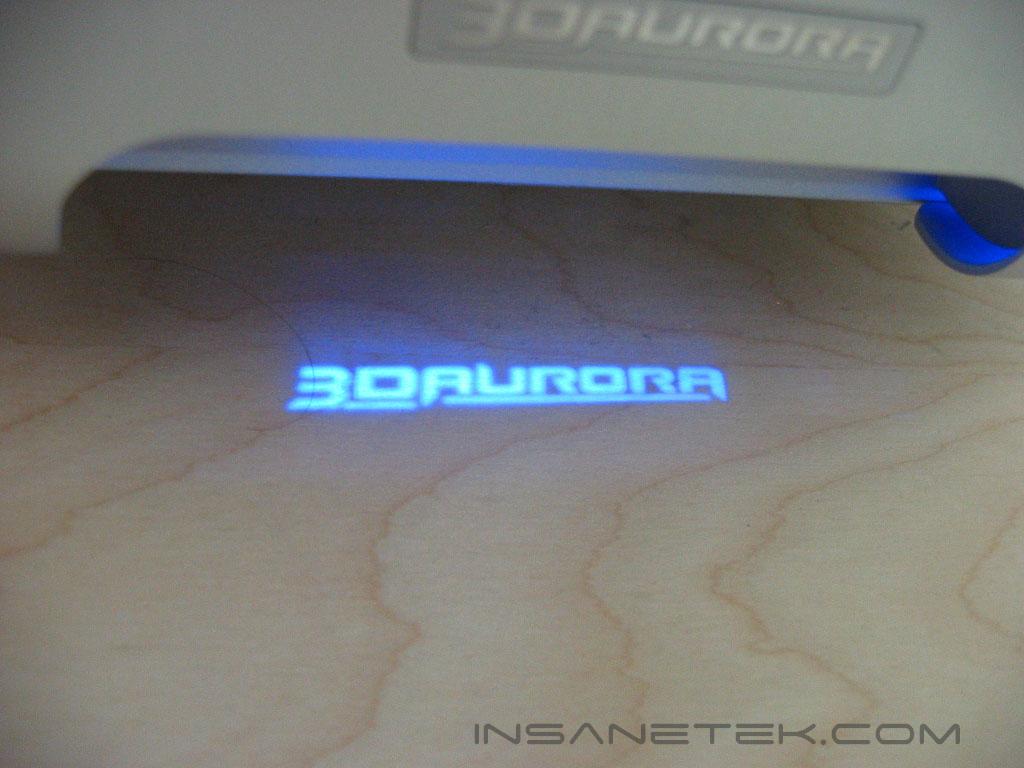
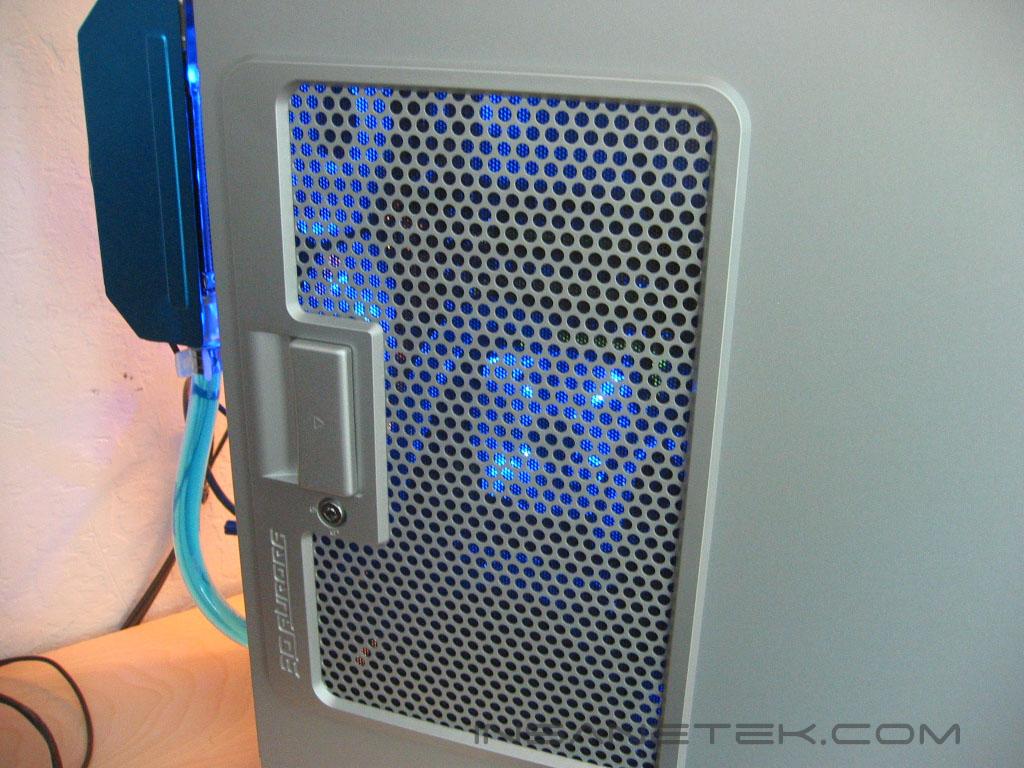
Here she is, the Aurora in a fully installed form. The lighting on the Aurora is attractive and well placed. The projected logo is a very nice touch. You are able to see through the grating on the door and with the blue LED fans, it looks beautiful.
Conclusion and Thoughts
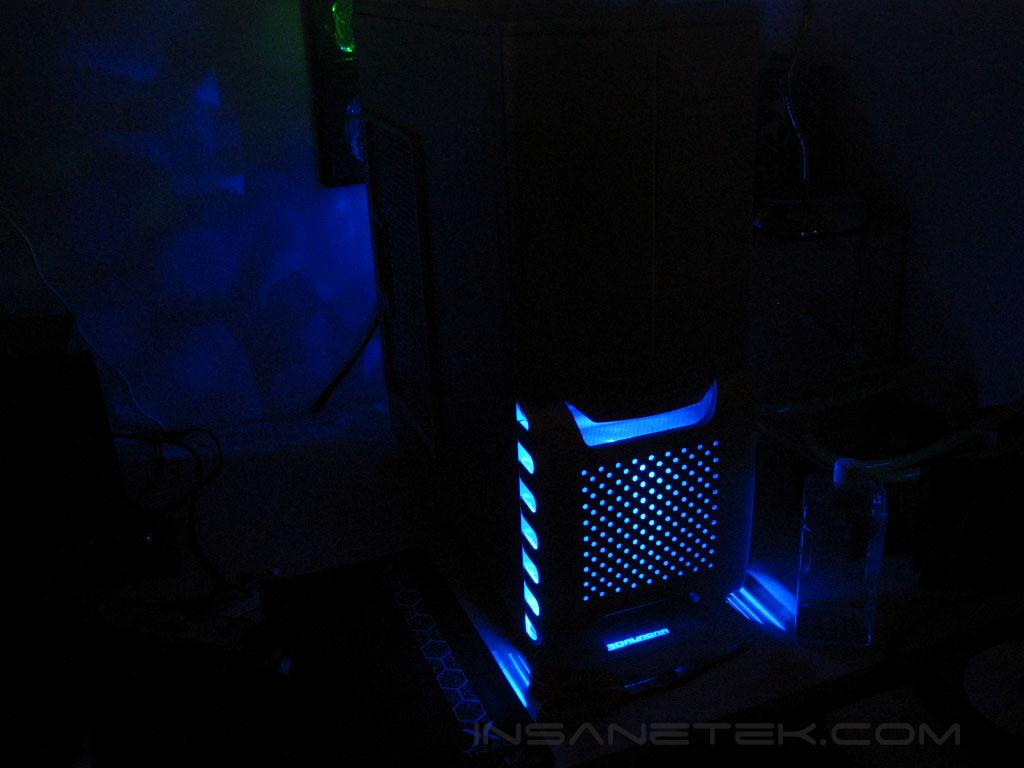
The Aurora design is incredible, from its front bezel, to its nickel coated rear panel. The Aurora maintains an elegant and clean look throughout its chassis and front panel, but it surely couldn’t be called plain. The lighting on the Aurora really gives it a unique look. The projected 3D Aurora logo is a very unique feature, as well as being able to change it out with the design of your choice. Gigabyte sought to make a tool-free case, and they achieved it. Hard drives, and anything in the PCI slots, 5.25” bays, and 3.5” bays can be swapped out in an instant. All problems that arose during motherboard installation are problems with the design of the DFI NF4 boards. You have the choice to remove the sound card from the board or remove the exhaust fans. This is a shame as the DFI NF4 boards are one of the most, if not the most, popular NForce4 motherboards out. Gigabyte succeeded in producing a case that is the perfect counter part to their watercooling kit, the 3D Galaxy, or just about any watercooling setup. Watercooling has become very popular now and the fears of consumers of water inside of their case is subsiding. Gigabyte’s duo is well timed and should go over well in the consumer market. Gigabyte clearly made its impression on the case market. If they can keep producing beautiful cases, with well designed interiors and easy installation, they will surely be a leading competitor in the case market. The 3D Aurora should fit the bill for anyone who needs a practical and attractive case.
Pros:
- Solid construction
- Light weight body
- Beautiful design and lighting
- Tool-less of drives and add-on cards.
- Dual 120mm exhaust fans
- Security locks on front and door panels
- Watercooling ready
Cons:
- DFI NF4 board can’t use onboard sound with both exhaust fans installed

We would like to thank Gigabyte for providing us the sample. If you have any questions or comments, feel free to hit us up in the forums. You can also check out more of our latest reviews on the front page.