

Cooler Master Centurion 5
Introduction
Cooler Master is a company that focuses on providing the best thermal solutions for computer users. I’m pretty sure that most of you have already heard their name. They mass produced CPU heatsinks for OEM systems and were one of the first to introduce aluminum cases. Cases like the ATC-110 and the ATC-220 were among my favorites. However, they came with a hefty price tag. I remember when my friend laid down $300 just for a case. Fortunately, prices have since dropped significantly.
It wasn’t until recently that Cooler Master decided to move forward and target gamers and overclockers. Their CPU heatsinks, like the recently reviewed Hyper 6, have been beefed up to allow enthusiasts more headroom for overclocking. Their cases look good while still providing excellent thermal cooling. Today, we will be ripping apart the new mainstream case from Cooler Master–the Centurion 5.
Centurion 5
I remember when the Centurion 1 first came out. I was a bit shocked to see that Cooler Master deviated from the use of aluminum with steel. I was skeptical about the looks and the quality. Much to my surprise, I still own one. Although it needs some help with cooling, it is still one of the best cases I’ve worked with. Much has changed since the first Centurion. Cooler Master has heard the demands from consumers and have created the new Centurion 5.
I received the package in a nice cardboard box. Similar to all of their cases, Cooler Master packed it very well. The box was made of sturdy cardboard and didn’t crumble easily. The case was wrapped with plastic and covered by two Styrofoam covers.
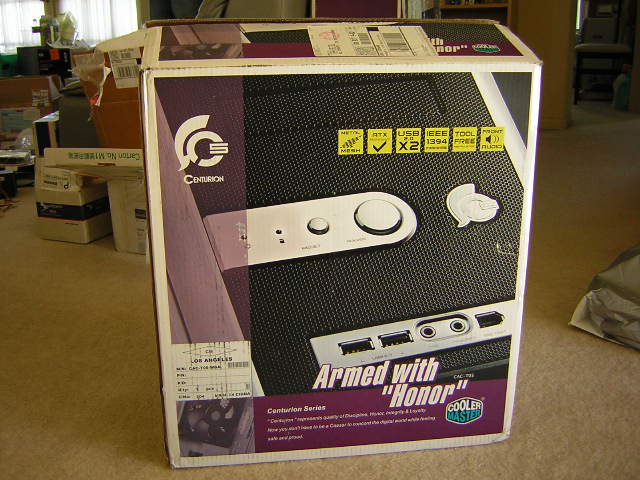
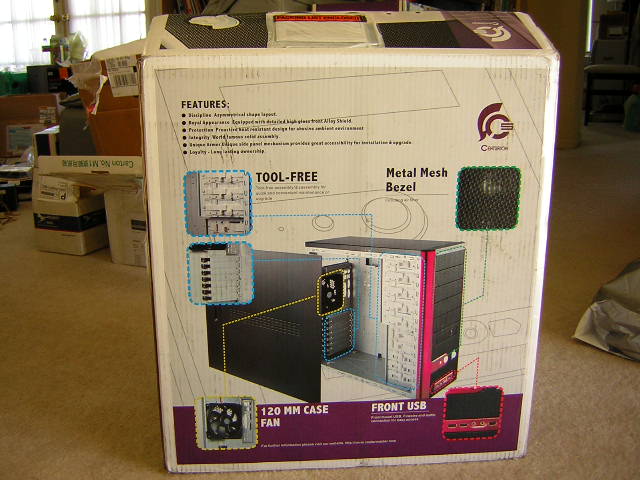
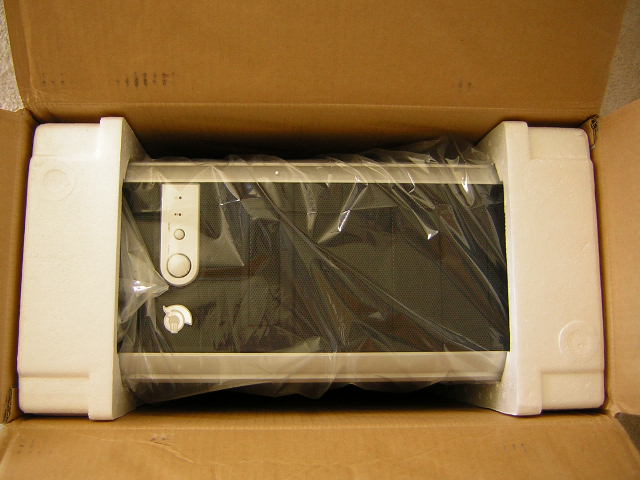
I quickly removed all the wrappings and quickly fell in love with the case. It was just beautiful. The case was more complicated than the average computer case, yet simpler than the crazy looks of the Diablo or the Ogre or whatever those cases are called. The surfaces were smooth and clean. It was so clean that I left behind fingerprints easily. The entire case felt strong and sturdy; not one part felt like it was cheaply made. The side panels have air vents to let air seep in to aid cooling. The rear has a large 120mm exhaust fan as well as the usual 7 PCI slots.
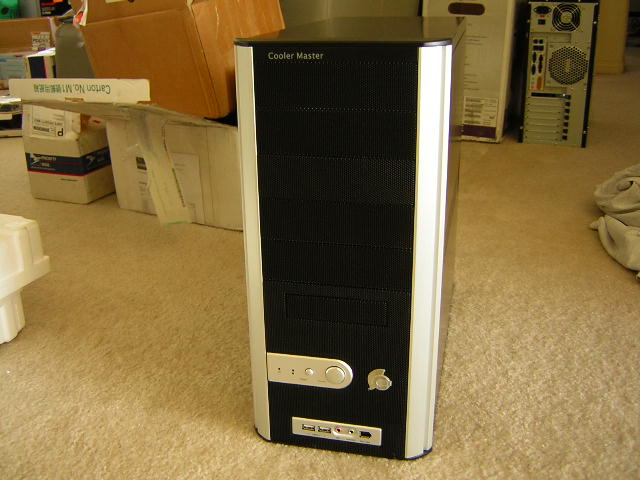
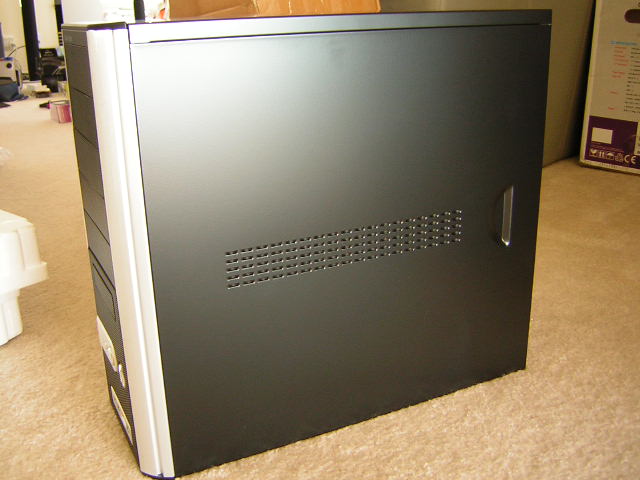
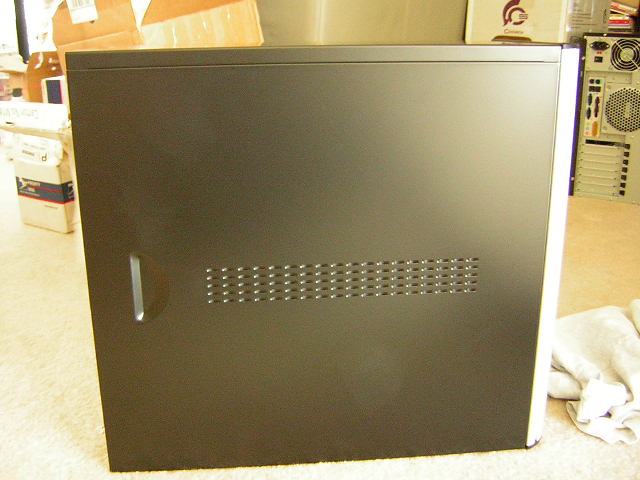
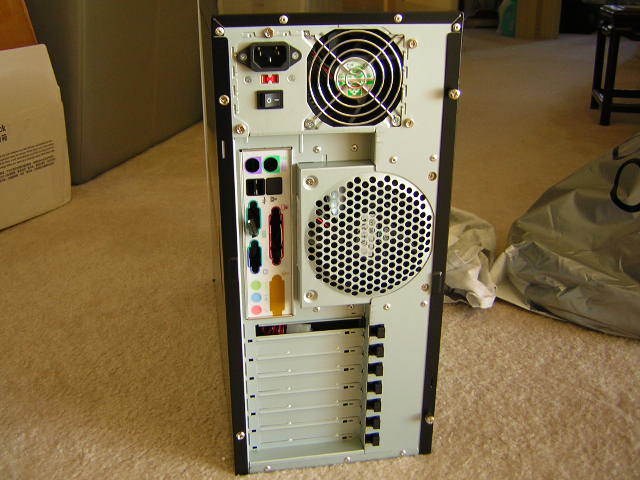
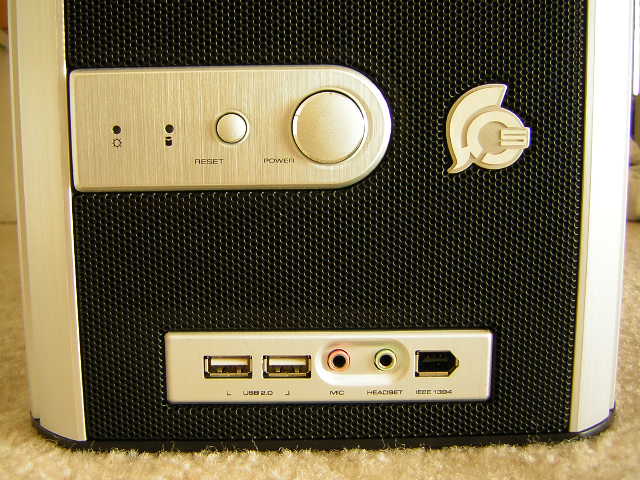
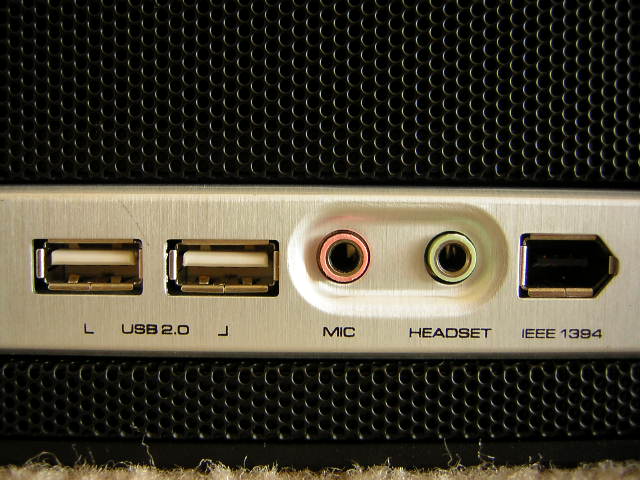
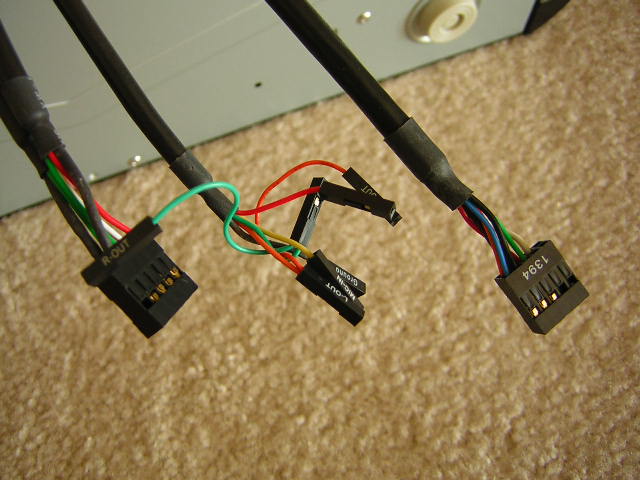
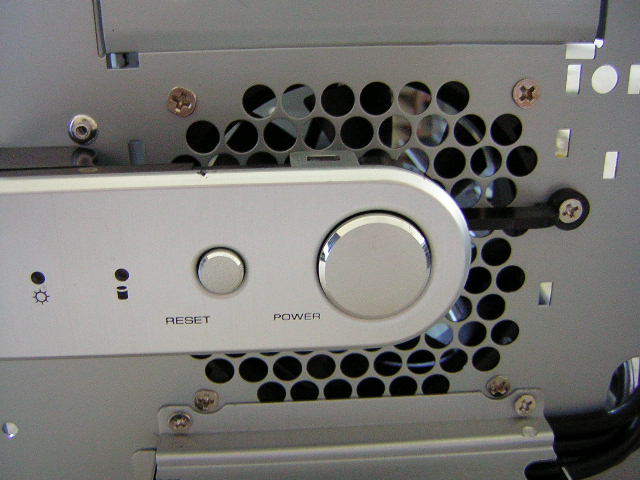
The power and reset buttons are placed at the center near the bottom, with the Centurion logo next to them. At the very bottom are the usual USB ports, Firewire port, MIC, and headset jacks. These front ports allow users to conveniently plug in input devices from the front rather than fiddling with wires at the back of the system.
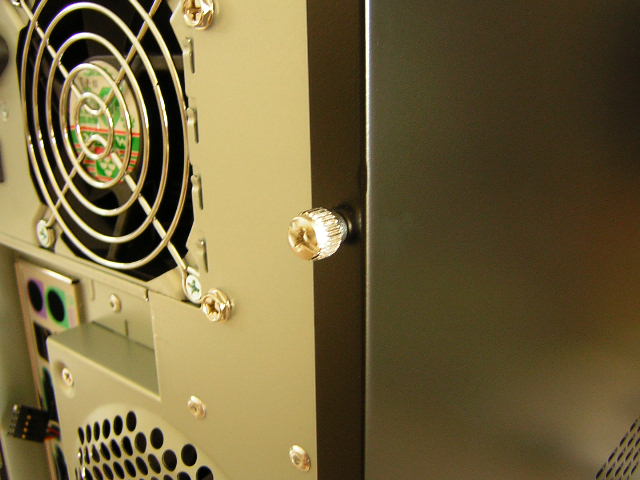
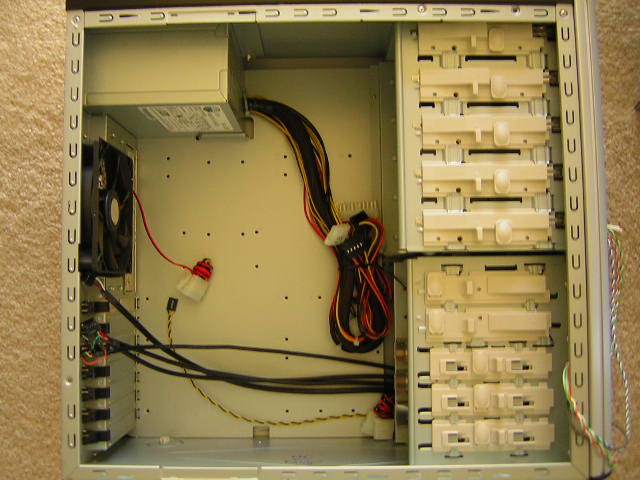
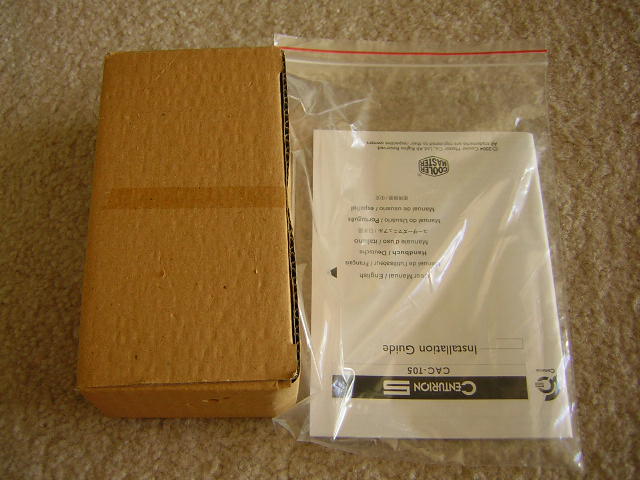
The side panels have thumb screws that allow easier access in and out of the case. Opening up the side panel reveals a spacey interior. There is plenty of space to allow installation. All the drives use a tool-free feature of lock tabs. All in all, a screwdriver is required only when installing the motherboard. The case also comes with a box of screws and an instructions manual. The only thing I found to be somewhat bothersome is that the motherboard standoffs are not all the same. There are three standoffs that require the use of larger screws. It’s hard to figure out which is which since they all look alike, but you’ll know when you used the wrong screw for the wrong standoff–the screw will just fall in the hole. The USB, firewire, and audio adapters are nicely sleeved to reduce cable clutter. They are long enough to reach just about any place on the motherboard.
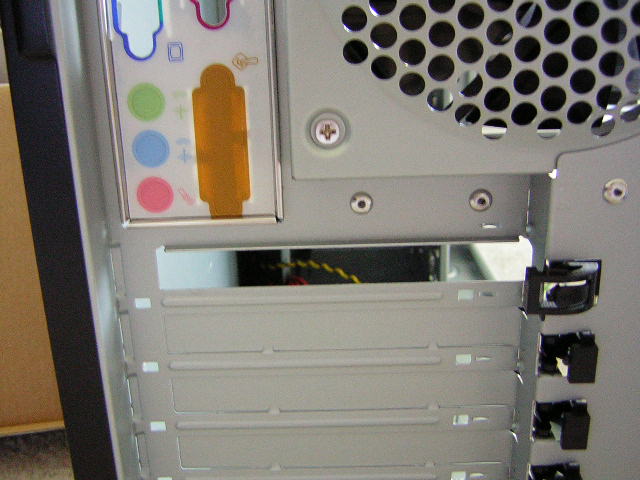
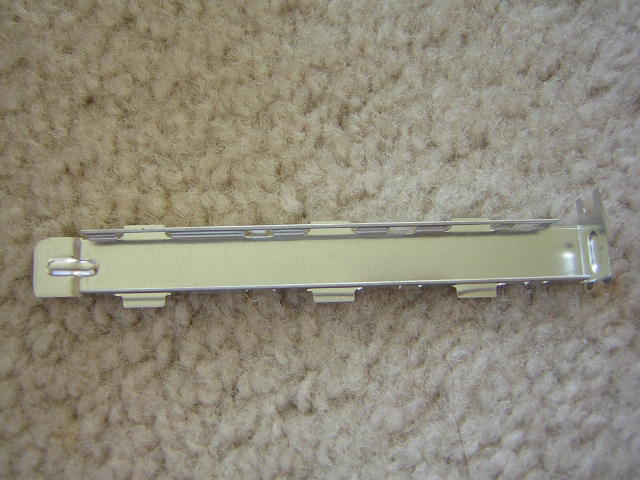
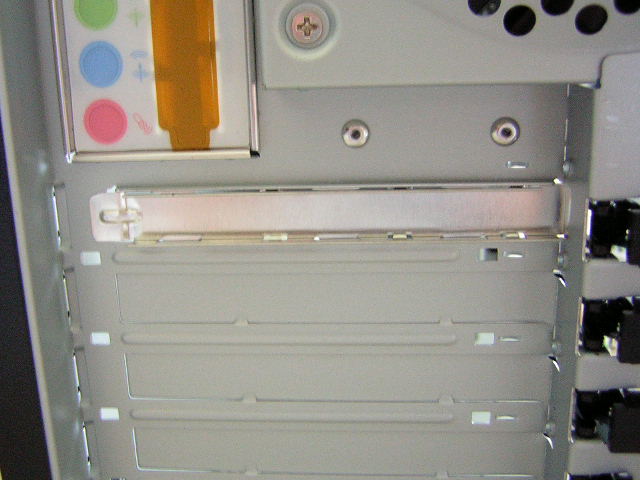
If you notice, you will see that there is one PCI slot in the back of the case without a cover. Although it takes the work out of removing one cover, it doesn’t always help. There are motherboards with AGP slots positioned lower than the standard. This means that the first open slot will go to waste. You’ll have to remove the second slot in order to install your video card. Does that mean that your case will look ugly with one slot open? Nope. Cooler Master has provided a snap on cover to cover up the emptiness.
Installation
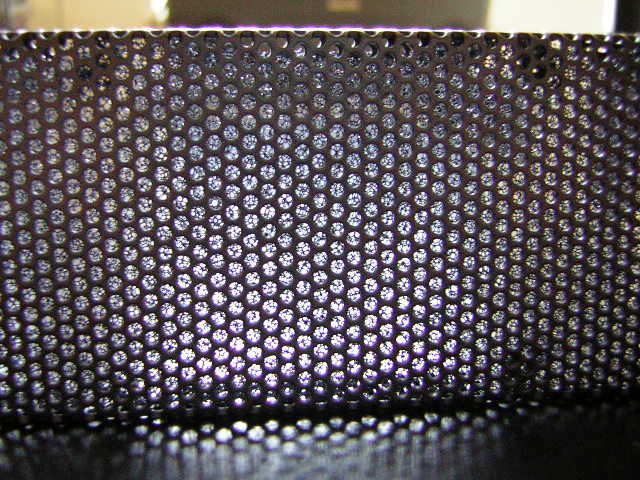
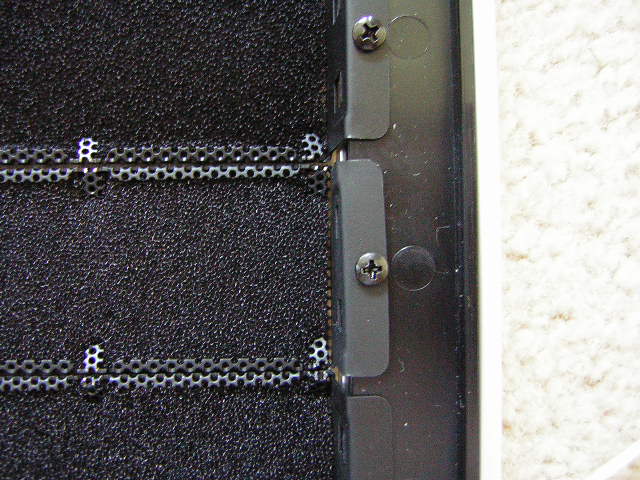
With all the features noted, it is now time to take apart the case and install all your hardware. The first thing you have to do is take off the front panel to install your drives. The front panel is not screwed on so taking it off is rather easy. Just be gentle or you’ll break some plastic. The drive bay covers are made of steel mesh with filters. This allows cool air to drift into the case from the entire front panel of the case rather than a small opening at the bottom. They’re attached to the front panel with screws. Cooler Master should have just stuck with using snap on covers like those found on any other case. There is a total of five external 5.25” drive bays with two 3.5” drive bays, one internal and one external. The extra drive bays allow room for cool gear like the upcoming Cool Drive 6 or even the Aquagate (I really need to get one of those). At the bottom is where the 80mm rests. The fan screws are easily accessed for easy switching of fans.
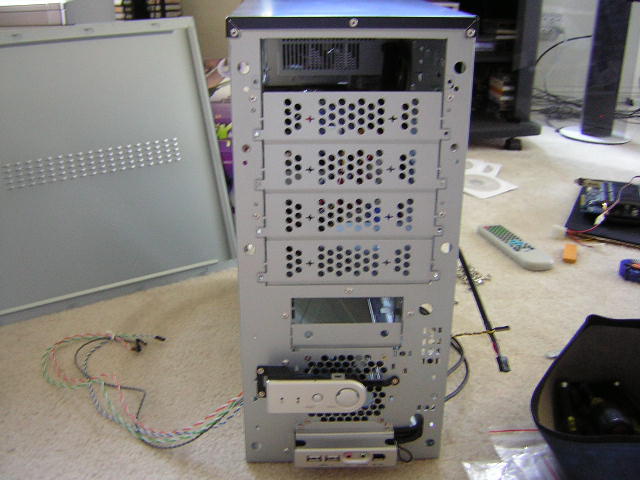
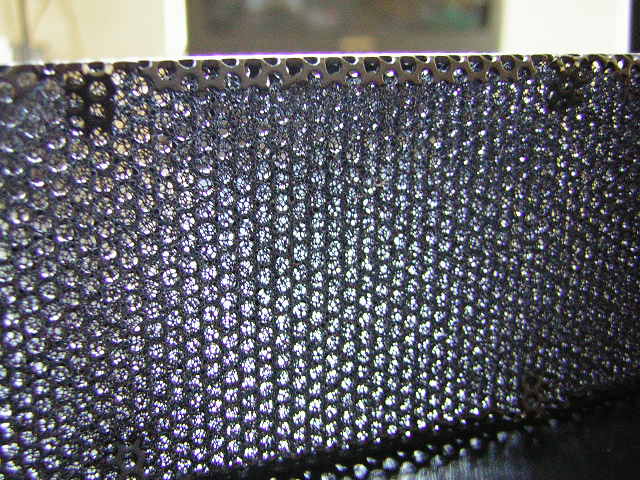
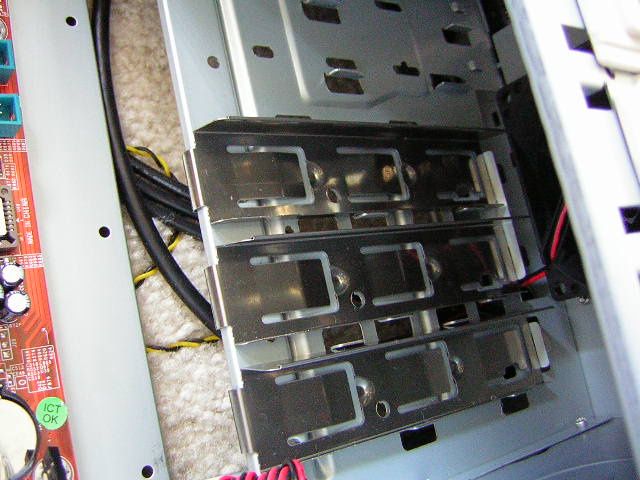
The tool-free tabs of the drive bays are nice to deal with. Simply insert your drive, slide the bar over until it reaches the end, then slide the small tab down to lock it. It is very nice and easy and anyone can learn how to use it. These tool-free tabs work the same for floppy and hard drives. There are special slots for installing hard drives. Unfortunately there are only three slots open. Enthusiasts who want dual RAID arrays will be left out. It’s still nice to be able to have a RAID array with one hard drive for backup though.
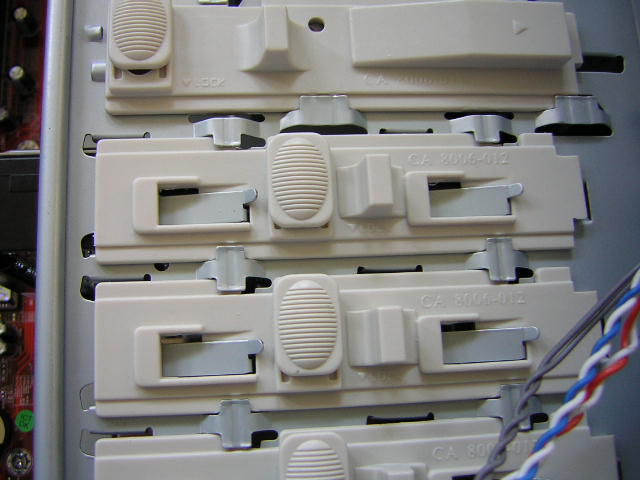
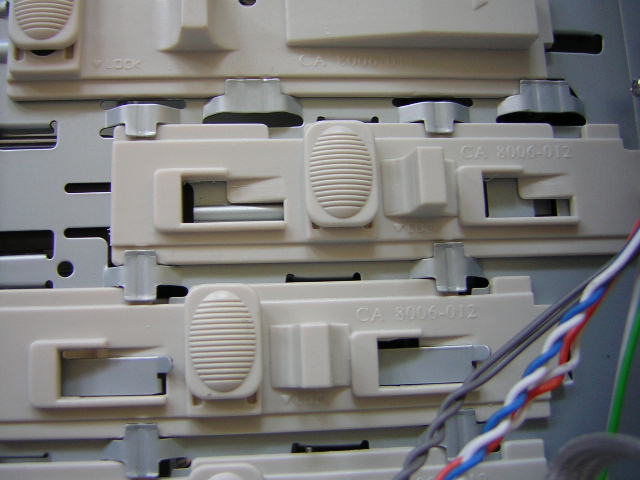
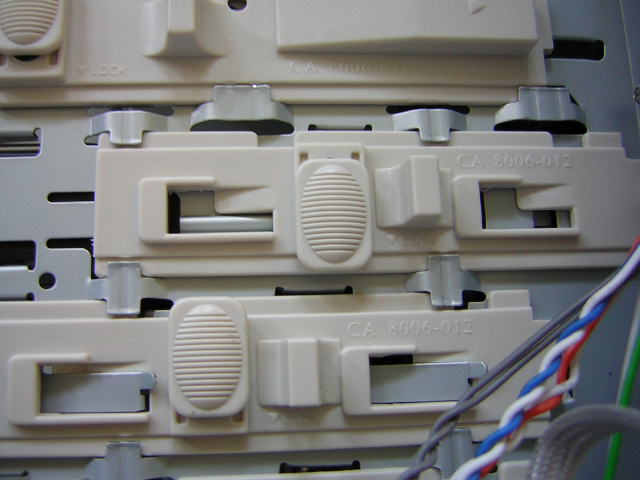
The PCI slots are also tool-free; they use a plastic lock down tab. Although it’s sufficient for most video cards, I advise users with large heatsinks on their video cards to bust out the screwdriver and install a screw there for safety reasons. It would suck really bad if your card just snaps due to the weight.
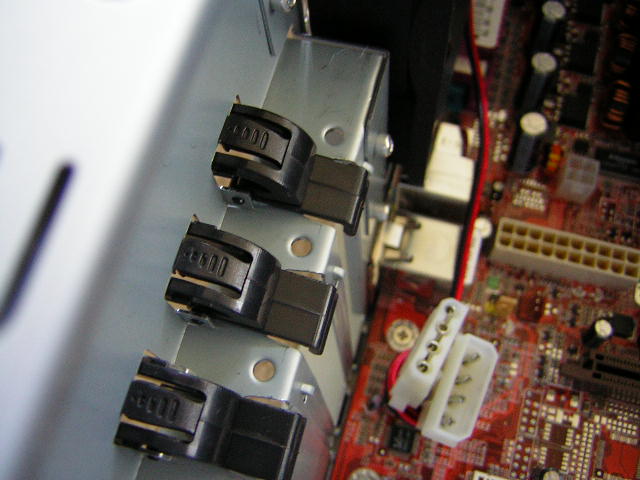
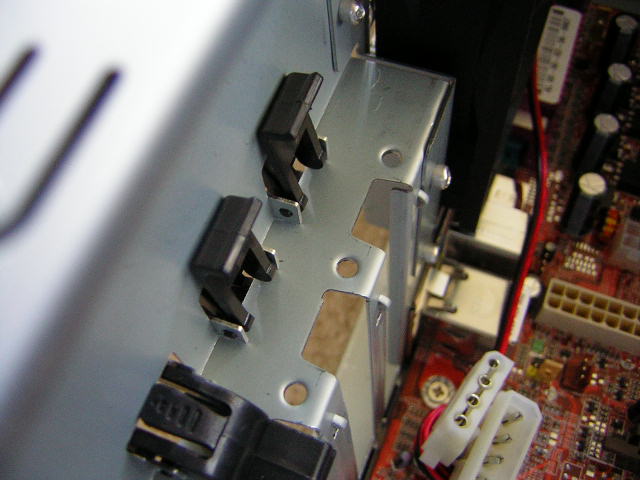
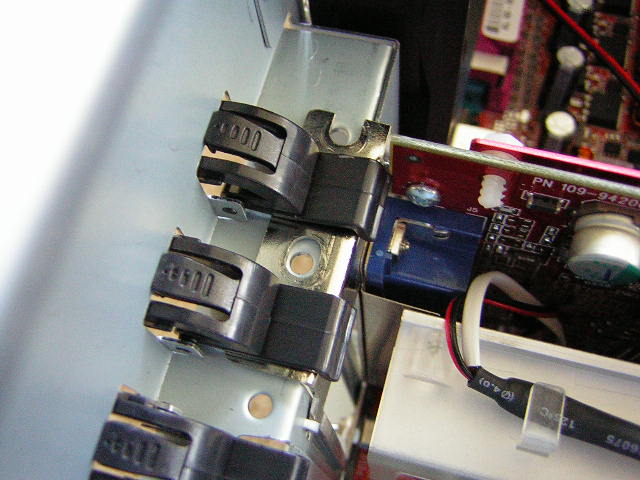
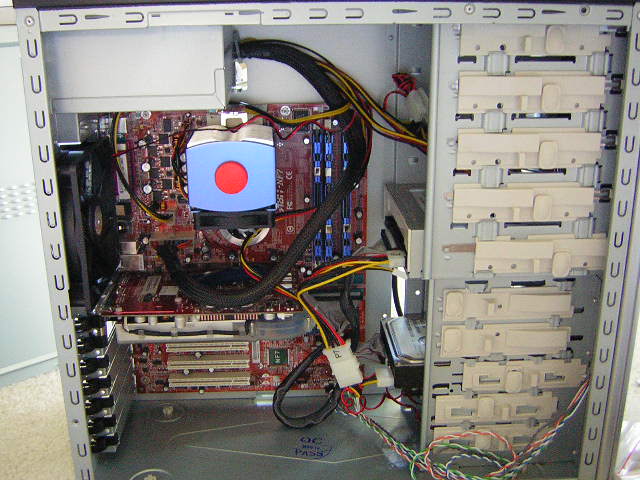
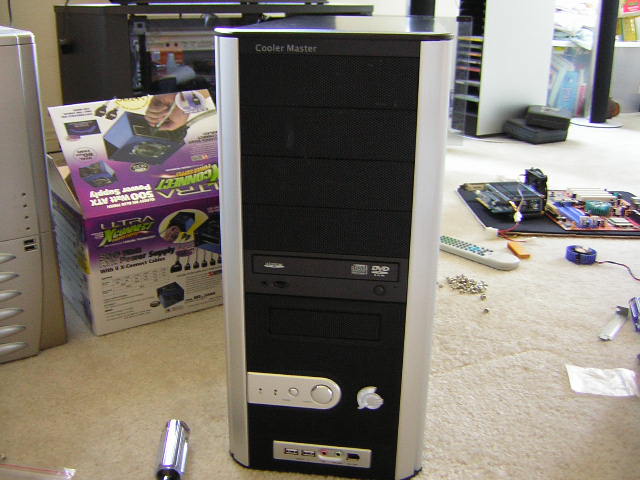
Here are a couple of shots with all my hardware installed. There is enough room to clean up the cable mess but I didn’t find the need to. I’ll have to take out everything again anyway.
Stock Power Supply
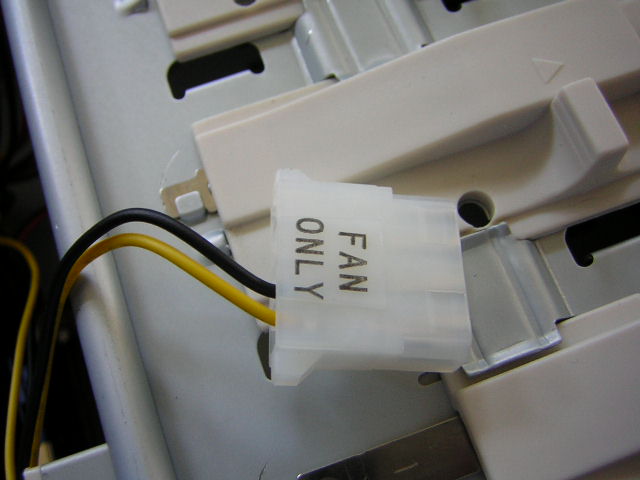
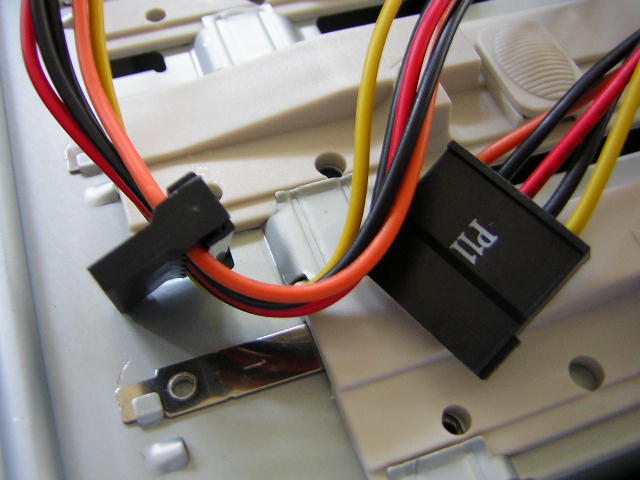
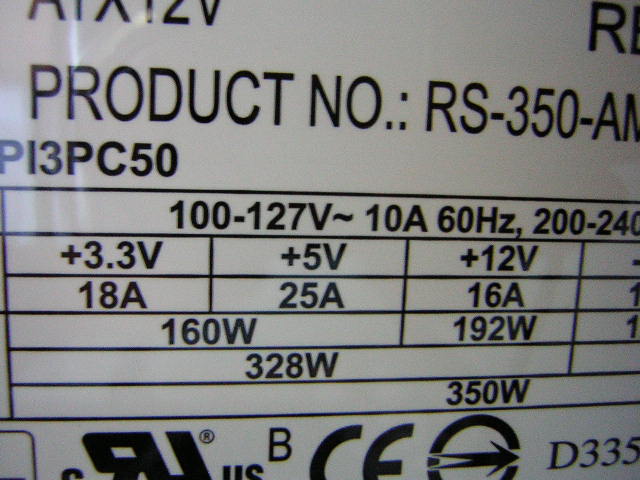
I will also test the included power supply. Although at a measly 350W, it is still sufficient for most end users who don’t do a great deal of overclocking. There are two SATA power connectors, two fan only Molex connectors, four regular Molex connectors, and two floppy connectors. Checking up on the amps for each rail shows that the power supply is pretty decent. It’s nothing to brag about but it does get the job done.
Test Setup and Results
Test System:
- AMD XP1800+ (10 x 200FSB @ 1.6v)
- Abit NF7 v2.0
- TTIC NPH-2
- 2 x 256MB Kingston HyperX PC3000
- 1 x 256MB Kingston HyperX PC3200
- 1 x 52x CDRW
- 1 x Floppy
- 1 x 120GB Maxtor 2MB 7200RPM
- 1 x 120mm Cooler Master fan
- 1 x 80mm Cooler Master fan
Results:
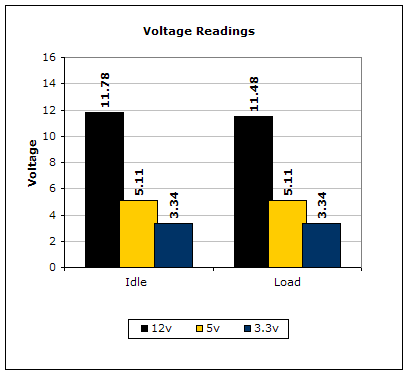
The 5v and 3.3v rails were pretty good, keeping stable at full load. The 12v rail was the one that dropped the most, reaching as low as 11.48v. It fluctuated so much that it dropped as low as 9v at certain times. However, it still kept the system running stably. If you decide to do some overclocking, I suggest purchasing a better power supply, such as the Raidmax RX-520XP.
Conclusion and Thoughts
Cooler Master has done it again by making another beautiful case. The Centurion 5 is an all around light weight case with great cooling features such as the meshed front panel and 120mm exhaust fan. The included fans are silent and produce no noise whatsoever. Installation was a breeze with the tool-free features. The only problem I encountered was the motherboard standoff annoyance. Cooler Master should supply all their standoffs as one uniform size. The Centurion 5 is definitely one of the best looking cases today and will take away the boring look of a beige case without the need to use flashy vibrant colors. At a low cost of $95 (with power supply), this case should definitely be a consideration the next time you build or upgrade your computer.
Pros:
- Great elegant look
- Light weight
- Mesh front panels aid in system cooling
- Relatively cheap price
- Tool-free installation features
- Ample interior space
- 120mm rear exhaust
- Silent fans
Cons:
- No removable motherboard tray
- 80mm front intake
- Motherboard standoffs not all same size
- Stock power supply is rather weak
- No purchase option without power supply

We would like to thank Cooler Master for providing us the sample. If you have any questions or comments, feel free to hit us up in the forums. You can also check out more of our latest reviews on the front page.