

Cool Your Video Card With An Old AMD Heat Sink
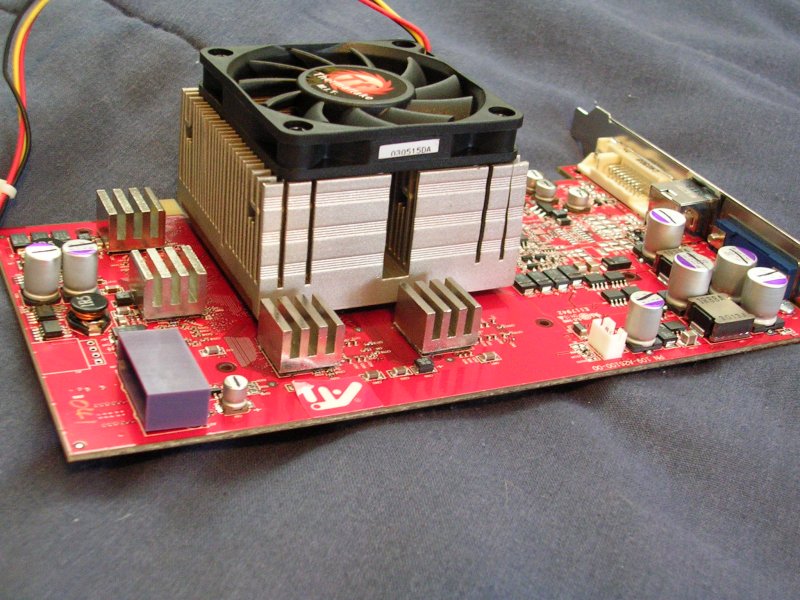
As faster video cards have appeared on the market, many enthusiasts have found that the cooling systems on most newer cards are very loud and have rather ineffective cooling. Admit it, most of the cards out right now have loud dust buster fans that are definitely not worth the noise-performance ratio. Many third party companies have attempted to make better cooling solutions such as using newly adopted heat pipe technology, a passive solution that creates no noise. Although this type of design can be much more bearable because of its silence, the performance is not much better, if at all, than the noisy stock cooling previously on the card.
What if you could have a cooling solution with the same amount of noise as the average stock cooling that comes with most cards but performs MUCH better and more efficient at a price of about $15-$20. This is the roundabout price of a low profile AMD CPU heat sink such as a Volcano 8+, which I will be using in this article. It obviously wouldn’t put a hole in your wallet like watercooling and other expensive cooling methods can, so you would go for it right? Then you ask yourself the famous question, “how the **** am I going to do this?!” and you realize this involves putting that shiny new $300+ card out of business if you are not sure how you will even attempt to go about attaching that massive hunk of copper on your card. Hopefully by the end of this article, you will feel more comfortable and have a better idea of how you would go about attaching a CPU heat sink and fan to a video card.
Layout:
**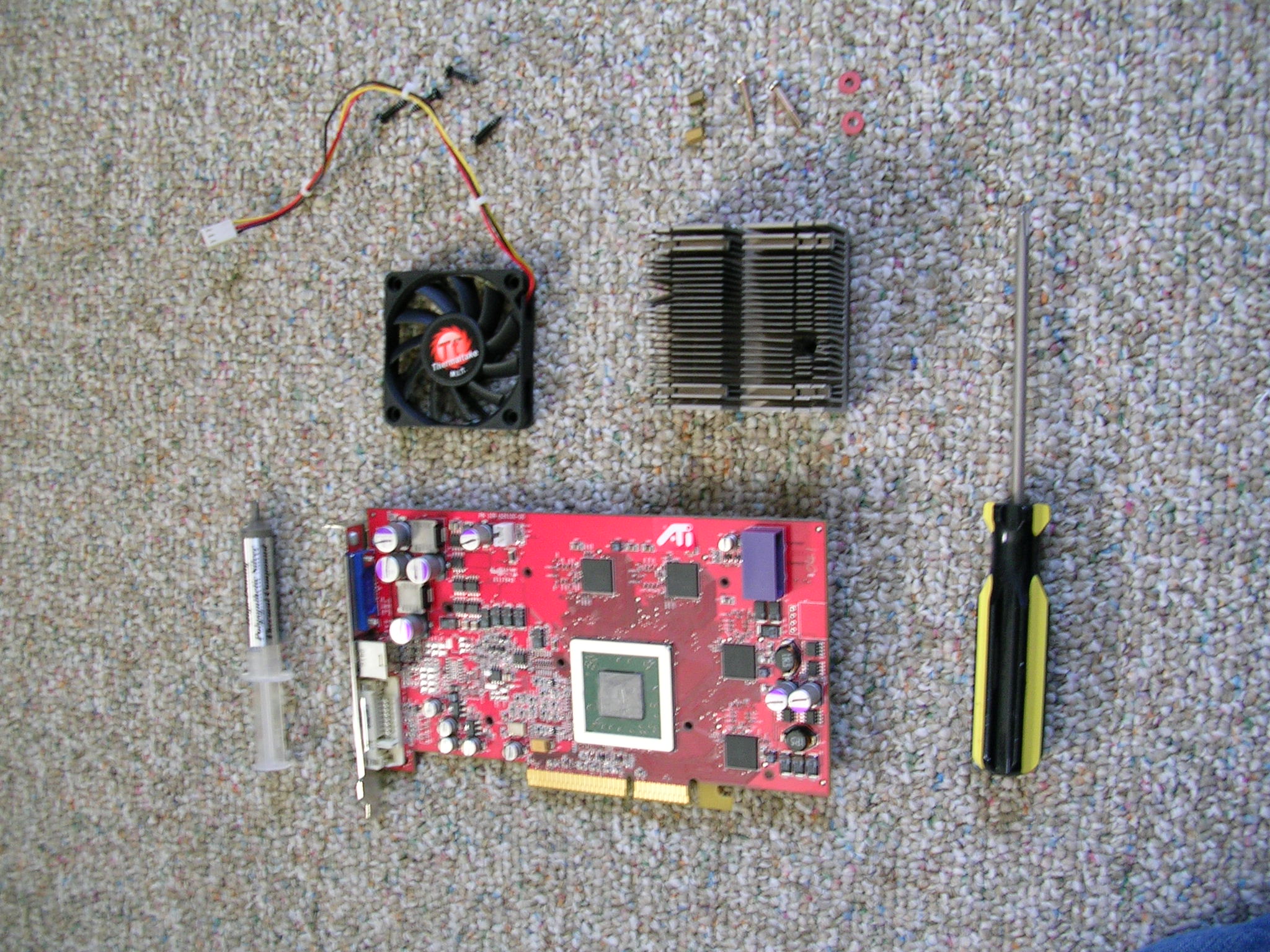
Equipment/Tools:**
- Electric Drill Gun
- Pliers
- 2 screws
- 2 motherboard washers
- a pencil
- CPU heat sink w/ fan and its screws
- Video card
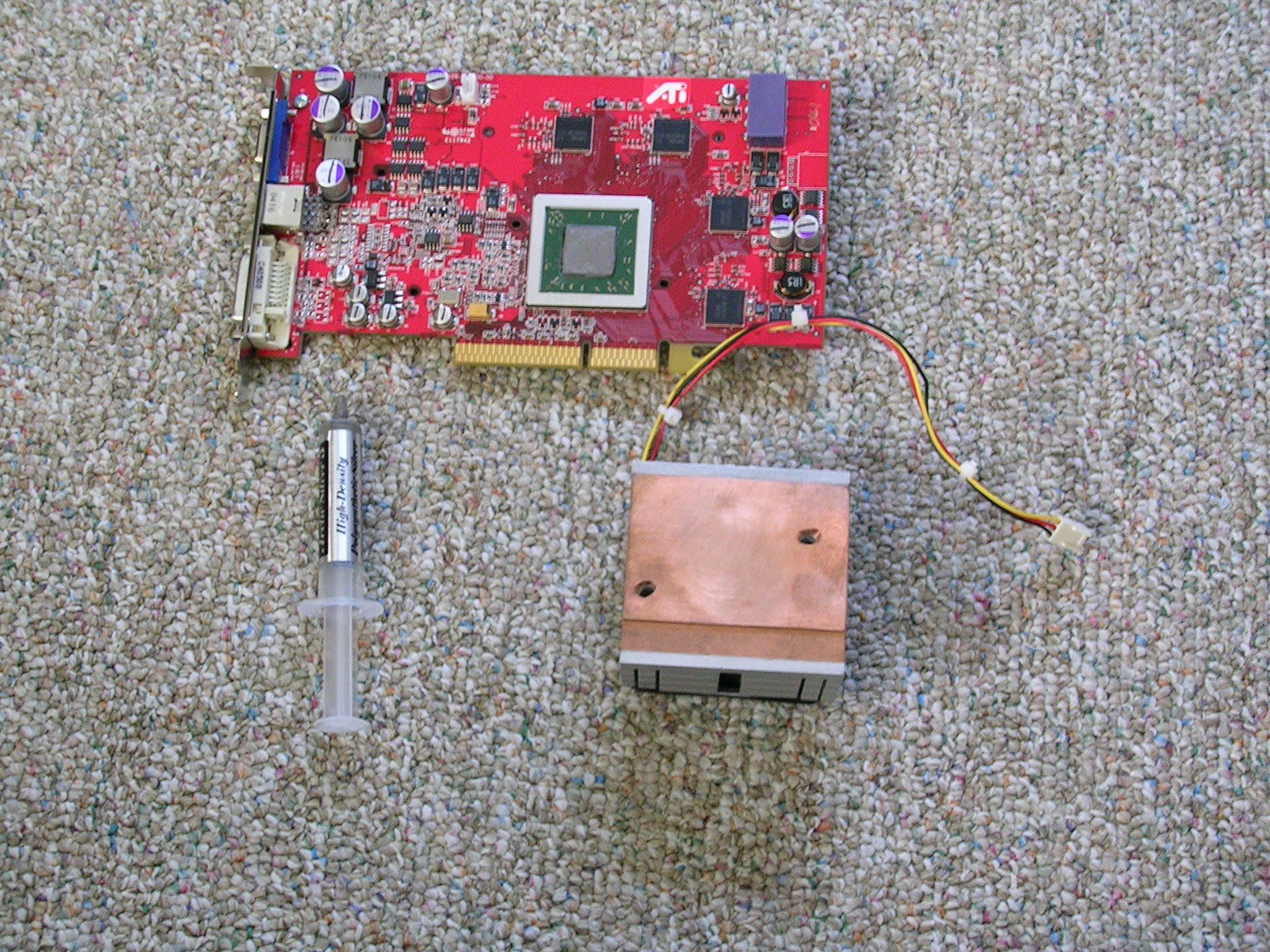
One of the hardest parts to the entire process is finding the right screws. They need to be long enough to go through the base of the heat sink you are using, through the card, and pass the washers into the nuts. Remember, they also need to be short enough so you have some room for adjustment. Everything else is pretty simple. The standard motherboard stand up nuts and washers that come with pretty much every motherboard or case are perfect. Picking the heat sink for your video card isn’t the easiest choice. Keep in mind that it must be small enough so that it does not cover any of the transistors or capacitors on the card. I found that the volcano 8+ I picked up at Fry’s worked perfectly for the job and was just small enough to fit. Although this heat sink is compatible with my card, a VisionTek X800 Pro, it may vary depending on the video card you have. Now that you have found all the necessary equipment and the right sized heat sink for your card, lets get to the modding. :o)
Process
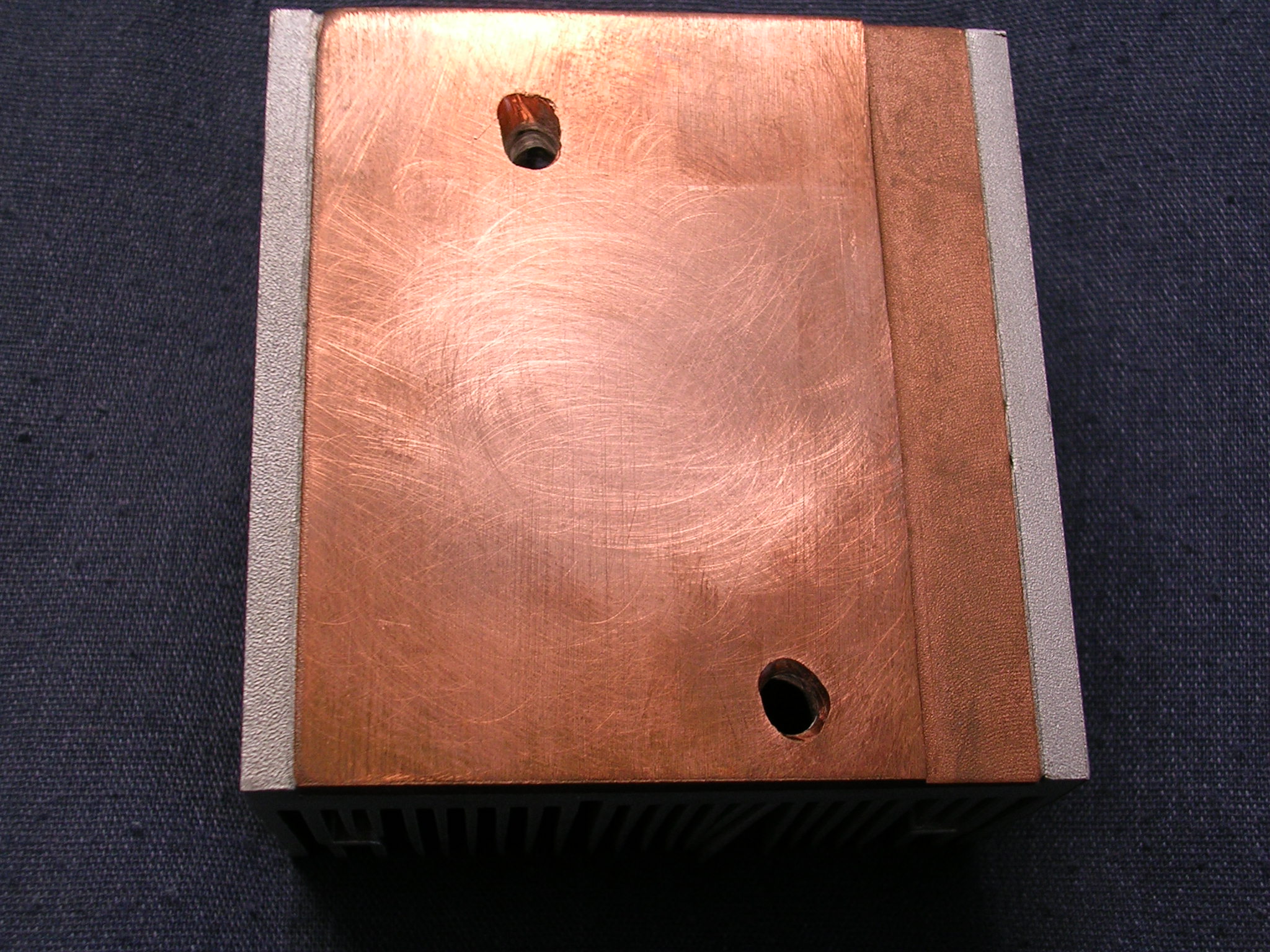
The first step in the whole process is to take off the old stock heat sink and clean off the adhesive paste. To do this just get a cloth or paper towel, damp it with some alcohol or fingernail polish remover, and wipe the sticky layer off of the core of your video card. Next, unscrew the fan off of your heat sink and set your new CPU heat sink onto the core of your card and poke through the other side of the card with a pencil in the two holes, marking the places where you will drill (REMINDER: Remember to keep in mind that the way you position your heat sink must cover no transistors, capacitors, or other components on your card. If you get too big of a heat sink or insist upon using an Intel heat sink and fan you will most likely have to cut down the heat sink to make it fit. This is something I will not cover in this article. Now drill your holes until you pop through the base of the heat sink and start hitting the fins.
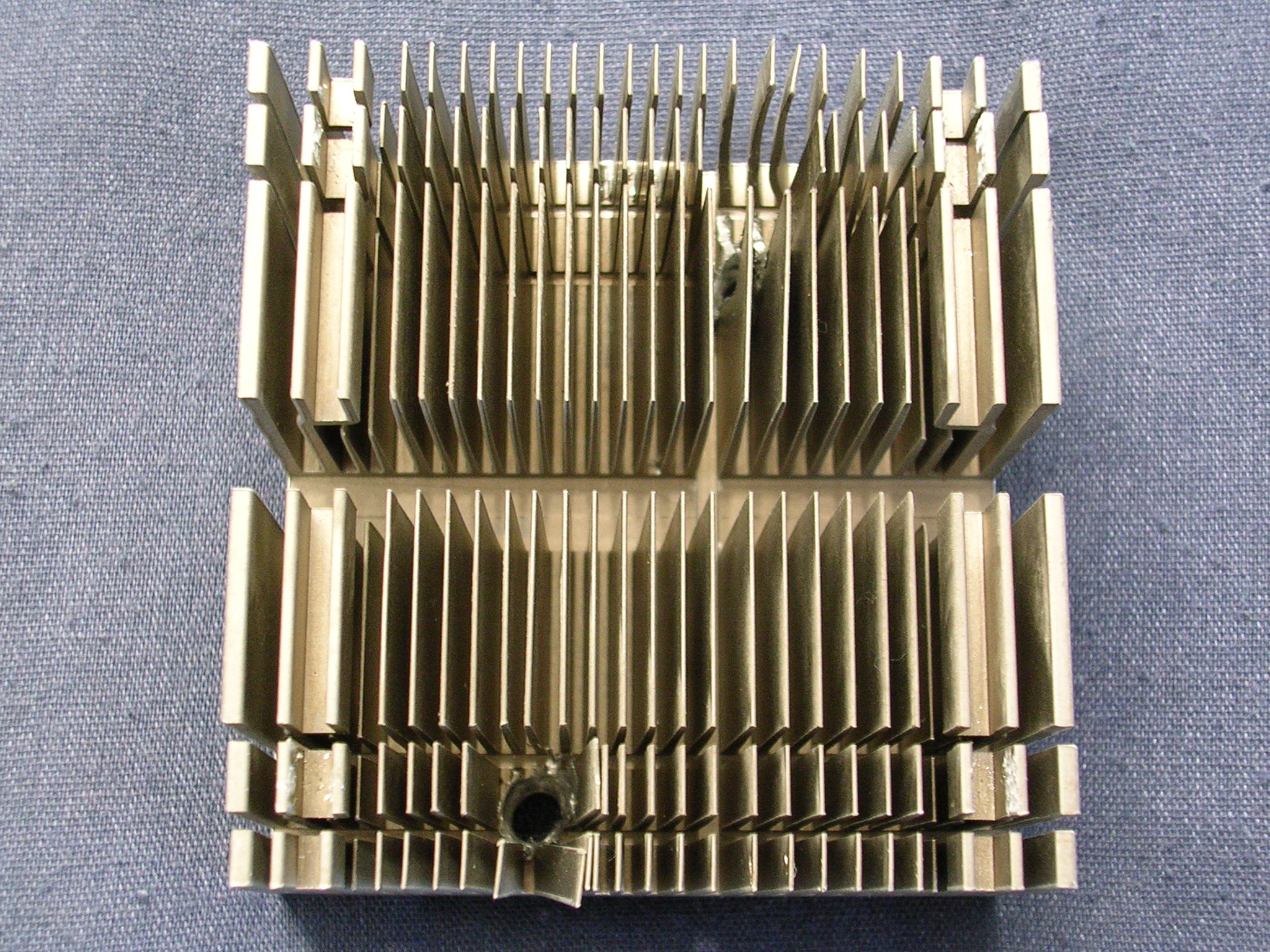
Now you may have to clear some of the fins that are in the way of the soon to be inserted screws’ head. Make sure the screw can fit through the mess of fins and use your pliers to bend the fins near the holes out of the way. You might want to straighten the bent fins later if you’re paranoid and a perfectionist like me :P
**Process Continued and Conclusion:
 **
**
Now you should do all those last minute touchups like cleaning your video cards core with some alcohol and lapping your video cards core or the heat sink. Lapping, for those of you who are new to it, is simply using some sandpaper to smooth the bottom of your heat sink to make it contact better with the core of your card. The higher the sandpaper grit, the better. You should always dab the core of your card with some rubbing alcohol and wipe it off to get rid of any oil from your hands or any old thermal paste that you might have not been able to remove with the towel you used earlier. I have not taken the shim off of my card as it seems to give the heat sink better support and is almost a guarantee that your core cannot be crushed. It is now time to apply some thermal paste to your card–my personal favorite is arctic silver 3. Make sure that you only use one or two drops of it and spread it into a thin, even layer over the core of your video card. Slip the screws through the two new holes in your heat sink between those spaces you made in the fins you bent, line them up with the two holes on your card, then lay your heat sink onto your card making sure the two screws fall through the holes. Once that is done lay the card on the other side with the heat sink facing down or hold your card up. Now is the time to put those two motherboard washers to use by putting them on the screws. These will prevent the nuts from making contact with your card and shorting it–VERY IMPORTANT. Next, screw the motherboard nuts onto the screws with your hands. Once you’ve made sure the heat sink is on tight enough (just enough so it will firmly hold the heat sink on but still not put a lot of pressure on the card), attach the fan back onto your heat sink using its screws, and presto, all done! Now it’s time to plug in that sweet looking card and see how much lower your temps are. :o)
Temperature Results:
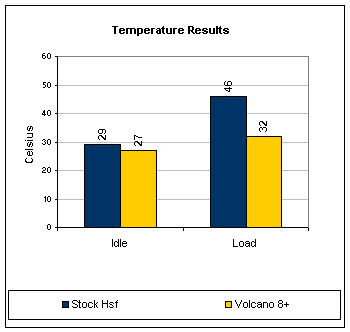
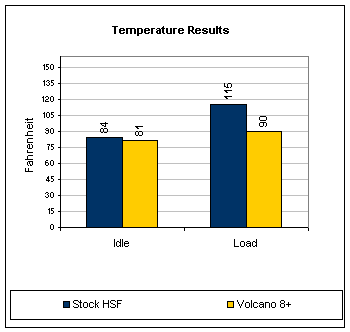
My temperatures have dropped greatly as are shown here at stock speeds. Temperatures were recorded on the top of the card above its core, in the hottest spot I could feel. With the stock heat sink and fan I was able to overclock my card to 522/570 MHZ. With this new heat sink attached I have been able to reach clocks of 540/574 MHZ at temperatures below 36°C. This is after hours of gaming. To say the least, the temperature difference I discovered was enormous.
Idle and Load (3 loops of Nature) Temperatures:
Thank you for reading this article and any other articles at InsaneTek. I hope this guide helps people to attempt this mod more comfortably. If you have any questions or flames, be sure to visit the InsaneTek forums and check out the front page for the latest news, reviews, and articles hitting the PC enthusiast community, I hope you have enjoyed reading.