
Beginner's Guide to Computer Assembly
Since the boom of the technology age, many people think that building a computer is extremely hard and an ability that only skilled people have. However, to the massive crowd out there that believes this, you’re wrong! Anyone can build a computer with the parts in hand, and common sense in mind. Building a computer is actually very simple and you can do it too! Let’s start with purchasing the parts you would need for your system. I would recommend Newegg as the best place to buy computer hardware. It usually has the cheapest parts, and has beyond amazing shipping quality.
Check list:
Let’s begin with the most basic part of a computer, the case.
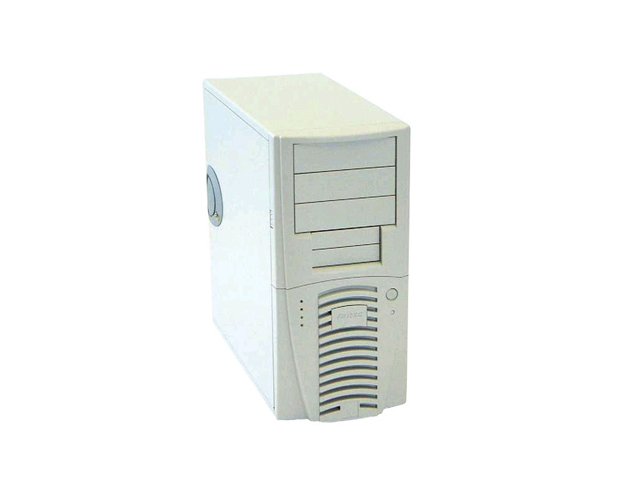
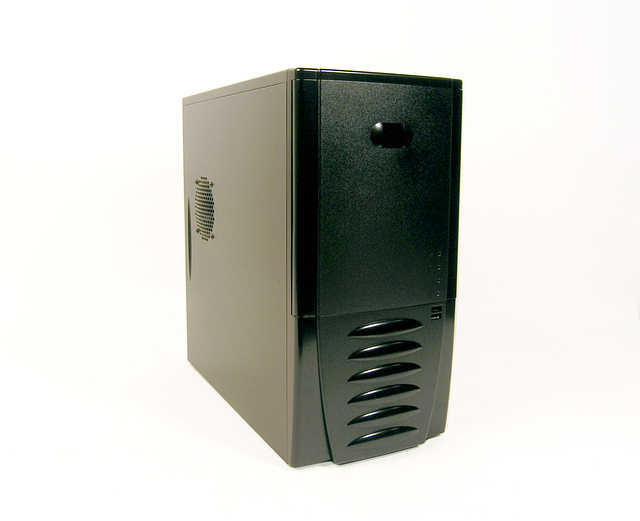
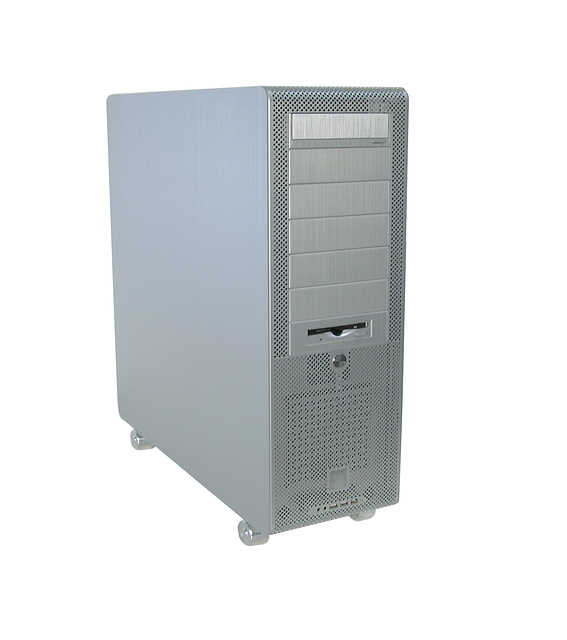
There are three sizes of cases you can choose from: mini tower, mid tower, or full tower. These case sizes are pretty much self explanatory. Here on the left, as you can see, is a mini tower. This is typically for cramped areas in your house and you need space. In the middle is a mid tower. The mid tower is the default size that most people choose as it provides enough space inside the case for more upgrades in the future. All the way to the right is the big full tower. Full towers are not seen that much in an average computer user’s house unless they need the space inside the computer. Some computer desks actually have a hard time fitting one of these things in, if they can fit at all. For the purpose of this artice, we’ll be using a mid tower.
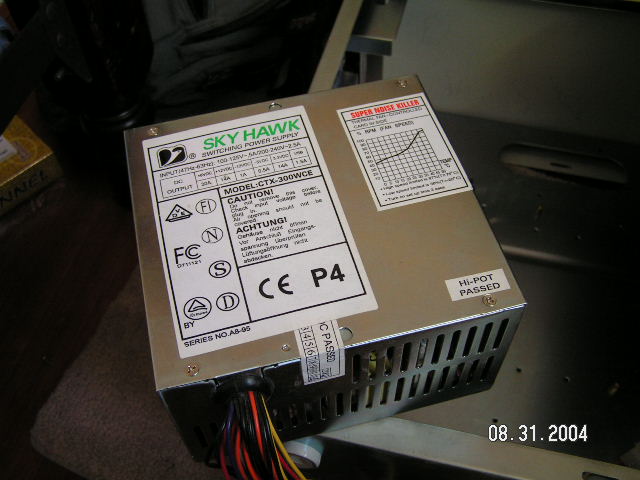
After you choose a case, you should take a look at the power supply unit (PSU). The PSU is what connects the power outlet to your computer, giving it the ability to turn on. This is quite an essential part of your computer because of the varying watts each power supply has. I recommend at least a 400 watt power supply because of future upgrades. A 350 watt power supply will not cut it if you’re planning on building a computer with the latest parts.
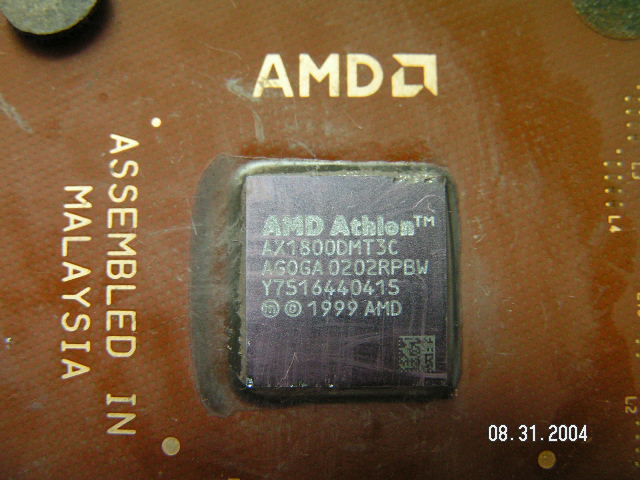
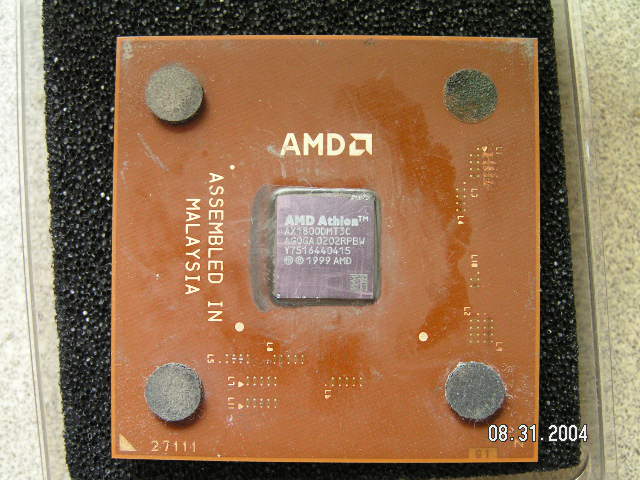
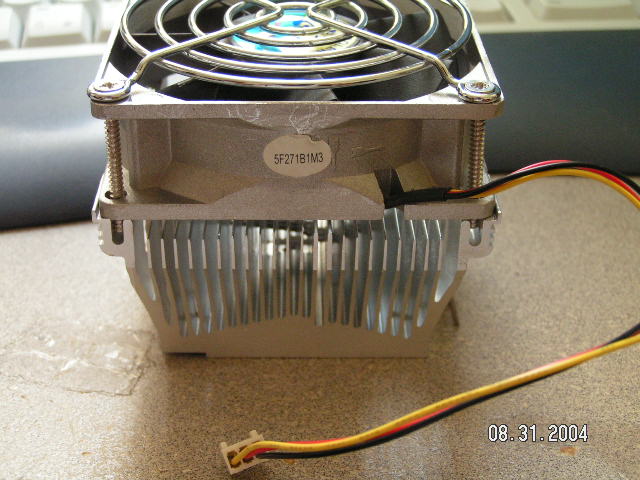
After the power supply unit, the next item you should look at is the central processing unit (CPU). The CPU is the ‘brain’ of the computer and is a very sensitive chip. There are two types of processor brands you can choose for home use, one being the Intel processor and the other being the AMD processor. I will not be going into the significance of these two chips as the main point here is to build a computer. You will also need a heat sink for the processor chip. Although the retail packaging of the processor chip comes with a stock heat sink and fan, it is recommended you get something of better value because heat, as with all machines, is not good. For this article, we will be using an AMD chip and an AMD heat sink.
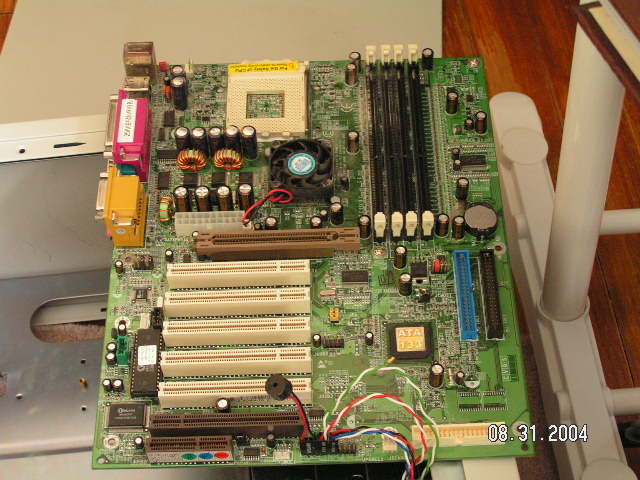
We’ll be taking a look at the motherboard next. The motherboard is the “skeleton” of the computer. The motherboard acts as a main component for you to plug things into, thereby connecting all the pieces of hardware in your computer. The picture below shows a motherboard. As you can see, the motherboard is very complex, as it is the traffic house for all communication in the computer.
|
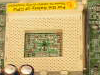
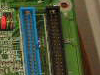
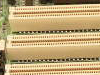
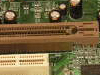
The motherboard will come in many sizes, and varies in what type of CPU is supported. Mini ATX towers will require a mini ATX motherboard and a full tower can support extended, ATX, and mini motherboards. While browsing for the right motherboard, decide if you want onboard video and sound. Onboard video and sound simply mean that you will not have to purchase a separate video and/or sound card. This is for the budget consumer, as you trade quality for quantity. As said earlier, because we are using a mid tower, we will be using a regular ATX motherboard which supports the AMD Athlon processor chip and no onboard features.
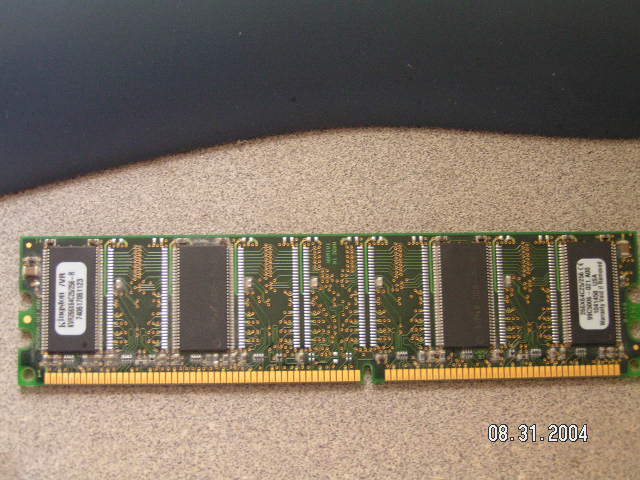
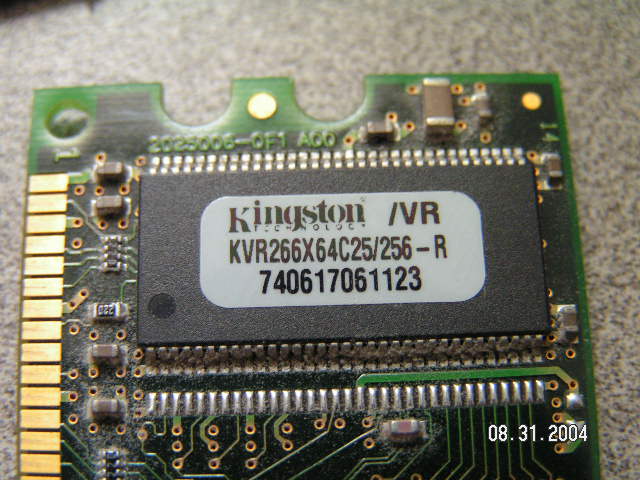
Now it’s time to choose your memory. There is no minimum required memory for any computer, but it is dependent on your personal needs. Usually, companies like Dell and Compaq will provide 128 megabytes (MB) or 256 MB of memory in the computer to save a bit of your money. However, I recommend 512 MB of memory as the minimum requirement for the sake of speed and less stress on you later on. Ironically, I’ll be using only 256 MB of memory when building the computer, as I’m quite poor at the moment. Also, be sure that the speed of the ram is compatible with the supported memory speed (ie: 266 FSB (PC2100), 333 FSB (PC2700), and 400 FSB (PC3200)) on the motherboard.
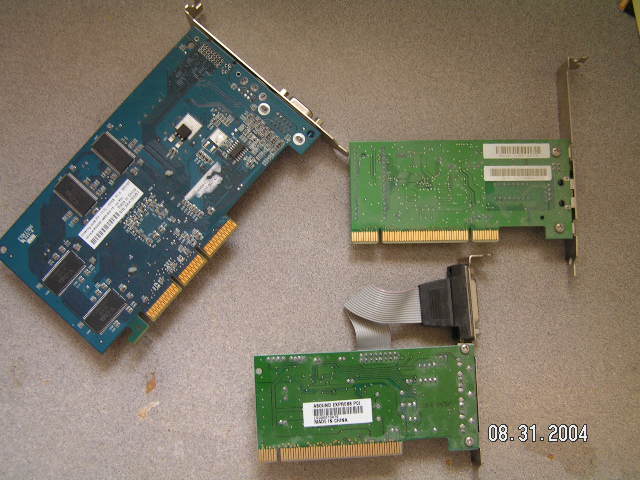
We’re almost to the end of our checklist. We can now look at the video, sound, and network/modem card. The video card is important if you’re a heavy gamer. You’ll want a higher end video card but if you’re using it for work, then a cheaper card can be bought. The same goes for the sound card. The network card is required if you have a broadband connection such as DSL/Cable. The modem card is required if you dial-up to connect to the internet.
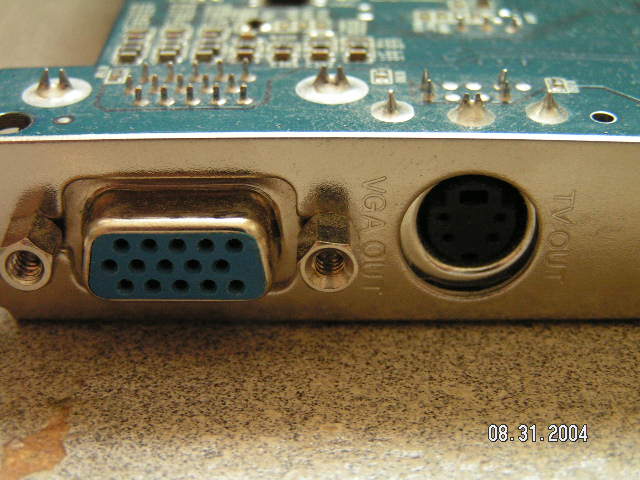
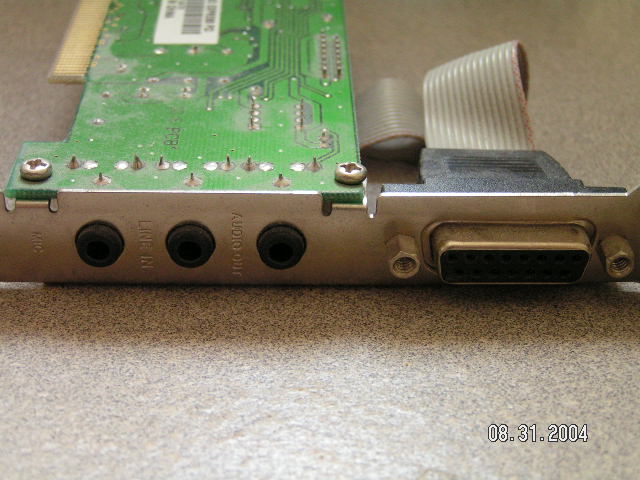
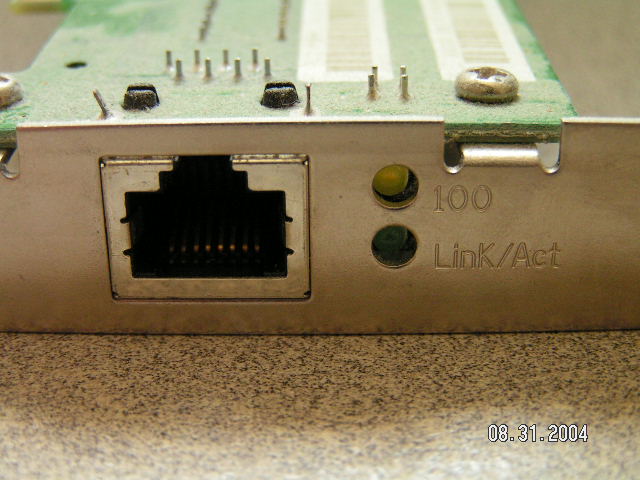
Lastly, we have the hard drive, floppy drive, CD ROM drive, CD Rewriter drive (optional) and monitor. The hard drive stores the data of the computer. Let’s say you saved an important document for work, that will be stored onto the hard drive. The floppy and CD ROM drive read data by means of disks. The CD Rewriter drive lets you record data onto disks. These drives connect to the motherboard by means of an IDE cable, which allows data transfer.
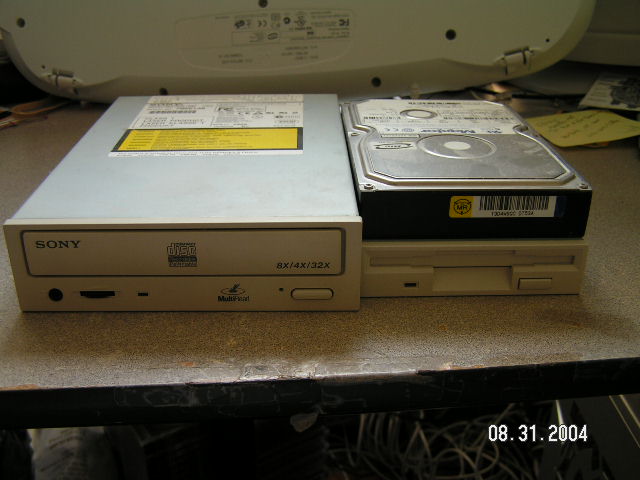
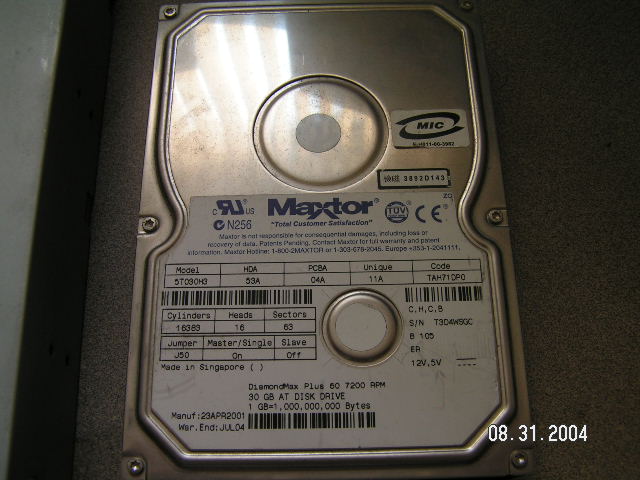
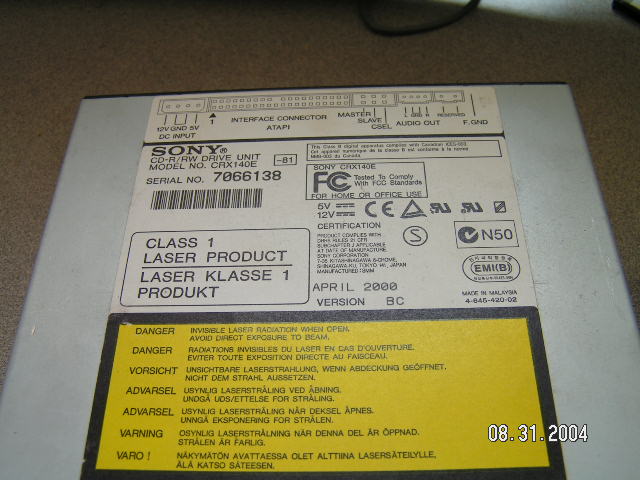
Alright! Now that we have all our parts and our checklist is done, we can start assembling it into a full computer!
Procedure:
First, lay out all your parts in a wide open area where you have access to everything, neatly. You wouldn’t want to be searching everywhere for a part you misplaced and can’t find.
Then, get your handy screwdriver and unscrew the sides of the case so that it’s pretty much bare. Next thing you want to do would be to take out the plastic covers that are in place of where the CD ROM drive, CD Rewriter drive, and floppy drive will be. On some cases, there might be metal behind the plastic covers blocking the way. Simply twist the metal in a cylinder shaped motion and wait until it pops out.
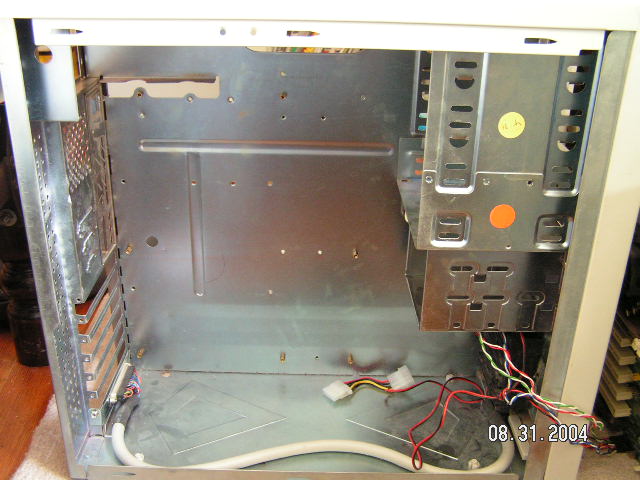
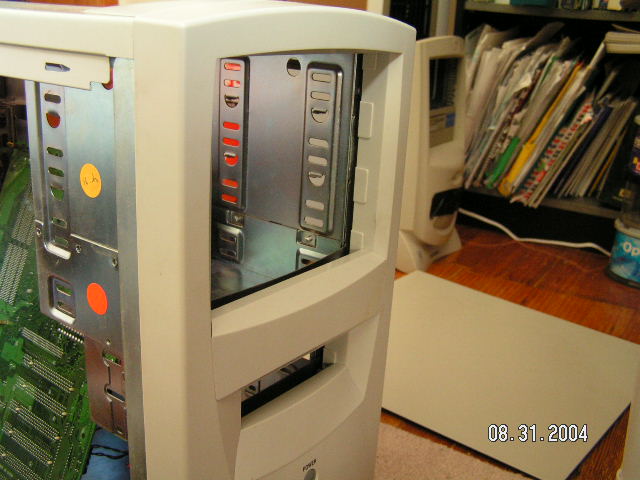
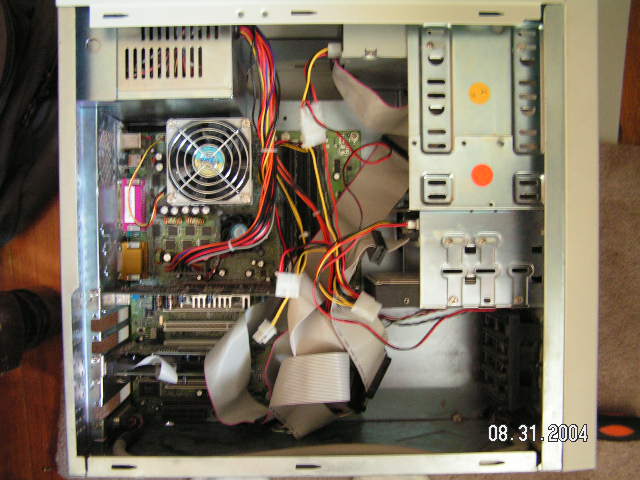
Now, we want to place the power supply in the case, since that is all the way at the top. I like to do this first because most of my cases have a lot of space and it is the easiest to put in without having anything in your way. However, for this case, there is too little space between the heat sink and the power supply so I’ll put the motherboard in first. Gently lay down your case so that the motherboard tray is facing up.
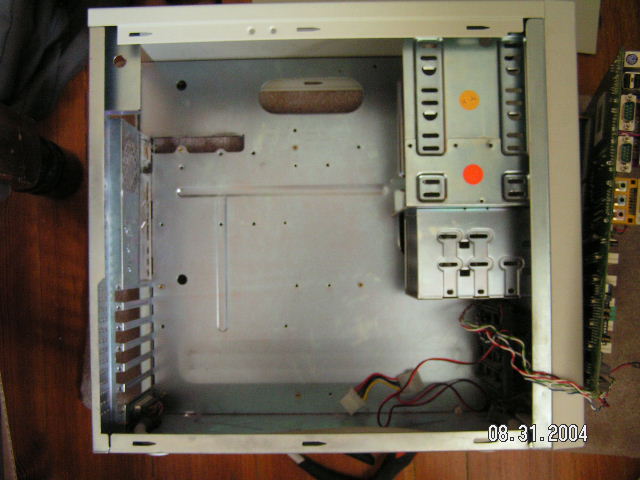
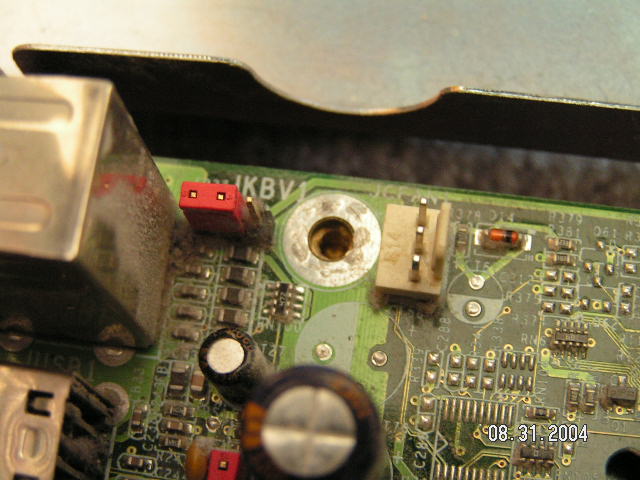
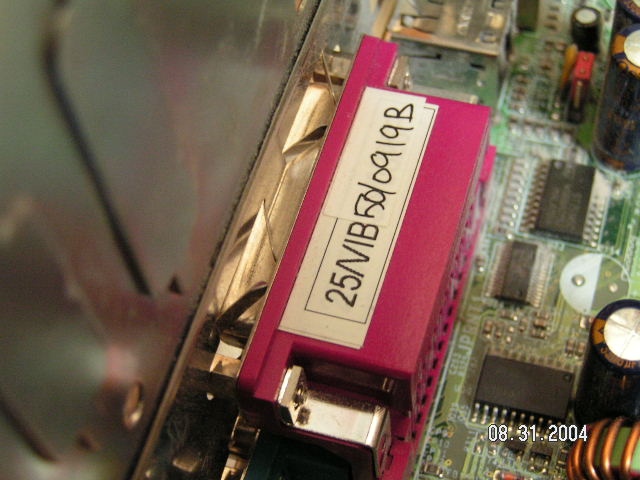
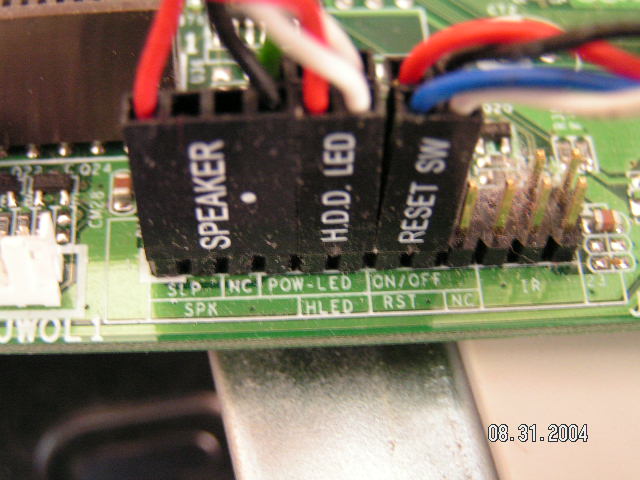
Now, take all the wires that’s currently inside the computer, and plug them into your motherboard’s front panel connectors. You may have to refer to the motherboard’s manual for more information, if the motherboard does not specify how to plug the connectors in. After that’s all done, you may now put the motherboard inside the case. Carefully align the motherboard holes with the motherboard tray holes and make sure that the I/O panel is fitting correctly. Now, find the right screws and screw the motherboard securely onto the motherboard tray.
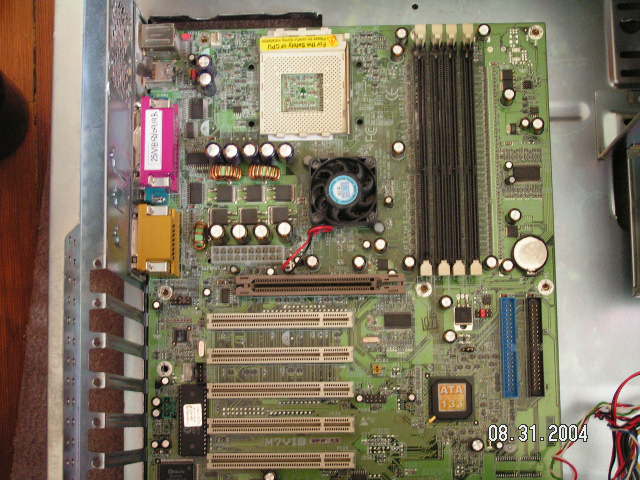
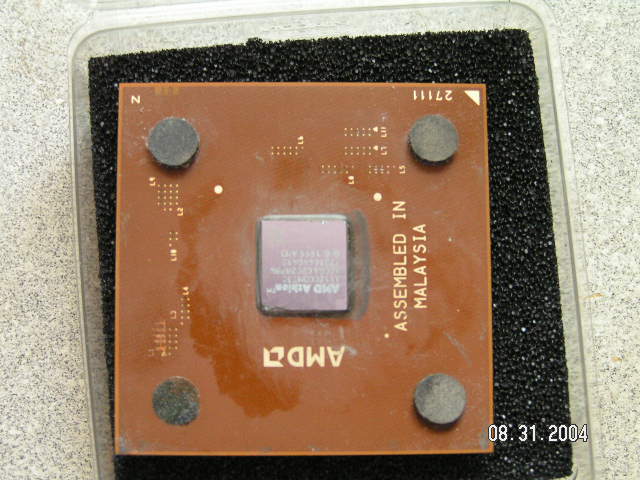
The motherboard part is now finished. Moving onto the CPU, there is a specific direction you must use to put it in. See the arrow on the corner? For AMD chips, that must face the top right hand corner when you insert the chip into the motherboard. For Intel chips, the arrow must face the corner without holes.
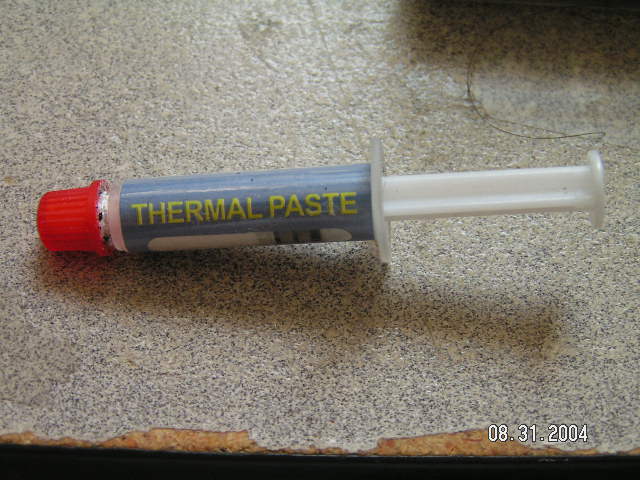
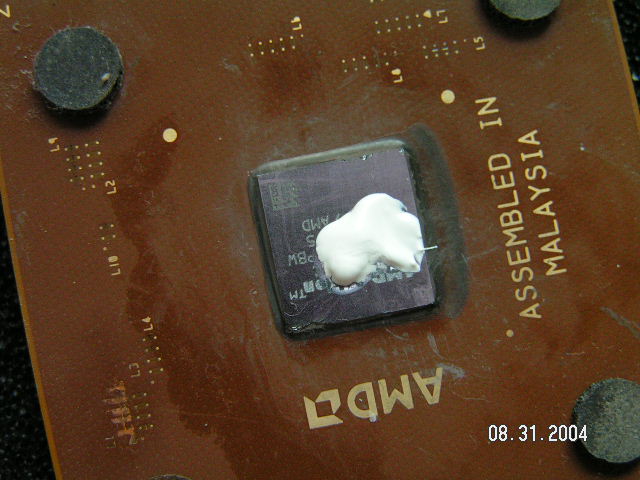
Before you put it in, the heat sink you bought should have come with a stick of substance, which is called thermal paste. Go ahead and take off the cover, and apply a tiny drop in the center of the chip and use a flat edge credit card and spread it out. This substance helps heat transfer from the CPU to the heat sink, but too much will insulate the heat.
Now, carefully without tilting the chip, put the chip inside the motherboard slot. Make sure the lever on the motherboard slot is up before proceeding. Slide it in, and make sure it is fully in. Now you can pull the lever down and it will lock the processor in place.
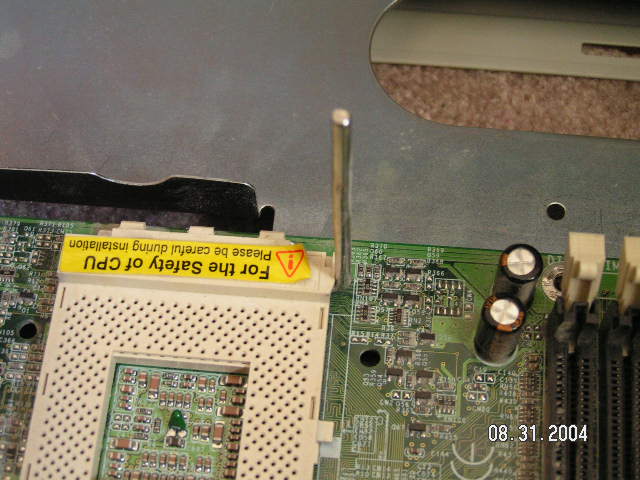
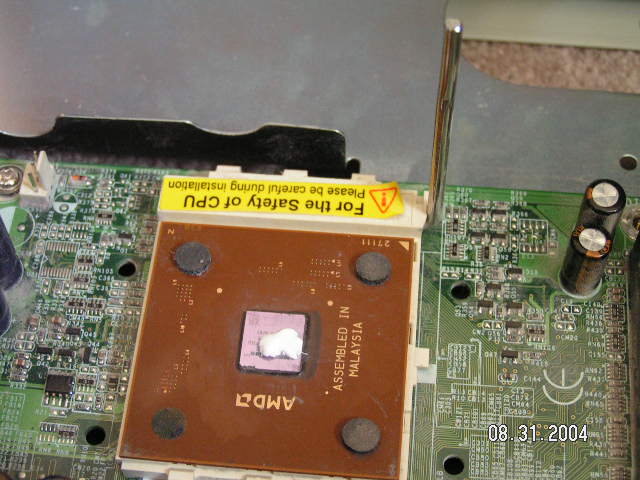
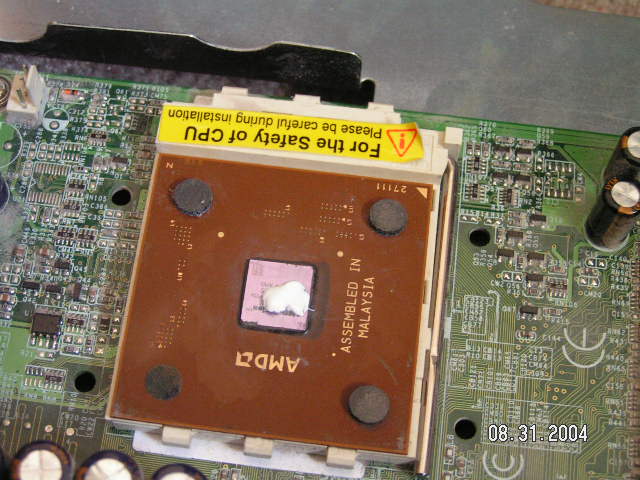
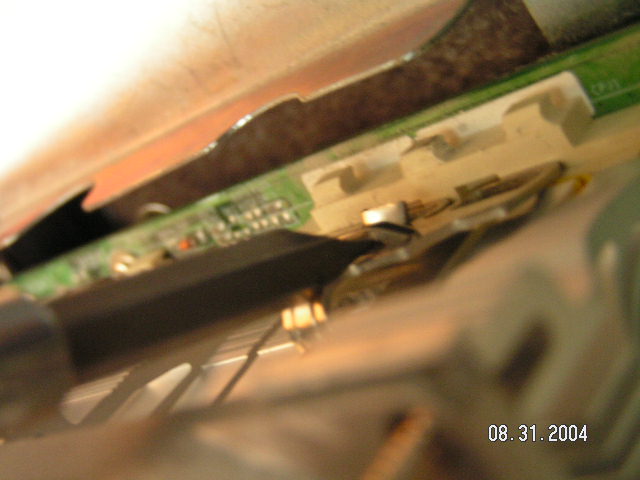
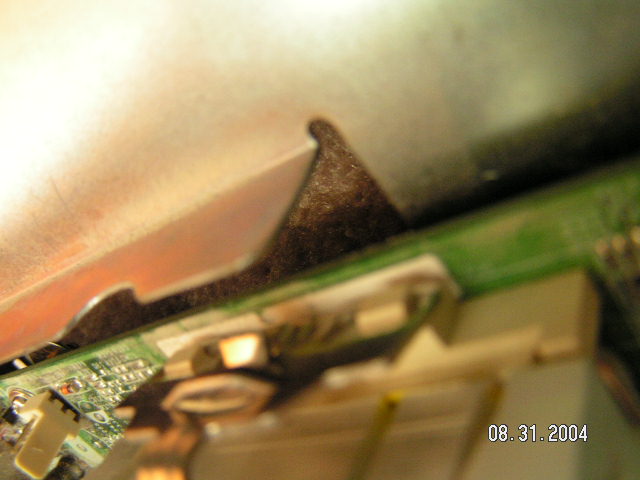
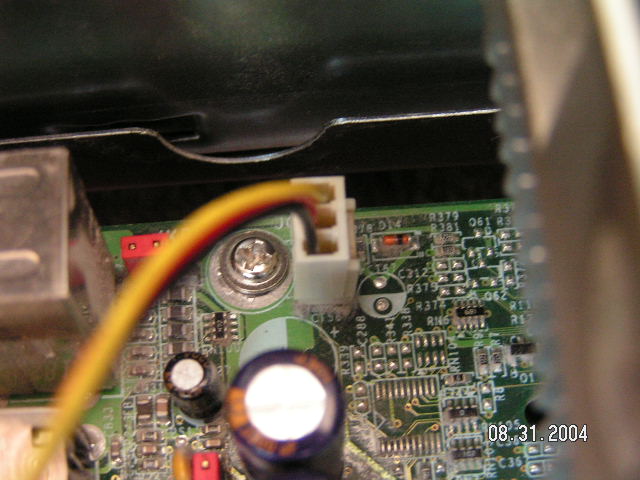
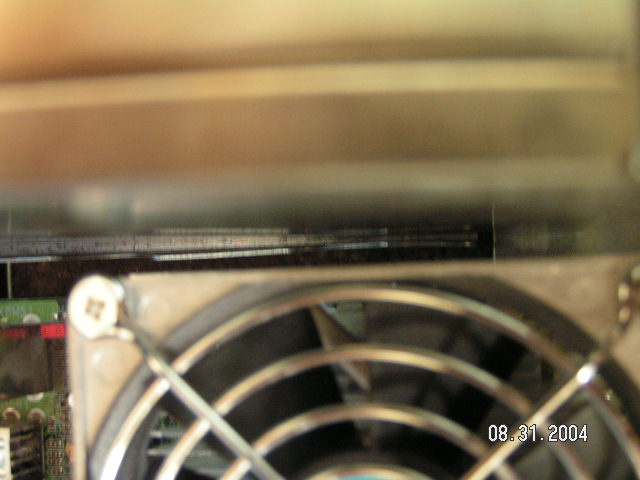
The next part is taking the heat sink and putting it on top of the processor. This might be a hard part for the majority out there, because if done incorrectly, there will be a chance you can crush the processor core. However, never fear, this guide won’t steer you wrong. Go ahead and take your heat sink and put the bottom part on corresponding slots of the processor slot on the motherboard. Now, push forward on the heat sink and align it so that the heat sink is FLAT on top on the processor chip. This also helps to lock the bottom clip into place with the clamp. Then use a flathead screwdriver and insert it onto the clamps. Push down and guide the clip onto the clamps. After that, just plug the 3 pin fan connector into the designated CPU fan header on the motherboard. You may have to refer to your motherboard manual to locate it. Now do you see why I didn’t do the power supply first?
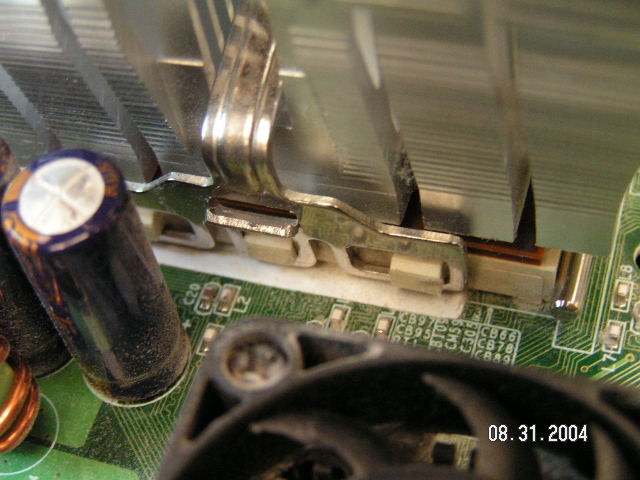
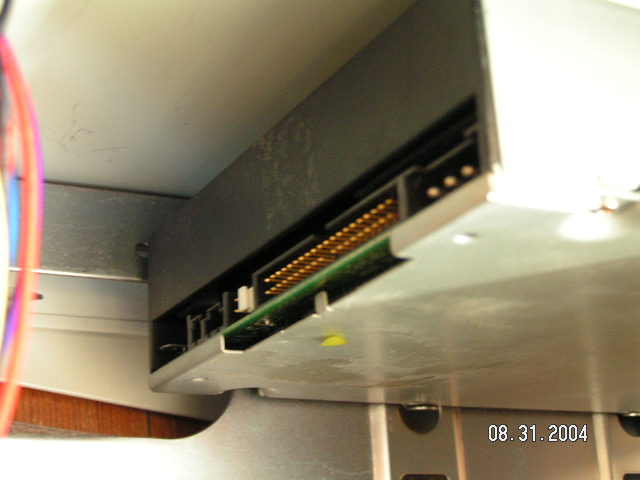
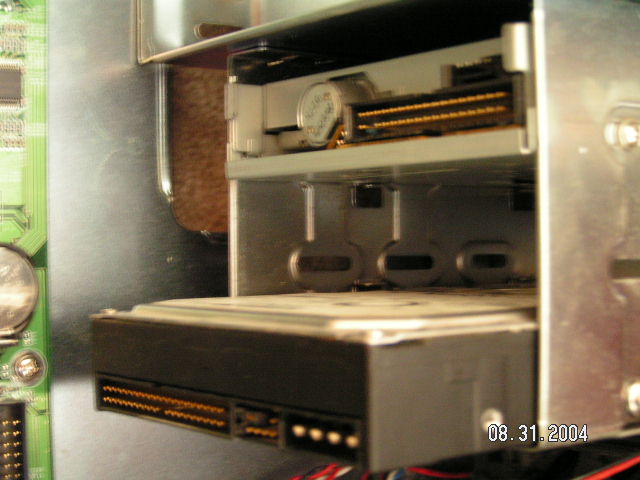
Now that the hard and confusing part is done, lets go ahead and place the power supply in. Use the appropriate screws and secure the power supply in the back. Proceeding onwards, lets put the memory, CD ROM drive, hard drive and floppy drive in the case. The whole point to the specific sequence is so that no other hardware blocks the way of other hardware you didn’t put in yet. This provides you with the smoothest journey possible. Again, use your screwdriver and secure those drives in. For the hard drive, you’ll want to put it in the smaller bays, so just push it through from the back, inside the case.
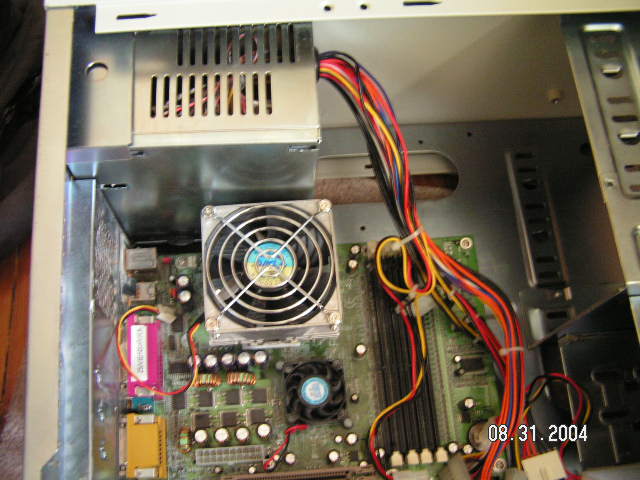
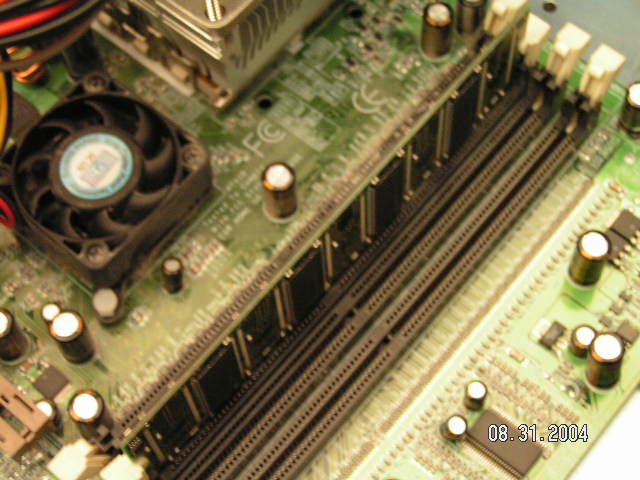
We’re almost done with the whole process so don’t stop! We’ll plug in the rest of the cards in now. This includes the memory, video, sound, and network card. Just simply align the pins with the white PCI slot, which is located to the left of IDE slots, as mentioned earlier in the article, and push. If it doesn’t want to go in, it’s just not aligned correctly! Build up some confidence and push it in vertically straight down. This way, you work alongside with gravity and will be able to push the card in.
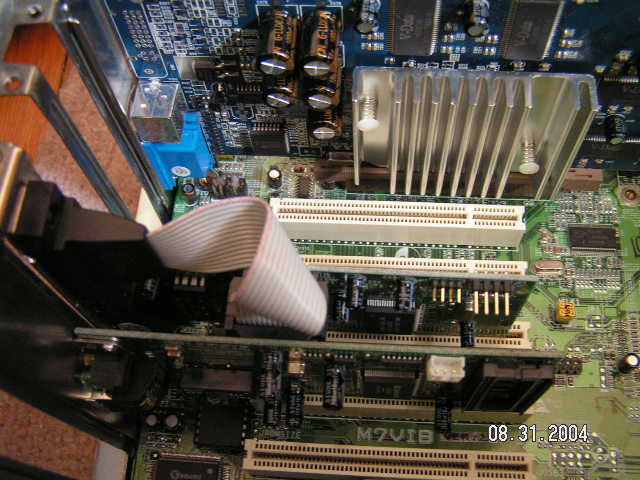
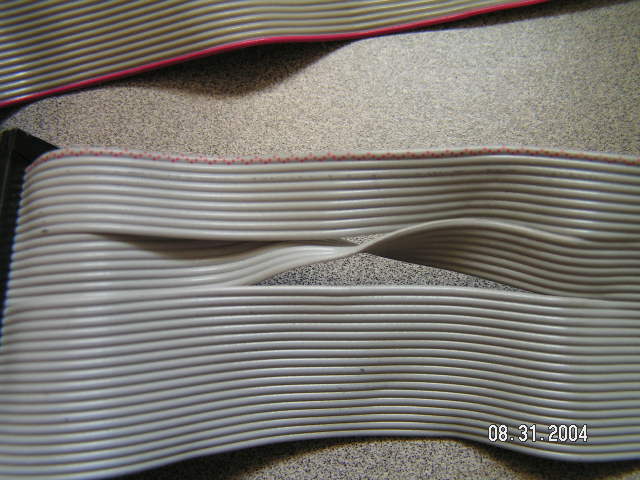
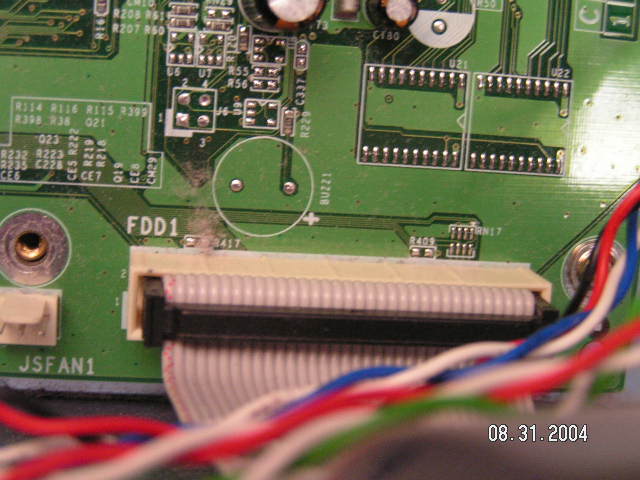
You might be wondering where the cables to connect the drives are, but don’t worry. Locate these IDE cables and plug them into the corresponding IDE slots. These ports are right under the memory slots. The middle one is for the floppy, so don’t get confused. You can identify it by the twisted strand of cable in the middle. After you’ve plugged it into the floppy slot of the motherboard, proceed to plugging the other end into the drives. The blue one should go to the hard drive and the black one should go to the CD ROM. The white one shall go to the remaining floppy drive.
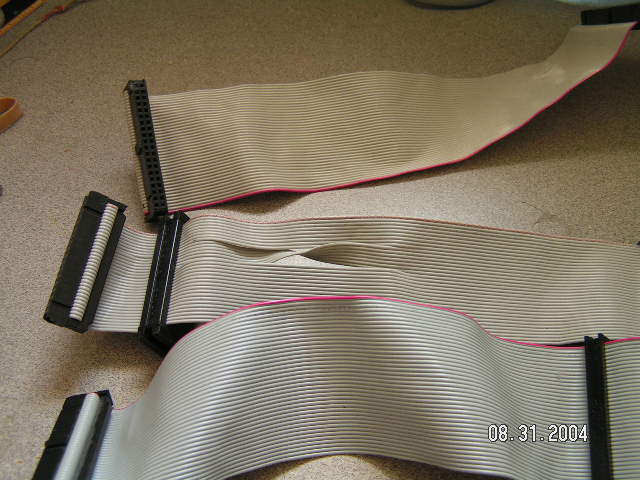
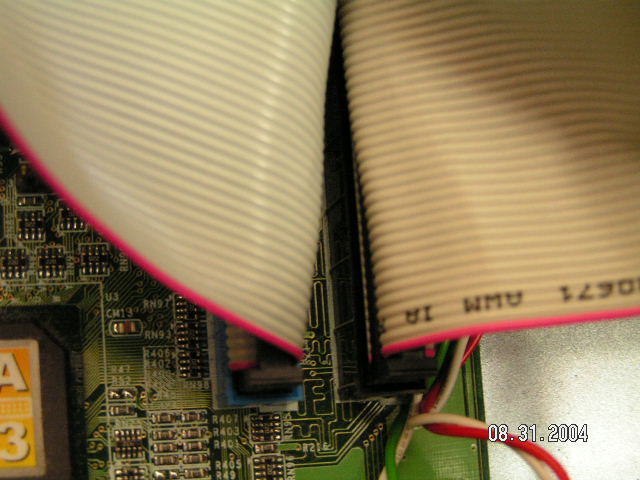
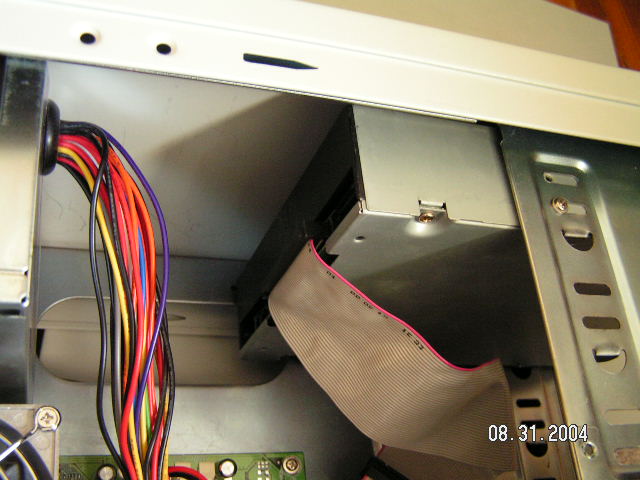
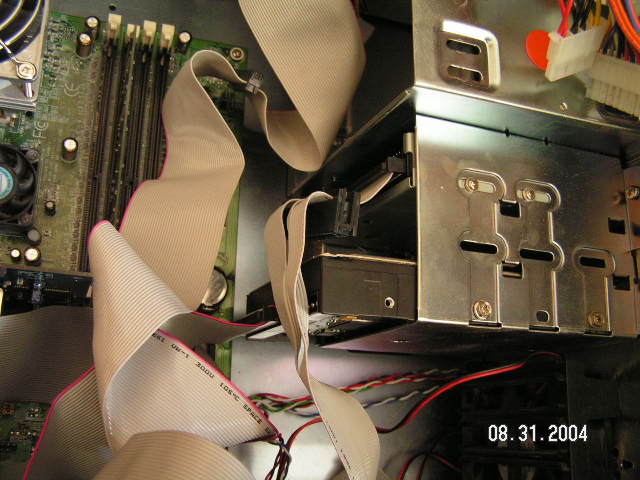
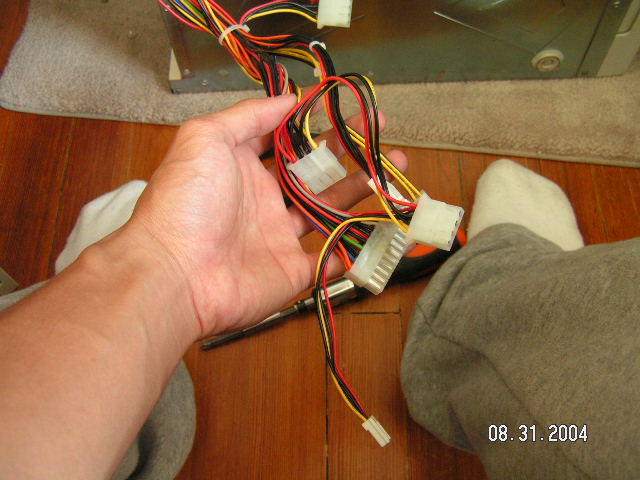
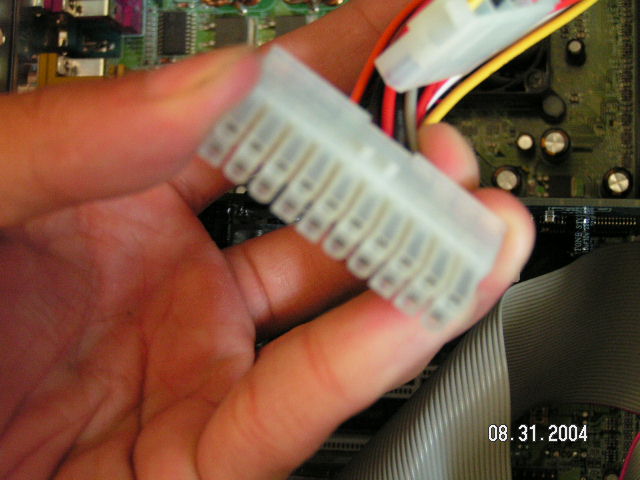
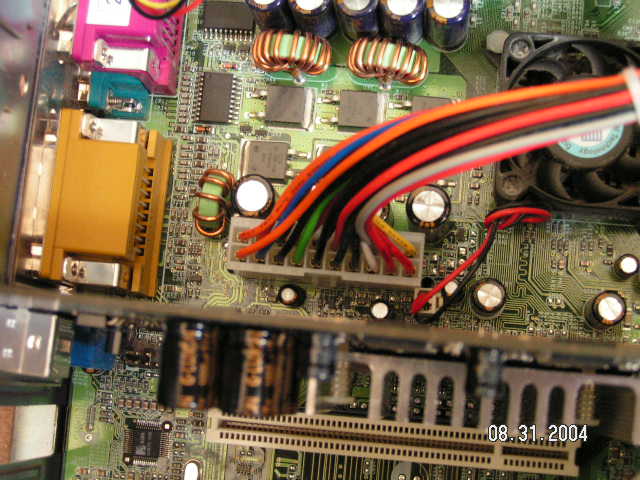
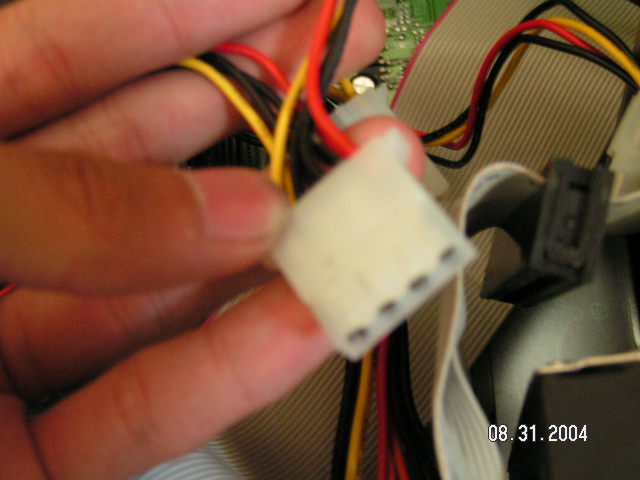
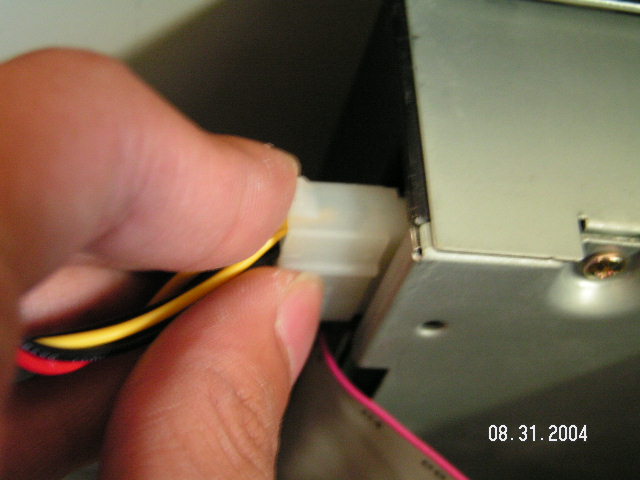
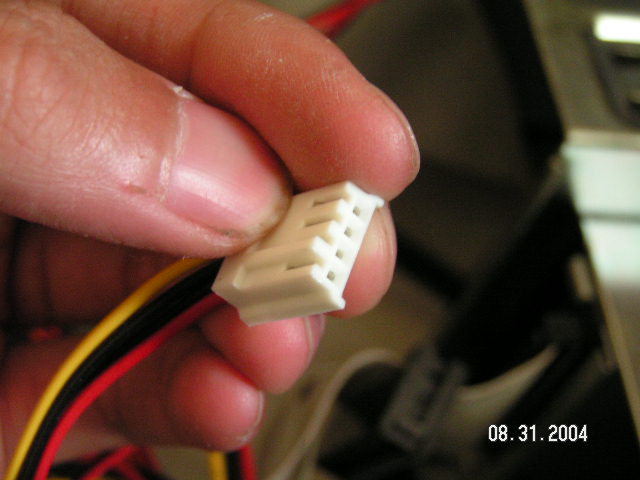
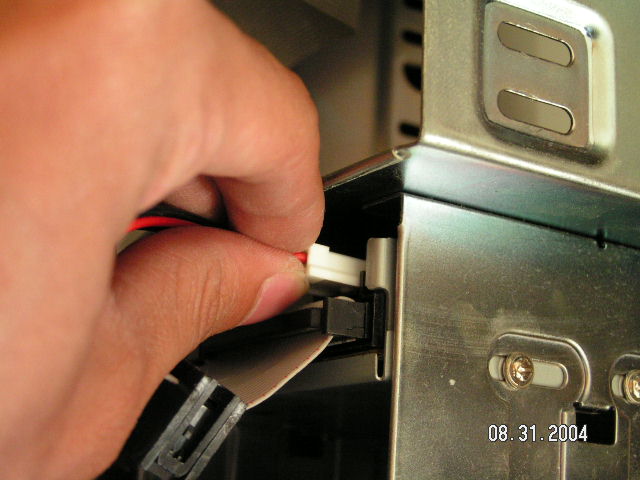
Lastly, you will need to plug the power connectors into everything. Plug the power into the motherboard first. You can identify which power plug it is by the shape. This long rectangle one goes to the motherboard. The smaller four hole connectors will go into the drives. The smallest connector, will go into the floppy drive.
Conclusion:
Alas! The long journey is over! You have yourself, a new built computer! That wasn’t so hard was it? As you build more computers, you will gradually get faster and faster. I know I’ve gotten faster: First time I ever built a computer, it took me a good 45 minutes. Nowadays, it takes me 15 minutes. Let this be the start of a wonderful experience in the computer world for you. I hope you’ve learned a lot from this tutorial and will share this knowledge with many others.