

Gigabyte GO-B5232A CD-RW and DVD-ROM Combo
It’s been a long time since people have started recording and backing up things on to blank media. When hard disk space is an issue or you need to back data up to transfer it, a burner is vital to your computer. Although DVD burners are becoming cheaper as we shift over to more space on each media disc, CD burners should not be forgotten. CD’s are still a world standard because of their flexibility. For example, mailing a CD costs a lot less than a DVD when you need to send something via snail mail. I personally do a lot of publishing work for my school and CD’s are the cheapest solution when I need to send things with next day shipping. I remember when CD burners first came on the market. I got an early Phillips model that only had a speed of 2x. Today, CD burners seem to have stopped at a speed of 52x, which can burn a full 700mb CD in 2-3 minutes.
Gigabyte has their own version of a 52x burner. Sadly, I have never had the chance to play with a faster burner than my old Sony 16x. Even when I bought a DVD burner, it only burned my discs at a measly 24x. Today, we’ll take a look at the Gigabyte B-5232A CDRW Burner/DVD ROM combo.
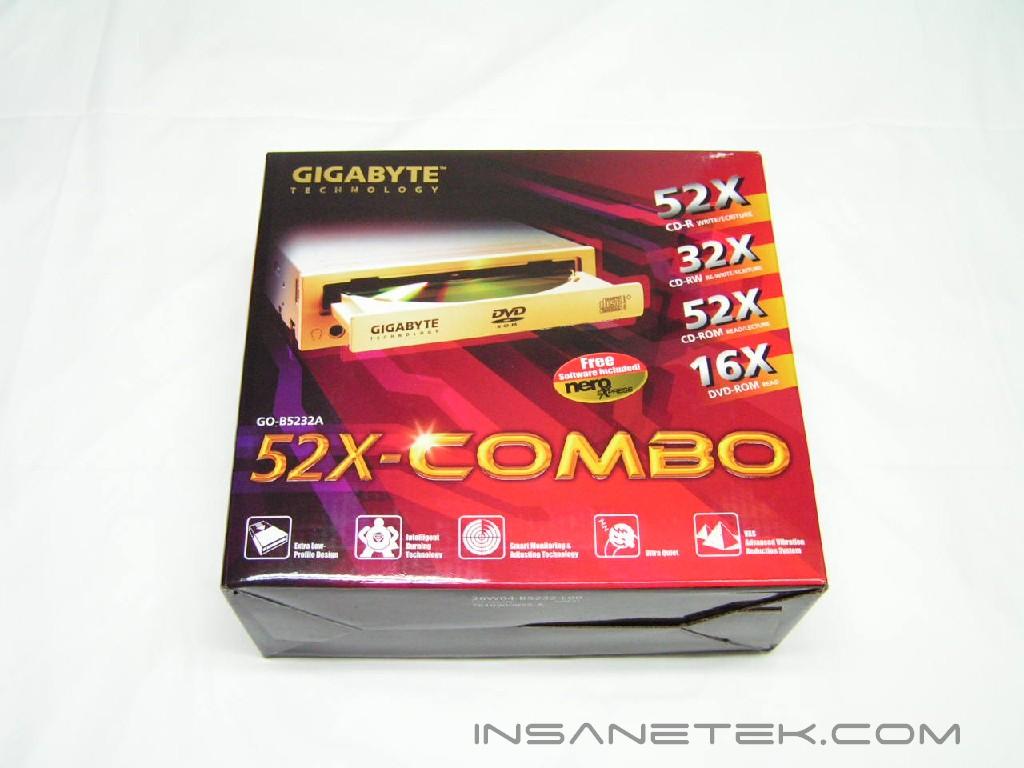
Packaging and Contents
Here are some features and specifications taken from Gigabyte’s website:
Features
-
I.B.S Technology
-
GIGABYTE’s I.B.S (intelligent Burn SuperLink) technology avoid any under buffer run happened, assure your record quality and avoid the failure which interrupt by any of inter running program.
-
i-Burn Technology
-
i-Burn Technology delivers a high burning quality solution for data storage you never experience. GO-B5232A COMBO will auto detect the optimal recording speed to ensure your backup data quality.
-
Low-Profile Design
-
With low profile design, the GO-R5232A COMBO is more suitable to use in small form factor PC without any heat problem.
-
i-Speed Technology
-
With i-Speed Technology design, the GIGABYTE GO-B5232A COMBO automatically adjusts the reading speed while different type of media has been detected.
-
VRS & Ultra Quiet Design
-
The VRS (Vibration Reduction System) and Ultra Quiet design offers unparalleled performance and quiet working environment for any system.
-
Vertical & Horizontal mounting
-
The GIGABYTE GO-B5232A COMBO offers the best reliability, compatibility and excellent performance of data seeking / reading for all support media at vertical or horizontal position.
Specifications
- I****nterface: E-IDE/ATAPI
- Supports: READ - DVD-R/RW / DVD+R/RW / CD-R / CD-RW WRITE - CD-R / CD-RW
- Max Write Speed - CD-R 7800KB/sec (52X, CAV) CD-RW 4800KB/sec (32X, P-CAV)
- Data Transfer Rate - CD-ROM 7800KB/sec (52X, CAV) CD-RW 6000KB/sec (40X, CAV) DVD-5 21632KB/sec (16X, CAV) DVD-9 13520KB/sec (10X,CAV)
- **Dimensions:**145 ( W ) x 41.3 ( H ) x 170 ( D ) mm
- Weight: 1 kg
- Required Operation System: Windows XP / 2000 / NT / Me / 98SE
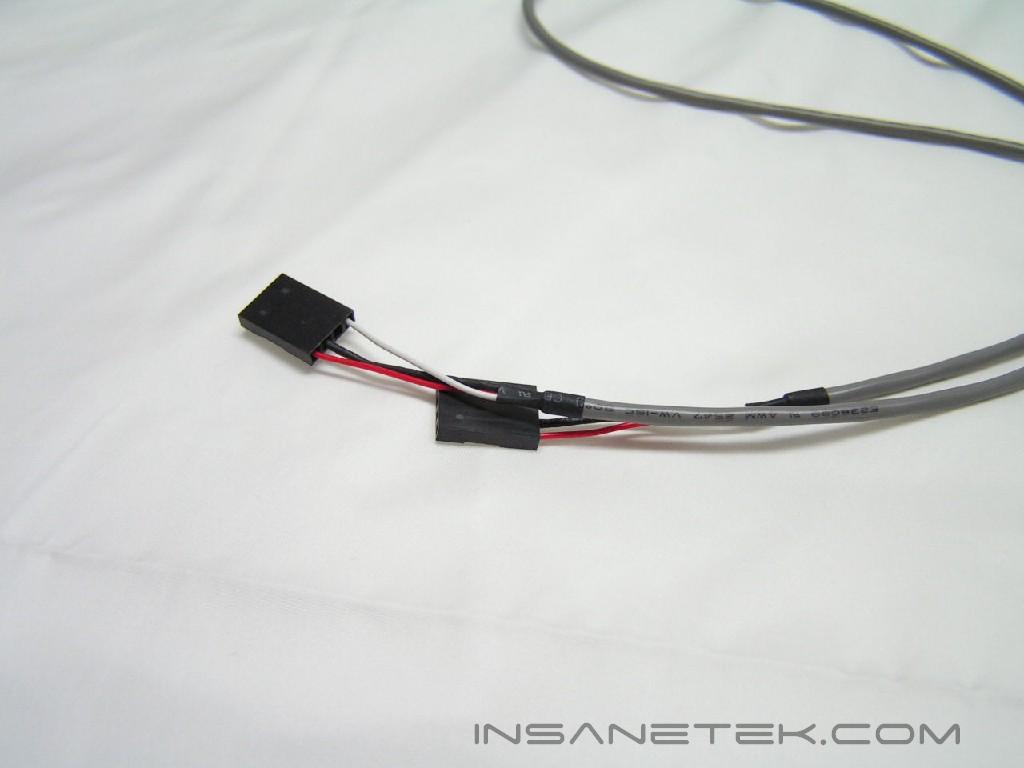
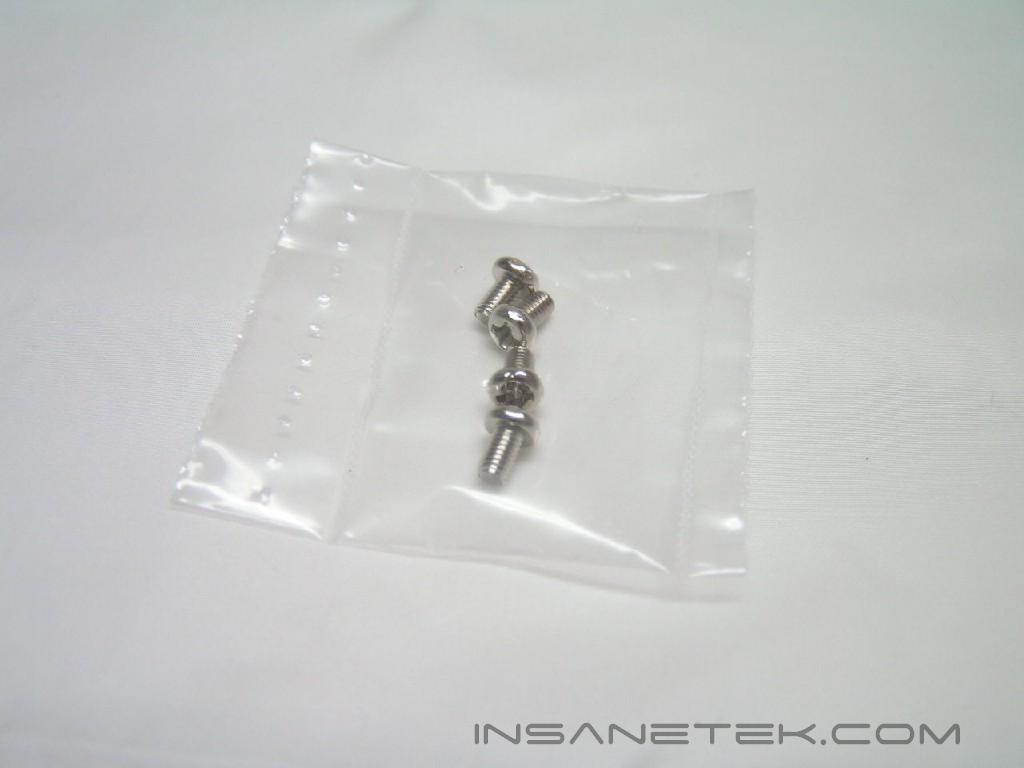
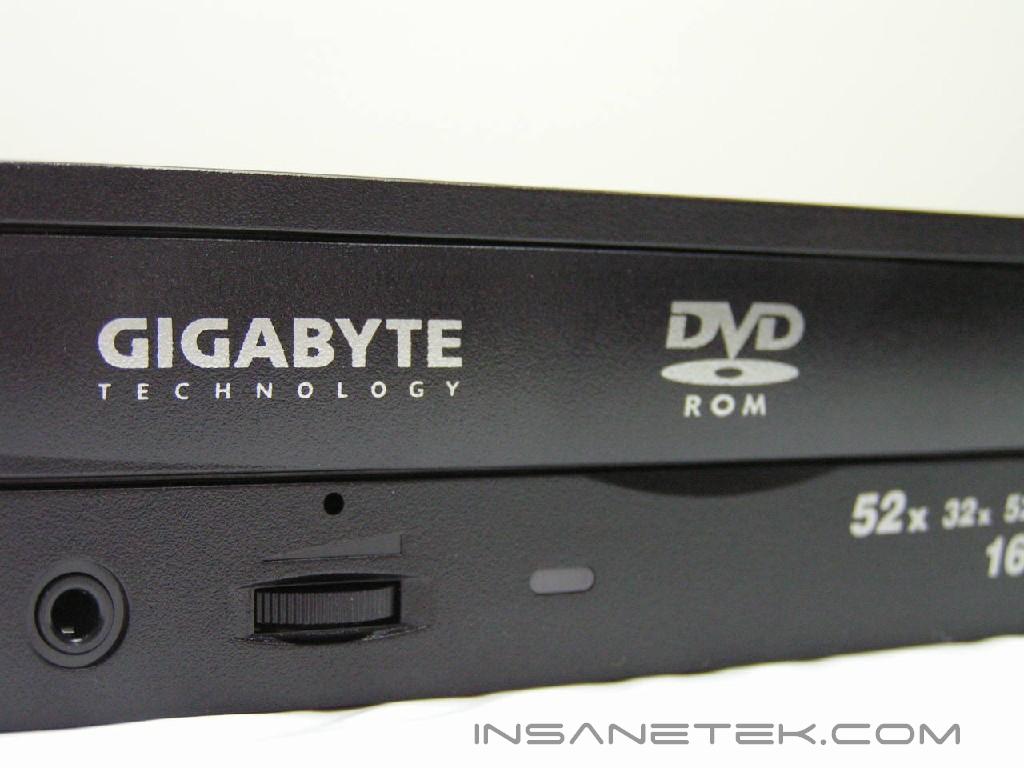
Gigabyte includes all the necessary things to install this burner. In the package, there was the burner itself, one audio cable, a pack of four screws, an instruction manual, and two CDs which were the included software, Nero and PowerDVD. What was sent to me was a black version of this burner, however, it also comes in white.
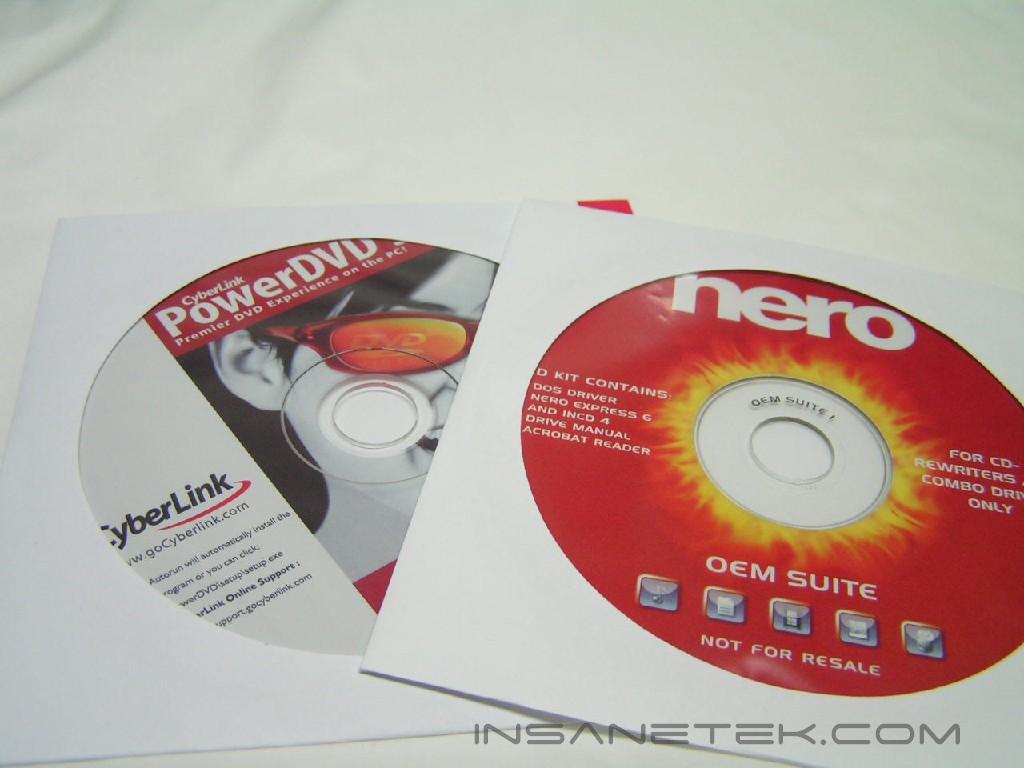
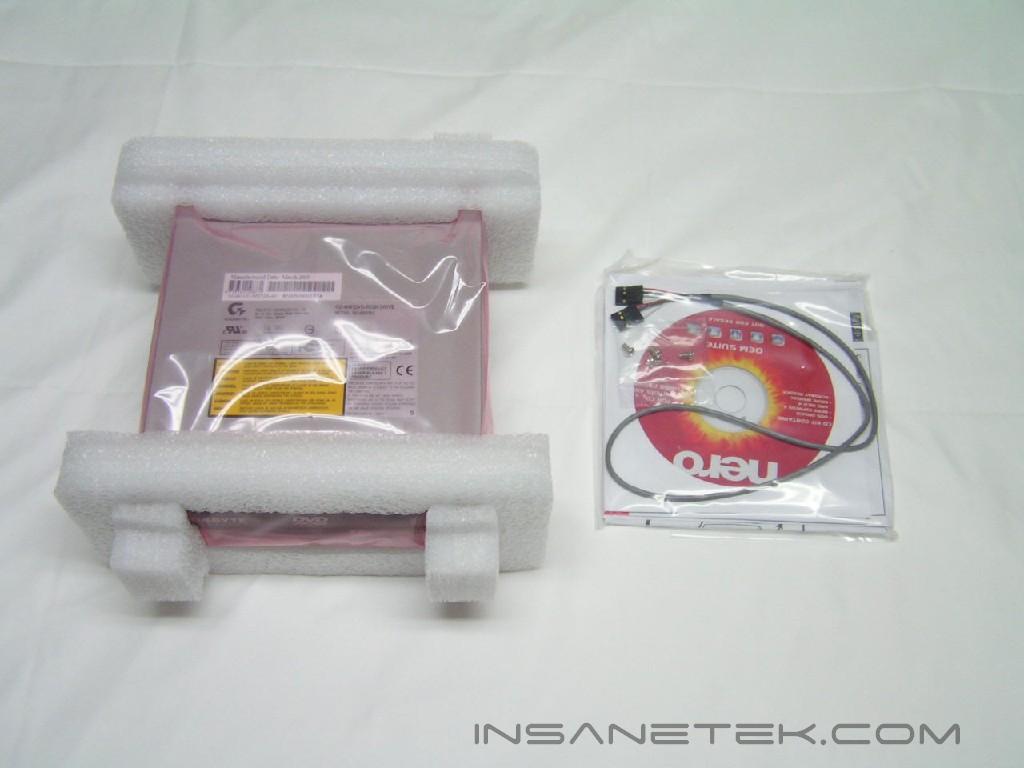
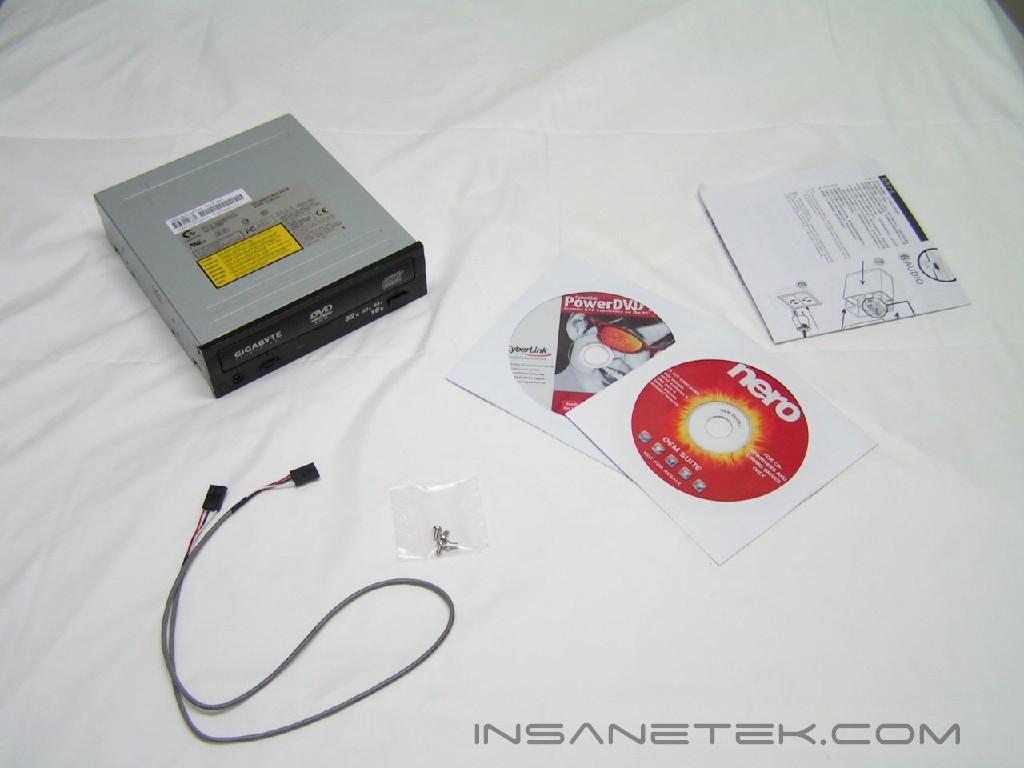
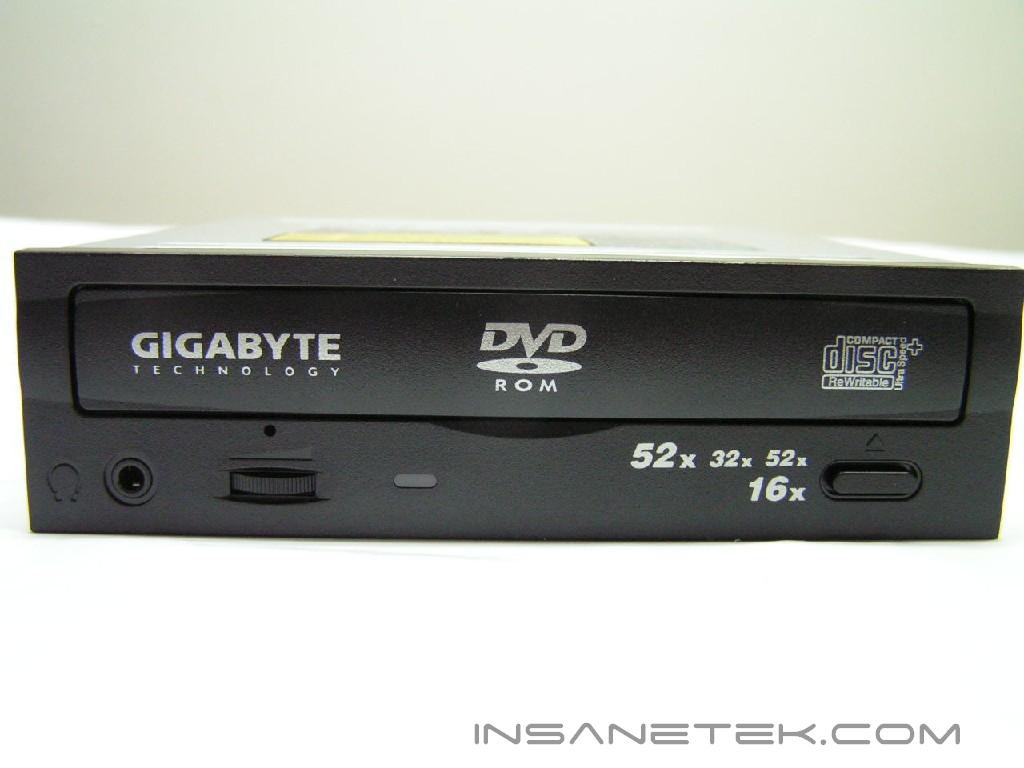
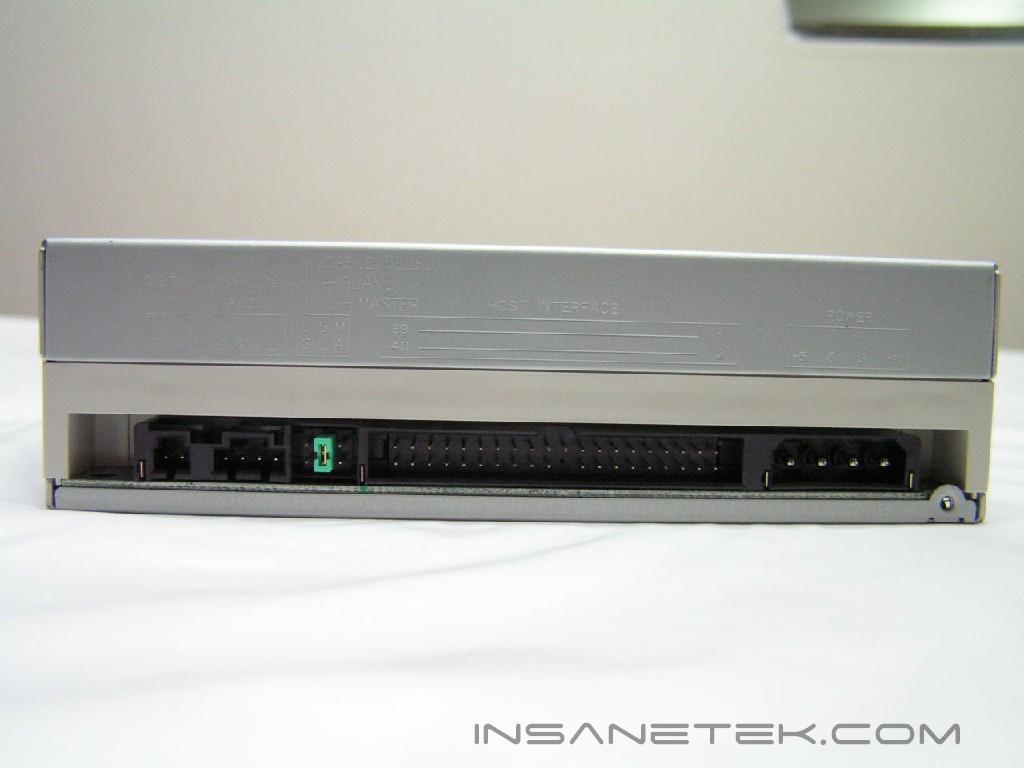
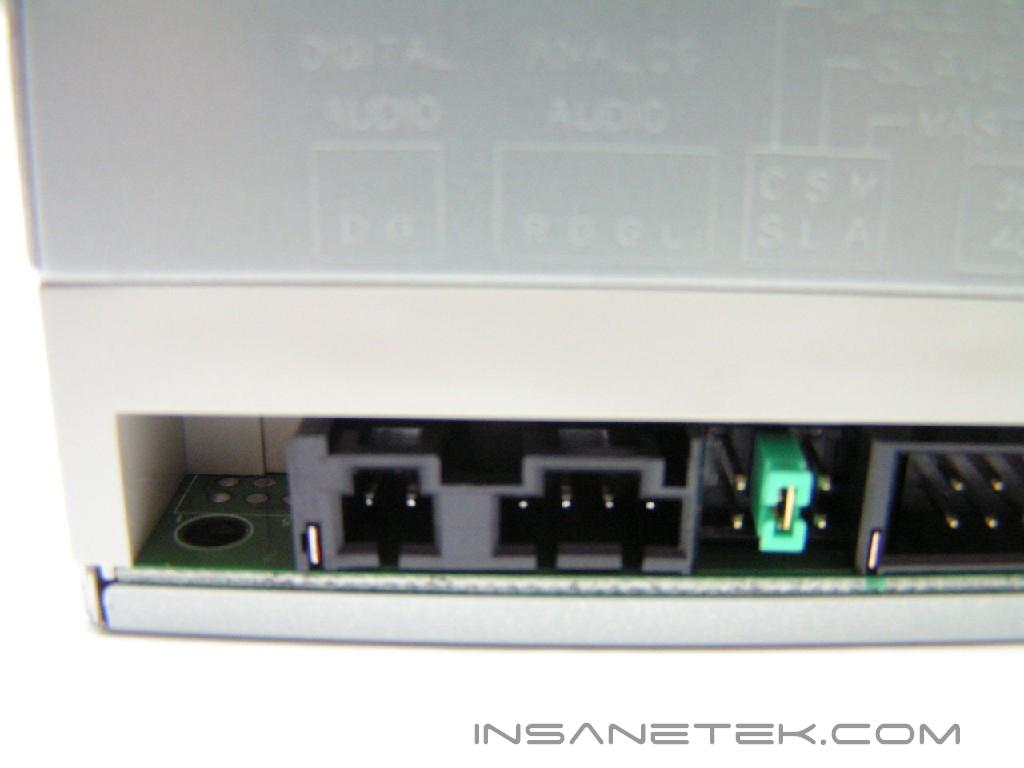
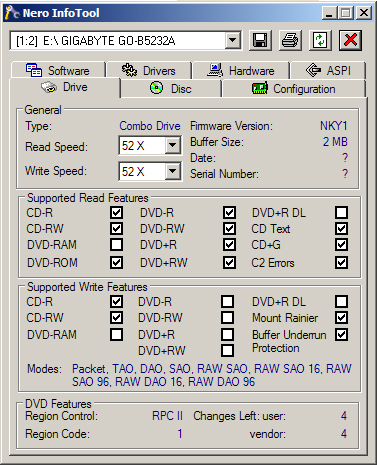
The physical appearance of this burner is like any other optical drive. It has the face plate on the front and the pins and connectors on the back. The face plate is old news to everyone, so let’s examine more of the back. The difference with this drive is the digital audio port. This drive is rated at 52x/16x/52x, which corresponds to the write speed (52x), rewrite speed (16x) and read speed (52x). Meanwhile it reads DVD’s at 16x. This burner supports Track at Once (TAO) and Disc at Once (DAO), both specific modes for different operations. The Track-at-Once recording option is usually used for audio CDs, which allow for the laser to stop at a certain point, leave a gap, and start again to resume recording. Disc-at-Once is where the laser is on continuously and closes the CD at the end of the burning session so that no more data can be further recorded. Gigabyte included Nero for you to take advantage of the burning capabilities. PowerDVD was also included because this drive also reads DVD’s. While there isn’t much to see regarding an optical drive, there’s certainly lots of questions on its performance.
Testing Setup:
Testbed:
- AMD Athlon64 3000+ Winchester
- MSI K8N Neo2 Platinum
- 2 x 512MB PDC1G3200+XBLK
- Leadtek Geforce FX5950 Winfast A380 Ultra
- TTGI SF-450TS 450W Power Supply
For testing, I will be using the following benchmarks: SiSoftware Sandra’s CD/DVD-ROM benchmark and Nero’s CD/DVD Speed benchmark.
Results:
SiSoftware Sandra CD/DVDROM Benchmark
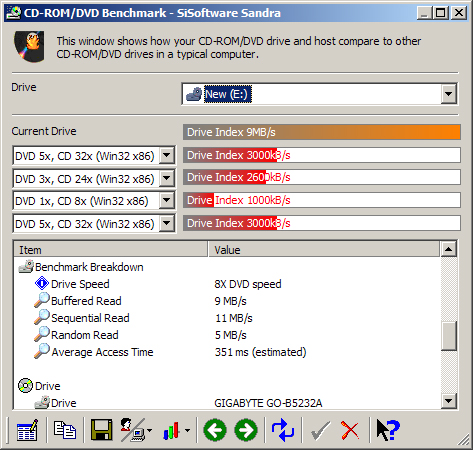
SiSoftware Sandra records down how fast data transfers from your drive when compared to other CD/DVD drives of a typical computer.
Nero CD Write Speed Test

|
Nero’s CD write speed test writes data onto a CD and records down the speed at which it is going.
Nero CD Transfer Speed Test

|
Nero’s CD transfer speed test records down how fast the drive is going while reading the CD.
Nero DVD Transfer Speed Test

|
Nero’s DVD transfer speed test records down how fast the drive is going while reading the DVD.
As you can see here, the performance from the Gigabyte burner was quite decent when compared to the I/O Magic DVD burner.
One thing I noticed about the Gigabyte burner was the noise when reading or burning at high speeds. The noise level was quite high and much higher than a Thermaltake Smart Fan, which is running right next to me. Ejection speed is moderately slow, which can be a turn off when a consumer has absolutely zero patience. Aside from these two minuscule details, it was faster than any burner I’ve ever had. While I’d recommend this CD burner without a doubt, DVD burners are simply becoming cheaper and faster. Yet, the speeds of a DVD burner aren’t quite as fast as a 52x CD burner while burning/reading a CD, which is why it’s nice to have a CD burner like this handy.
CD burners are nice to have around since CD’s, in general, are so cheap. You can dispose of them quite easily and not have to shell out a bunch of money as you would for a DVD. However, as consumers see the growing potential in DVDs, prices will drop. However, if you’re going to just watch DVD’s and want to back things up onto CD, this is a great burner.
Pros:
- Comes in two colors (Black and white)
- CD burner and DVD-ROM drive combo
- Currently faster than a DVD burner burning a CD
Cons:
- Availability in the U.S.
- Very noisy when operating at high speeds
- Moderately slow ejection tray
We would like to thank Gigabyte for providing us the sample. If you have any questions or comments, feel free to hit us up in the forums. You can also check out more of our latest reviews on the front page.